
Forgot password and setting a new password
Use this page when you cannot sign in and need a reset link by email, or when you opened that link and need to set a new password.
Need every label and error message?
See Login & password reset - all fields in the same Your account section for a full field-by-field list.
Request a reset link
What it does
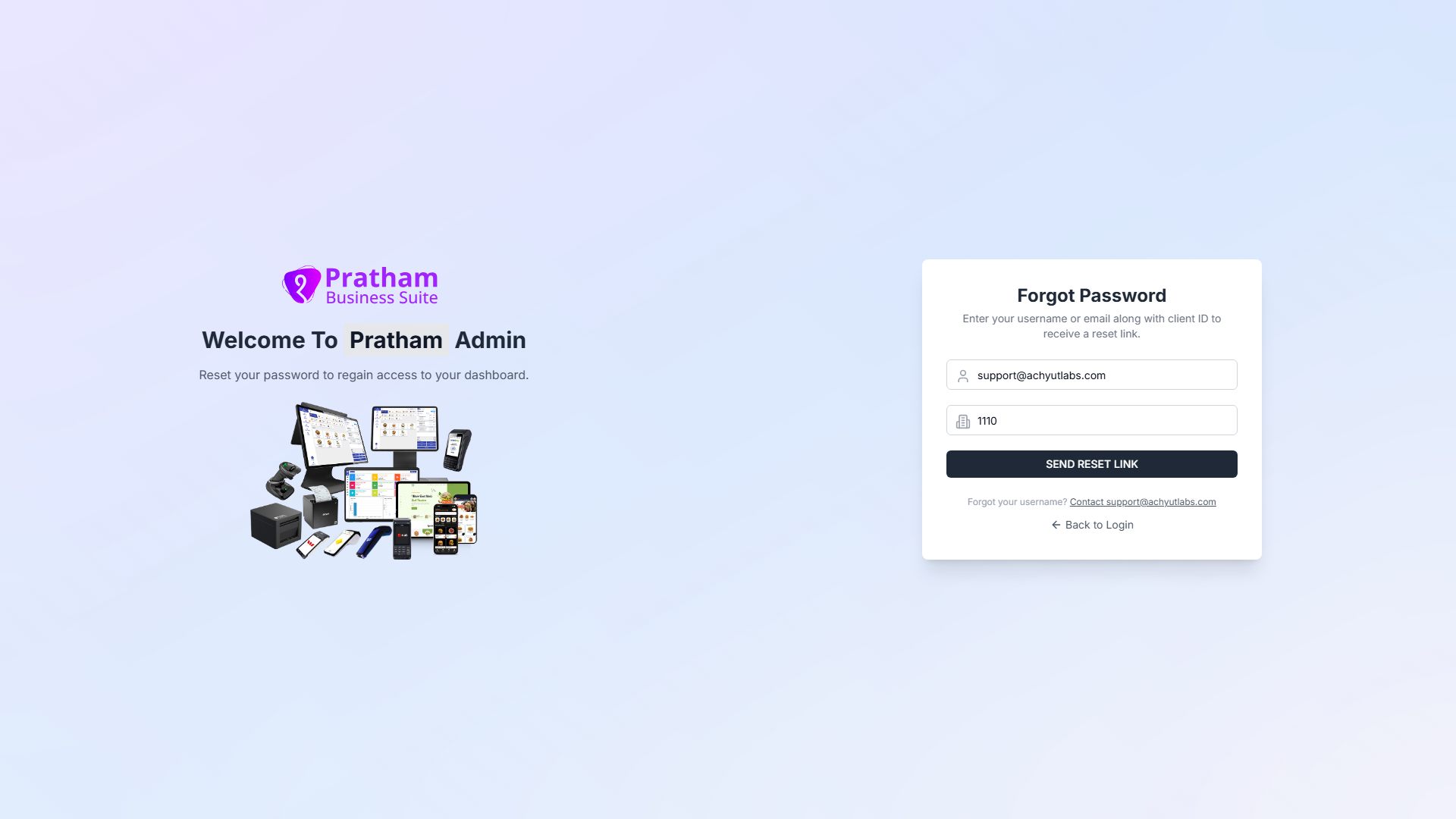
This screen sends a password-reset email when you enter your username or email and Client ID. The email contains a link to set a new password.
Step-by-step
- On the Admin Login screen, tap Forgot Password? below Login.
- On the Forgot Password card, enter Username or Email - use the same username you sign in with, or the email address on your account.
- Enter your Client ID - numbers only.
- Tap Send Reset Link. The button shows Sending… while the app works. It stays disabled until both fields have text.
- When the request is accepted, you see Check Your Email with a green check mark.
- Open your email inbox and look for the reset message. Tap the link in that email within 15 minutes.
Forgot your username?
Tap the Contact support@achyutlabs.com link on the Forgot Password screen, or email support@achyutlabs.com with your business name and Client ID.
Common mistakes / FAQs
- I see red text above the button. Read the message - it often means the username, email, or Client ID does not match an account. Check your details or contact support.
- I tapped Send Reset Link but got no email. Wait a few minutes and check spam or junk folders. The success screen says: If this email is registered with us, you will receive a password reset link shortly. - if nothing arrives, contact support.
- I want to go back. Tap Back to Login at the bottom of the card.
Open the reset link
What it does
The email link opens the Reset Password page in your browser. The link includes a security token - you do not type it yourself.
Step-by-step
- Tap the reset link in your email on the same device where you use the admin, if possible.
- Wait briefly if you see Verifying your link… with a spinner - the app is checking whether the link is still valid.
- If the link is valid, continue to Set a new password below.
- If the link is invalid or expired, continue to Link expired or invalid below.
Reset links expire in 15 minutes
Request a new link from Forgot Password if you wait too long or if you already used the link once.
Link expired or invalid
What it does
This screen appears when the reset link is missing, already used, or older than 15 minutes.
Step-by-step
- Read Link Expired or Invalid and the message: This password reset link has expired or is invalid. Reset links are only valid for 15 minutes.
- Tap Request New Link to return to Forgot Password and send a fresh email.
- Or tap Back to Login to sign in with your current password if you remember it.
Set a new password
What it does
When your reset link is valid, enter a new password twice and save it. The app then sends you back to Admin Login so you can sign in with the new password.
Step-by-step
- On the Reset Password card, read Enter your new password below.
- Enter your new password in New Password. Tap the eye icon to show or hide what you type. Use at least 6 characters.
- Enter the same password again in Confirm Password.
- Tap Reset Password. The button shows Resetting… while the app saves.
- When you see Password Reset Successful!, wait a few seconds - the app takes you to Admin Login automatically.
- Sign in with your Client ID, username, and new password.
Choose a password you will remember
You need at least 6 characters. Both fields must match exactly.
Common mistakes / FAQs
- I see “Password must be at least 6 characters.” Enter a longer password in New Password.
- I see “Passwords do not match.” Type the same password in New Password and Confirm Password.
- I see “Link expired. Please request a new one.” Go back to Request a reset link and send a new email.
- The page opened without a link in the address bar. You are sent to Forgot Password automatically - request a new reset link.