
Location Items
Use this page to control menu items at each outlet — prices, discounts, availability, sales channels (online, kiosk, Uber Eats), modifiers, and bulk tools. Master products live under Items; this screen is the per-restaurant copy.
Open the screen: Sidebar → Locations Management → Location Items
Default filter
On first load, Status is Active — change to All status to see inactive or out-of-stock rows.
Location Items list
What it does
Shows location-scoped products with filters, pagination, row actions, toolbar tools, and a bulk selection bar.
Step-by-step
- Open Locations Management → Location Items.
- Wait if the table shows Loading location items….
- Set Location (or All locations).
- Narrow with Item name or barcode, Category, Availability, or Status.
- Read the table — checkbox, ID, Name, Category, Tags, prices, tax, channel badges, Status, Actions.
- Tap Refresh (circular arrow) to reload manually.
- Use pagination at the bottom to change page or rows per page.
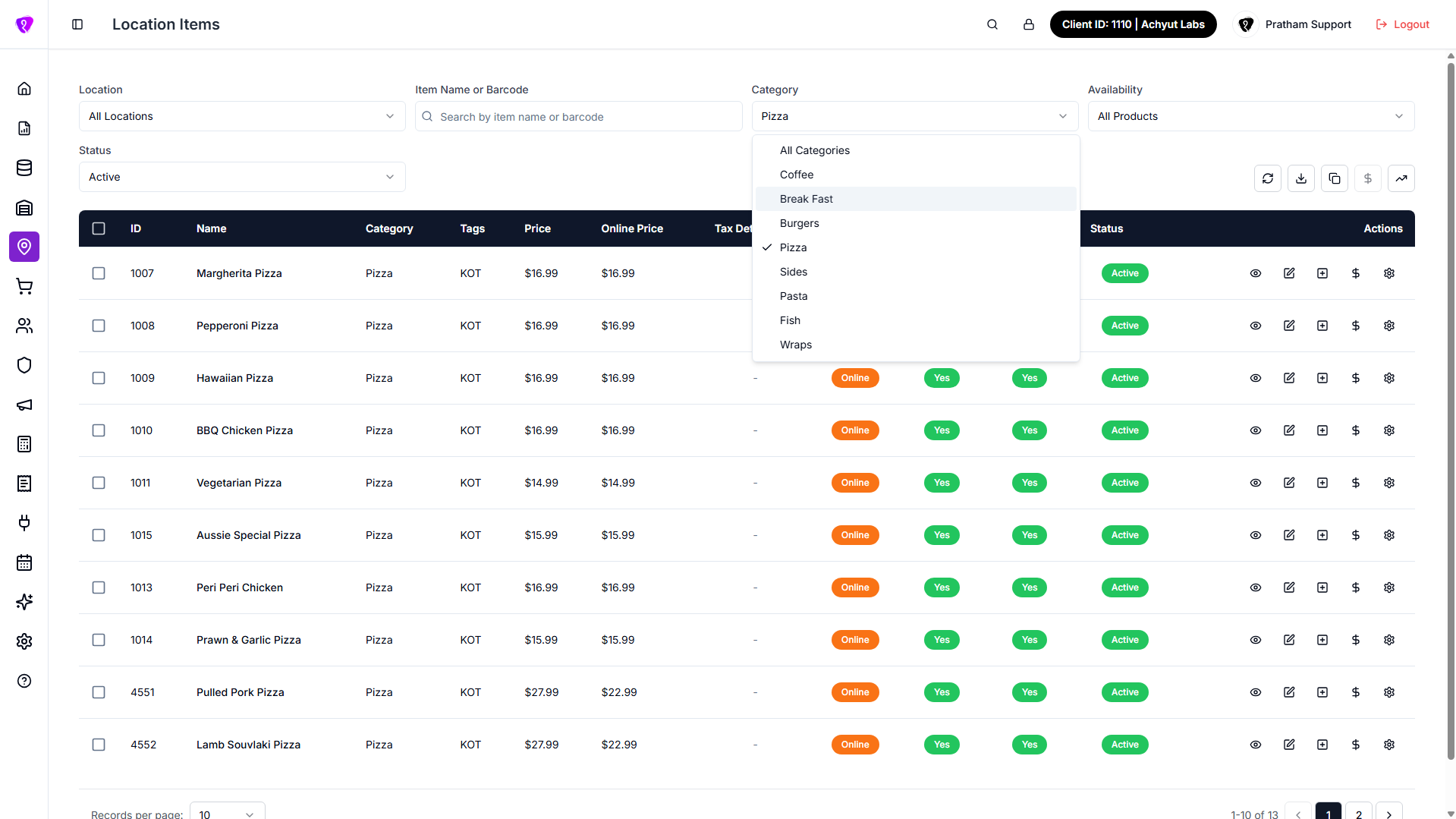 Caption: Filter by location, category, and status; access toolbar and bulk tools
Filters
| Filter | What it does |
|---|---|
| Location | All locations or one outlet (some tools need a single site). |
| Item name or barcode | Free search; X clears. |
| Category | One menu category. |
| Availability | All products, Online, or In store only. |
| Status | All status, Active, Inactive, or Out of stock — defaults to Active. |
Changing any filter resets to page 1. Search matches name or barcode (partial, not case-sensitive).
What the table shows
| Column | Meaning |
|---|---|
| Checkbox | Select row for bulk actions; header selects current page only. |
| ID | Internal link id for that product at that restaurant. |
| Name | Product name. |
| Category | Menu category. |
| Tags | Comma-separated tags, or “No tags”. |
| Price | In-store or base price. |
| Online price | Web / app price when different. |
| Tax details | Incl., Excl., or Exmpt + rate — hover for detail. |
| Online | Online (orange) or In store only (blue). |
| Kiosk | Yes / No (plan-gated). |
| Uber Eats | Yes / No (integration-gated). |
| Status | Active, Out of stock (yellow), or Inactive (red). |
| Actions | View, Edit, Add modifiers, Price rules, Settings. |
Loading: Loading location items…
Empty: No items found.
Find hidden items
Set Status to All status if POS shows items you do not see here.
Common mistakes / FAQs
- Table empty but items exist on POS. Status defaults to Active — try All status.
- Bulk tools behave oddly. Pick a single Location when a tool requires one outlet.
Row actions
What it does
Opens view, edit, modifiers, price rules, or attribute settings for one row.
Step-by-step
- Find the item (filters or search).
- In Actions, tap the icon you need (see table).
- Complete the dialog and save — table reloads on success.
| Icon | Tooltip | What it does |
|---|---|---|
| Eye | View details | Read-only View Location Items dialog. |
| Pencil | Edit item | Edit Location Items — prices, flags, discounts. |
| Plus square | Add modifiers | Attach or manage modifiers at this location. |
| Dollar | Price rules | Price Adjustments — attribute combination rules. |
| Gear | Settings | Attribute Settings — link attributes to modifiers. |
Edit, price rules, and settings may be disabled without UPDATE permission.
Common mistakes / FAQs
- Pencil disabled. Ask for UPDATE on Location Items.
- Gear empty. Create Product attributes first, then return.
View a location item
What it does
Read-only summary in View Location Items — four tabs, no edits.
Step-by-step
- Tap View details (eye) on the row.
- Review Item Details, Half n Half, Discounts, and Channel Pricing.
- Close the dialog; use Edit (pencil) to make changes.
| Tab | What it shows |
|---|---|
| Item Details | Name, location, tags, prices, status, online/kiosk/Uber flags, restrict attribute combinations |
| Half n Half | Half, online half, dine-in half prices |
| Discounts | Discount type and amounts; time-based schedules if configured |
| Channel Pricing | Per sales-channel prices (read-only here) |
Edit a location item
What it does
Updates this outlet’s copy of the item — prices, discounts, tags, and channel flags. Does not change the company-wide item library name.
Step-by-step
- Tap Edit item (pencil) on the row.
- Work through tabs — Item Details, Half n Half, Discounts, Channel Pricing.
- Tap SUBMIT to save (UPDATING… while saving), or RESET to undo unsaved changes.
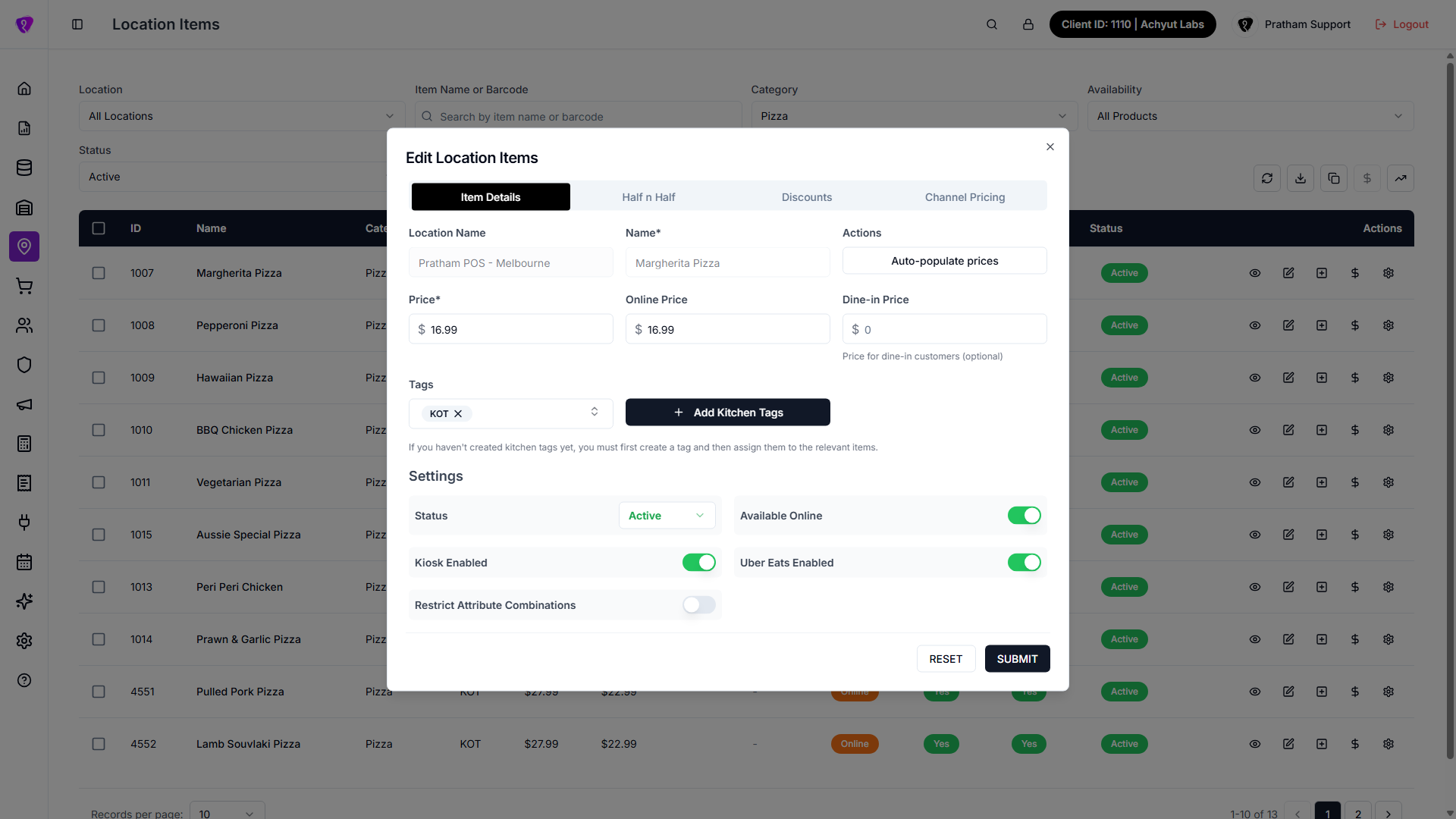 Caption: Edit dialog for a location item
Item Details tab
| Field | Required? | Notes |
|---|---|---|
| Location name | — | Read-only reference |
| Name | — | Read-only — change in Items library |
| Auto-populate prices | No | When on, main price fills online/dine-in and related half prices |
| Price | Yes | In-store or base selling price |
| Online price | No | Web and app orders |
| Dine-in price | No | Optional eat-in price |
| Tags | No | Kitchen tags multi-select; Add Kitchen Tags to create new |
| Status | No | Active / Inactive / Out of stock |
| Available online | No | Toggle |
| Kiosk enabled | No | Plan-gated |
| Uber Eats enabled | No | Integration-gated |
| Restrict attribute combinations | No | Limits attribute mixing |
Half n Half tab
Optional half price, online half price, dine-in half price. Leave blank if not used.
Discounts tab
| Field | Notes |
|---|---|
| Discount type | Flat (fixed amount off) or Percentage |
| Discount | In-store / POS discount value |
| Online discount | Web and app orders |
| Dine-in discount | Eat-in orders |
Price and discount fields only accept digits and one decimal point — anything else you type or paste is stripped.
Discount schedules (below main discount fields): time windows that turn the Discount / Online discount / Dine-in discount values above on or off automatically — the schedule itself doesn't hold its own amount. Add rows with a day/time window and which channels (POS, Online, Dine-in) it applies to. Same section is read-only in View.
Channel Pricing tab
Lists each active sales channel (delivery partners, etc.) as a card. Set a dedicated price (and half price where shown) per channel. Each card saves separately when you update it. If the item was never saved, you may need to SUBMIT Item Details first.
Common mistakes / FAQs
- Cannot edit name. Change product name under Items / item library.
- Channel tab asks to save first. Save Item Details before channel prices on a new row.
Pricing tools — quick comparison
| Tool | Where | Scope | How prices change |
|---|---|---|---|
| Bulk price update | Toolbar (trending-up) | Checked rows, or a filtered category, or all items at one outlet | % or flat increase/decrease, with optional rounding |
| Bulk edit | Bulk bar (pencil) | Checked rows only | You type exact new values (or Don't change) |
| Copy prices to channel | Toolbar (dollar) | All items at one outlet | Copy base/online price → channel list (+ optional markup) |
| Bulk edit channel pricing | Bulk bar (dollar) | Checked rows only | Markup % or same fixed price per selected item |
Toolbar actions
What it does
Reloads data, exports CSV, clones items between outlets, copies prices to a channel, or runs a whole-location bulk price update.
Step-by-step
- Set filters first (especially Location for channel copy).
- Tap the tool on the right side of the filter row.
- Complete the dialog and wait for success toast or table reload.
| Button | Tooltip | What it does |
|---|---|---|
| Refresh | Refresh | Reloads data; icon spins while loading. |
| Download | Export to CSV | Current filtered page to spreadsheet; disabled when empty. |
| Copy | Clone items | Clone location items — from/to locations. |
| Dollar | Copy prices to channel | Copy to a sales channel; disabled until one location is selected. |
| Trending up | Bulk price update | % or flat change, with optional rounding — scope depends on what's selected/filtered when you open it. |
Bulk price update (trending-up icon)
What it does
Increases or decreases prices by percentage or flat amount, then previews the result before applying.
What gets updated depends on your selection
- Rows ticked on the page → only those items.
- No rows ticked but a Category filter is active → every item in that category.
- Neither → every item at the selected outlet.
The dialog shows which of these applies as you open it (e.g. "Applies to 5 selected items" / "all items in {category}" / "all items at this location").
Step-by-step
- Optionally tick rows, or set a Category filter, to narrow what gets updated — otherwise it targets the whole outlet.
- Tap Bulk price update (trending-up) on the toolbar.
- If the page filter is All locations, pick Location in the dialog.
- Set Adjustment type, Operation, and Value.
- Tick Price fields to update — at least one required (all three selected by default).
- Leave Also update half prices on (default) to sync half-and-half prices, or turn off for full prices only.
- Optionally set Round Off to round the results — to the nearest 5/10/25/50 cents or dollar, always up, always down, or to an ending like
.95or.99. Each option previews a sample, e.g.49.53 → 49.50. - Tap Preview (Checking... while working).
- Review Confirm Price Update — a list of current price → new price per item (more than a handful are summarized as "and N more").
- Tap Apply (Updating… while working), or Back to change your settings.
| Field | Notes |
|---|---|
| Location | Shown only when page filter is All locations |
| Adjustment type | Percentage (%) or Flat amount |
| Operation | Increase or Decrease |
| Value | Positive number — 10 = 10% or $10 depending on type |
| Regular / Online / Dine-in Price | Unchecked columns are left unchanged |
| Also update half prices | Adjusts in-store, online, and dine-in half prices the same way |
| Round Off | Optional — rounds the resulting price after the increase/decrease is applied |
Examples
- 10% increase on regular + online: Percentage, Increase,
10, tick Regular + Online only. - $2 off all three price columns: Flat amount, Decrease,
2, tick all three.
Success toast shows how many products were updated. Nothing is saved below $0 — items already at zero, or that would drop below it, are skipped rather than causing an error.
Not the same as bulk edit
Toolbar Bulk price update does percentage/flat math and lets you preview before applying. Bulk bar pencil sets exact values on checked rows only, with no preview step.
Copy prices to channel (toolbar dollar)
What it does
Copies base or online prices from your main menu into a sales channel price list for the whole outlet.
Step-by-step
- Set Location to a single outlet (button disabled for All locations).
- Tap Copy Prices to Channel.
- Pick Source price, Target channel, optional markup, and overwrite option.
- Tap Copy Prices (Copying… while working).
| Field | Notes |
|---|---|
| Source price | Online price or Base price — what to copy from |
| Target channel | Active channel (name + commission % shown) |
| Apply markup percentage | Optional — e.g. 30 adds 30% on top of copied price |
| Overwrite existing channel prices | Off = only items without a channel price yet; On = replace all |
Success message shows products updated and products skipped counts.
Export to CSV (download)
Step-by-step
- Set filters (location, category, status) so the list shows what you need.
- Increase rows per page if you want more than one page in the file.
- Tap Export to CSV — disabled when the filtered list is empty.
| Column in file | Content |
|---|---|
| ID, Name, Category, Barcode, Kitchen Tags | Item identity |
| Price, Online Price, Dine In Price | Formatted amounts |
| Discount, Online Discount, Discount Type | Discount fields |
| Location, Online Available, Kiosk Enabled, Uber Eats Enabled, Status | Outlet and availability |
| Restrict Attribute Combinations, Half & Half Offer | Yes / No flags |
Filename includes location name (or “All Locations”) and today’s date.
Clone location items (copy icon)
What it does
Copies menu setup from one outlet to another.
Step-by-step
- Tap Clone items on the toolbar.
- Pick from location and to location — both required.
- Confirm. List reloads on success.
Copies item assignments plus linked setup such as modifiers and per-item settings. Does not replace the target outlet’s entire catalog without confirmation — read the dialog text before confirming.
Common mistakes / FAQs
- Copy prices to channel greyed out. Pick one location — not All locations.
- Export disabled. Filtered list is empty — widen filters.
- Clone failed. Select both from and to locations.
Bulk selection bar
What it does
Appears when one or more rows are checked. Quick status changes or opens bulk dialogs for modifiers, pricing, and edits.
Step-by-step
- Tick row checkboxes (header checkbox = all rows on current page only).
- Grey bar appears above the table showing how many are selected.
- Tap an icon on the bar (see table).
- For dialogs, complete the form and save — selection clears when dialog closes.
| Control | What it does |
|---|---|
| Check in box | Activate — sets status to Active immediately (no dialog) |
| X in box | Deactivate — sets status to Inactive immediately |
| Plus square | Add modifiers — same flow as single row, for all selected items |
| Gear | Modifiers price adjustment — attribute–modifier surcharge rules on all selected |
| Dollar | Bulk edit channel pricing — channel prices for selected rows only |
| Pencil | Bulk Edit Location Items — full-screen dialog with two tabs |
Untick rows or toggle the header checkbox to clear selection.
Bulk Edit Location Items (pencil on bulk bar)
What it does
Full-screen dialog Bulk Edit Location Items with Bulk Edit and Individual Edit tabs. Sets exact values on checked rows — not percentage math.
Step-by-step (Bulk Edit tab)
- Tick the items you want, then tap pencil on the bulk bar.
- Stay on Bulk Edit tab.
- Fill only the fields you want to change — leave empty or Don't change to skip that field for every selected item.
- Scroll to Preview Changes — compare current vs new for price, discount, and tags.
- Tap Save Changes at the bottom.
Bulk Edit tab — all fields
| Field | If left empty / Don't change |
|---|---|
| Price, Online price, Dine-in price | Unchanged |
| Uber Eats price | Unchanged (integration-gated) |
| Half price, Online half price, Dine-in half price | Unchanged |
| Discount, Online discount, Dine-in discount | Unchanged |
| Discount type | Unchanged — Flat or Percentage |
| Tags | Unchanged — multi-select kitchen tags |
| Available online | Don't change / Yes / No |
| Status | Don't change / Active / Inactive / Out of stock |
| Half & Half offer | Don't change / Yes / No |
| Restrict attribute combinations | Don't change / Yes / No |
| Available on Kiosk | Plan-gated — Don't change / Yes / No |
| Available on Uber Eats | Integration-gated — Don't change / Yes / No |
Happy Hours — choose Don't change, Set Happy Hours (pick weekdays, start/end time, and which channels — POS, Online, Dine-in — it applies to), or Remove All to clear every selected item's discount schedule at once.
Preview Changes table columns: Item, Current/New Price, Current/New Discount, Current/New Tags. Unchanged fields show Unchanged in italics.
Step-by-step (Individual Edit tab)
- Open the same dialog → switch to Individual Edit.
- One table row per selected item — edit any column inline.
- Columns: Price, Online price, Uber Eats price, Half price, Online half price, discounts (including Dine-in discount), Discount type, Tags, Online, Half & Half, Restrict Attr, Kiosk, Uber Eats, Status. Unlike the Bulk Edit tab, this table has no Dine-in price or Dine-in half price columns.
- Tap Save Changes once to submit all modified rows.
Cancel closes without saving. Success: Updated N items successfully.
Same value vs different values
Use Bulk Edit when every selected item gets the same price or status (e.g. mark 20 items Out of stock). Use Individual Edit when each row needs a different price.
Bulk modifiers (plus square on bulk bar)
Opens Bulk Modifier Edit (N items) when multiple rows are selected (or Add Modifiers: {name} for one).
Step-by-step
- Select items → tap plus square on bulk bar.
- Toggle the modifier list between Active (already added) and Inactive (not yet added), grouped by category.
- To add: pick Modifier category → Modifier → enter a Price → confirm add. Typing a price also sets Online price to match — there's no way to set them differently from this form.
- To update an existing linked modifier: tap it in the list → change price or status in a separate update dialog.
- To remove: remove modifier from the item in the same dialog.
- Optional: Create new modifier if your role allows — opens modifier create form, then returns here.
- Save — table reloads; selection clears.
Applies the same modifier attachment pattern across every selected location item.
No half-price fields here
This dialog only sets Price and Online price — there's no half-price or dine-in-half-price input for modifiers added this way.
Bulk modifiers price adjustment (gear on bulk bar)
What it does
Dialog title: "{N} Item(s) - Attribute Settings" (e.g. "1 Item - Attribute Settings" or "3 Items - Attribute Settings"). Adds the same attribute–modifier price rule to every selected item at once.
Step-by-step
- Select two or more rows (works for one row too).
- Tap gear on bulk bar.
- Fill rule fields (see Attribute settings below).
- Save — rule is created on each selected item.
- The table below shows existing rules for the first selected item only (as a reference) — tap edit to open a small dialog and change the adjustment, or delete to remove a rule.
Example: Select 10 pizzas → rule “when Large is selected, Extra cheese costs +$2” applies to all 10.
Bulk edit channel pricing (dollar on bulk bar)
What it does
Sets channel-specific prices for checked rows only — different from toolbar Copy prices to channel (whole outlet).
Step-by-step
- Select rows → tap dollar on bulk bar.
- Pick Select channel (commission % shown).
- Choose Pricing strategy:
- Apply percentage markup — pick Source price (online or base) + Markup % (calculated per item).
- Set fixed price — same dollar amount for every selected item.
- Review Preview table — Product, Current price, New price (first 10 rows; rest summarized).
- Tap Update N Products (Updating… while working).
| Field | Required? | Notes |
|---|---|---|
| Select channel | Yes | Active sales channel |
| Pricing strategy | Yes | Markup or fixed |
| Source price | Markup only | Online or base price per row |
| Markup % or Fixed price | Yes | Depends on strategy |
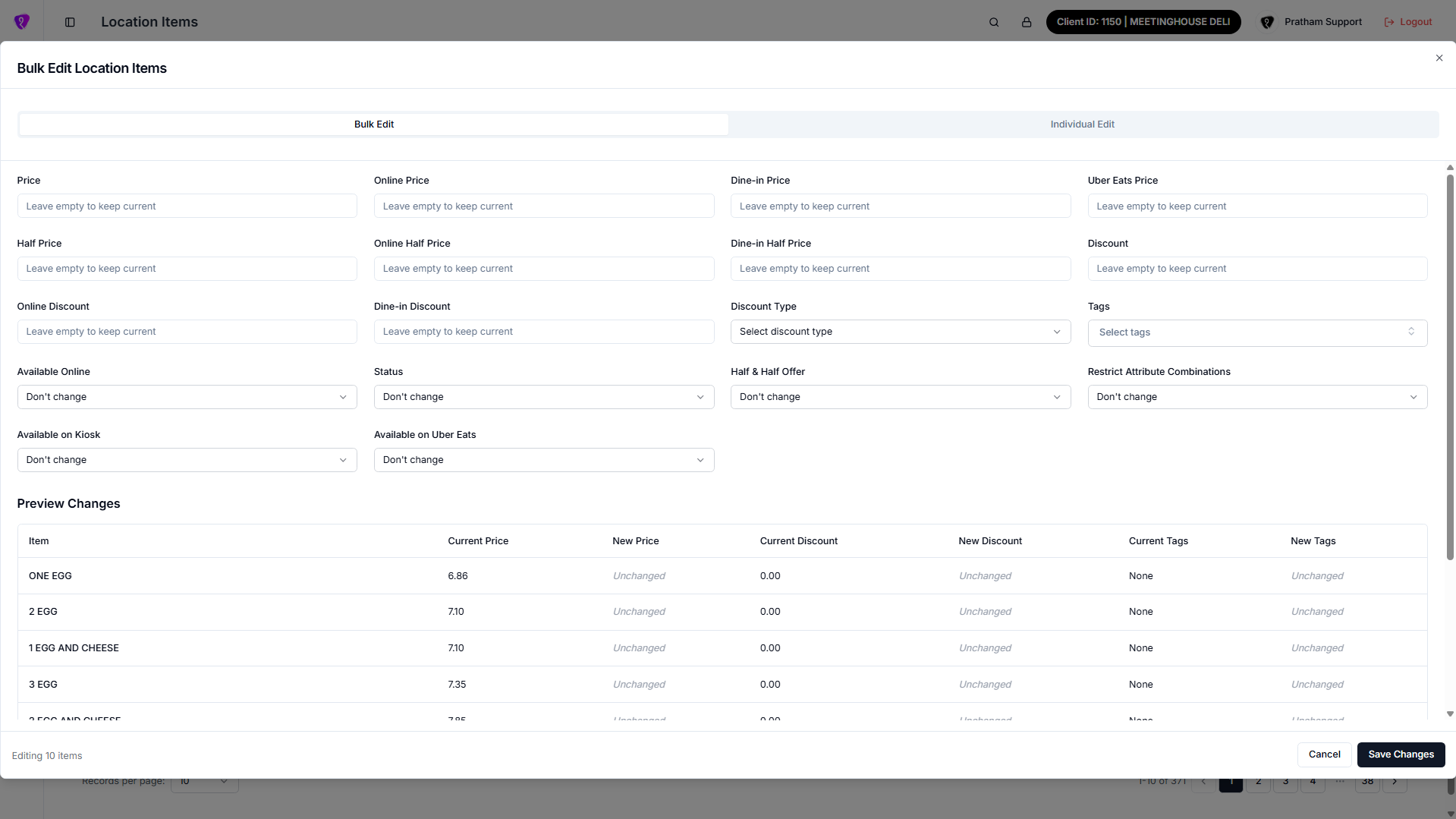 Caption: Bulk Edit tab — same updates across selected items
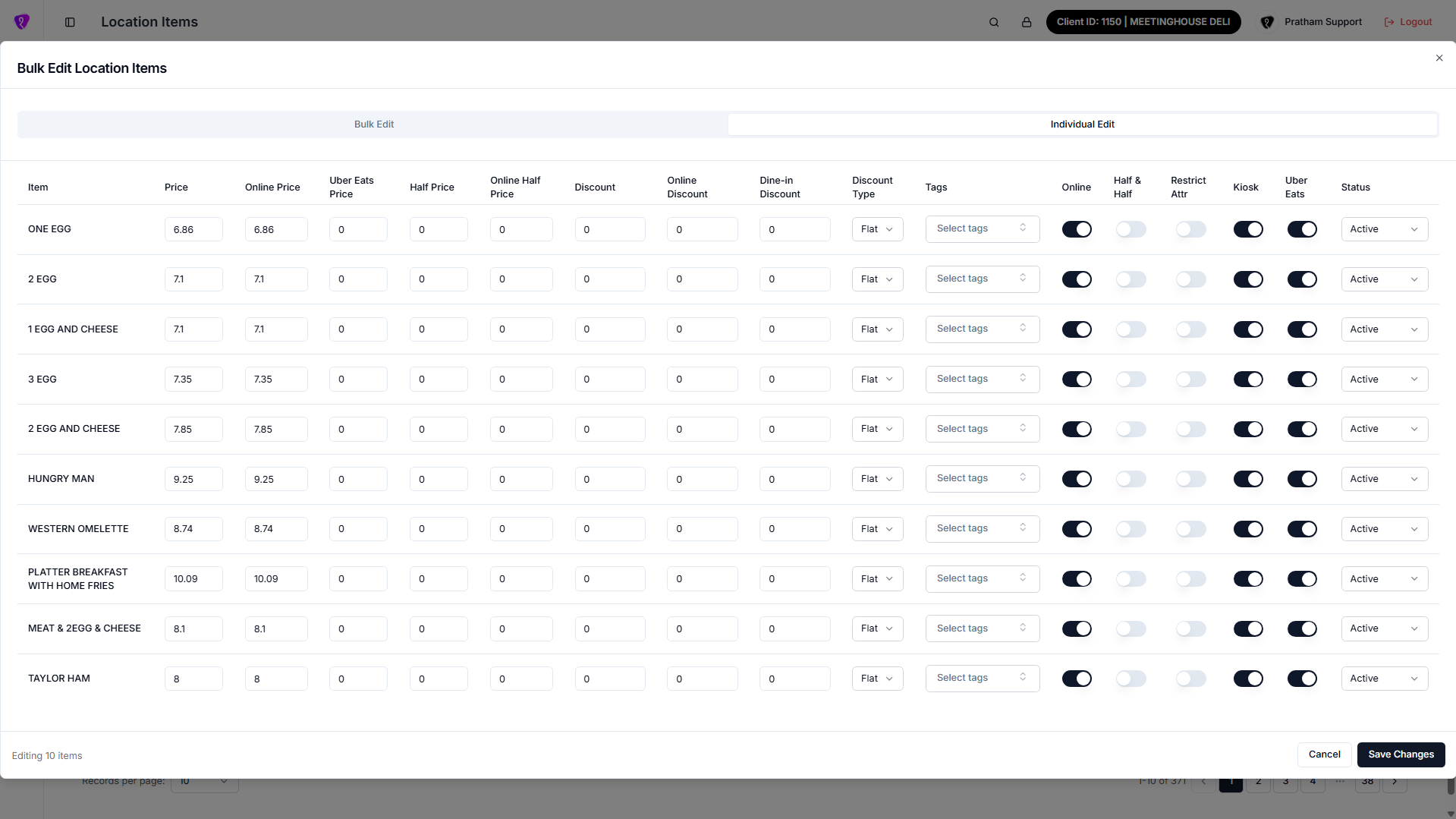 Caption: Individual Edit tab — different values per row
Add modifiers (single row)
What it does
Attaches selectable add-ons (extra cheese, size upgrades, sauces) to one location item.
Step-by-step
- Tap Add modifiers (plus square) on the row.
- Dialog: Add Modifiers: {item name}.
- Toggle between Active (already added) and Inactive (not yet added) to browse modifiers, grouped by category.
- Add new modifier to item:
- Select Modifier category
- Select Modifier from that category
- Enter Price — this also sets Online price to the same amount; there's no way to set them differently here
- Confirm add
- Update existing: tap a linked modifier → edit price or Active/Inactive status in a separate dialog.
- Remove: detach modifier from this item.
- Create new modifier (if allowed): opens modifier library form, then returns.
- Save — table reloads.
| Field on add | Notes |
|---|---|
| Modifier category | Group (e.g. Toppings, Sauces) |
| Modifier | Specific add-on name |
| Price | POS / in-store charge — also fills Online price |
No half-price fields here
This dialog doesn't offer half-price or dine-in-half-price inputs for modifiers.
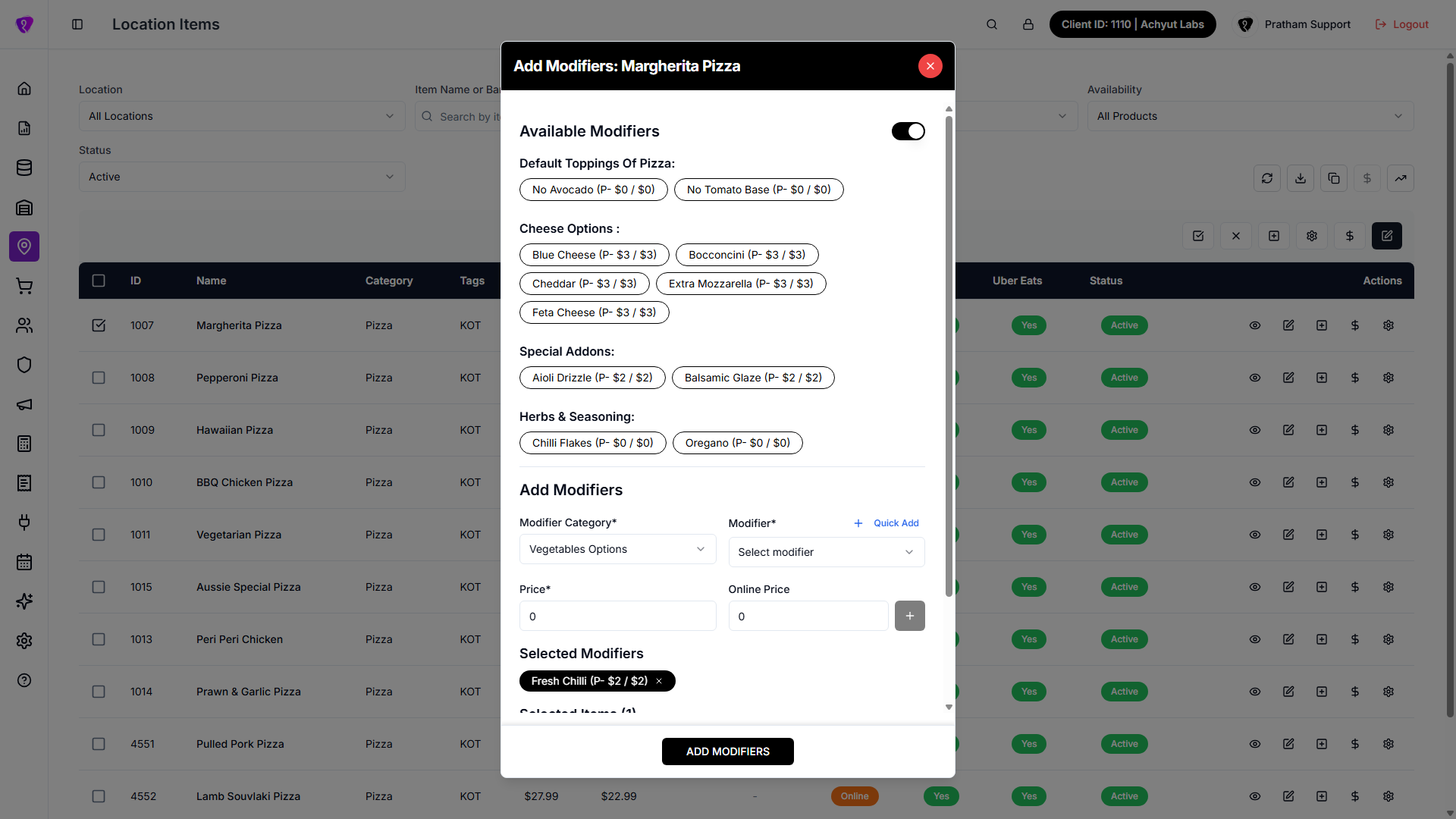 Caption: Add modifiers flow
Price rules (dollar on row)
What it does
Price Adjustments dialog — adds extra charge (or adjustment) when a customer picks a specific combination of two product attributes on this item. Example: Size = Large + Crust = Thin → +$3.
Step-by-step
- Tap Price rules (dollar) on the row.
- In the add form at the top:
- Primary attribute → pick value (“when customer selects…”)
- Dependent attribute → pick value (“and also selects…”) — must be a different attribute
- Price adjustment — amount added to the item
- Tap Add — rule goes to a pending list (repeat for more).
- Tap Submit to save all pending rules at once.
- Existing rules table below: tap edit to change the adjustment in a small dialog, or delete a rule (each saves individually).
| Existing rules columns | Meaning |
|---|---|
| Primary attribute + value | First part of the combination |
| Dependent attribute + value | Second part |
| Price adjustment | Extra charge when both are chosen |
If attribute dropdowns are empty, configure Product attributes on the master item first, then return here.
Attribute settings (gear on row)
What it does
{item name} - Attribute Settings — when a customer picks an attribute value (e.g. Large), specific modifiers can cost extra. Different from Price rules (two attributes); this links one attribute value to modifier(s).
Step-by-step
- Tap Settings (gear) on the row.
- If no attributes exist, an info message directs you to Product attributes first.
- Add a rule:
- Primary attribute (e.g. Size)
- Primary attribute value (e.g. Large)
- Modifier category → Modifier (one or more)
- Price adjustment — extra charge when this combo applies
- Tap add/save — rule appears in the table.
- Tap Edit to change the adjustment in a small dialog, or delete existing rules from the table.
| Field | Purpose |
|---|---|
| Primary attribute | Which attribute drives the rule |
| Primary attribute value | Specific choice (Large, Gluten-free, etc.) |
| Modifier category | Which add-on group |
| Modifier | Which topping/add-on gets the extra price |
| Price adjustment | Amount added when customer picks this combo |
Example: When Large is selected, Extra pepperoni costs $2 more than its base modifier price.
Rules are location-specific — the same product at another outlet can have different rules.
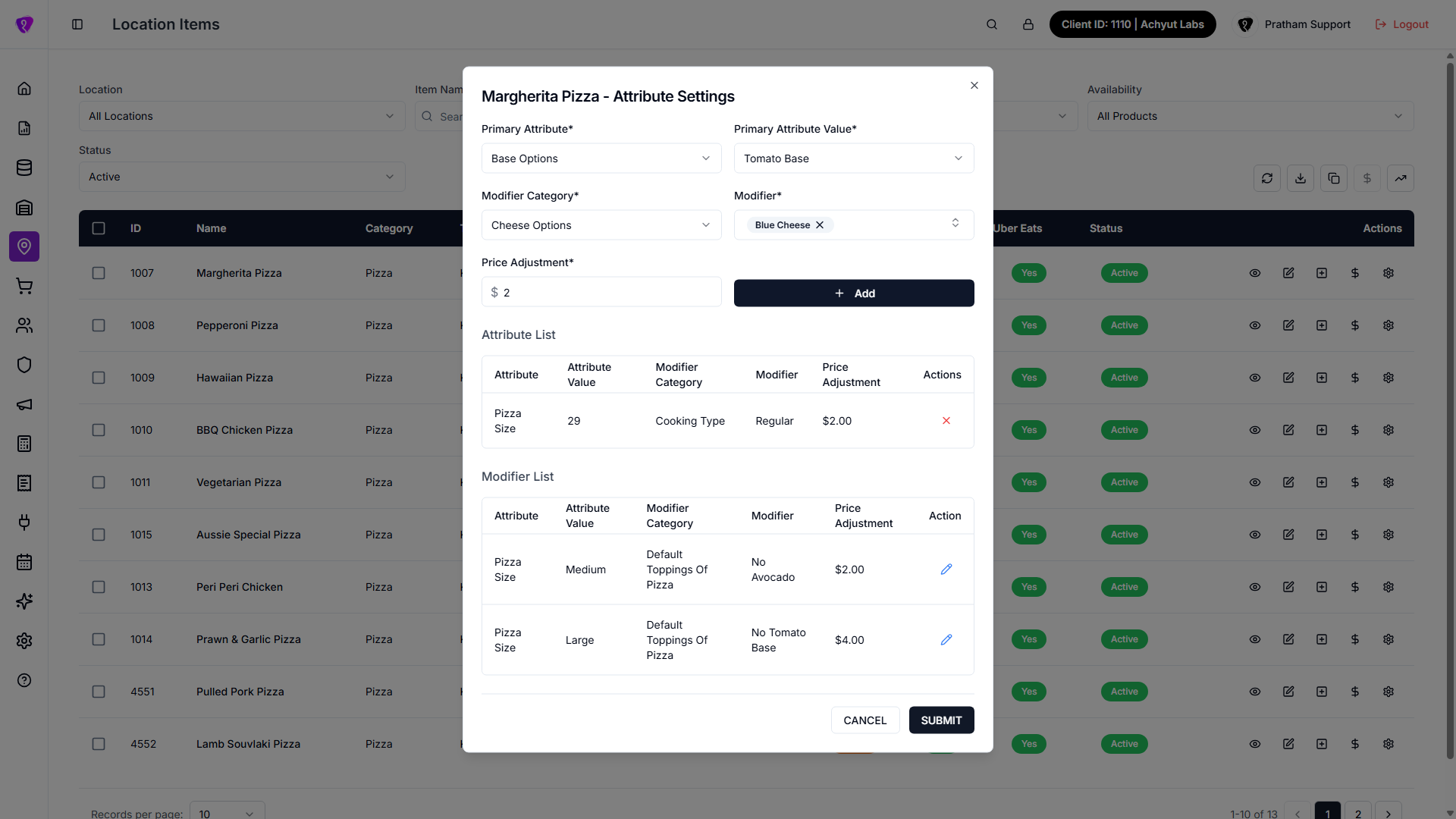 Caption: Attribute settings and rule mapping
Common mistakes / FAQs
- Empty form. Create attributes under Product attributes, link them to the product, then return.
- Price rules vs attribute settings. Price rules = two attributes together. Attribute settings = one attribute value affects modifier pricing.
Subscription and integration notes
| Feature | Requirement |
|---|---|
| Kiosk columns and toggles | Kiosk ordering add-on |
| Uber Eats columns and toggles | Uber Eats integration |
| Channel pricing tools | Active sales channels configured |
If a toggle or column is missing, check plan and integrations with your administrator.
Permissions
| What you need | Why |
|---|---|
| LOCATION ITEMS module permission | Open Location Items |
| READ | List, View details, export CSV |
| CREATE | Clone items, Add modifiers |
| UPDATE | Edit, price rules, attribute settings, bulk actions, Copy prices to channel |
Bulk price update isn't permission-gated
Unlike the other tools, the Bulk price update (trending-up) button isn't restricted to a specific permission in the current UI — anyone who can open the page can use it.
Related
- Locations Management overview
- Location
- Items — master product library
- Half n Half
- Deals
Common mistakes / FAQs (whole screen)
- No items found. Clear search, set Status to All status, or pick another Location.
- Copy prices to channel disabled. Select one location — not All locations.
- Bulk price update vs bulk edit. Toolbar trending-up = all items at one outlet; bulk bar pencil = checked rows only.
- Kiosk or Uber columns missing. Requires plan feature or integration.
- Clone failed. Pick both from and to in Clone location items.
- Export is small. Increase rows per page before Export to CSV.