
Modifiers
Use this page to add and manage modifiers — individual add-ons, toppings, or choices (for example “Extra cheese” or “No onion”) that customers pick when ordering. Group them under Modifiers Categories, then attach them to menu items.
Open the screen: Sidebar → Master Data Management → Modifiers
Set up categories first
Create modifier categories under Modifiers Categories before you add modifiers here. Each modifier belongs to one category.
Modifiers list
What it does
Shows all modifiers with category, inventory tracking, stock status, and display order. Filter the list, reorder rows, then add or edit modifiers.
Step-by-step
- Open Master Data Management → Modifiers.
- Wait if the table shows Loading modifiers….
- Use filters to narrow the list (see table below). Name and sequence searches update shortly after you stop typing.
- Read the table — drag handle, ID, Modifier, Seq No, Modifier category, Inventory Tracked, Stock Status, Status, and Actions.
- Tap the refresh button (circular arrow) to reload modifiers and categories.
- Use pagination at the bottom to change page or rows per page.
Filters
| Filter | What it does |
|---|---|
| Modifier Name | Search by name. Tap X to clear. |
| Sequence No | Filter by display order number |
| Category | Show All Categories or one modifier category |
| Status | Show All, Active, or Inactive (defaults to Active) |
Toolbar buttons
| Button | What it does |
|---|---|
| Refresh | Reload modifiers and categories |
| Import (upload icon) | Open CSV import dialog |
| Add Modifiers | Open the add modifier dialog |
What the table shows
| Column | Meaning |
|---|---|
| Drag handle | Grip icon — drag a row to change order within its category |
| ID | Modifier record ID |
| Modifier | Modifier name |
| Seq No | Display order within the category |
| Modifier category | Parent category name |
| Inventory Tracked | Enabled or Disabled badge |
| Stock Status | Stock level when inventory is tracked; - when not tracked |
| Status | Active (green) or Inactive (red) badge |
| Actions | Edit (pencil) |
Stock Status colours (when tracked and stock data is available): green ✅ above 50 uses left, yellow ⚠️ between 10 and 50, red ❌ below 10 or out of stock. Shows - both when inventory isn't tracked and when stock data hasn't loaded yet.
Sort Alphabetically
Below the filters, toggle Sort Alphabetically to order modifiers by name in every category. When on, drag-and-drop reorder is disabled and a badge shows Drag & drop disabled.
Find inactive modifiers
Set Status to All or Inactive to see modifiers you turned off.
Common mistakes / FAQs
- I see “No modifiers found”. No row matches your filters. Clear search fields or set Status to All.
- I cannot drag rows. Turn Sort Alphabetically off first.
- I do not see Add Modifiers, Import, or Edit. Ask your administrator for CREATE or UPDATE permission on Modifiers.
Add a modifier
What it does
Creates a new modifier line and assigns it to a category.
Step-by-step
- Tap Add Modifiers.
- In the Add Modifier dialog, enter Name.
- Select Category.
- Toggle Active on or off (defaults to on).
- Optionally turn Track Inventory on and fill inventory fields (see table below).
- Tap Submit.
- When successful, you see a success message and the dialog closes.
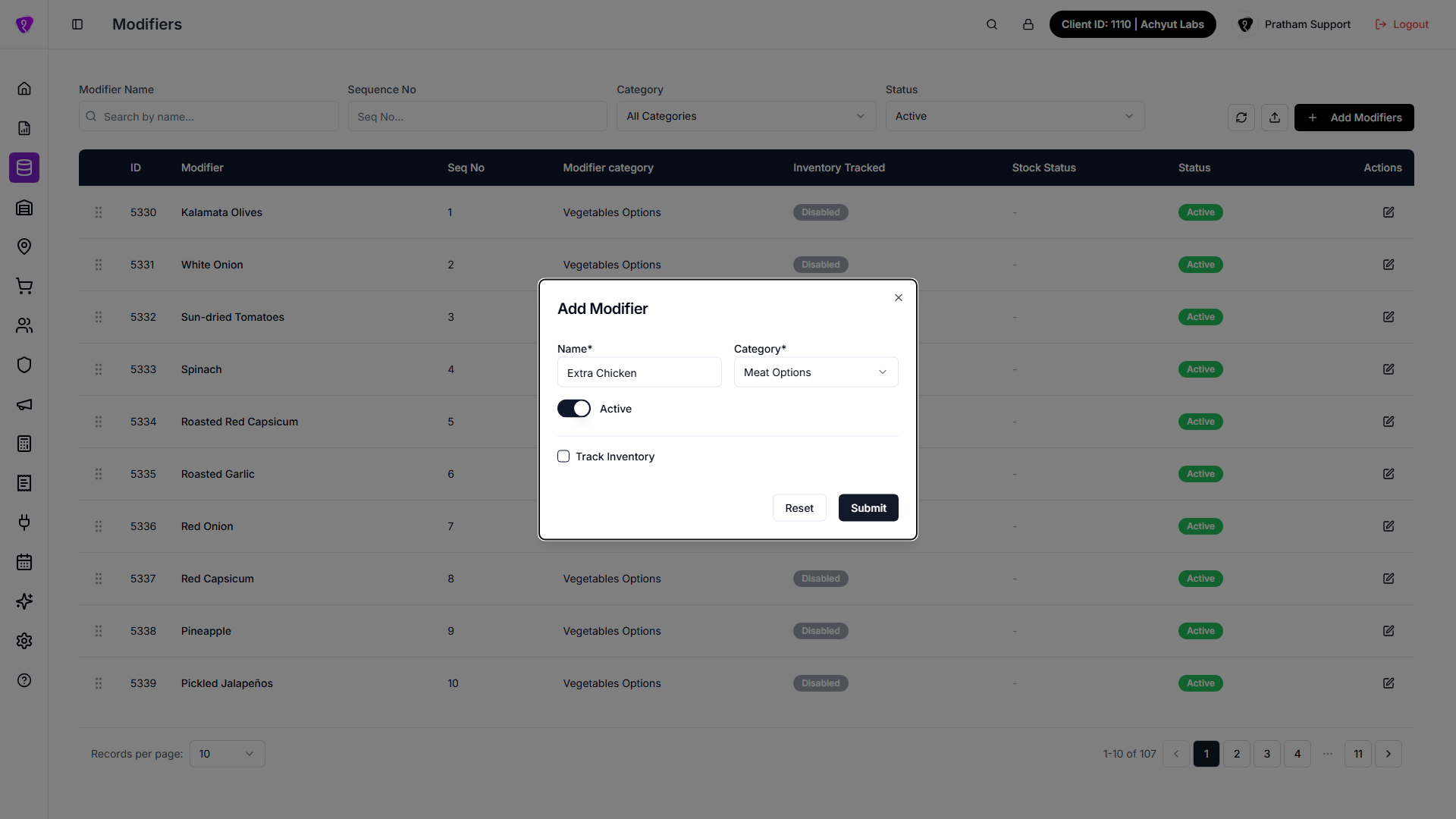
Modifier fields
| Field | Required? | What to enter |
|---|---|---|
| Name | Yes | Modifier label (for example "Extra cheese") — up to 255 characters |
| Category | Yes | Pick an active modifier category |
| Active | No | Toggle off to create an inactive modifier |
| Display Name (Online) | No | Optional override shown on online ordering — up to 200 characters; leave blank to use Name |
| Display Name (Receipt / Docket) | No | Optional override printed on receipts and kitchen dockets — up to 200 characters; leave blank to use Name |
| Track Inventory | No | Toggle on to deduct stock when this modifier is used |
| Ingredient | Yes* | Ingredient product to deduct from stock |
| Quantity per use | Yes* | Amount used per order — must be greater than 0 |
| Unit | Yes* | Measurement unit for the quantity |
* Only when Track Inventory is on.
Common mistakes / FAQs
- “Name is required”. Enter a name before you tap Submit.
- “Category is required”. Select a category.
- Inventory fields show errors. Turn Track Inventory off if you do not need stock deduction, or fill Ingredient, Quantity per use, and Unit.
Edit a modifier
What it does
Updates an existing modifier’s name, category, status, or inventory settings.
Step-by-step
- In the table, tap Edit (pencil icon) on the row.
- In the Edit Modifier dialog, change the fields you need.
- Tap Update.
- When successful, you see a success message and the dialog closes.
No separate view screen
There is no read-only view, and no Reset button either. To read details without saving, open Edit and tap Cancel or close the dialog instead of Update.
Modifier moved to an inactive category
If the modifier's current category has since been made inactive, the Category dropdown shows it anyway, labelled "{name} (Inactive)", so the field isn't left blank.
Common mistakes / FAQs
- Edit is disabled. Ask your administrator for UPDATE permission on Modifiers.
Reorder modifiers
What it does
Changes the display order of modifiers within their category on POS and online ordering.
Step-by-step
- Turn Sort Alphabetically off if it is on.
- Drag the grip handle on a row up or down.
- Drop the row in the new position.
- Wait for the success message — the new order saves automatically.
Reordering isn't blocked in the interface
The drag handle isn't disabled without UPDATE permission — only Edit is. If you can see the list, you can attempt to drag a row, though the server may still reject the change.
Common mistakes / FAQs
- "Failed to update modifier sequence". Refresh the list and try again.
Deactivate a modifier
What it does
Hides a modifier from active use without removing its record.
Step-by-step
- Tap Edit on the modifier row.
- Toggle Active off.
- Tap Update.
Inactive modifiers stay linked
Turning a modifier Inactive does not remove it from items that already use it. Review item modifier settings under Items or Item Library if you retire an add-on.
Import modifiers from CSV
What it does
Creates many modifiers at once from a spreadsheet file.
Step-by-step
- Tap the Upload icon next to Add Modifiers.
- Wait while the import dialog loads module types.
- Drag a CSV file into the upload area, or tap to browse and select one.
- Review the selected file name and size.
- Tap Import Modifiers.
- When successful, you see a success message. The dialog closes and the list refreshes.
Download a blank template: Modifiers import template (CSV)
CSV column format
| Column | Accepted header names | Notes |
|---|---|---|
| Modifier name | modifier, name, or modifier_name | Rows with all three empty are skipped. |
| Status | status | Active, 1, or numeric 1 → active; anything else → inactive. |
| Modifier category ID | modifier_category_id | Numeric category ID. Left blank → sent as 0. Missing entirely, or not a number → sent empty. |
Use UTF-8 for special characters
Save the CSV as UTF-8 if modifier names include accents or non-English characters.
Common mistakes / FAQs
- “Please select a valid CSV file.” Only
.csvfiles are accepted. - Import failed after upload. Read the error toast. Fix the CSV and import again.
Permissions
| What you need | Why |
|---|---|
| Modifiers module permission | See the Modifiers menu and list |
| CREATE on Modifiers | Tap Add Modifiers or Import |
| UPDATE on Modifiers | Tap Edit. Reordering isn't blocked in the interface without it, though the server may still reject the change. |