
Signing in
Use this page to open Pratham Admin, enter your credentials, and complete two-step verification (2FA) if your account requires it.
Open the admin
What it does
Loads the admin web app at the URL your organisation provided.
Step-by-step
- Use a modern browser — Chrome, Edge, Firefox, or Safari.
- Open your company's Pratham Admin URL (from a bookmark or your IT team).
- If you are not signed in, you land on Admin Login.
- If you were already signed in, you briefly see Loading… then go to your home screen (usually Dashboard).
Admin Login
What it does
Checks your Client ID, username, and password. When correct, the app opens the first screen you are allowed to use.
Step-by-step
- On the right side of the screen, find the white card titled Admin Login.
- Enter your Client ID — numbers only. Your manager or administrator gives you this.
- Enter your username.
- Enter your password. Tap the eye icon to show or hide what you type.
- Tap Login. The button shows Logging in… while the app works.
- If your account does not use 2FA, you go straight into the admin. Otherwise continue to the next section.
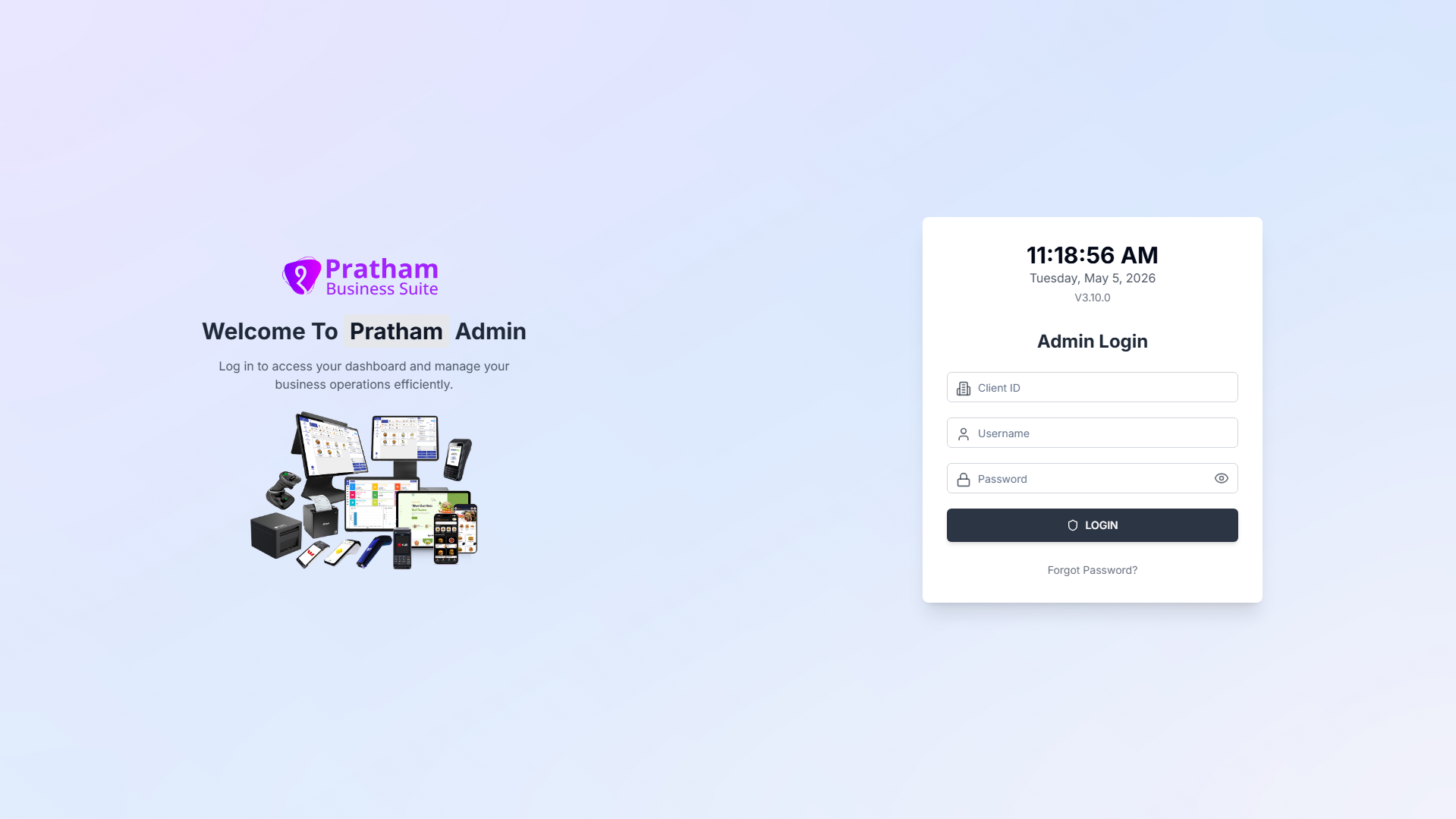
| Field / control | What to enter / Notes |
|---|---|
| Client ID | Numbers only. Empty → Client ID is required. Non-number → Client Id should be a number. |
| Username | Your admin username. Empty → Username is required. |
| Password | Your password. Eye icon toggles show/hide. Empty → Password is required. |
| Login | Tap to sign in. Shows Logging in… while working. |
| Forgot Password? | Link below Login — opens the password-reset screen. |
Version number
The V3.x.x line at the top of the card is the app build version. Share it with support if you need help.
Common mistakes / FAQs
I see "Client ID is required" or "Client Id should be a number"
Enter a numeric Client ID with no letters or spaces.
Login fails with an error message
Check that Client ID, username, and password are all correct. Ask your administrator if you are unsure of any of them.
I forgot my password
Tap Forgot Password? below the Login button and follow Forgot password.
Two-step verification (2FA)
What it does
Some accounts must confirm a 6-digit code sent to email after tapping Login. You cannot enter the admin until you enter the correct code.
Step-by-step
- After tapping Login, the form changes to the verification screen.
- Read the message We've sent a verification code to and check which email address received the code.
- Open that email and find the 6-digit code.
- Enter the code — one digit per box under Enter 6-digit code, or paste it; the app fills every box and submits automatically when all six digits are in place.
- Watch Code expires in — the countdown starts at 5:00 and turns red under 1:00.
- Tap Verify. The button shows Verifying… while the app checks the code.
- If the code is wrong, the boxes clear. Re-enter the code or tap Resend Code for a new email.
| Control | Notes |
|---|---|
| Back to Login | Returns to the username and password form. |
| Resend Code | Disabled for the first minute after a code is sent. When active, shows Verification code resent to your email. |
Code expired?
If the countdown reaches 0:00, tap Resend Code (once it enables) or tap Back to Login and sign in again.
Common mistakes / FAQs
I see "Please enter all 6 digits"
Fill every box, or paste a full 6-digit code copied from your email.
I do not see the email
Check your spam or junk folder. Wait one minute, then tap Resend Code.
I want to use a different account
Tap Back to Login, then enter different credentials.
After you sign in
The app uses a left sidebar (menu) and a top header on every page.
| Header control | What it does |
|---|---|
| Menu (sidebar toggle) | Show or hide the sidebar on small screens |
| Search | Find any page you have permission to open |
| Lock screen | Lock the session — re-enter password to continue |
| Profile | Opens My Profile |
| Logout | Confirm prompt → returns to Admin Login |
Search results only show pages your role can open.