
Half n Half
Use this page to enable half-and-half ordering per outlet, choose which products can be halves, set half prices (POS, online, dine-in), and define combination pricing rules when two menu categories are paired.
Open the screen: Sidebar → Locations Management → Half n Half
Location first
Pick Restaurant at the top — the first outlet in your list may be selected automatically. Products and rules are always per location.
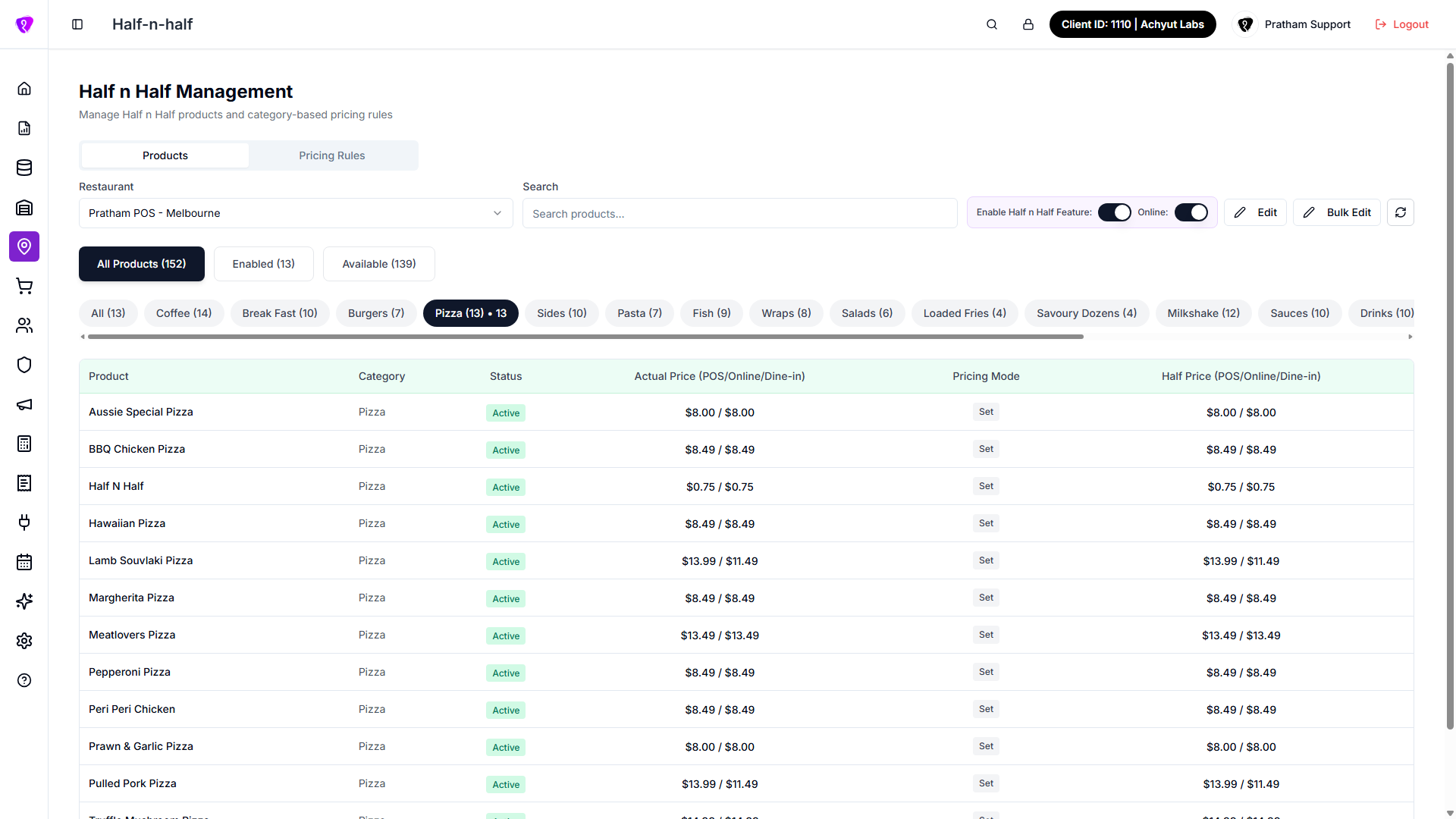 Caption: Half n Half Management with Products and Pricing Rules tabs
Products tab — list and filters
What it does
Shows active location items for the selected restaurant. Filter by search, category, and enabled/available status; then edit half prices or enable products as half options.
Step-by-step
- Open Half n Half and stay on the Products tab.
- Select Restaurant.
- Optionally type in Search (Search products…) or tap a category chip.
- Tap a status card — All Products, Enabled, or Available — to filter.
- Review the products table (columns below).
- Tap Refresh (circular arrow) to reload products and the HnH feature toggles.
Filters and controls
| Control | What it does |
|---|---|
| Restaurant | Outlet being configured — Select Restaurant |
| Search | Filters by product name |
| Enable Half n Half Feature | Master switch for half-and-half at this outlet (purple bar) |
| Online | Whether HnH is offered on online ordering (next to master switch) |
| All Products / Enabled / Available | Quick filters with counts in button labels |
| Category chips | Filter by menu category; Half n Half category is excluded from chips |
What the table shows
| Column | Meaning |
|---|---|
| Product | Menu item name |
| Category | Menu category |
| Status | Whether this product is enabled as a half option |
| Actual Price (POS/Online/Dine-in) | Full prices at this location |
| Pricing Mode | Set or Adjust (view mode) |
| Half Price (POS/Online/Dine-in) | Configured or calculated half prices |
Loading / empty: Loading products… spinner; No products found when filters match nothing.
Default half price
If half price is empty, the UI may display half of Actual Price as a reference — set explicit values before going live.
Common mistakes / FAQs
- No products in the list. Items must be Active at this outlet under Location Items.
- Pricing Rules tab says “Please select a restaurant first.” Choose Restaurant on Products before switching tabs.
Enable Half n Half feature
What it does
Controls the standalone Half n Half product for the outlet and whether it appears online.
Step-by-step
- With a Restaurant selected, find the purple bar: Enable Half n Half Feature and Online.
- Toggle Enable Half n Half Feature on to activate HnH at this outlet.
- Toggle Online on if customers should order half-and-half on web/app channels.
- Changes save immediately when toggled (spinner may show briefly).
Standalone product
The system maintains a Half n Half menu product per outlet. These switches control that product’s status and online availability — not individual pizza rows.
Common mistakes / FAQs
- Toggles are disabled. You need UPDATE permission on Half n Half.
- Half-and-half missing online. Turn Online on in the purple bar after enabling the feature.
Edit products — inline mode
What it does
Edits half prices and pricing mode for all visible rows in the table at once.
Step-by-step
- On Products, tap Edit (pencil) in the toolbar.
- For each row, choose Pricing Mode — Set or Adjust.
- Enter Half Price (POS), Half Price (Online), and Half Price (Dine-in) as needed (dine-in disabled if no dine-in price on the product).
- In Adjust mode, fields show ± — positive or negative adjustment amounts.
- Tap Save All Changes (Saving… while working), or Cancel to discard.
Common mistakes / FAQs
- Dine-in half field disabled. That location item has no dine-in price — set it on Location Items first if you need dine-in halves.
Edit a single product (row or dialog)
What it does
Opens Edit {product name} for one item — set or adjust half prices for POS, online, and dine-in.
Step-by-step
- In view mode (not bulk or inline edit), tap a product row — or use the flow that opens the single-product dialog.
- Choose Price Mode: Set Price or Adjust Price.
- Fill Half Price / Adjust Half Price, Online Half Price, and Dine-in Half Price fields (labels change with mode).
- Helper text shows default (price ÷ 2) in Set mode, or “Positive to increase, negative to decrease” in Adjust mode.
- Save — dialog closes and the table reloads.
Single-product dialog fields
| Field | Set mode | Adjust mode |
|---|---|---|
| Half Price | Fixed POS half price | ± adjustment on default half |
| Online Half Price | Fixed online half | ± adjustment |
| Dine-in Half Price | Fixed dine-in half | ± adjustment (if dine-in exists) |
Common mistakes / FAQs
- Left fields empty in Set mode. Empty may fall back to default half of full price — enter values explicitly for production menus.
Bulk edit selected products
What it does
Applies the same half-and-half status and optional prices to multiple checked rows.
Step-by-step
- Tap Bulk Edit in the toolbar.
- Tick checkboxes on rows (header checkbox selects all visible rows).
- Tap Bulk Edit Selected (N).
- In the dialog, set Half n Half Status — enable or disable for all selected products.
- Optionally set half prices for the selection.
- Confirm save; selection clears when the dialog closes.
Common mistakes / FAQs
- Bulk Edit Selected is disabled. Select at least one row with checkboxes first.
Pricing Rules tab — list
What it does
Manages Combination Pricing Rules — extra charges or discounts when customers pair two portion categories (and optionally specific attribute sizes).
Step-by-step
- Tap the Pricing Rules tab.
- Ensure Restaurant was selected on Products (rules load for that outlet).
- Optionally set status filter — All Status, Active, or Inactive.
- Read the info alert and example on screen.
- Tap Refresh or Add Rule.
What the table shows
| Column | Meaning |
|---|---|
| Portion 1 / Portion 2 | Two menu categories forming the pair (not the Half n Half category itself) |
| Attributes | Selected size/option values, or All |
| Price Adjustment | Shown as +$ or −$ |
| Status | Active/inactive switch per rule |
| Actions | Edit, Delete |
Loading / empty: Loading rules…; No pricing rules configured yet — tap Add Rule; or No {active/inactive} rules found when filtered.
Deal-level rules
Deals → Half n Half Rules tab adds surcharges inside a specific deal. This tab sets outlet-wide category rules for all HnH orders.
Common mistakes / FAQs
- Cannot add attributes in the rule dialog. Enable Half n Half Feature on Products first so the standalone HnH product and attribute list exist.
Add or edit a pricing rule
What it does
Creates or updates a surcharge/discount for a Category 1 + Category 2 pair, optionally limited to attribute values (e.g. Large).
Step-by-step
- Tap Add Rule (or Edit on a row).
- Select Portion 1 (category) — required.
- Select Portion 2 (category) — required; must differ from portion 1.
- Enter Price Adjustment — positive = surcharge, negative = discount.
- Under Attributes (Optional), tick attribute values or leave all unticked for All combinations.
- Tap Create Rule or save the edit.
- Use the row Status switch later to disable without deleting.
Example on screen: Portion A + Portion B + Large = +$5 → final price = (half of A + half of B) + $5.
Common mistakes / FAQs
- Rule does not apply. Confirm rule Status is active and the customer’s two halves use the categories you selected.
- Categories missing. Only categories with products at this outlet appear; configure Location Items first.
Permissions
| What you need | Why |
|---|---|
| HALF N HALF module permission | Open Half n Half |
| READ | View products and rules |
| UPDATE | Toggles, Edit, Bulk Edit, inline save, pricing rules |
Related
- Locations Management overview
- Location Items
- Deals — per-deal Half n Half Rules tab
- POS Half & Half guide — staff-facing POS flow