
Sign-in screens (every field)
Use this page as a quick lookup for every label, button, and message on the sign-in screens. For guided walkthroughs, see Signing in and Forgot password.
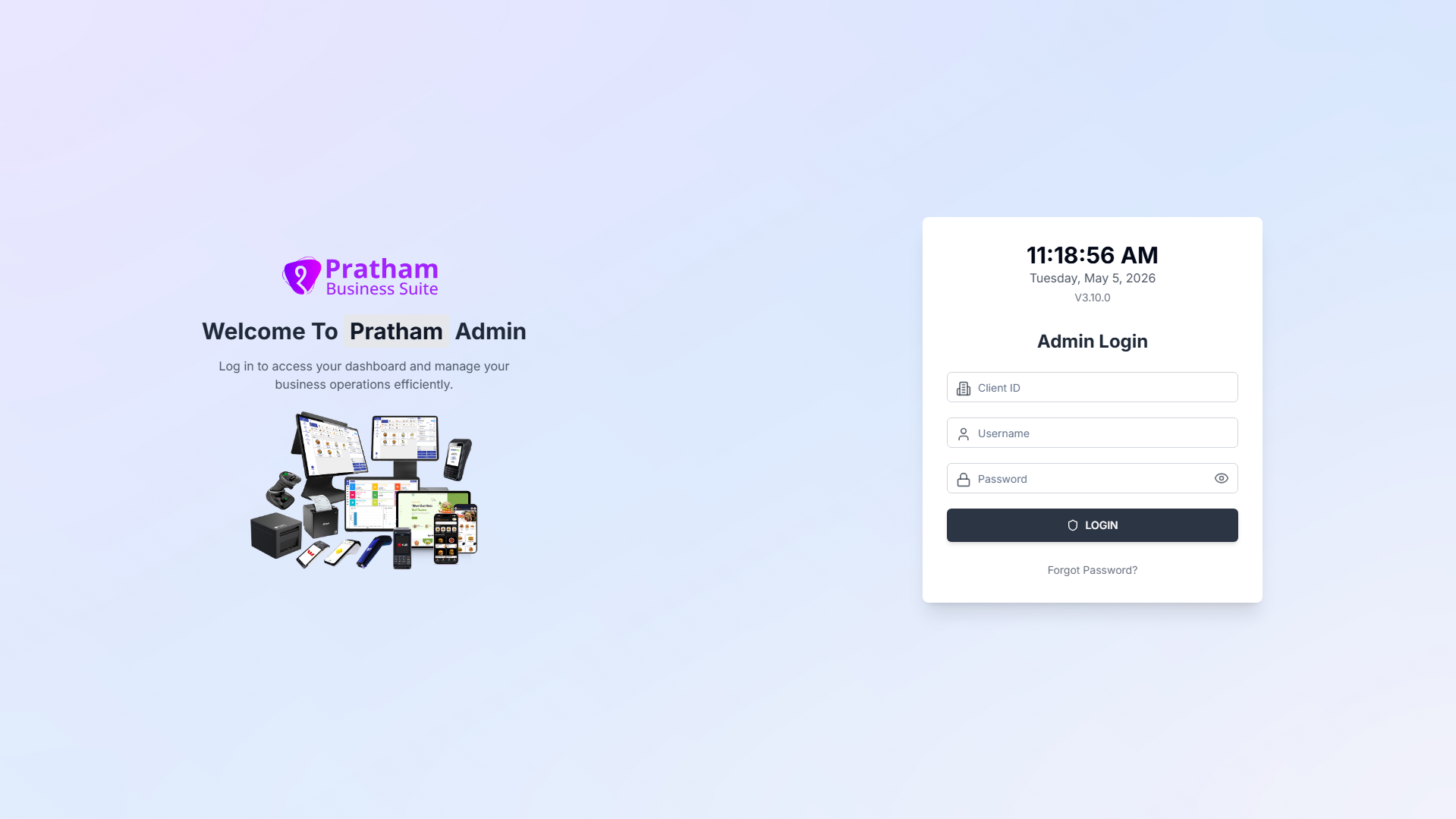
Admin Login
What it does
This is the main sign-in screen. You enter Client ID, username, and password to open the admin. Some accounts also need a 6-digit email code after Login.
Top of the card (information only)
| What you see | What it means |
|---|---|
| Time (large) | Current time - updates every second. |
| Date | Today’s date. |
| Version (starts with V) | App build version - share this with support if you need help. |
Sign-in form
Step-by-step
- Enter Client ID in the first field (numbers only).
- Enter username in the second field.
- Enter password in the third field. Tap the eye icon to show or hide the password.
- Tap Login.
| Field / control | Required? | What to enter | Messages you may see |
|---|---|---|---|
| Client ID | Yes | Numbers only | Empty → Client ID is required. Not a number → Client Id should be a number. |
| Username | Yes | Your admin username | Empty → Username is required. |
| Password | Yes | Your password | Empty → Password is required. |
| Login | - | Tap to sign in | Shows Logging in… while working. |
| Forgot Password? | - | Tap to open the forgot-password screen | Link below Login. |
Already signed in on this device?
You may briefly see Loading… while the app checks your session. If you are still signed in, you go straight to the dashboard.
Two-step verification (2FA)
What it does
After Login, this screen asks for a 6-digit code from your email. You must enter it before you can use the admin.
Step-by-step
- Check the email address shown under We've sent a verification code to.
- Enter the 6-digit code - one digit per box under Enter 6-digit code, or paste the full code.
- Tap Verify when all six boxes are filled.
| Element | Required? | What to do | Notes |
|---|---|---|---|
| Email message | - | Read which address received the code | Address may be partially hidden. |
| Enter 6-digit code | Yes | Six boxes, digits only | Paste fills all boxes. App auto-submits when all six digits are entered. |
| Code expires in | - | Watch the countdown from 5:00 | Turns red under 1:00. |
| Verify | - | Tap to confirm | Disabled until every box has a digit. Shows Verifying… while working. Wrong code → boxes clear. |
| Back to Login | - | Tap to return to username/password | Clears the 2FA step. |
| Resend Code | - | Tap for a new email code | Disabled for the first minute after a code is sent. Success → Verification code resent to your email. |
Common mistakes / FAQs
- “Please enter all 6 digits” - complete every box or paste a 6-digit code.
- Resend Code is greyed out - wait until the countdown shows 4:00 or less (about one minute after the code was sent).
Forgot Password
What it does
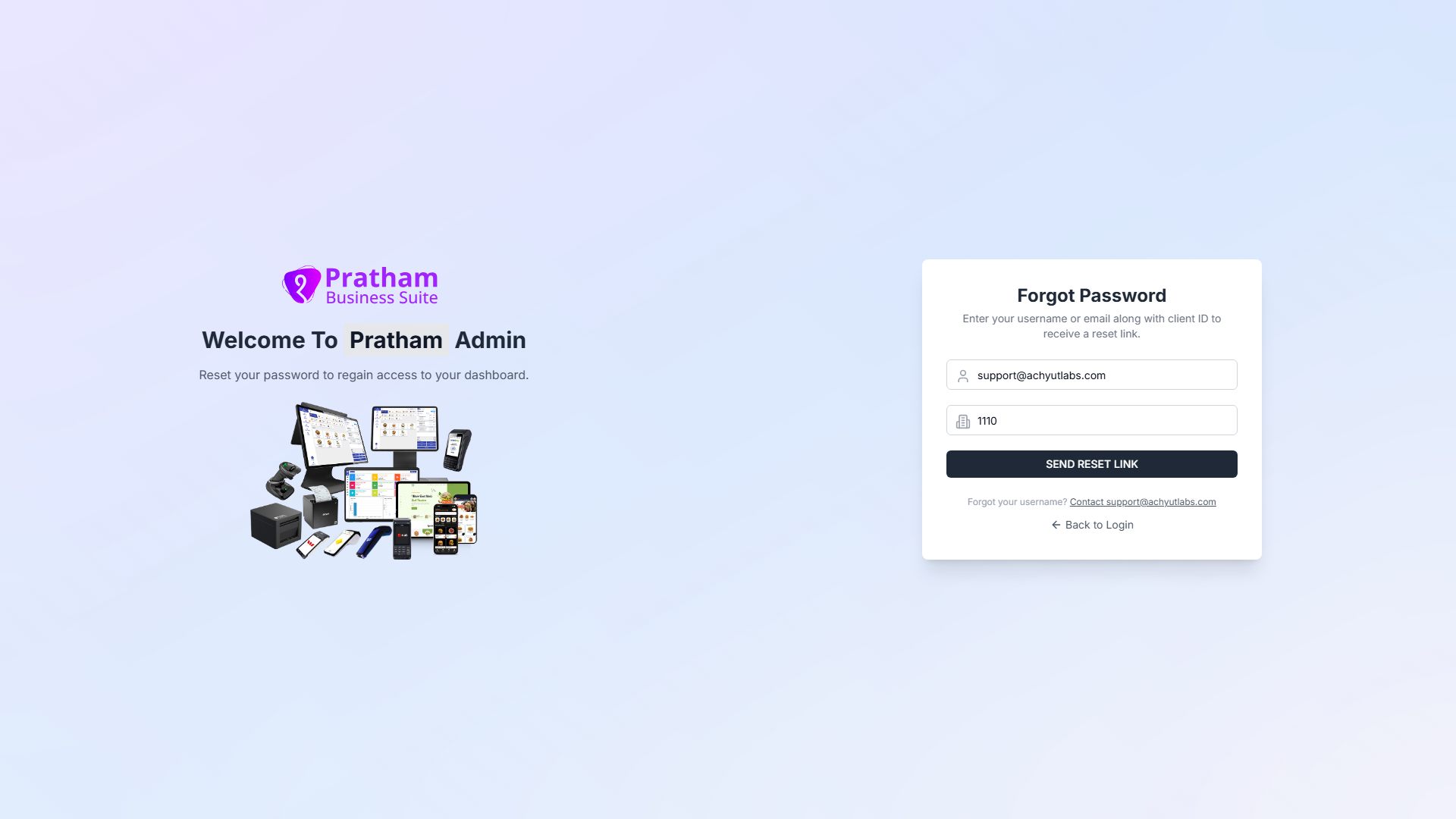
Send a reset email when you know your username or email and Client ID but not your password.
Step-by-step
- From Admin Login, tap Forgot Password?.
- Enter Username or Email.
- Enter Client ID.
- Tap Send Reset Link.
| Field / control | Required? | What to enter | Notes |
|---|---|---|---|
| Username or Email | Yes | Username or email on your account | Extra spaces are trimmed before send. |
| Client ID | Yes | Your company’s numeric ID | Send Reset Link stays disabled until both fields have text. |
| Send Reset Link | - | Tap to request the email | Shows Sending… while working. Errors appear in red above the button. |
After a successful request
| Screen | What you see |
|---|---|
| Check Your Email | If this email is registered with us, you will receive a password reset link shortly. |
| Back to Login | Tap to return to sign-in. |
Other links on this screen
| Text | Action |
|---|---|
| Forgot your username? | Tap Contact support@achyutlabs.com to open an email to support. |
| Back to Login | Tap to return to Admin Login. |
No email after several minutes?
Check spam or junk folders. Confirm username or email and Client ID match your account, or contact support@achyutlabs.com.
Reset Password (email link)
What it does
Open this page from the reset email to choose a new password. The link works for 15 minutes only.
Missing link token
If the page opens with no token in the web address, the app sends you to Forgot Password - request a new reset link.
While the link is checked
You see Verifying your link… with a spinner. Wait a moment.
Link expired or invalid
| Element | Detail |
|---|---|
| Title | Link Expired or Invalid |
| Message | This password reset link has expired or is invalid. Reset links are only valid for 15 minutes. |
| Request New Link | Tap to open Forgot Password again. |
| Back to Login | Tap to return to Admin Login. |
Valid link - set a new password
Step-by-step
- Enter New Password (at least 6 characters). Tap the eye icon to show or hide.
- Enter the same password in Confirm Password.
- Tap Reset Password.
| Field / control | Required? | Rules |
|---|---|---|
| New Password | Yes | Minimum 6 characters. |
| Confirm Password | Yes | Must match New Password exactly. |
| Reset Password | - | Tap to save. Shows Resetting… while working. |
Inline errors you may see
- Password must be at least 6 characters.
- Passwords do not match.
- Link expired. Please request a new one.
After a successful reset
You see Password Reset Successful! and Your password has been updated. Redirecting to login… The app opens Admin Login in about 3 seconds. Sign in with your new password.