
Customer Display
The Customer Display is a separate screen or tablet facing the customer at the counter. It shows the customer's cart in real time - items, quantities, prices - and can also show promotional images or videos between orders.
These settings control what the customer sees and how the screen looks.
🔒 Manager only - tap Settings → Customer Display to open this screen.
Configure the customer display
- Tap Settings in the left navigation menu.
- Tap Customer Display.
- Adjust the settings below.
- Tap Save Settings - the changes are sent to all connected customer displays immediately. No restart needed.
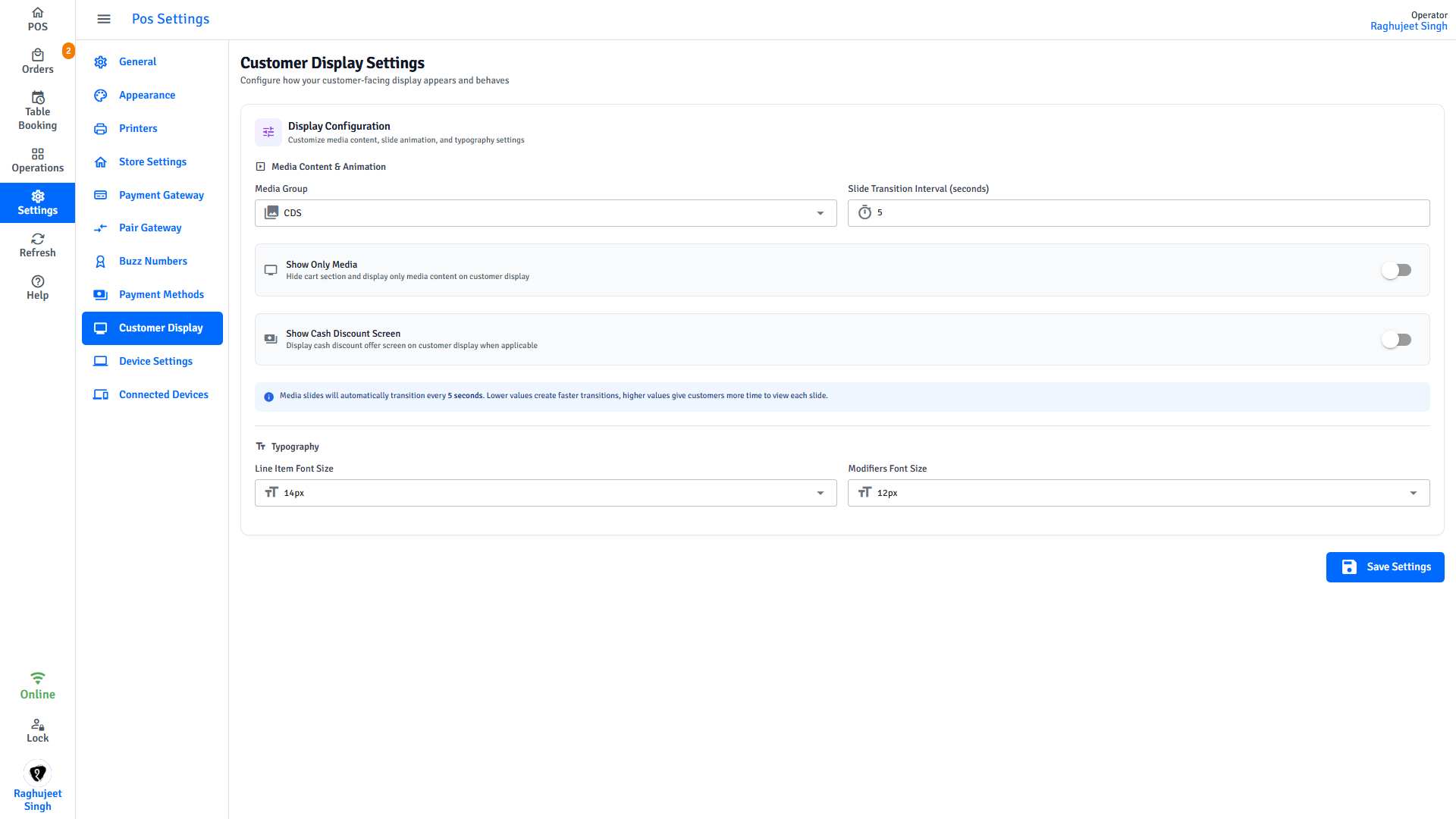
Media content & animation
| Setting | What it does |
|---|---|
| Media Group | Select which set of promotional images or videos to show. Media groups are created and managed in the Admin Portal. Only groups that contain at least one file appear in this list. |
| Slide Transition Interval | How many seconds each promotional image shows before the next one appears. Minimum is 1 second. Default is 5 seconds. |
| Show Only Media | When on, hides the cart and shows only your promotional slideshow - useful between orders or during quiet periods. When off, the cart and media are shown side by side. |
| Show Cash Discount Screen | When on, the customer display shows a cash discount offer screen when a cash discount applies to the current order. |
TIP
If you have no promotional media set up yet, create a Media Group in the Admin Portal first, then return here to select it.
Typography
Controls the text size on the customer-facing screen. Increase these if your display is large or positioned further from the customer.
| Setting | Options | What it affects |
|---|---|---|
| Line Item Font Size | 12px, 14px, 16px, 18px | Size of item names in the cart |
| Modifiers Font Size | 12px, 14px, 16px, 18px | Size of modifier details under each item |
What the customer sees
| Show Only Media setting | What appears on the customer display |
|---|---|
| Off (default) | Cart items, quantities, prices, and promotional images side by side |
| On | Promotional slideshow only - cart is hidden |
INFO
The customer display updates live as the cashier adds or removes items. The customer always sees the current cart and running total when Show Only Media is off.
Next steps
- Connected Devices - Verify the customer display is connected and active
- Device Settings - Find the IP address and port displays connect to