
Split Payment
Split payment lets several people pay for one order, each paying their own share. Use it when a table wants separate bills, or when a group wants to divide the total evenly.
There are two ways to split. They work very differently, so pick the right one before you start:
| Split method | What it does | Best for |
|---|---|---|
| Split amount evenly | Divides the total into equal shares. Items are not assigned. | A group happy to pay the same amount each |
| Split by Item Selection | Each person pays only for the items you assign to them | A table where everyone pays for what they ordered |
Before you start
- Add every item to the cart first.
- Apply any discount, coupon or surcharge now - see Discounts, Coupons & Promotions and Surcharges.
- Tap Pay to open the payment screen.
- Tap Split Payment, then choose a split method.
WARNING
Start the split before taking any payment. Once a normal payment is recorded against the order, the Split Payment button is disabled. If you have already started a split, the button is replaced by Resume Split Payment.
TIP
Set the discount before splitting, not after. The split divides the discounted total, so a discount added later means re-doing the assignment.
INFO
The cash discount is the exception - do not try to apply it up front. Each person earns it themselves at the moment they pay, based on how they tender. See Cash discount on a split.
When each method is available
| Method | Becomes available when |
|---|---|
| Split amount evenly | The order has at least 1 item and no payment has been taken yet |
| Split by Item Selection | The order has 2 or more items, or one item with a whole-number quantity of 2 or more |
INFO
A single item with quantity 1 cannot be split by item - there is nothing to divide. Use Split amount evenly instead.
Split amount evenly
This method divides the bill into equal shares. Nobody is tied to particular items.
- Tap Split Payment, then tap Split amount evenly.
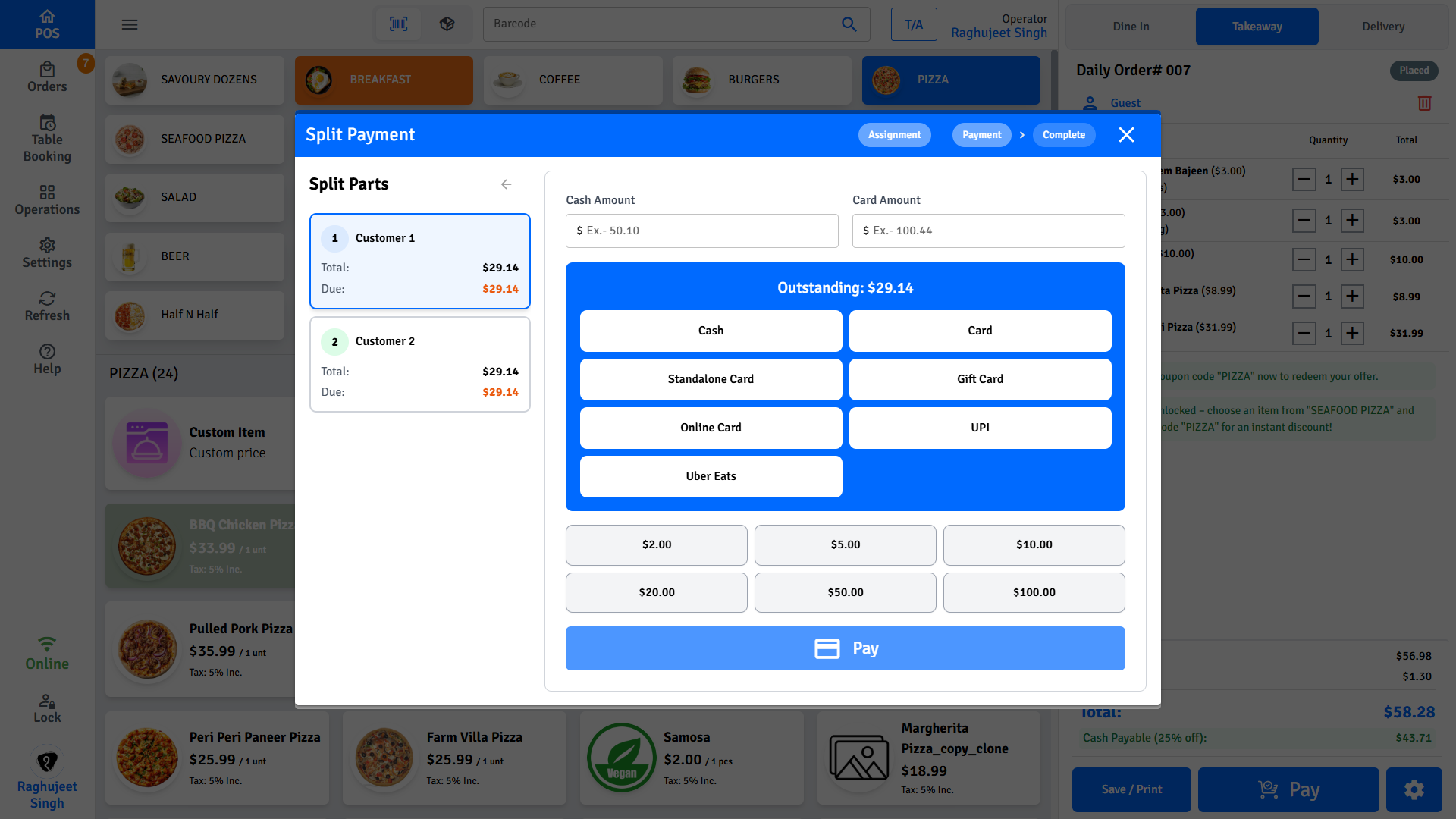
- The screen shows three figures: Total Bill, Number of Customers, and Per Customer.
- Tap + or − to set the number of customers. The Per Customer amount updates as you change it.
- Tap Start Collecting Payments.
- The payment screen opens with one card per customer down the left side.
- Tap a customer card, take their payment, then move to the next.
The count starts at the number of guests recorded on the order, or 2 if no guest count is set. The minimum is always 2.
How the even shares are calculated
The total is divided into cent-exact shares. The POS does not simply divide and round each share, because rounded shares do not add back up to the bill.
Example - $10.00 split 3 ways:
| Approach | Shares | Adds up to |
|---|---|---|
| Divide and round each | $3.33 + $3.33 + $3.33 | $9.99 ❌ |
| What Pratham ResPOS does | $3.34 + $3.33 + $3.33 | $10.00 ✅ |
The leftover cents are handed out one at a time, so the shares differ by at most one cent and always total the bill exactly.
WARNING
Once a customer has paid, their share is locked. If you then change the customer count, the POS keeps every paid share as it is and re-divides only the remaining amount among the customers who have not paid. The minimum count can never drop below the number who have already paid, plus one.
Split by Item Selection
This method gives each person their own items and their own bill. It is the method to use when people want to pay for exactly what they ordered.
- Tap Split Payment, then tap Split by Item Selection.
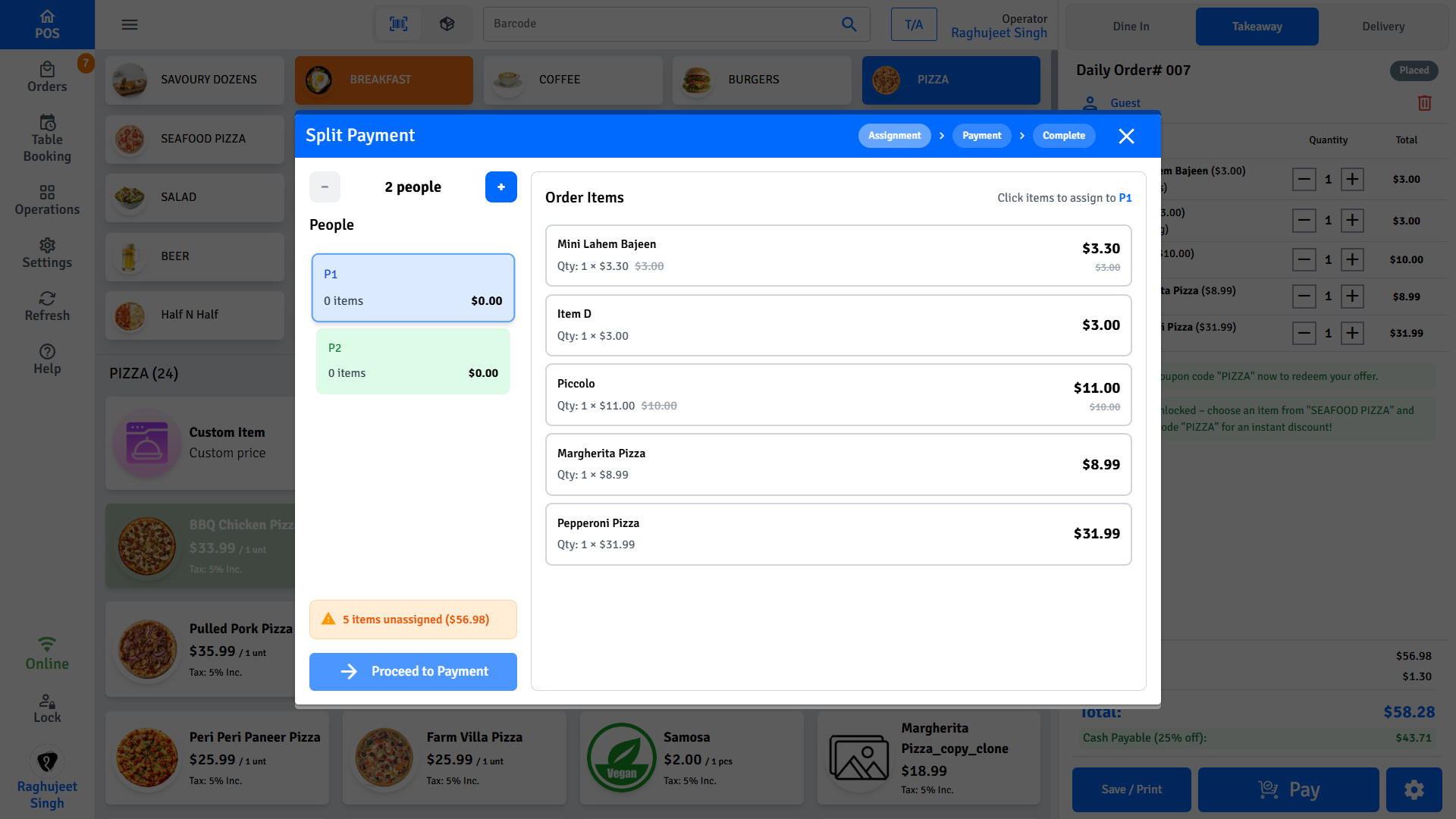
- The assignment screen opens with Payments on the left and the order items on the right.
- Tap a payment card on the left to make it the active one.
- Tap items on the right to assign them to the active card.
- Tap Proceed to Payment and collect that person's money.
- Repeat for the next person.
The assignment screen
| Panel | What it shows |
|---|---|
| Left - Payments | One card per person, with their item count, total, amount paid and amount due |
| Right - Items | Every item in the order, with the price that person will be charged for it |
The header shows two running figures:
- Total - what the active person owes for the items they hold.
- Unassigned - the value of everything nobody has claimed yet.
The footer shows how many items are still unassigned, and turns to All items assigned! when nothing is left.
Add and remove people
- Tap New at the top of the Payments panel to add another person.
- Tap the person's name to rename them. Names are limited to 20 characters.
- Tap the red × on a card to delete it.
WARNING
A card cannot be deleted once any money has been recorded against it. The × disappears on cards that are paid or part-paid. The last remaining card also cannot be deleted.
INFO
You do not create all the people up front. Start with one, pay them, and the POS opens a fresh card for the next person automatically.
Item colours and what they mean
| Appearance | Meaning | Can you tap it? |
|---|---|---|
| Grey border | Unassigned - nobody has claimed it | Yes - assigns it to the active card |
| Blue border, blue fill | Held by the active card | Yes - removes it from the card |
| Orange border, name banner | Held by another person who has not paid yet | Yes - takes it from them |
| Green border, faded, "Paid" | Already paid for by someone else | No - it is locked |
TIP
Assignment is not final until the money is taken. Select a different person, then tap an orange item to move it to them.
Split one item across people
When a line has a whole-number quantity of 2 or more, a row of numbered buttons appears under it - one per unit.
- Tap the numbered buttons to claim individual units.
- Tap a claimed unit again to release it.
For example, a line of 3 Coffees shows buttons 1, 2, 3. Person A can take units 1 and 3, and Person B unit 2. The picks do not have to be next to each other.
| Button colour | Meaning |
|---|---|
| Blue | Held by the active person |
| Orange | Held by another unpaid person |
| Green | Already paid for - locked |
| Grey | Free to claim |
WARNING
Fractional quantities cannot be split by unit. A line of 0.5 kg Prawns or 0.25 of a sandwich has no unit buttons - it is assigned whole, to one person only. This applies to weighed goods and to any part-quantity line.
Tapping the item instead of the units
Tapping the item body (not a numbered button) claims every unit that is still free. It never takes units that someone else already holds - those stay with their owner. If every unit is held by other unpaid people, the tap takes the whole line from them.
How each item is priced
This is the part staff ask about most often. The price shown against an item on the split screen is often not the price shown in the cart. That is expected, and this section explains exactly why.
Each item's split price is built like this:
Split price  =  item's line total
              − its share of the order discount
              + its own tax (exclusive tax only)
              + its share of order-level charges
The last line covers surcharge, surcharge tax, delivery charge, platform fee and service charge - anything the order adds on top of the items.
Two things are deliberately not in an item's price, because they belong to a person rather than to the food:
- Tip - added to the person who leaves it, on their own payment screen.
- Cash discount - earned by the person who pays cash, at the moment they pay.
Neither one changes any item price, so adding a tip or taking a cash discount never re-prices the food for anyone else at the table.
Why prices go down
Order-level discounts are spread across items in proportion to their value. A more expensive item absorbs more of the discount.
Example - $20 flat discount on a $308 order:
| Item | Cart price | Share of discount | Split price |
|---|---|---|---|
| Sandwich A | $100.00 | $100 ÷ $308 × $20 = $6.49 | $93.51 |
| Sandwich B | $40.00 | $40 ÷ $308 × $20 = $2.60 | $37.40 |
| Sandwich C | $20.00 | $20 ÷ $308 × $20 = $1.30 | $18.70 |
Nobody pays the full menu price, and nobody absorbs the whole discount. Everyone gets a fair slice of it.
Why a price can go up
An item's own tax is added to its split price. On the main cart screen, tax sits on one line at the bottom of the bill. On the split screen there is nowhere to put a shared tax line, so each item has to carry its own.
If an item is taxed and the tax is larger than its share of the discount, its split price ends up higher than its cart price.
Example - a $123.00 Half & Half pizza with 10% GST, on the same $308 order with a $20 discount:
| Step | Amount |
|---|---|
| Cart line total | $123.00 |
| Less its share of the discount | − $7.99 |
| Discounted price | $115.01 |
| Plus its own GST at 10% | + $11.50 |
| Split price | $126.51 |
The pizza shows as $126.51 on the split screen against $123.00 in the cart. It has still been discounted - the GST is simply larger than the discount share. The other items in that order have no tax, so they only go down.
INFO
The old price appears struck through next to the new one whenever the two differ, in either direction. That strike-through is telling you the price has been adjusted for the split, not that anything is wrong.
TIP
A customer paying for only the pizza genuinely owes $126.51 - the item price plus the tax on it. Tax has to be collected from whoever eats the taxed item, so it travels with the item rather than being spread across the table.
Inclusive tax is different
Tax marked inclusive is already inside the menu price, so nothing is added for it. Only exclusive tax - tax added on top - increases the split price.
Everything always adds up
Whatever the mix of prices, the totals reconcile exactly. Using the same order as above:
| Item | Split price |
|---|---|
| Sandwich A | $93.51 |
| Sandwich B | $37.40 |
| Sandwich C | $18.70 |
| Sandwich D | $23.38 |
| Half & Half pizza | $126.51 |
| Total | $299.50 |
That $299.50 is the order total to the cent. This holds no matter how the items are grouped: any set of people, any way of dividing them, always sums back to the bill. Nobody is over-charged and no cent goes missing.
The odd cent
When a line is split across units, the units may differ by one cent. A $13.34 line split across 3 units gives $4.45, $4.45, $4.44 - not $4.4466 each.
The displayed unit price under an item is the line total divided evenly, so it is only indicative. The amount actually charged sums the real unit prices. On a three-way split of that line, the totals still come to $13.34.
INFO
The odd cent is placed on the most expensive item in the order, where it is proportionally least visible, and identical items are never split apart by it.
Collect payment
- Tap the person's card, then tap Proceed to Payment.
- The payment screen opens with their amount as the outstanding balance.
- Enter an amount in Cash Amount or Card Amount, or tap a payment method button to fill in the full outstanding.
- Tap Pay.
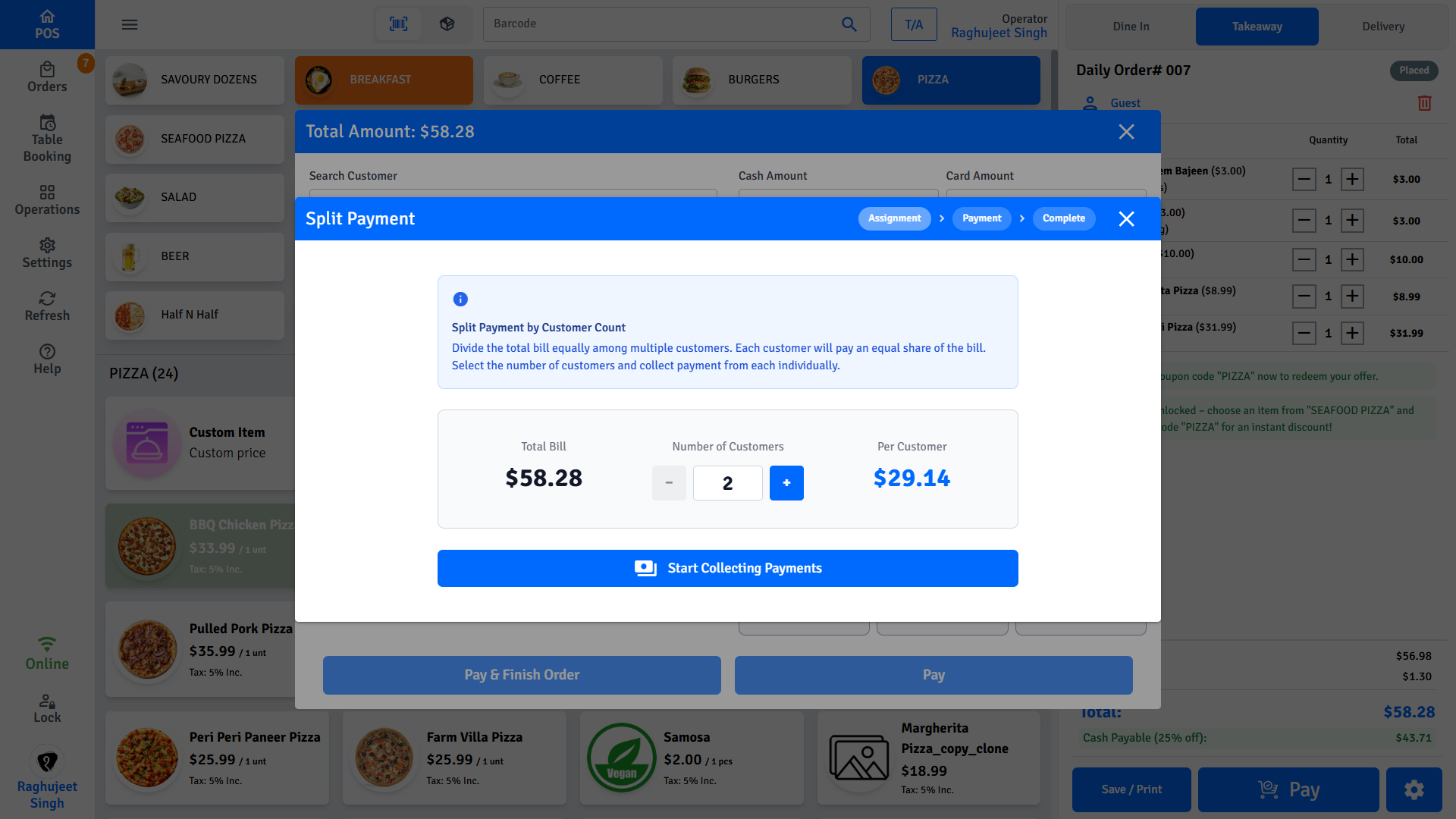
The quick-amount buttons (note denominations) add to the cash field with each tap, the same as on the normal payment screen.
| Button | When it appears |
|---|---|
| Pay | Always |
| Pay & Finish | Only on the payment that will settle the last of the order |
WARNING
The card amount cannot be more than the person's outstanding balance. Over-paying by card is blocked, because the excess cannot be given back through the terminal. Take a larger cash amount instead - the POS will calculate the change.
Mixed methods and part payments
One person can pay with more than one method, and can pay in stages.
- Enter part of the amount and tap Pay. The balance stays against their card as Due.
- Their card stays open. Tap it again later to collect the rest.
- Payment History on the payment screen lists every tender taken from that person.
INFO
Each person can use a different payment method. One pays cash, the next by card, the next by gift card - it makes no difference to the split.
Cash and change
If the cash entered is more than what is owed, a Change Due dialog shows the amount to hand back. Split receipts print straight away without the usual print confirmation, so this dialog is your only reminder to give change.
INFO
If a card amount already covers the whole balance, any cash you typed in nets to zero and is discarded. No empty $0 cash line is recorded against the order.
Tips on a split
If tipping is turned on, a tip selector appears on each person's payment screen. The tip applies to that person only and is based on their own share of the bill, not the whole order.
| Payment method | How the tip is handled |
|---|---|
| Cash / other | Collected in the POS. It is added to the outstanding amount, so you take item total + tip. |
| Card | Sent to the terminal as a suggestion. The customer accepts, changes or declines it on the terminal. |
WARNING
When a person pays with both cash and card, the card owns the tip. The tip is sent to the terminal and the customer confirms it there - it is not added to the cash amount as well. This prevents the tip being taken twice.
INFO
The tip is only recorded once the payment is confirmed. If you select a tip and then back out, nothing is left behind on the order.
Cash discount on a split
If your venue offers a cash discount, each person on a split earns it separately, on their own share. One person paying cash gets the discount even when everyone else pays by card.
- Tap the person's card, then tap Proceed to Payment.
- Check the blue banner: "X% Cash Discount available - pay $Y with cash to get discount".
- Tap the Cash button. The POS fills in that person's discounted amount.
- Check the banner turns green: "X% Cash Discount Applied".
- Take the cash and tap Pay.
How each person's discount is worked out
The percentage is taken off that person's own items - not off a share of an order-level figure.
Example - a $200 order, two people with $100 of items each, 5% cash discount:
| Person | Pays by | Items | Cash discount | They pay |
|---|---|---|---|---|
| Customer 1 | Cash | $100.00 | − $5.00 | $95.00 |
| Customer 2 | Card | $100.00 | none | $100.00 |
Customer 1's discount is 5% of their own $100, and it has no effect on what Customer 2 owes.
WARNING
The discount is earned by that person's tender, not the table's. If someone adds any card or other payment to their own share, their discount disappears and they owe the full amount - even if they pay part of it in cash.
INFO
A person paying in instalments earns the discount only once. If they pay half in cash now and the rest in cash later, the POS grants the remainder of their discount on the second payment, never the full percentage twice.
What the discount does not shrink
A percentage surcharge is worked out before the cash discount comes off, so a person taking the cash discount does not also shrink their surcharge share.
This matters on a split. Each person's surcharge share is fixed when their items are assigned, before anyone has said how they will pay. If a cash discount also reduced the surcharge, the reduction would leak onto people who had already paid - and the last person to pay would absorb all of it.
TIP
The figures reconcile: add up what every person was actually charged and you get the order total. A split bill collects exactly what the same bill collects when one person pays it all in cash.
INFO
Each person's own cash discount shows on their own receipt. It never appears on anyone else's.
Receipts
Each person gets their own receipt showing only their items, their share of the charges, and their own payments.
- The receipt prints automatically as soon as that person is fully paid.
- The receipt is titled with the person's name, so the copies can be told apart.
- Tap Print Receipt on a paid card to print it again.
- Only that person's tip appears on their receipt - never anyone else's.
INFO
If receipt print behaviour is set to do not print in settings, split receipts do not print automatically. Print them from the paid card instead.
WARNING
On an awkward split, the individual lines on a split receipt - subtotal, tax, delivery - are each rounded on their own and may be a cent away from footing to the printed total. The total is always the exact amount that person was charged.
Finishing the split
There is no Complete button to press. The split finishes by itself.
When the last item is paid for, the POS:
- Records every payment against the order.
- Shows Split payment completed successfully!
- Closes the split window and completes the order.
INFO
Payments are saved to the order as each person pays, not at the end. If the split window is closed, or the app restarts, no money is lost.
Pausing and resuming a split
You can walk away from a half-finished split.
- Close the split window at any point.
- Return to the order and tap Pay.
- Tap Resume Split Payment.
The POS restores everyone who has paid, along with any part-paid person, and picks up where you left off. Empty cards that had nothing assigned are cleared - add the next person with New.
WARNING
A split in progress cannot be started over from the split screen. If a customer needs their money back, complete or void the order first, then refund from Receipts & Refunds.
Rules that protect collected money
The POS blocks anything that would leave a person paying for less than they have handed over.
| Rule | Why |
|---|---|
| Items cannot be removed from a paid person | Their receipt and payment are already settled |
| Items cannot be removed below what a person has part-paid | Their total would drop under the money already taken |
| Paid people cannot have their items taken by someone else | The same protection, from the other direction |
| A person with items totalling $0 cannot proceed to payment | There is nothing to charge - the payment screen needs an amount |
| A person's card cannot be deleted once money is recorded | The payment would be orphaned |
When a rule blocks you, the POS shows a message naming the person and the amount already collected.
FAQs
Why is an item's price higher on the split screen than in the cart?
The item carries tax. On the split screen every item shows its own tax folded in, because there is no single shared tax line to put it on. If that tax is bigger than the item's share of the discount, the split price ends up above the cart price.
The item is still discounted. Check the strike-through price next to it - that is the original. A customer paying only for that item genuinely owes the higher figure, because the tax on it has to be collected from them.
Why did all the other prices go down but only one went up?
Only taxed items gain tax. In a typical order most items are untaxed, so they only lose their share of the discount and go down. A taxed item - often a pizza or a category with GST applied - gains its tax as well, and can finish higher. Both are correct, and the item totals still add up to the order total exactly.
The per-item prices look odd, but do they add up?
Yes. Every item is priced once, up front, with its share of every discount and charge already allocated to the cent. Add up the split prices of all items and you get the order total exactly - no drift, no missing cent, whichever way the items are grouped.
Why can I not split this item by unit?
The item has a fractional quantity - something like 0.5 or 0.25. Weighed goods and part-quantity lines are assigned whole, to one person. Only lines with a whole-number quantity of 2 or more get numbered unit buttons.
Why is the Split by Item Selection option greyed out?
The order does not have enough to divide. It needs 2 or more items, or one item with a whole-number quantity of 2 or more. A single item with quantity 1 cannot be split by item - use Split amount evenly.
Why is the Split Payment button missing or disabled?
Either the cart is empty, or a payment has already been recorded against the order. A split has to start before any money is taken. If a split is already underway, the button is replaced by Resume Split Payment.
I closed the split window by accident. Is the money lost?
No. Each payment is recorded against the order the moment it is taken. Reopen the order, tap Pay, then tap Resume Split Payment to continue from where you stopped.
Can I remove an item from someone who has already paid?
No. Once money is recorded against a person, their items are locked. This protects the payment and the receipt they have been given. If something needs to change, complete or void the order and process a refund from Receipts & Refunds.
A customer wants to pay for half of a shared pizza. How?
If the pizza is one line with quantity 1, it cannot be divided - assign it to one person and settle up between the customers in cash. If the line has a quantity of 2 or more, use the numbered unit buttons to give each person their share.
Two people are paying different amounts for the same item. Is that a bug?
No. When a line is split across units, the units can differ by a cent - $4.45 and $4.44 rather than an impossible $4.445 each. The unit price shown under the item is the line divided evenly, so it is indicative only. The amounts actually charged always add back to the line total.
Can I apply a discount after the split has started?
Change the discount before splitting. The split divides the discounted total, so a discount applied afterwards means the assignment has to be redone, and anyone who has already paid will have paid on the old figures.
The customer tipped on the terminal but a different amount shows in the POS. Which is right?
The terminal amount. A card tip is only ever a suggestion sent to the terminal - the customer can change or decline it there. The POS records whatever the terminal reports back, which is the amount actually charged.
One person is paying cash. Do they get the cash discount even though the others are paying by card?
Yes. On a split the cash discount is earned per person, on their own share. A cash payer gets the percentage off their own items regardless of how anyone else at the table pays. See Cash discount on a split.
A person paid part cash and part card. Why did their cash discount disappear?
The discount is earned by settling that person's share wholly in cash. As soon as a card or other tender is put against their share, they owe the full amount. To give the discount, clear the card amount and take the whole of their share in cash.
Do the split totals still add up once someone takes a cash discount?
Yes. Each person's discount comes off their own share only, so it never changes what anyone else owes. Add up what every person was actually charged and it comes to the order total.
If you are checking the cart's outstanding figure while a split is part-paid, it already accounts for the discounts earned so far - it matches the sum of what the remaining people owe.