
Payments
This page covers every way to collect payment - cash, card, gift card, loyalty points, split payment, and partial payment. It also covers coupons, discounts, surcharges, and receipts.
INFO
Each price adjustment has its own detailed guide in Ordering & Checkout: Discounts, Surcharges, Coupons & Promotions, Cash Discount, Delivery Orders & Charges, Loyalty & Gift Cards, and Receipt Printing.
Quick reference
| Scenario | Steps |
|---|---|
| Exact cash | Tap Cash → tap total → Confirm |
| Cash with change | Tap Cash → enter tendered amount → Confirm → give change |
| Card payment | Tap Card → customer taps terminal → await approval |
| Gift card full | Tap Gift Card → enter code → Confirm |
| Gift card + cash | Tap Gift Card → enter code → remaining shows → Tap Cash → Confirm |
| Two methods one bill | Tap first method → enter partial → confirm → tap second method → confirm |
| Split by person | Tap Split Payment → choose split method → assign items → pay per person |
| Coupon | Tap Add Coupon → enter code → discount applied → proceed to payment |
| Redeem loyalty | Tap Redeem Points → confirm amount → proceed to payment |
Payment methods
Your manager enables payment methods in POS Settings. The ones available at your location appear on the payment screen.
| Method | How it works |
|---|---|
| Cash | Physical currency. Opens the cash drawer automatically on completion. |
| Card (EFTPOS) | Sends the request to your connected EFTPOS terminal (Linkly, Tyro, SmartConnect, etc.). |
| Gift Card | Pre-loaded store credit. Can be used for full or partial payment. |
| Other | Miscellaneous methods such as bank transfer or vouchers - configured by your manager. |
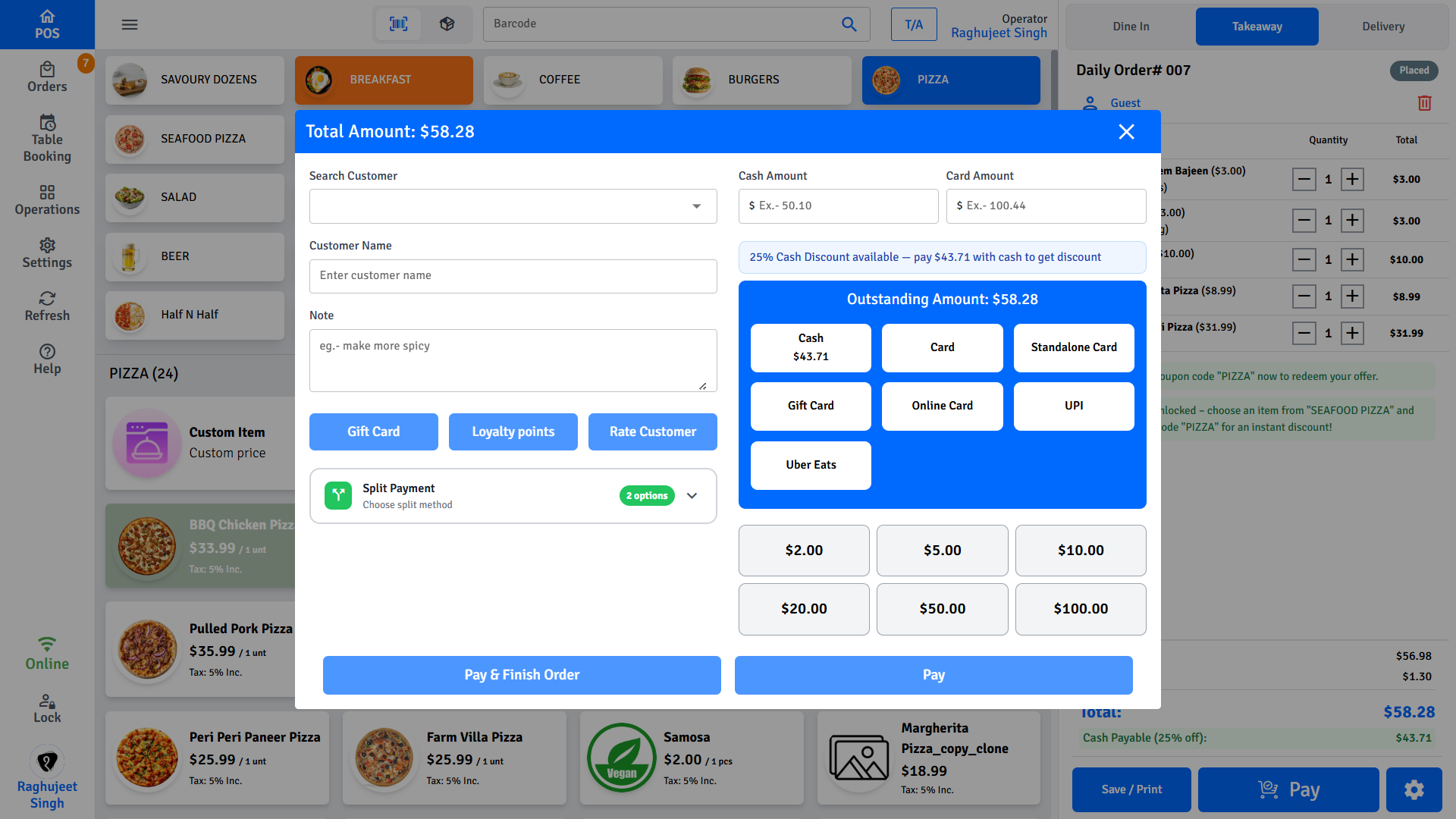
Process a payment
- Tap Checkout or Pay Now from the cart.
- The payment screen shows the order total and available payment methods.
- Select a payment method.
- Follow the steps for that method (below).
- When payment is confirmed, the receipt prints.
Cash
- Tap Cash.
- Enter the amount the customer is handing you, or tap the total to accept the exact amount.
- The POS calculates and displays the change due.
- The cash drawer opens automatically.
- Return the change and place the cash in the drawer.
- Tap Confirm to complete the order.
TIP
If the cash drawer is not opening, your manager can toggle the cash drawer setting per payment method in Settings → Payment Methods.
INFO
If your venue offers a discount for paying with cash, the POS applies it automatically when you tap Cash. See Cash Discount.
Card (EFTPOS)
- Tap Card.
- The POS sends the payment request to the connected EFTPOS terminal.
- Ask the customer to tap, insert, or swipe their card on the terminal.
- Wait for the terminal to confirm approval.
- The POS receives the approval and completes the order.
If a card surcharge is configured, it is added to the total automatically when card is selected. The surcharge is shown to the customer before they tap.
If the terminal is unresponsive or shows an error, see Troubleshooting.
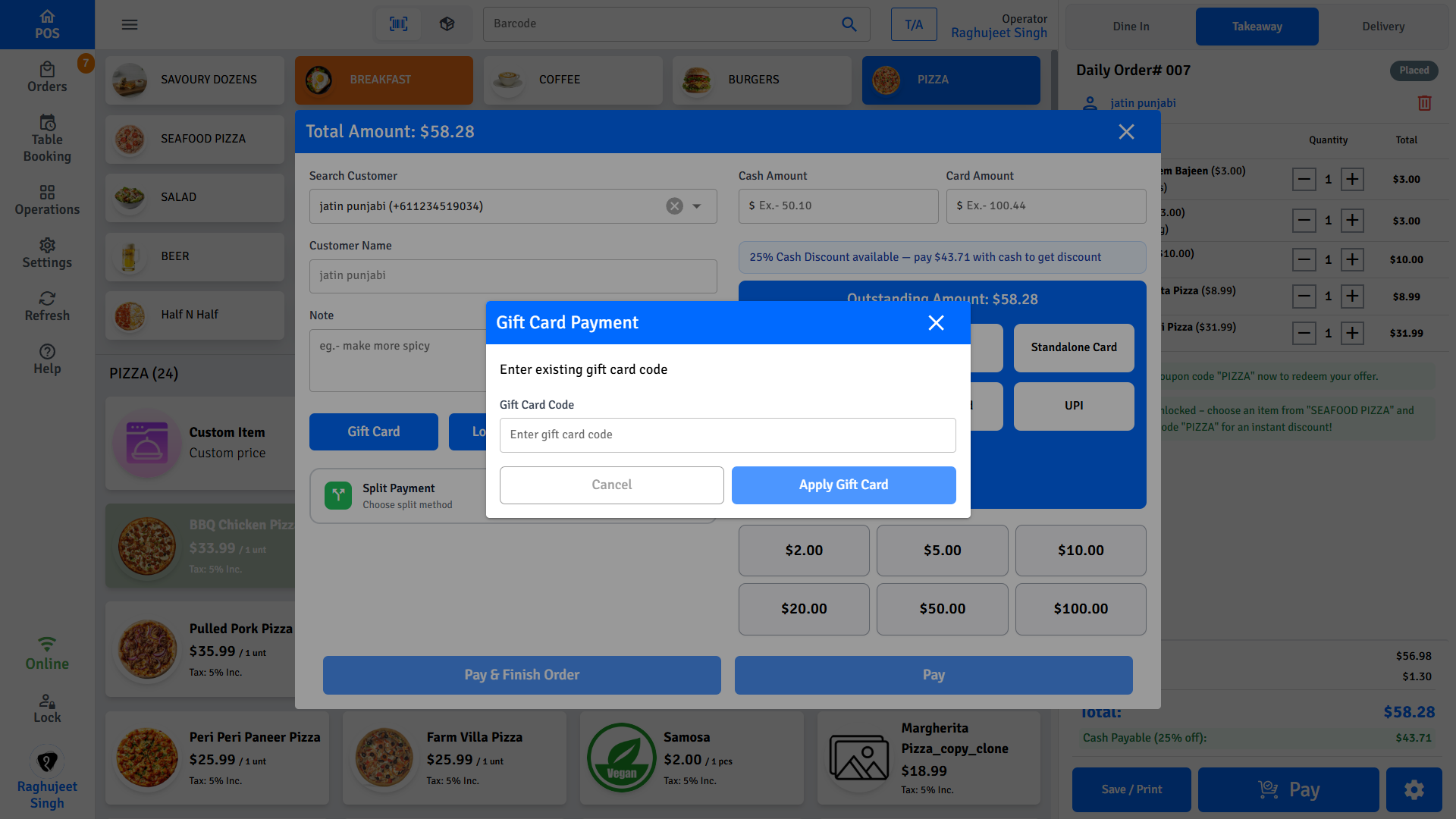
Gift card
- Tap Gift Card.
- Enter the gift card code - type it manually or scan with a barcode scanner.
- The POS checks the balance and applies it to the order.
- If the gift card covers the full amount, the order completes.
- If the gift card only partially covers the amount, a remaining balance is shown - select another payment method to cover the rest.
INFO
The customer's remaining gift card balance is printed on the receipt after redemption.
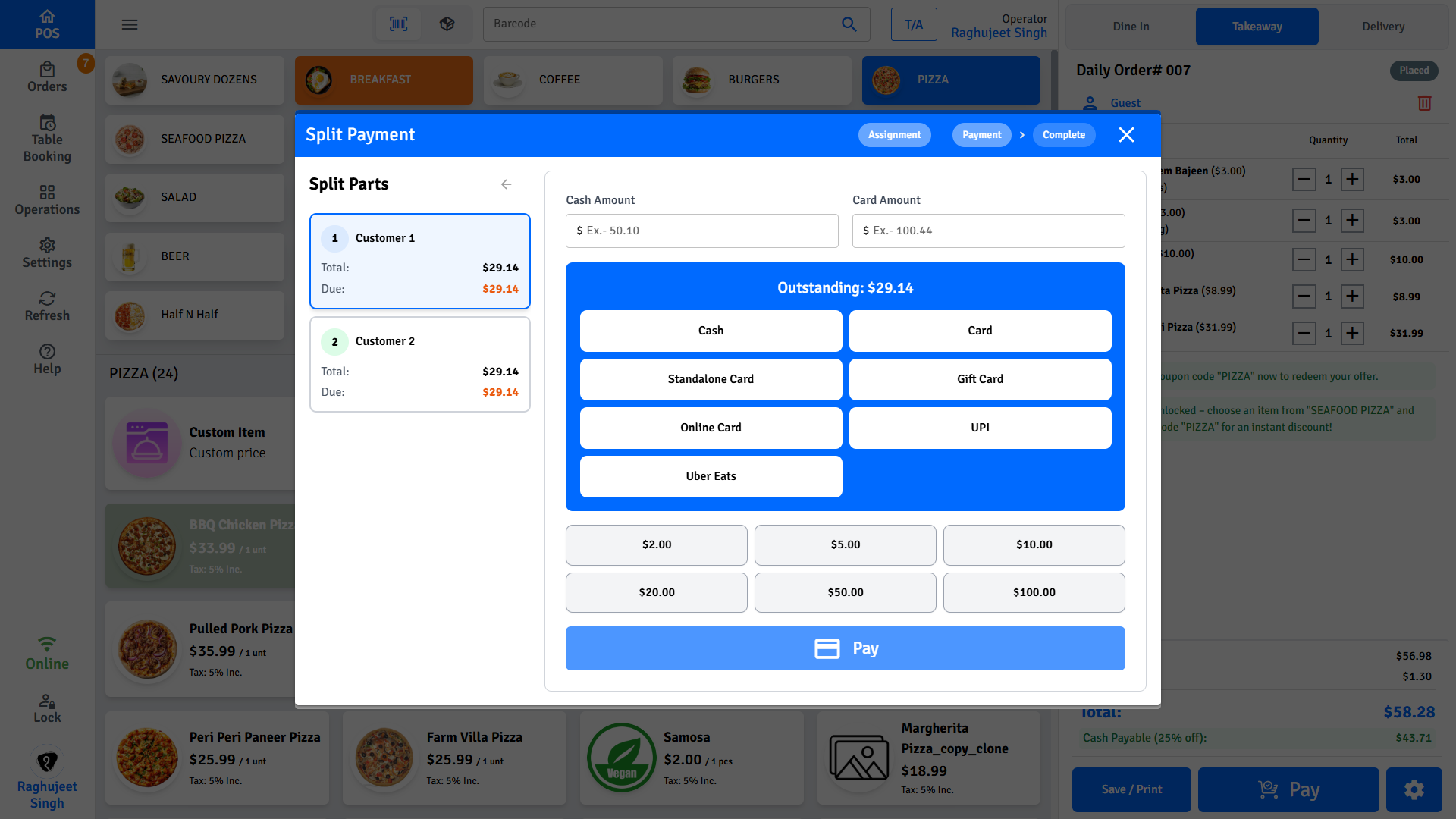
Split payment (pay by person)
Split payment divides one order across several people. You can split the total evenly among a number of customers, or assign specific items to each person so everyone pays for what they ordered.
- On the payment screen, tap Split Payment.
- Choose Split amount evenly or Split by Item Selection.
- Assign items or set the customer count, then collect each person's payment in turn.
INFO
See Split Payment for the full walkthrough - both split methods, splitting a single item across people, how each person's price is calculated, tips, receipts, and resuming a part-finished split.
WARNING
Start the split before taking any payment. Once a payment is recorded on the order, Split Payment is replaced by Resume Split Payment.
Multiple payment methods on one bill
To pay a single bill across two or more methods without splitting by person:
- Select the first payment method.
- Enter a partial amount (less than the total).
- Confirm the first payment.
- The remaining balance appears - select the next method.
- Repeat until the full balance is paid.
INFO
There is no limit on how many payment methods you can use on a single order.
Partial payment / pay later
If a customer cannot pay the full amount now:
- Accept a partial amount - the order is marked as unpaid with the outstanding balance shown.
- Return to the order later to collect the remaining payment.
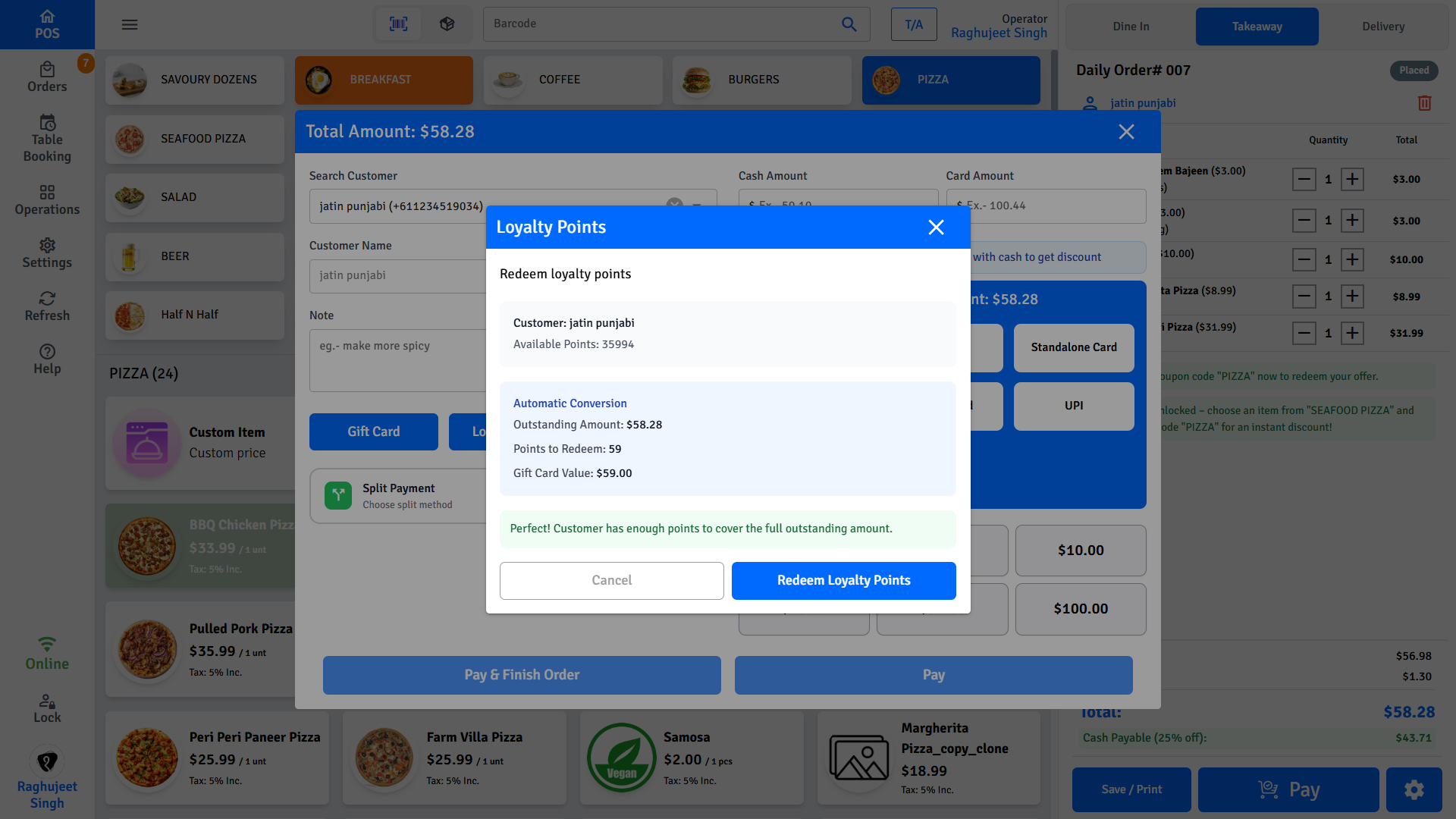
Loyalty points
If the customer is enrolled in the loyalty program and is linked to the order, their points balance appears during checkout.
- Tap Redeem Points.
- The POS shows the available balance and its discount value.
- Confirm the redemption.
- Points are deducted and the discount is applied to the order total.
Coupons and discounts
Apply a coupon code
- Tap Add Coupon in the cart or payment screen.
- Enter the code.
- The discount is applied and shown in the cart totals.
Some coupons apply automatically - no code entry needed.
Apply a manual discount
- Tap Discount in the cart.
- Enter the amount (flat dollar) or percentage.
- Enter a manager PIN if the discount is above the configured limit.
Apply a manual surcharge
- Tap Surcharge in the cart.
- Enter the amount or percentage (e.g., for a public holiday fee or service charge).
Receipts
After payment:
- The POS prints automatically, asks you to confirm, or skips printing - depending on settings.
- Choose Customer Copy and/or Merchant Copy when prompted.
- Reprint any receipt at any time from Order History.
For card payments, a separate EFTPOS receipt prints directly from the terminal. That slip is independent of the POS receipt settings.
FAQs
The card was charged on the terminal but the POS order did not complete. What do I do?
Do not process another payment. Check Order History for the order status first — the approval may have come through and completed the order without the screen updating. If the order is still unpaid, check your payment gateway's transaction report before taking any action. Contact your payment gateway provider if there is a discrepancy.
Can I cancel a split payment after I have already collected payment from one person?
A split cannot be reset once money has been collected - the POS protects payments that have already been taken. Complete or void the order first, then refund that person from Receipts & Refunds. If nobody has paid yet, close the split window and start again.
The customer wants a refund. How do I process it?
Refunds are processed from Operations → Receipts & Refunds. Find the completed order, tap Refund, and follow the prompts. A manager PIN is required. See Receipts & Refunds for the full walkthrough.
The gift card shows "Invalid" or "Zero balance". What does this mean?
"Invalid" means the code was not found — check for typos and try scanning the barcode if available. "Zero balance" means the card has been fully used. Ask the customer if they have another card or payment method.