
Cash Up
Cash Up is the process of reconciling your till at the end of a shift or trading day - comparing what the POS recorded against what you physically counted. Do this every shift or end of day.
Open Cash Up
- Tap Operations in the navigation.
- Tap Cash Up.
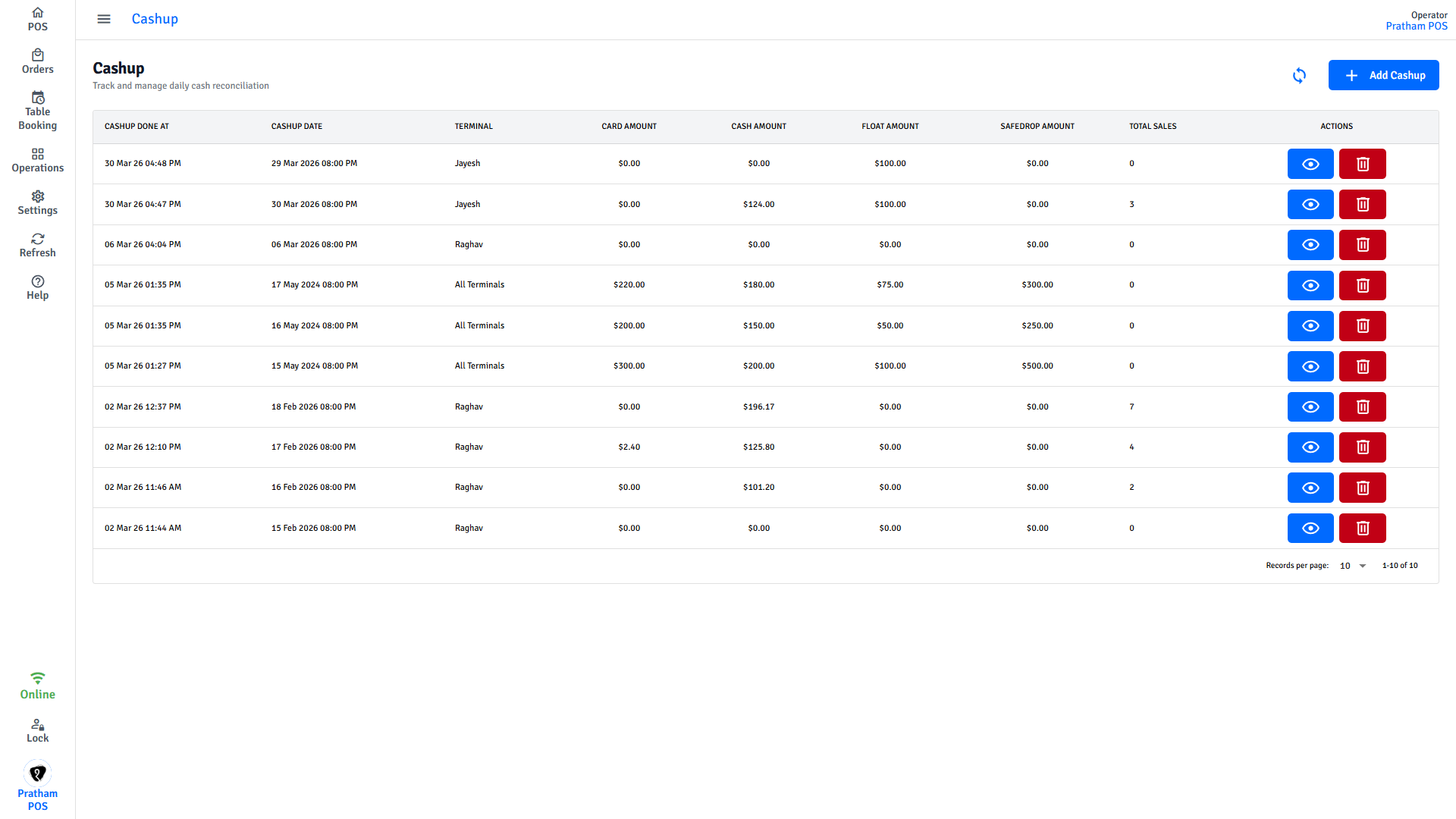
The screen lists all completed cashups with columns for date, terminal, cash amount, card amount, float, safe drop, and total sales.
Create a new cashup
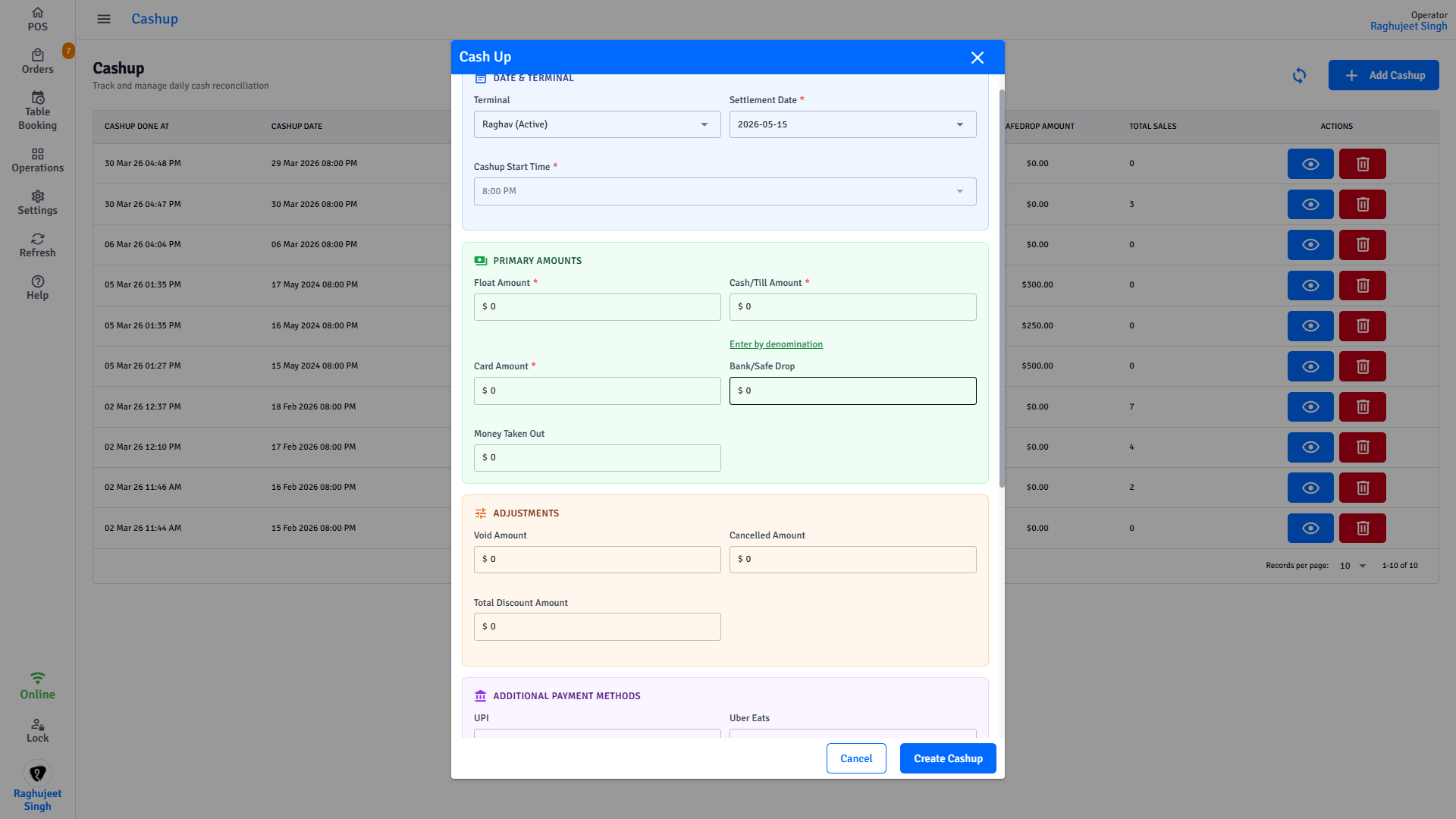
Tap Add Cashup to open the cashup form.
1. Select date and terminal
- Select the Terminal from the dropdown - choose a specific terminal or All Terminals.
- Select the Settlement Date - the dropdown shows all dates that have pending (unreconciled) orders.
- Cashup Start Time fills in automatically from your POS settings - it is read-only.
INFO
Once you select a date and terminal, the form automatically fills in the expected amounts based on what the POS recorded for that period.
2. Enter primary amounts
| Field | What to enter |
|---|---|
| Float Amount | The starting cash you are keeping for the next shift |
| Cash Amount | The total cash you counted in the till |
| Card Amount | The total card transactions from your EFTPOS terminal report |
| Bank / Safe Drop | Cash you transferred to the safe or bank during the shift |
| Money Taken Out | Any other cash removed from the till (e.g., petty cash run) |
TIP
Tap Enter by denomination next to the Cash Amount field to open the denomination calculator. Enter the quantity of each note and coin - the calculator totals it and fills the Cash Amount for you.
3. Review adjustment amounts
These fields are pre-filled by the POS and show what was recorded during the period. Check them for accuracy.
| Field | What it shows |
|---|---|
| Void Amount | Total value of voided orders |
| Cancelled Amount | Total value of cancelled orders |
| Total Discount Amount | Total discounts applied across all orders |
4. Review additional payment methods
If your venue accepts gift cards, store credit, or other payment methods, each one appears as its own field. The POS pre-fills the expected amount - enter the actual amount you have on record.
5. Add a note (optional)
Enter any notes in the Note field - for example, reasons for a discrepancy or a handover message for the next shift.
6. Confirm and submit
- Tap Submit (or Complete Cash Up).
- A confirmation prompt appears - review all amounts before continuing.
- Tap Confirm to finalise.
WARNING
Once submitted, a cashup cannot be undone or edited. Double-check all amounts before confirming.
Cashup summary
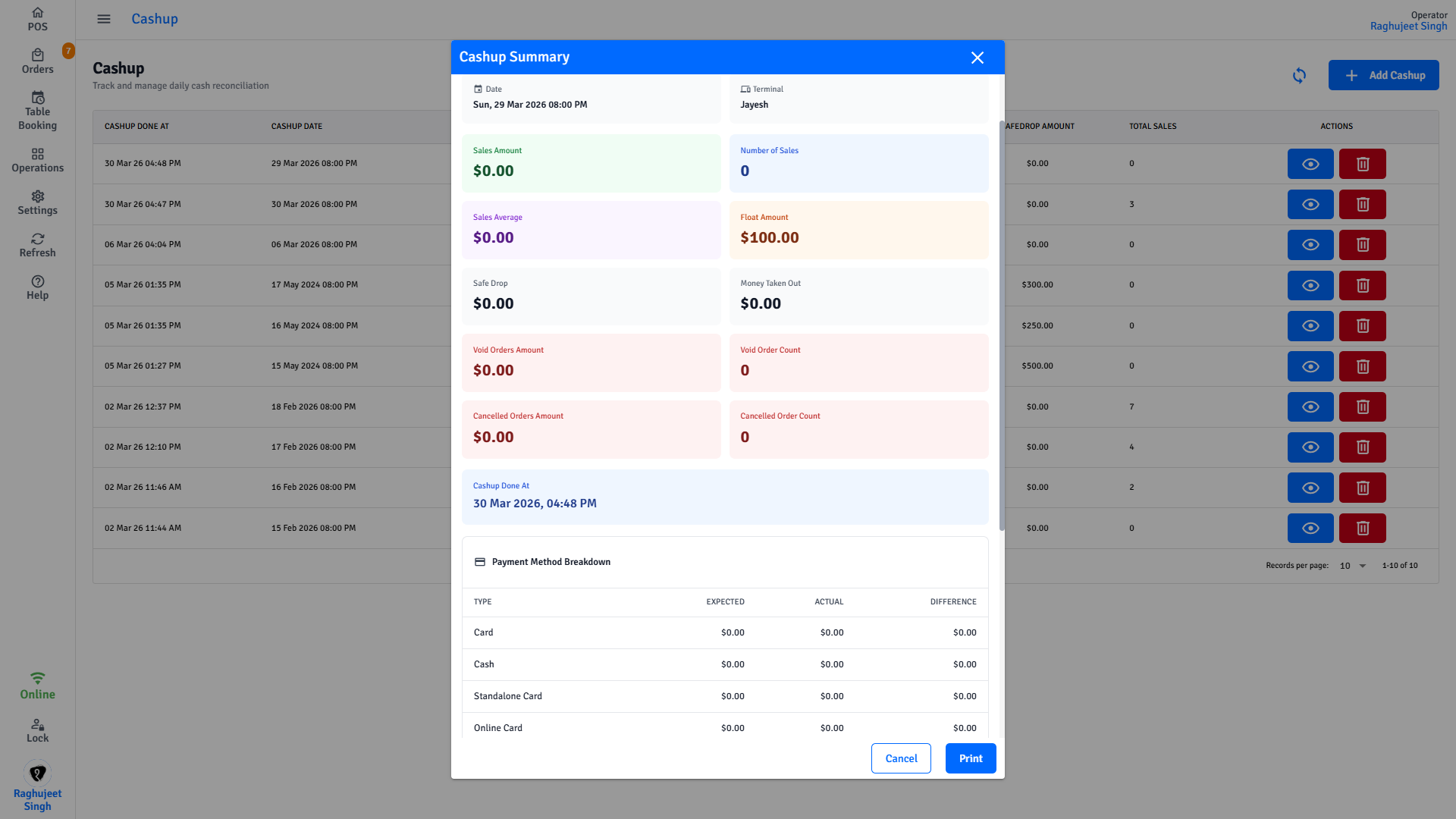
After a successful submission, the cashup summary appears automatically.
Sales metrics
| Metric | Description |
|---|---|
| Sales Amount | Total sales for the period |
| Number of Sales | Total order count |
| Sales Average | Average order value |
| Float Amount | Float kept for the next shift |
| Safe Drop | Cash transferred to safe or bank |
| Money Taken Out | Other cash removed from the till |
Adjustment metrics
| Metric | Description |
|---|---|
| Void Orders Amount | Total value of voided orders |
| Void Order Count | Number of voided orders |
| Cancelled Orders Amount | Total value of cancelled orders |
| Cancelled Order Count | Number of cancelled orders |
Payment method breakdown
A table shows each payment method with:
| Column | What it shows |
|---|---|
| Payment Type | Cash, Card, Gift Card, or other methods |
| Expected Amount | What the POS recorded for this method |
| Actual Amount | What you entered |
| Difference | Expected minus actual - shown in green, red, or grey |
Tap Print to print the End of Day Report.
Denomination calculator
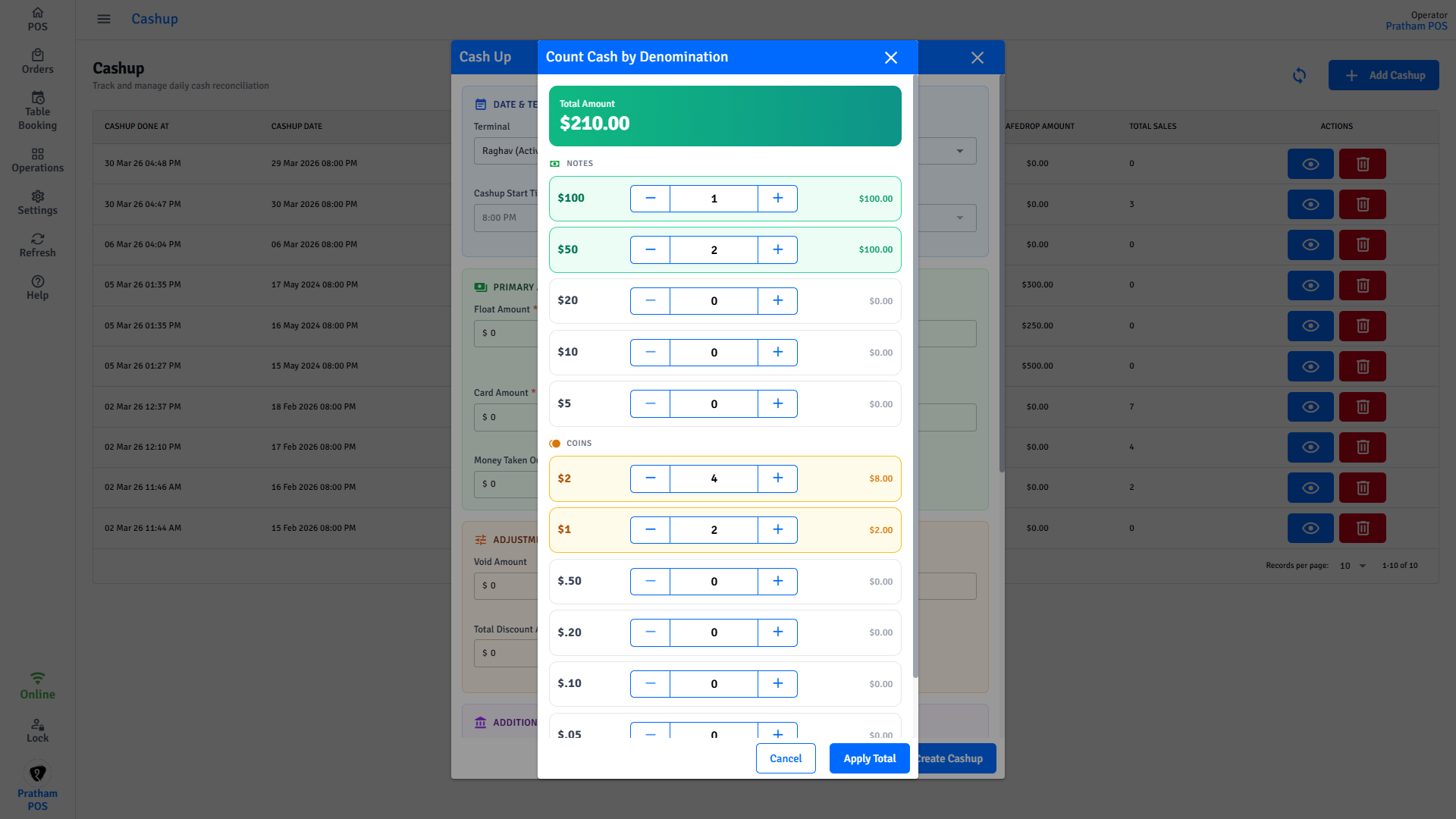
The denomination calculator helps you count cash accurately without mental arithmetic.
- In the cashup form, tap Enter by denomination next to Cash Amount.
- Enter the quantity of each note ($5, $10, $20, $50, $100) and each coin ($0.05, $0.10, $0.20, $0.50, $1, $2).
- The calculator shows a running subtotal per denomination and a grand total at the top.
- Tap Apply Total to copy the total back into the Cash Amount field.
- Tap Reset to clear all counts and start again.
TIP
The denominations shown match your location's currency (AUD, NZD, USD, GBP, or EUR).
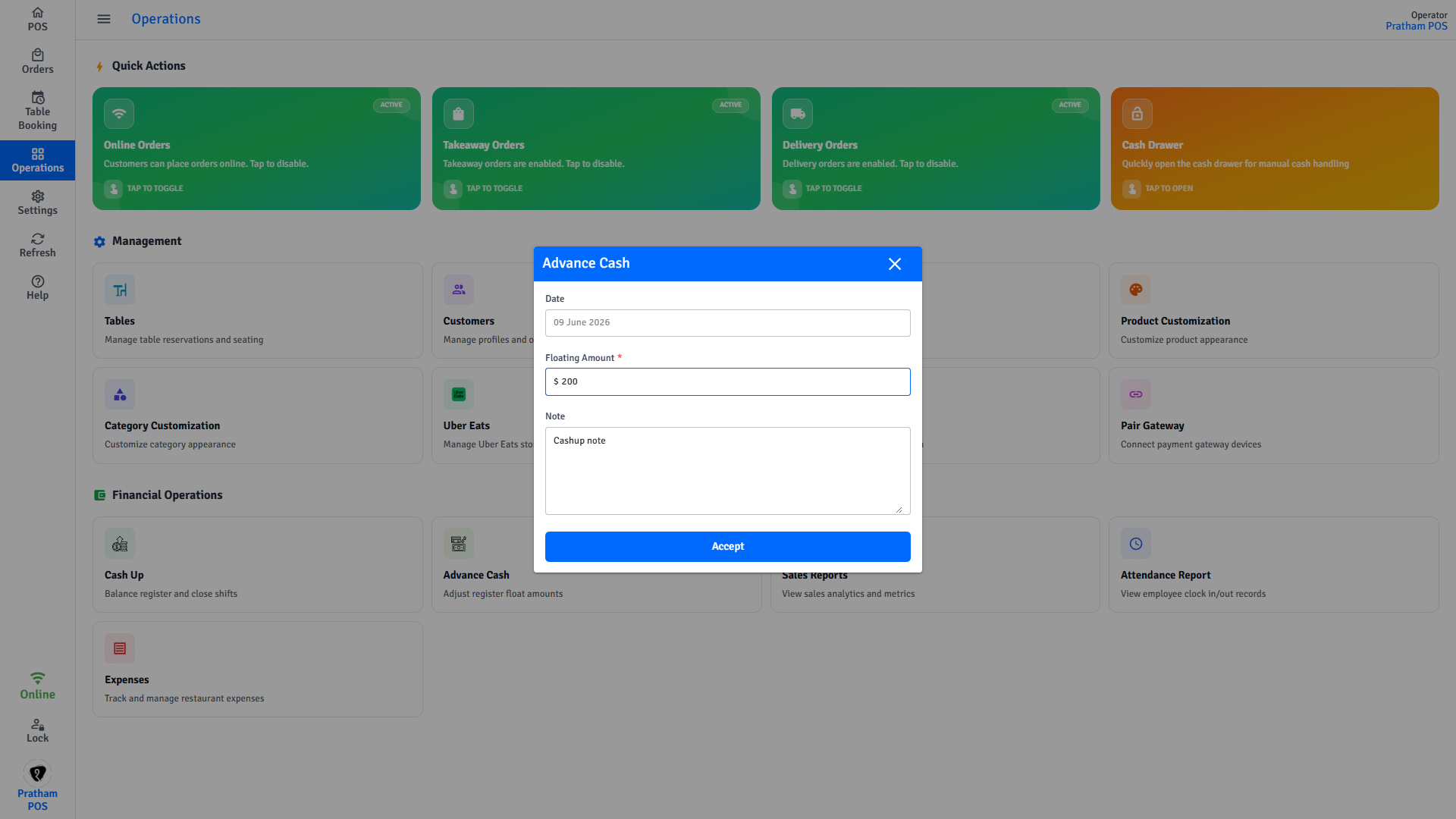
Record a cash advance
If cash is taken from the till during a shift - for example, a petty cash run or a supply purchase - record it immediately so it appears in the cashup.
- Tap Operations in the navigation.
- Tap Advance Cash.
- The date fills in automatically.
- Enter the amount taken out.
- Enter a note explaining the reason.
- Tap Accept.
Cash advances appear as Money Taken Out in the cashup form and are automatically included in the discrepancy calculation.
View and manage past cashups
- Tap Operations → Cash Up.
- All completed cashups are listed with date, terminal, and amounts.
- Tap the eye icon on any row to view the full cashup summary and reprint the report.
- Tap the trash icon to delete a cashup record.
Manager only
Deleting a cashup record permanently removes it from history. Only do this if the cashup was created in error.
Multi-terminal venues
Each terminal's cashup is tracked separately. The terminal name appears in every cashup row so you can identify which till you are reconciling. Select All Terminals in the form to do a combined cashup across all terminals at once.
End-of-shift checklist
Run through these items before tapping Submit to avoid having to delete and redo a cashup due to a missed entry.
Before tapping Submit:
- [ ] All orders are completed, voided, or cancelled - no orders accidentally left open
- [ ] Cash drawer counted (use denomination calculator if needed)
- [ ] EFTPOS terminal end-of-day report printed
- [ ] Safe drop amounts entered
- [ ] Cash advances entered
- [ ] Additional payment method amounts checked
- [ ] Discrepancies investigated and noted
FAQs
I submitted a cashup with the wrong amount. Can I fix it?
Once submitted, a cashup cannot be edited. A manager can delete the cashup record from Operations → Cash Up using the trash icon, then you can create a new one with the correct amounts. Only delete a cashup if it was submitted in error — deletion permanently removes it from history.
What is a "safe drop" and when do I enter one?
A safe drop is cash you moved from the till to the safe or a bank deposit during the shift — for example, when the till gets too full. Enter the total amount transferred in the Bank / Safe Drop field. This keeps the cashup balanced without that cash appearing as a discrepancy.
The Cashup Start Time is wrong. Can I change it?
No — the start time is read-only and set automatically by your POS settings. If it is consistently incorrect, ask your manager to update the Cashup Start Time in Settings → General.
The Expected Amount and Actual Amount are different. What should I do?
A difference (shown in red or green in the Difference column) means your physical count does not match what the POS recorded. Recount the cash, check your EFTPOS terminal report, and look for any unrecorded cash advances. Enter a note explaining any remaining discrepancy before submitting.