
Display Connection Troubleshooting
Use this guide when a Kitchen Display, Customer Display, or Order Status Display is not connecting to the POS - or was working before and has stopped. Steps are grouped by symptom so you can jump straight to what you see.
Kitchen display not connecting to POS
| What to check | What to do |
|---|---|
| Same network? | The KDS device and the POS must be on the same Wi-Fi or LAN. A guest network or separate subnet will block the connection. |
| Correct address? | Open the KDS app's connection settings and confirm the IP address and port match what is shown in POS → Settings → Device Settings. |
| Windows on KDS? | If the KDS device runs Windows, Network discovery may be off - follow the Windows network discovery fix below. |
| POS restarted recently? | The POS IP address can change after a restart if your router uses dynamic IPs. Check Device Settings again for the current address. |
Customer display not connecting to POS
| What to check | What to do |
|---|---|
| Same network? | The customer display and the POS must be on the same Wi-Fi or LAN. |
| Correct address? | Confirm the IP address and port in the customer display app match POS → Settings → Device Settings. |
| Windows on customer display? | If the display device runs Windows, follow the Windows network discovery fix below. |
| Settings re-broadcast needed? | Go to POS → Settings → Customer Display and tap Save Settings to push the configuration out again. |
Order status display not connecting to POS
| What to check | What to do |
|---|---|
| Same network? | The order status display and the POS must be on the same Wi-Fi or LAN. |
| Correct address? | Confirm the IP address and port in the display app match POS → Settings → Device Settings. |
| Windows on the display device? | If the device runs Windows, follow the Windows network discovery fix below. |
Display was working, now it stopped
- Check the display device is still powered on and connected to Wi-Fi.
- Open POS → Settings → Connected Devices and look at the Last Activity column. An orange dot means no signal for over a minute.
- Tap Refresh in Connected Devices.
- If the POS IP address changed (common after a router restart), update the connection address in the display app - find the current IP in POS → Settings → Device Settings.
- Restart the display app and reconnect.
Fix: Network discovery on Windows
This fix applies to any Windows device involved in the connection - the POS PC itself, or a display device running Windows. If a display cannot reach the POS, or the POS cannot be found by a display, run through this on both the POS PC and the Windows display device.
Windows disables network discovery by default. Without it, devices on the same network cannot find each other, so the display app cannot reach the POS socket - and the POS cannot see the display. Turning this on is a one-time change per device.
WARNING
These steps are done in Windows Settings, not inside the POS app. You need administrator access on the Windows device to make this change.
Step 1 - Open Network & Internet settings
- Click the Start button and open Settings (the gear icon).
- Click Network & internet in the left sidebar.
- Scroll to the bottom and click Advanced network settings.
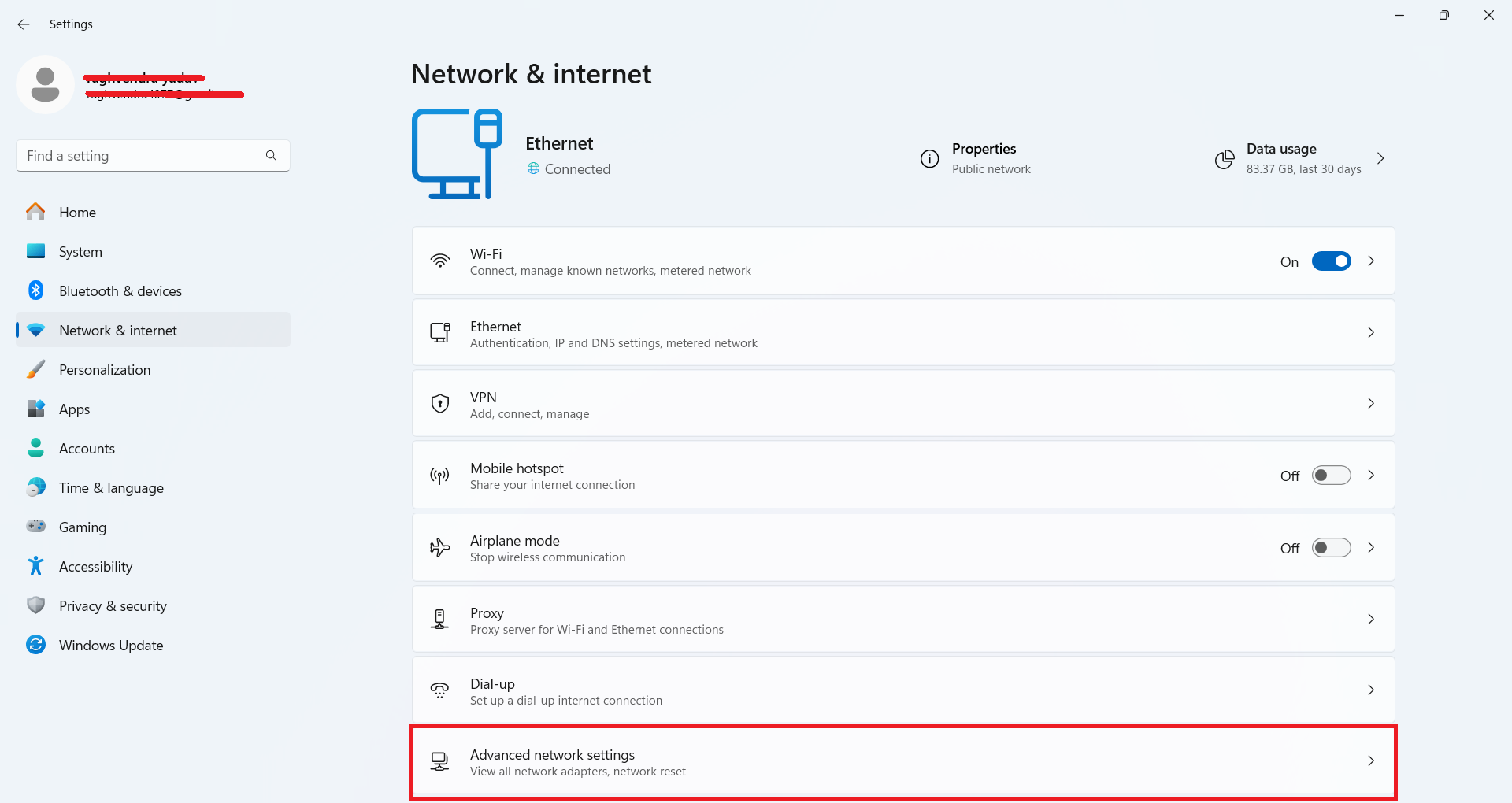
Step 2 - Open Advanced sharing settings
- Under the More settings section, click Advanced sharing settings.
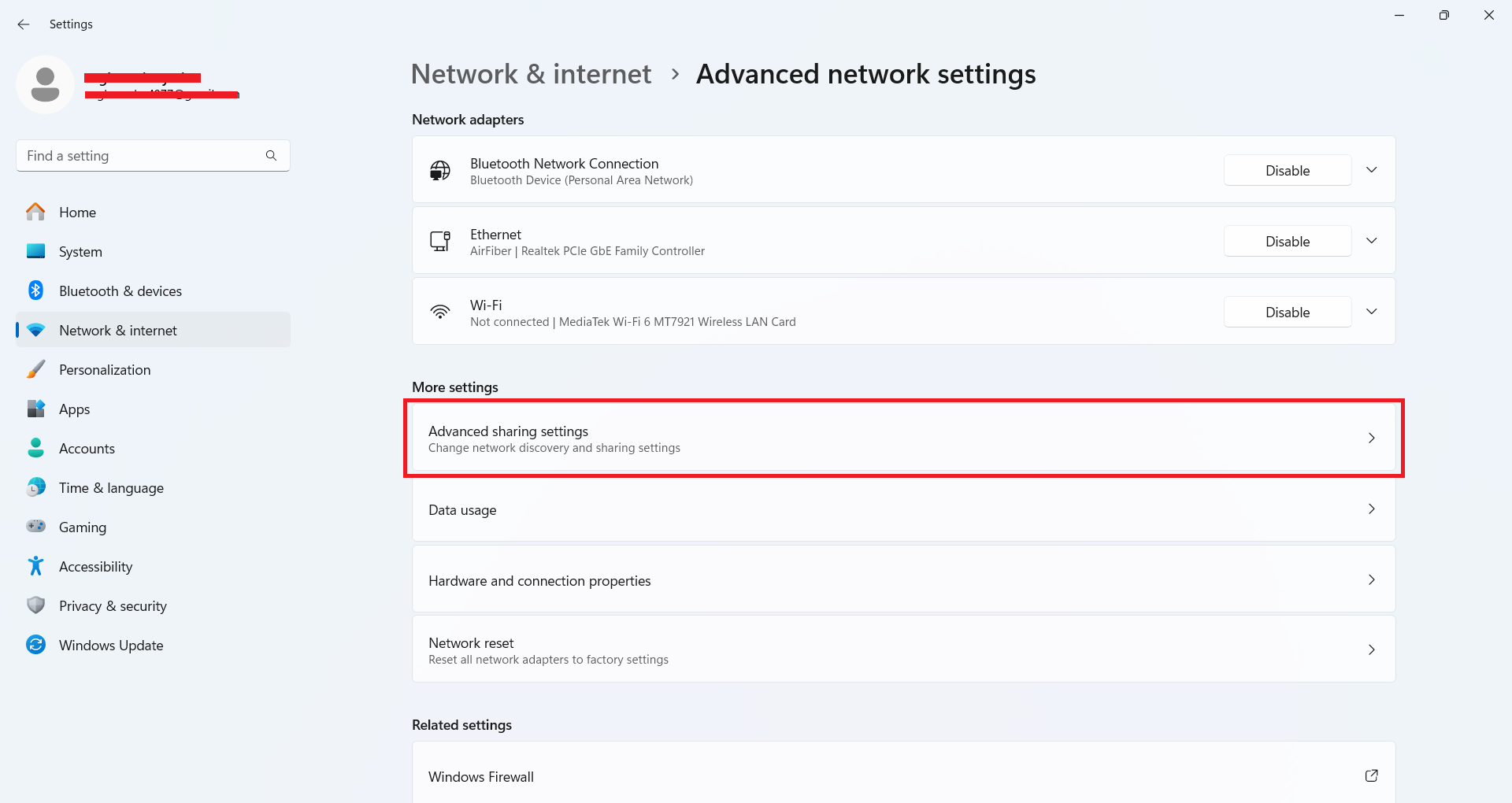
Step 3 - Turn on Network discovery and File and printer sharing
Do this for both the Private networks and Public networks sections - Windows labels your current connection type as Current profile next to the heading, but it may switch between Private and Public depending on the location, so enabling both prevents the issue recurring.
- Expand Private networks.
- Toggle Network discovery to On.
- Tick Set up network connected devices automatically.
- Toggle File and printer sharing to On.
- Expand Public networks.
- Toggle Network discovery to On.
- Toggle File and printer sharing to On.
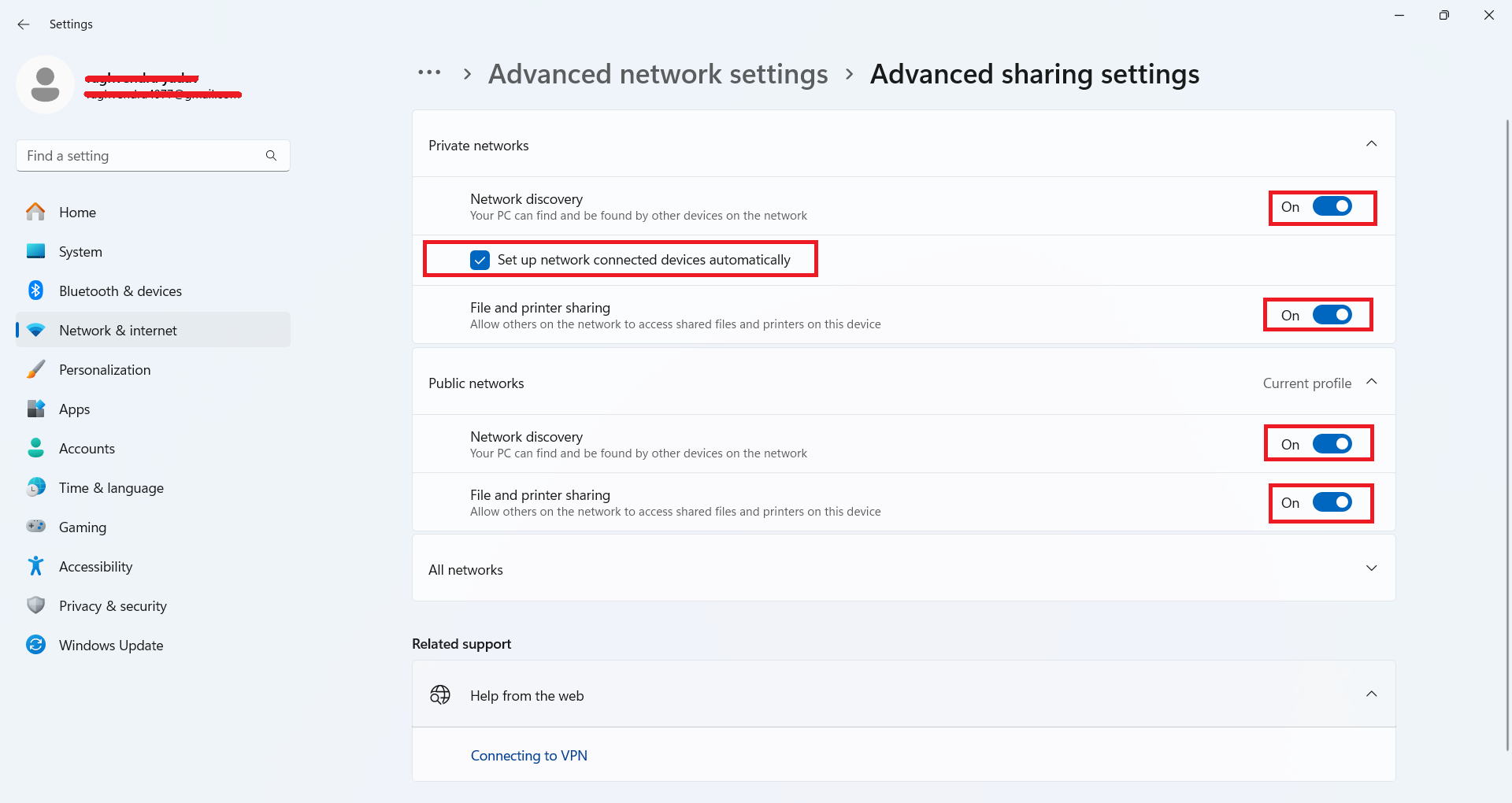
After saving, go back to the display app and enter the POS connection address. The display should appear in Connected Devices within a few seconds.
TIP
If it still does not connect after enabling these settings, restart the POS app and try reconnecting. On the display device, restart the display app as well.
Still not connecting?
Before contacting support, have these ready:
- The IP address shown in POS → Settings → Device Settings
- The connection address entered in the display app
- Whether the display app shows any error message
- Which device OS the display is running (Windows, Android, iOS)
See Contact support for Pratham support contact details.