
Items & Menu
The left side of the POS screen is the item panel. Use it to browse your menu and add items to the cart on the right.
How the screen is laid out
The item panel has two parts:
- Categories - a bar or list of your menu categories (Burgers, Drinks, Desserts, etc.)
- Items grid - the items belonging to the selected category
Tap a category to load its items. Tap an item to add it to the cart.
Adding an item to the cart
- Tap a category to open its items.
- Tap an item card.
- If the item has variants (e.g. Small / Medium / Large), select the variant - see Modifiers & Variants.
- If the item has modifiers (e.g. sauce choice, extra toppings), the modifier dialog opens automatically - see Modifiers & Variants.
- Tap Confirm (or Add to Cart if no customisation dialog appears) - the item is added to the cart.
TIP
You can tap the same item card multiple times to add multiple of the same item, or adjust quantity on the cart line item.
What each item card shows
| Element | What it means |
|---|---|
| Item name | The name as configured in the Admin Portal |
| Price | The current selling price for the active order type |
| Image (optional) | Shown when Item Image Preview is enabled in Settings |
| Colour | Custom colour, if set via Item Colour Customisation |
Special item types
Some tiles in the item grid are not regular menu items - they serve a specific purpose:
| Tile | What it does |
|---|---|
| Half & Half | Lets you combine two items into one (e.g. half BBQ Chicken, half Margherita). See Half & Half. |
| Deals | Opens a deal builder for combo, BOGO, or bundle deals. See Deals. |
| Misc Item | Appears when a category named exactly MISC exists. Add an unlisted item with a name, price, and category. See Custom Items. |
| Custom Item | Appears in every category when enabled in POS Settings. Add a quick one-off item with a name and price. See Custom Items. |
MISC category
If your admin has created a category named exactly MISC (all capitals), that category will show a special misc item tile. This tile works like the Custom Item but also lets you choose the category for the item - useful when you need to assign the item to a specific category for tax or reporting.
In all other categories, the Custom Item tile auto-assigns the category to whichever category you are currently browsing.
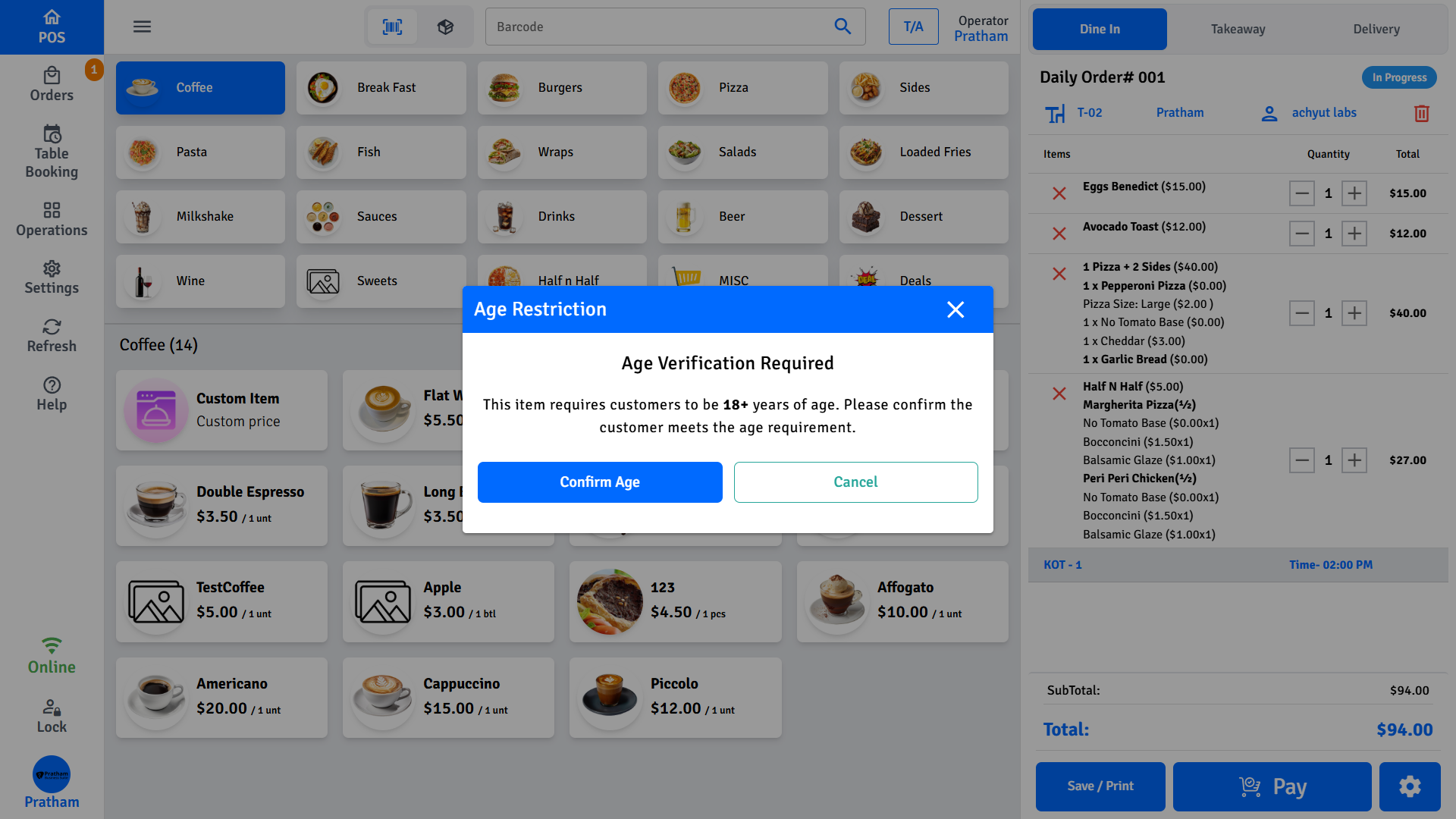
Age-restricted items
Some items - such as alcohol or tobacco - require a minimum age check before they can be added to an order.
How the age check works
- Tap an age-restricted item.
- A Confirm Age dialog appears showing the minimum age required.
- Tap to confirm the customer meets the requirement.
- The item is added to the cart.
Once an age is confirmed for the order, items with the same or lower age requirement skip the prompt automatically.
Example
If you confirmed the customer is 18+ for a beer, adding another 18+ item skips the prompt. Adding a 25+ item shows the prompt again because the requirement is higher.
WARNING
This is a staff-acknowledged check. It is your responsibility to verify the customer's ID. The POS does not scan IDs automatically.
Item display settings
Change the item panel layout
🔒 Manager only - tap Settings → Appearance → Category Layout Style.
| Layout | How it looks |
|---|---|
| Compact | Categories at the top; items for the selected category below |
| Full | Only categories shown; tap a category to see its items |
| Vertical | Categories listed on the left; items for the selected category on the right |
Show or hide item images
🔒 Manager only - toggle Item Image Preview in Settings → Appearance.
Customise category and item colours
- Category colours - tap Operations → Item & Category Customisations → Category Color Customization
- Item colours - tap Operations → Item & Category Customisations → Item Color Customization
What's in this section
| Page | What it covers |
|---|---|
| Modifiers & Variants | Selecting options, extras, and sizes when adding items |
| Deals | Combo deals, BOGO, bundle deals |
| Half & Half | Combining two items into one |
| Custom Items | Misc item and custom item for unlisted or one-off products |