
Ordering & Checkout
This section explains every part of taking an order - from adding the first item to handing over the receipt. Each page covers one feature in detail, so you can learn one thing at a time.
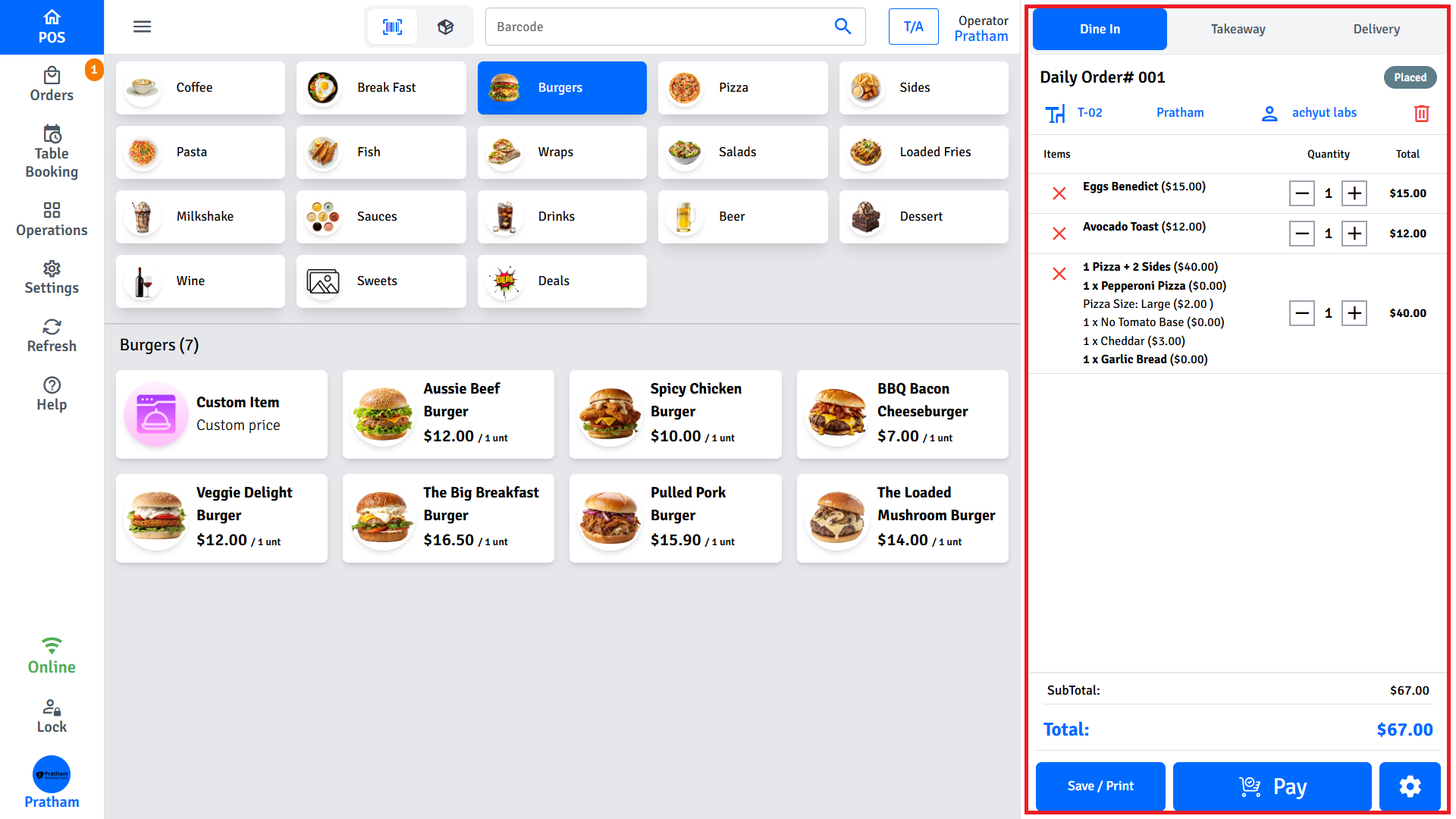
The order flow at a glance
Every order follows the same basic path:
- Select the order type - Dine-In, Takeaway, or Delivery.
- Tap items to add them to the cart.
- Tap Search Customer to link a customer (optional, but needed for delivery, loyalty, and gift cards).
- Apply any discounts, surcharges, or coupons.
- Tap Save / Print to save the order for later, or tap Pay to take payment now.
- Print the receipt.
The cart Actions menu
Many checkout features live behind one button. Tap the settings icon (âš™) at the bottom-right of the cart to open the Actions menu. It contains:
| Action | What it does | Detailed guide |
|---|---|---|
| Coupon | Enter a promo code or pick from eligible offers | Coupons & Promotions |
| Discount | Reduce the order total by a dollar amount or percentage | Discounts |
| Surcharge | Add an extra charge, such as a public holiday fee | Surcharges |
| Loyalty | Redeem the customer's loyalty points | Loyalty & Gift Cards |
| Gift Card | Pay with a gift card | Loyalty & Gift Cards |
| Expense | Record a cash expense from the till | Expenses |
TIP
An orange badge on the settings icon shows how many of these are active on the current order - one each for an applied coupon, discount, and surcharge.
Pages in this section
| Page | What you'll learn |
|---|---|
| Discounts | Manual discounts, automatic discount rules, and discount approval |
| Surcharges | Manual surcharges and automatic holiday / weekend surcharges |
| Coupons & Promotions | Promo codes, auto-applied offers, free items, and why a coupon may not work |
| Cash Discount | The automatic discount customers get for paying with cash |
| Delivery Orders & Charges | Delivery addresses, zone-based charges, and manual charge entry |
| Loyalty & Gift Cards | Earning points, redeeming points, and paying with a gift card |
| Split Payment | Splitting a bill evenly or by item, and how each share is calculated |
| Save an Order | Saving an order to finish or pay later |
| Receipt Printing | Receipt types, the print confirmation screen, auto-print, and reprints |