Custom Items - misc item, one-off item, add to order
Pratham ResPOS provides two ways to add unlisted or one-off items to an order without them being in the item catalogue: Misc Item and Custom Item. Both appear on the item selection screen when enabled.
Misc Item
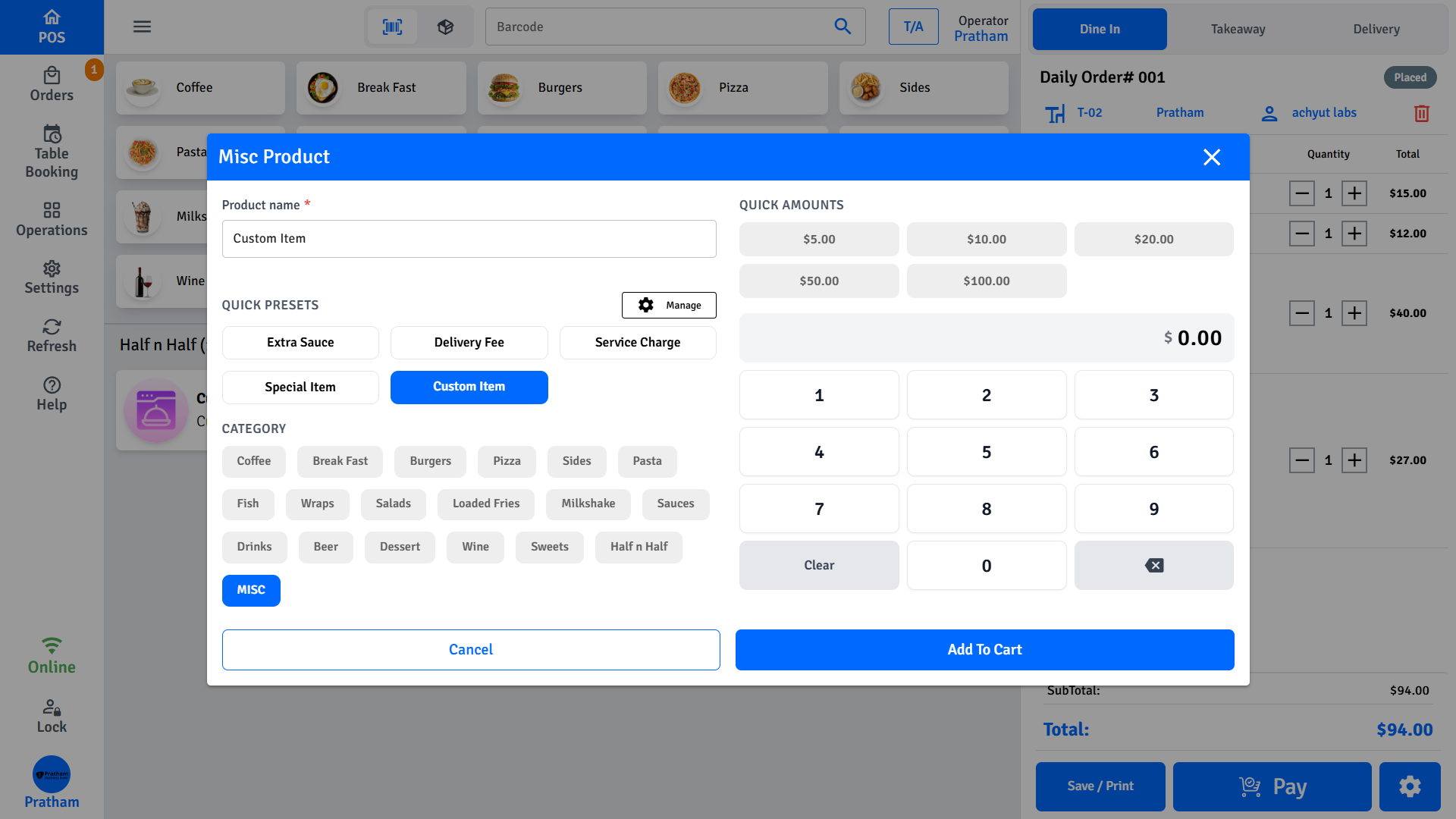
The Misc Item feature lets staff add an unlisted or one-off item to an order with a custom name and price. This is useful for:
- Items not yet in the menu
- Special orders that don't have a dedicated item entry
- Wholesale or custom pricing situations
There are two ways the Misc Item tile appears:
| Trigger | Where it appears | Category selection |
|---|---|---|
| A category named exactly MISC exists in the menu | Only inside the MISC category | You choose the category |
| Custom Item is enabled in POS Settings | In every category (as Custom Item) | Auto-set to current category |
If your admin has created a category named exactly MISC (all capitals), browsing into that category shows the Misc Item tile. This version lets you select any category - useful when you need to assign the item to the correct category for tax or reporting.
Enabling Misc Item
The Misc Item button appears on the POS item screen when Custom Item is enabled in POS Settings. Contact your manager if it is not visible.
Adding a Misc Item
- On the item selection screen, tap Misc Item (shown as a tile, usually at the top of the item list).
- The Misc Item dialog opens.
- Select a Category for the item (used for tax and reporting).
- Enter a price using the numeric keyboard, or tap one of the quick-amount buttons ($5, $10, $20, $50, $100).
- Optionally select or enter a name for the item.
- Tap Add to Order.
The item appears on the order as a misc item with the name and price you entered.
Using Presets
Frequently used misc items can be saved as presets to speed up ordering:
- Tap Add Preset to save a name (and optional price) as a preset.
- Presets appear at the top of the Misc Item dialog for quick selection.
- Tap a preset to fill in the name (and price if saved).
- Presets can be edited or deleted by tapping the edit icon next to them.
Custom Item
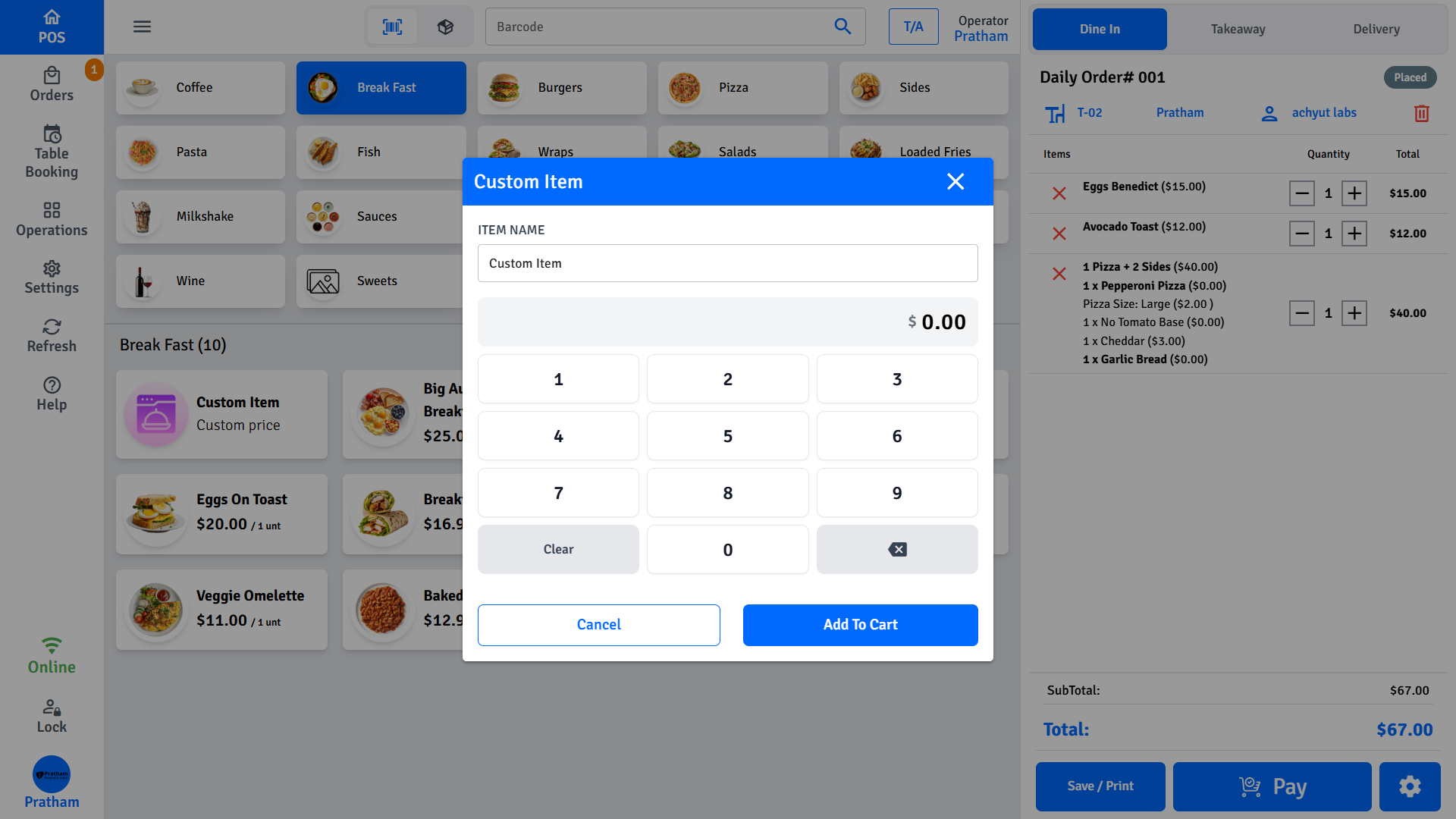
The Custom Item feature is a simpler variant of Misc Item. Use it to quickly add a one-off item with a name and price when you don't need presets or category selection upfront.
Adding a Custom Item
- Tap Custom Item on the item selection screen.
- Enter an item name (defaults to "Custom Item" if left blank).
- Enter the price.
- Select the applicable tax from the dropdown.
- Tap Add to Order.
The item appears on the order with the name formatted as [Category] – [Item Name].
Misc Item vs Custom Item
| Feature | Misc Item | Custom Item |
|---|---|---|
| Presets | Yes | No |
| Category selection | Yes | Auto (from POS) |
| Tax selection | Auto (by category) | Manual |
| Quick amount buttons | Yes | No |
| Speed | More steps | Faster |
Use Custom Item for a quick ad-hoc charge. Use Misc Item when you need to categorise the item correctly or reuse a saved preset.