
POS Auto Lock
Auto Lock secures the POS when nobody is using it. After the time you choose - or after every order - the screen locks and shows the staff selection screen, so the next person must pick their card (and enter a PIN if required) before they can ring up a sale.
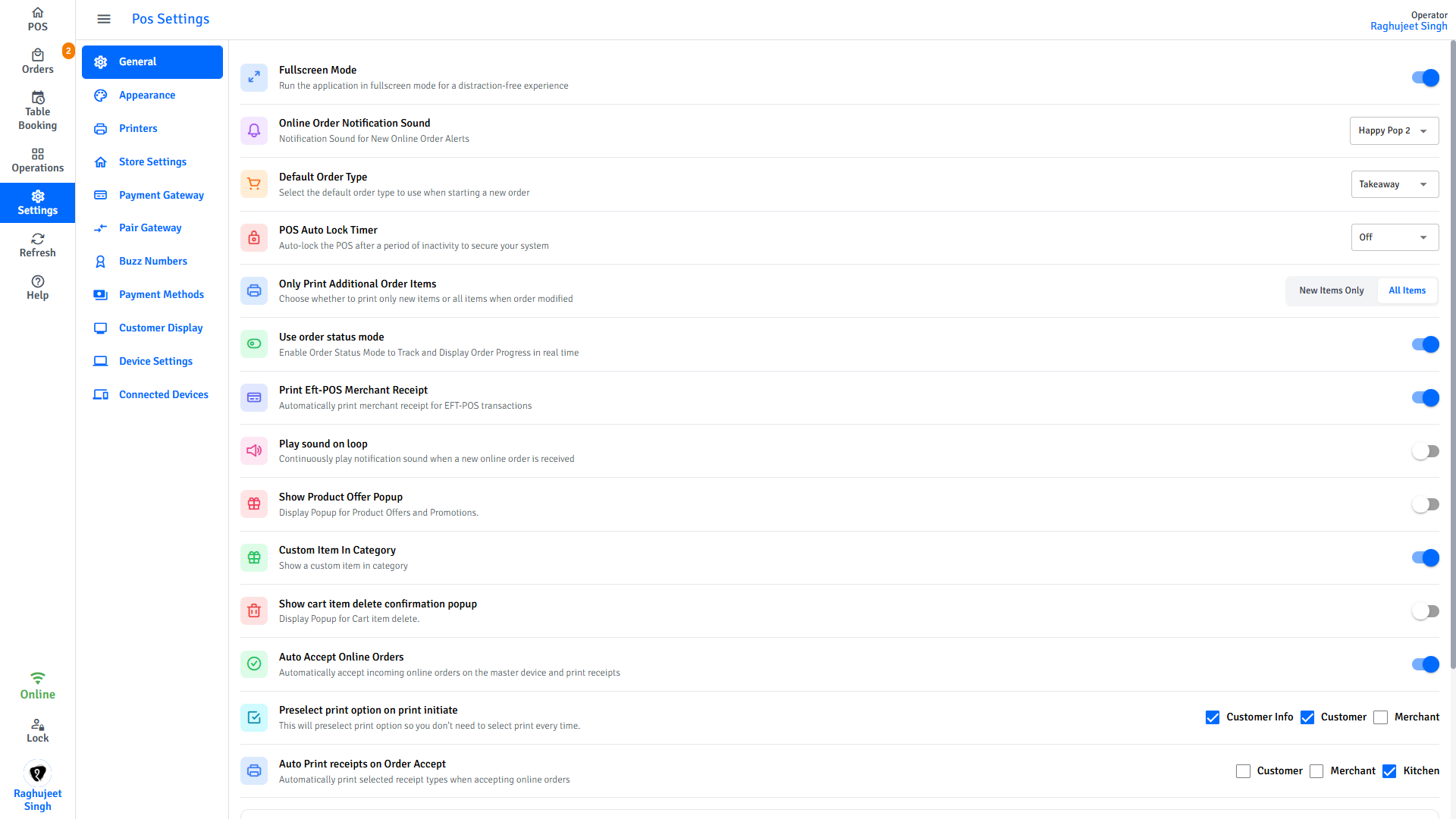
🔒 Manager only - the auto-lock timer is set in Settings → General.
Lock, not logout
Locking only clears the active staff member. The POS stays on, the session stays open, and everyone remains signed in. Nobody is fully logged out unless they tap the logout button on the lock screen.
Set the auto-lock timer
- Tap Settings in the left navigation menu.
- Tap General.
- Select the POS Auto Lock Timer dropdown.
- Choose a mode (see the table below).
- Tap Save.
Auto-lock modes
| Option | When the screen locks |
|---|---|
| Off | Never locks automatically - staff must tap Lock manually to secure the POS |
| After Every Order | Locks immediately after each order is paid or sent to the kitchen |
| 1 minute | Locks after 1 minute with no touch, mouse, or keyboard activity |
| 5 minutes | Locks after 5 minutes of inactivity |
| 10 minutes | Locks after 10 minutes of inactivity |
| 15 minutes | Locks after 15 minutes of inactivity |
Which mode should I use?
- After Every Order - busy counters with many staff sharing one till. Every sale is tied to whoever unlocked it.
- 1-5 minutes - a shared terminal where staff step away often.
- 10-15 minutes - a single-operator till where frequent locking would slow service.
- Off - only when the POS is in a secure, staff-only area. Staff can still lock it by hand.
How the inactivity timer works
For the timed options (1, 5, 10, 15 minutes), the countdown resets on any touch, mouse, or keyboard activity. The POS locks only after the full period passes with no activity at all. Off and After Every Order do not use the inactivity timer.
Lock the POS manually
Any staff member can lock the POS at any time - regardless of the auto-lock mode, even when it is set to Off.
- Tap Lock in the left navigation menu.
Use this whenever you step away from the counter.
The lock screen
When the POS locks, a full-screen staff selection overlay appears. From here staff can:
- Tap their own card to resume without re-entering credentials - unless Require Authentication for Staff Switching is enabled, in which case a PIN or password is asked.
- Tap another staff member's card to switch the active user. They enter their PIN or password if authentication is required.
- Tap the logout button (door-out icon) on a card to fully log that person out. A confirmation appears, with an option to log out from all devices too.
To unlock, tap your card and enter your PIN or password if prompted.
Lock vs. logout
Lock only clears the active user - the session stays open and all staff remain signed in. Logout ends the session, marks attendance, and removes the staff member from the device. If everyone logs out, the POS returns to the main login screen.
Common questions
What happens if the POS locks in the middle of an order?
Nothing is lost. The current order stays in the cart. After a staff member unlocks the POS, the cart is exactly as it was left, and they can carry on.
Can staff lock the POS even when auto-lock is set to Off?
Yes. The Lock button in the left navigation menu is always available, whatever the auto-lock setting is.
"After Every Order" - does it lock after saved orders too?
Yes. It locks as soon as an order is completed - whether that is taking payment or sending the order to the kitchen. The next staff member picks their card before starting the next sale.
Do I need a PIN to unlock?
Only if Require Authentication for Staff Switching is enabled. When it is off, tapping your own card resumes straight away. When it is on, you enter your PIN or password. This is set in Store Settings by a manager.
Next steps
- POS Settings - All other POS configuration, including the General section
- Getting Started - Signing in, locking, and unlocking the POS
- Shift Management - Clocking in and out and switching staff