
Connected Devices
The Connected Devices screen shows every display device currently connected to this POS terminal in real time - Kitchen Displays, Customer Displays, and Order Status Displays. Use it to confirm a new display connected successfully, or to diagnose why a display stopped updating.
🔒 Manager only - tap Settings → Connected Devices to open this screen.
Open Connected Devices
- Tap Settings in the left navigation menu.
- Tap Connected Devices.
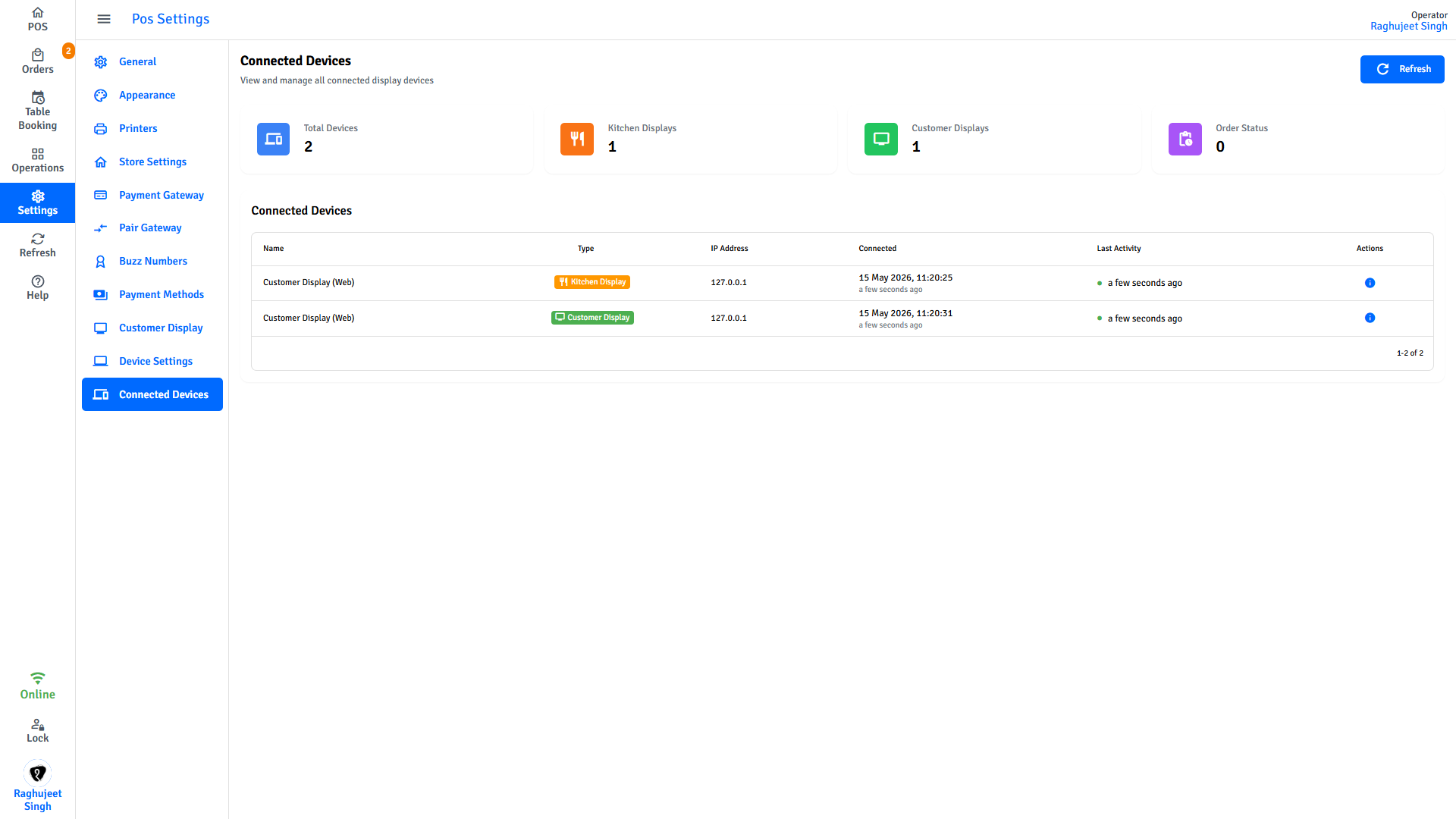
The summary cards at the top show a count of each display type. The table below lists every connected device individually.
Device list columns
| Column | What it shows |
|---|---|
| Name | The name the display registered with when it connected |
| Type | Kitchen Display, Customer Display, or Order Status Display |
| IP Address | The network address of that display device |
| Connected | When the device first connected to this terminal in the current session |
| Last Activity | Time of the most recent signal from that device. Green dot = active within the last 60 seconds. Orange dot = no signal for over a minute. |
Tap the info icon on any row to see full device details: Device ID, user agent, connection timestamps, and any metadata the display registered with.
Refresh the list
Tap Refresh to reload the device list. Do this after connecting a new display or if you suspect the list is out of date.
TIP
Devices remain in the list until the POS is restarted or the display disconnects. An orange activity dot means the display is no longer sending signals - check that the display device is powered on and connected to the same Wi-Fi network.
Display types
| Type | What it shows |
|---|---|
| Kitchen Display | Incoming orders in real time. Kitchen staff mark items as prepared. |
| Customer Display | The customer's cart - items, quantities, and prices - plus promotional media. |
| Order Status Display | Order progress for waiting customers: Accepted → In Progress → Ready to Serve. |
Connecting a new display
All display devices connect wirelessly over your local Wi-Fi network. The display app on each device needs the POS terminal's IP address and port - find these in Device Settings.
The connection address format is:
<IP address>:<port>Example: 192.168.1.10:59590
Enter this in the display app's connection field. Once connected, the device appears in this list within a few seconds.
WARNING
Every display device must be on the same Wi-Fi network as the POS terminal. Displays on a guest network or a different subnet will not be able to connect.
Troubleshooting
| Problem | What to try |
|---|---|
| Display does not appear in the list | Confirm the display device is on the same Wi-Fi as the POS. Check the IP address and port entered in the display app. If running on Windows, see Display Connection Troubleshooting for the network discovery fix. |
| Display shows an orange activity dot | The display may have lost Wi-Fi or been restarted. Check the device, then tap Refresh. |
| Customer display is not updating | Confirm it shows as active here. Then go to Customer Display settings and tap Save Settings to re-broadcast the configuration. |
| Changed the socket port, display won't reconnect | Restart the POS first. Then update the connection address in the display app to use the new port. |
| No IP address in Device Settings | The POS is not connected to your local network. Connect it to Wi-Fi or LAN, then reopen Device Settings to find the IP address. |
Next steps
- Device Settings - Configure the terminal name, port, and find the IP address
- Customer Display - Configure what appears on the customer-facing screen