
Loyalty
What it does
A customer's loyalty account can be used on an order in one of two ways. Points pay part or all of the bill, like cash. A reward takes money off the bill or adds a free item. One order can have points or a reward, not both.
| Loyalty points | Loyalty reward | |
|---|---|---|
| What it is | A way to pay | Money off, or a free item |
| Changes the Total | No | Yes |
| Shows in the cart as | Paid | Reward applied and a Loyalty Discount line |
| Lowers tax and surcharge | No | Yes |
| How many on one order | One points payment | One reward |
| Use it | Before or after other payments | Before any payment is taken |
WARNING
Loyalty needs a customer linked to the order. The Loyalty option stays greyed out until you add one. Tap the Customer chip in the cart header first.
INFO
🔒 Manager only - the loyalty program, how points are earned, what points are worth and the rewards on offer are set up in the Admin portal under Loyalty and Gift Cards → Loyalty.
Do things in this order
Once a payment is on the order, the discount, coupon, surcharge and reward options lock. So work from the top of this list down.
Link the customer
Tap the Customer chip in the cart header.
Add every item
Finish the cart first.
Apply discounts, the coupon and any surcharge
Apply a loyalty reward, or redeem points
One or the other. A reward must go on before any payment.
Take the rest by cash, card or gift card
Open the Loyalty screen
Step-by-step
- Link the customer to the order.
- Tap the three-dot button at the bottom of the cart, next to Pay, then tap Loyalty. Or tap Pay, then tap Loyalty on the payment screen.
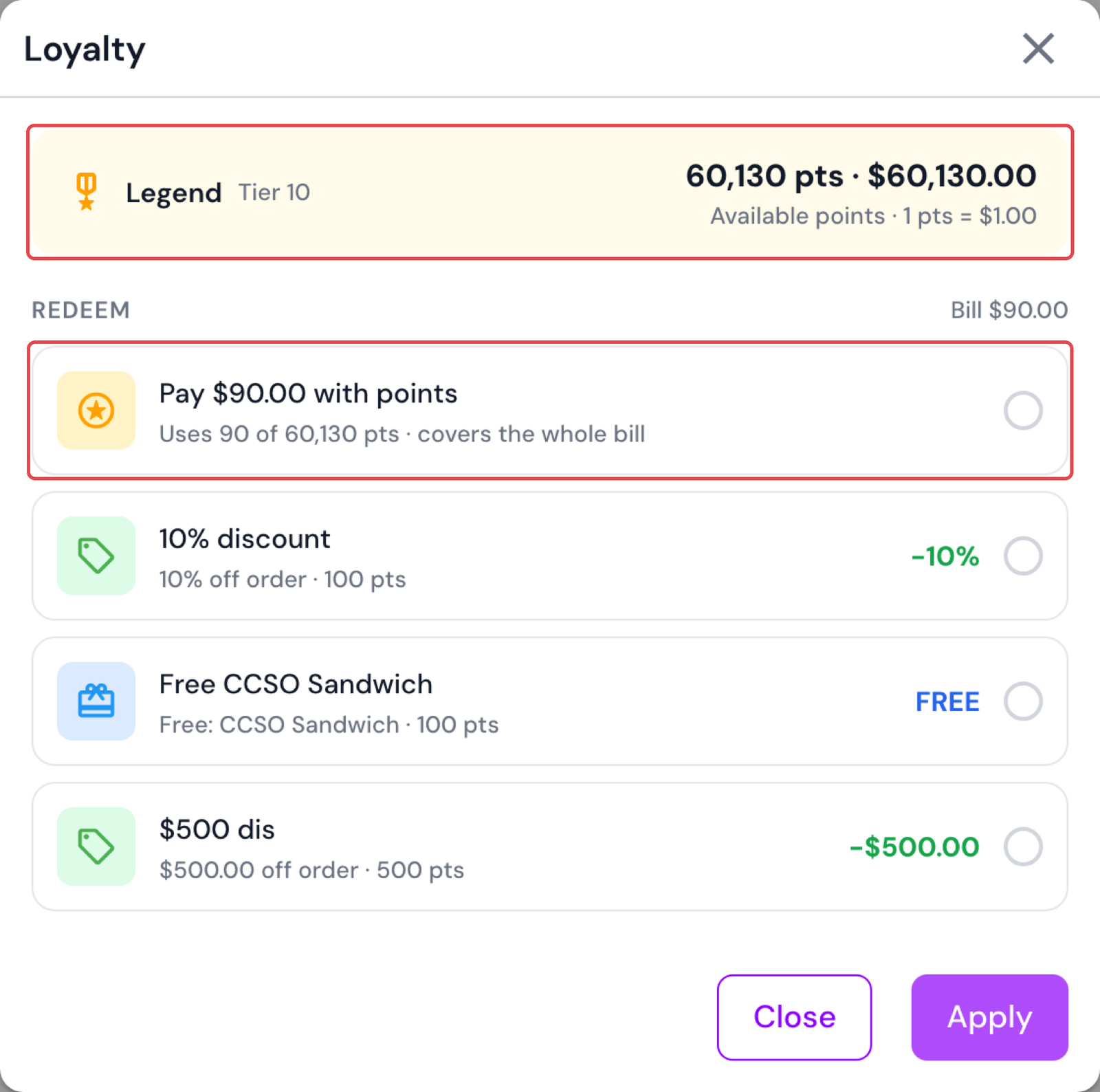
The amber box at the top of the Loyalty screen shows the customer's account:
| On the screen | What it means |
|---|---|
| Tier name and Tier 1, Tier 2… | The customer's level in your loyalty program |
| 2,050 pts · $205.00 | The points balance, and what it is worth in dollars |
| Available points · 10 pts = $1.00 | How many points your program counts as one dollar |
Below it, under Redeem, is one list. It holds the points option first, then each reward the customer can use. Bill $85.50 on the right is the amount left to pay.
Pay with loyalty points
Step-by-step
- Open the Loyalty screen.
- Tap the option Pay $85.50 with points. The line under it shows how many points it uses, for example Uses 855 of 2,050 pts · covers the whole bill.
- Tap Redeem $85.50.
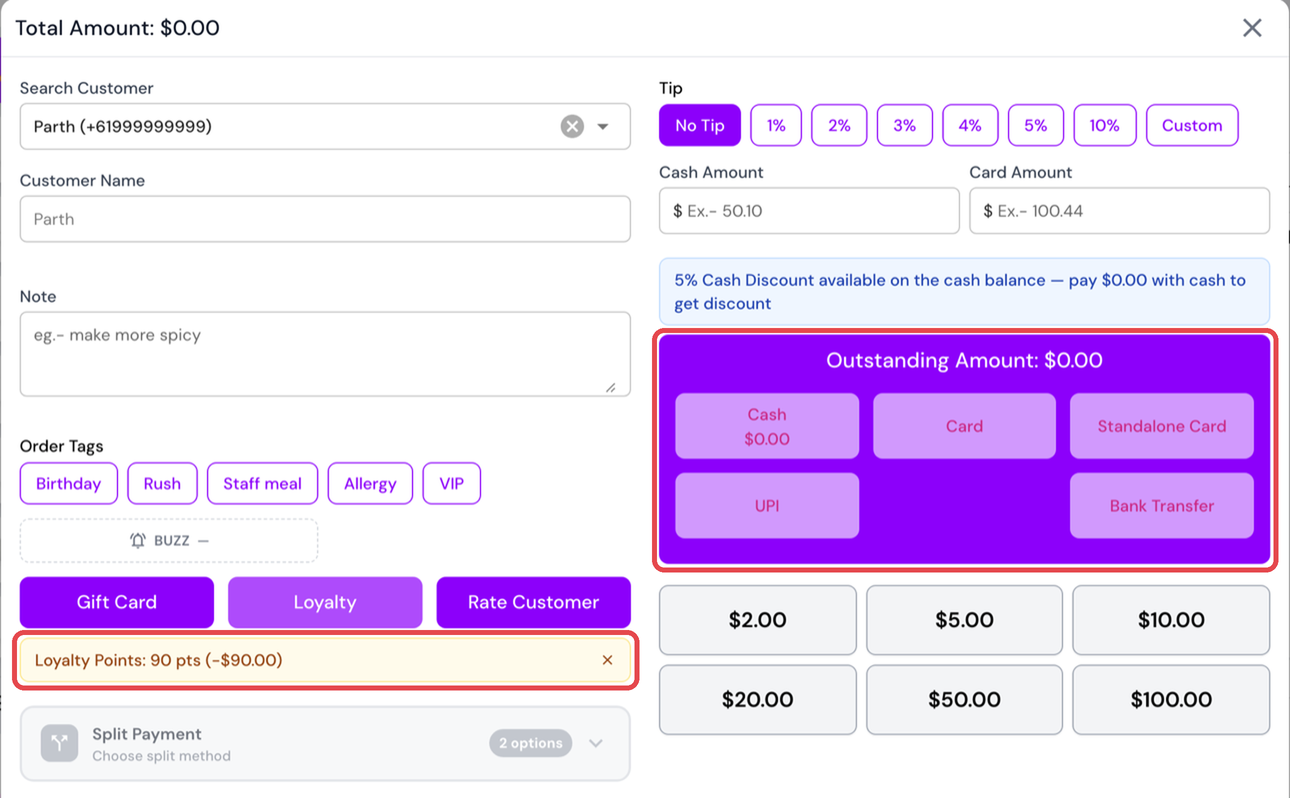
You see a message such as 855 pts applied. The points are recorded as a payment, and the Outstanding amount goes down. If the points do not cover the whole bill, the line reads … · $35.50 left to pay. Take the rest with any other payment method.
When the customer has no rewards, the points option is already selected. Just tap Redeem.
INFO
There is one offer and nothing to type. The POS offers to pay the whole bill, or to use the customer's whole balance when the balance is worth less than the bill. The points leave the customer's account as soon as you tap Redeem.
Take the points back off
- Tap Pay to open the payment screen.
- Find the amber strip that reads Loyalty Points: 855 pts (-$85.50).
- Tap the × on the strip.
The payment comes off the order and the points go back to the customer's account. Voiding the order also gives the points back.
Apply a loyalty reward
Step-by-step
- Open the Loyalty screen.
- Tap a reward in the list.
- Tap Apply reward.
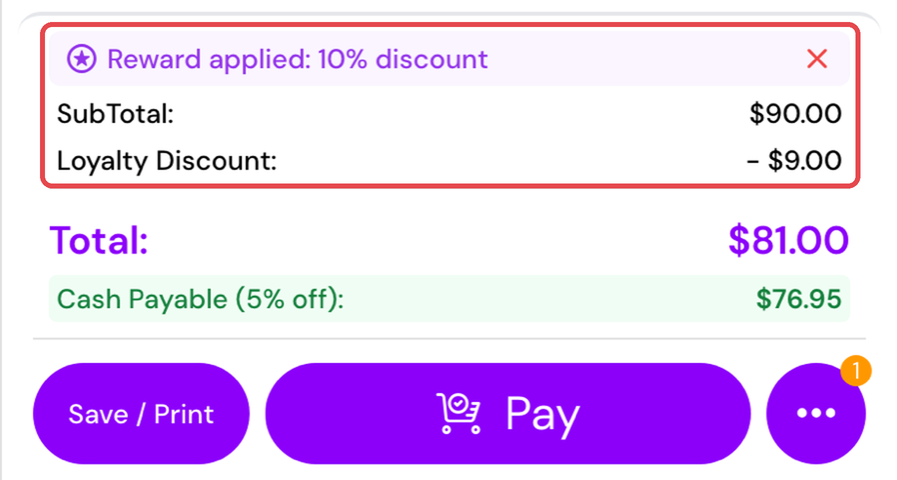
You see Reward applied: followed by the reward's name. The cart summary shows a purple Reward applied banner, and the payment screen shows a green Reward strip.
| Reward shown as | On the right | What it does |
|---|---|---|
| 10% off order | -10% | Takes a percentage off the order |
| $5.00 off order | -$5.00 | Takes a dollar amount off the order |
| Free: … | FREE | Adds the named item to the cart at $0.00 |
Each reward also shows the points it uses, such as · 500 pts.
Take the reward off
Tap the × on the purple Reward applied banner in the cart summary, or on the green Reward strip on the payment screen. A free item added by the reward is removed with it.
WARNING
Once any payment is taken, the × disappears and the reward stays on the order. Check the reward before you take payment.
Online orders paid on collection
What it does
When a customer collects an online order and pays at the counter, they can pay with points.
Step-by-step
- Tap Orders, then tap the Online tab.
- Tap Collect Payment on the order. Pay on Pickup opens. A delivery order shows Pay on Delivery.
- Tap Redeem loyalty points.
- Tap Redeem in the Loyalty screen.
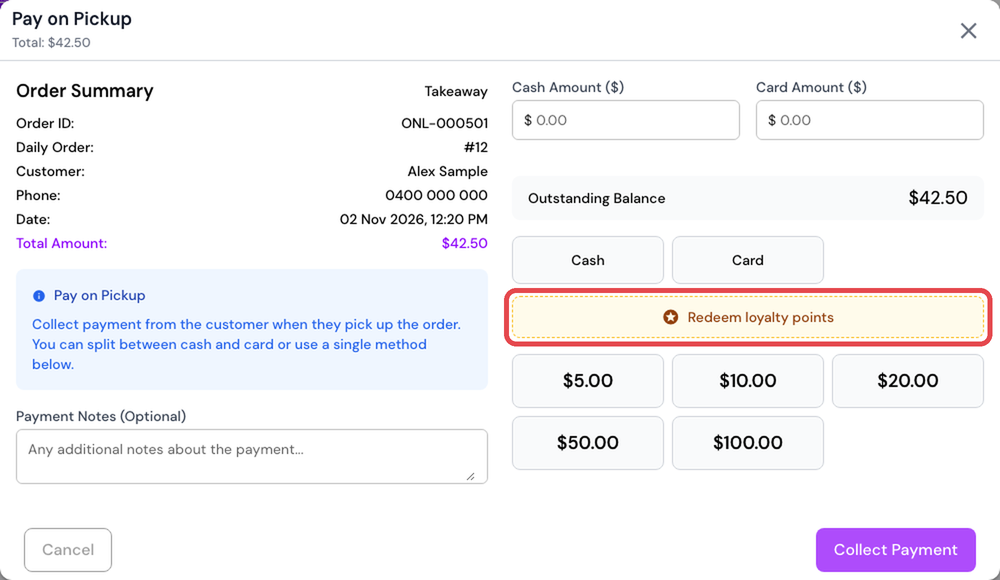
The card Loyalty points shows the points redeemed and the amount. Tap its × to take them off. Only points can be used here. If the online order already used a reward, you see A loyalty reward is already applied to this order.
On the receipt
| Receipt line | What it means |
|---|---|
| Loyalty Discount (name) | The reward and the amount it took off |
| By Loyalty Points | The amount paid with points |
How it is calculated
What points are worth
Your loyalty program sets how many points make one dollar.
| Your program's rate | 500 points are worth | 1,250 points are worth |
|---|---|---|
| 10 pts = $1.00 | $50.00 | $125.00 |
| 20 pts = $1.00 | $25.00 | $62.50 |
| 100 pts = $1.00 | $5.00 | $12.50 |
How many points a payment uses
| Situation | Points used | Amount paid |
|---|---|---|
| The balance is worth more than the bill | Just enough points to cover the bill | The whole bill |
| The balance is worth less than the bill | The whole balance | What the balance is worth |
Example - 10 pts = $1.00, bill of $85.50:
| Customer's balance | Points used | Amount paid | Left to pay | Points left |
|---|---|---|---|---|
| 2,050 pts | 855 pts | $85.50 | $0.00 | 1,195 pts |
| 500 pts | 500 pts | $50.00 | $35.50 | 0 pts |
Points are used in whole numbers. When the bill does not divide evenly into points, the POS uses one point more and pays exactly the bill.
Try your own numbers in the loyalty points calculator.
INFO
The offer on the screen is a preview. The final figures come from the loyalty system when you tap Redeem, because your program can set limits the POS screen does not show, such as a minimum number of points or a maximum share of the order. The POS records the figures it is given.
What a reward takes off
A reward that takes money off the order is worked out on the subtotal without deals, after any coupon.
- SubTotal $100.00
- Coupon Discount −$10.00
- Left for the reward to work on $90.00
- Loyalty Discount 50% of $90.00−$45.00
- Total $45.00
A reward can never take off more than is left. A $20.00 off reward on an order with $12.00 of regular items takes off $12.00.
The reward is worked out again every time the cart changes. If the cart changes so that nothing is left for the reward to come off, the POS removes the reward and tells you.
A free item reward
The reward adds the item to the cart at $0.00. It does not take anything off the other items. The free item:
- cannot be removed from the cart by itself - take the reward off instead
- never counts towards a coupon, and never receives one
How points and rewards affect the rest of the bill
| Points | Reward | |
|---|---|---|
| Percentage surcharge | Unchanged | Smaller. It is worked out after the reward |
| Tax | Unchanged | Smaller. It follows the discounted price |
| Percentage tip | Unchanged | Smaller. It is worked out after the reward |
| Cash discount | Lost. Points are not cash | Still offered, worked out after the reward |
Rules and limits
| Rule | Detail |
|---|---|
| A customer must be linked | Always |
| Points payments on one order | One |
| Rewards on one order | One |
| Reward and points on the same order | Not allowed. Use one or the other |
| Reward after a payment has been taken | Not allowed |
| Reward together with a gift card | Not allowed |
| Points together with a gift card | Allowed |
| Reward on a cart that holds only deals | Not allowed. There is nothing for it to come off |
| Changing the customer on the order | Removes the reward and the points payment. They belong to the first customer |
| The bill drops below the points already used | The POS removes the points payment. Redeem again |
Messages you may see
| Message | What it means |
|---|---|
| No customer selected for this order | Link a customer first |
| No loyalty account found for this customer | The POS could not load the account. Check the connection and try again |
| Points redemption is not set up for this program. | Your program has no rate for turning points into dollars |
| This customer has no points to redeem. | The balance is zero |
| There is nothing left on the bill for points to cover. | The order is already paid |
| Loyalty points are already applied to this order. | One points payment is already on the order |
| A loyalty reward is already applied to this order | A reward is on the order, so points cannot be used |
| No rewards available for this customer | The customer has no reward they can use right now |
| A reward is already applied to this order | Take the current reward off before you apply another |
| Rewards cannot be combined with loyalty points | Points are on the order, so a reward cannot be added |
| Rewards cannot be applied after a payment has been taken | Apply the reward before any payment |
| Rewards cannot be combined with a gift card | A gift card is on the order |
| Cannot apply "…". The cart has no discountable items — deals and free items are not eligible. | The cart holds only deals or free items |
| Cannot apply "…". The order total is already fully discounted. | A coupon already covers the items |
| Reward "…" was removed — the order has no discountable amount left. | The cart changed and the reward had nothing left to come off |
| Free item "…" is not available in the product list | The reward's item is not on this outlet's menu. Tell your manager |
| This is a loyalty reward item and cannot be removed directly. | Take the reward off with the × on the banner |
| Loyalty Points payment method is not available | Paying with points is not set up. Tell your manager |
| Loyalty points payment removed - the order total changed. Apply the points again. | The bill dropped below the points that were used |
FAQs
Why is the Loyalty option greyed out?
Check these in order:
- The cart is empty. Add an item.
- No customer is linked. Tap the Customer chip in the cart header.
- Nothing more can be applied. A reward or points are already on the order. One order takes one or the other. :::
What is the difference between points and a reward?
Points pay the bill, the way cash does. The Total does not change. A reward is money off or a free item, so the Total goes down. One order can have one or the other, not both.
The customer wants a reward and to pay with points. What do I do?
Choose one. A reward and a points payment cannot go on the same order. If the customer wants the reward, apply it, then take the rest by cash, card or gift card.
Can the customer choose how many points to use?
No. The POS makes one offer: the whole bill, or the whole balance when the balance is worth less than the bill.
The customer has a coupon and points. Can I use both?
Yes. Apply the coupon first, then redeem the points. Once points are on the order the Coupon option locks.
Why did the cash discount disappear after I redeemed points?
The cash discount is only given when every payment on the bill is cash. Loyalty points are not cash. See Cash Discount.
I redeemed points and then the customer cancelled. Do they lose the points?
No. Tap the × on the Loyalty Points strip on the payment screen, or void the order. The points go back to the customer's account.
Why is there no points option? I only see rewards.
Paying with points is not set up for your business. Ask your manager. When points are set up but cannot be used right now, a grey Points row tells you why.
How does the customer earn points?
Customers earn points on orders they are linked to. 🔒 Manager only - the earning rules are set in the Admin portal under Loyalty and Gift Cards → Loyalty.
Can I see a customer's points without starting an order?
Yes. Open the Customers screen and find the customer. The Reward Points column shows their points.