
Customers
This page covers how to find an existing customer, register a new one, manage their profile, use the loyalty program, and handle delivery addresses.
Why link a customer to an order?
Linking a customer unlocks several features:
| Feature | What it gives you |
|---|---|
| Loyalty points | Customer earns points on every purchase automatically |
| Order history | All their orders are tied to their profile |
| Delivery address | Saved addresses auto-fill for delivery orders |
| Marketing | Customers can receive offers and promotions |
Search for an existing customer
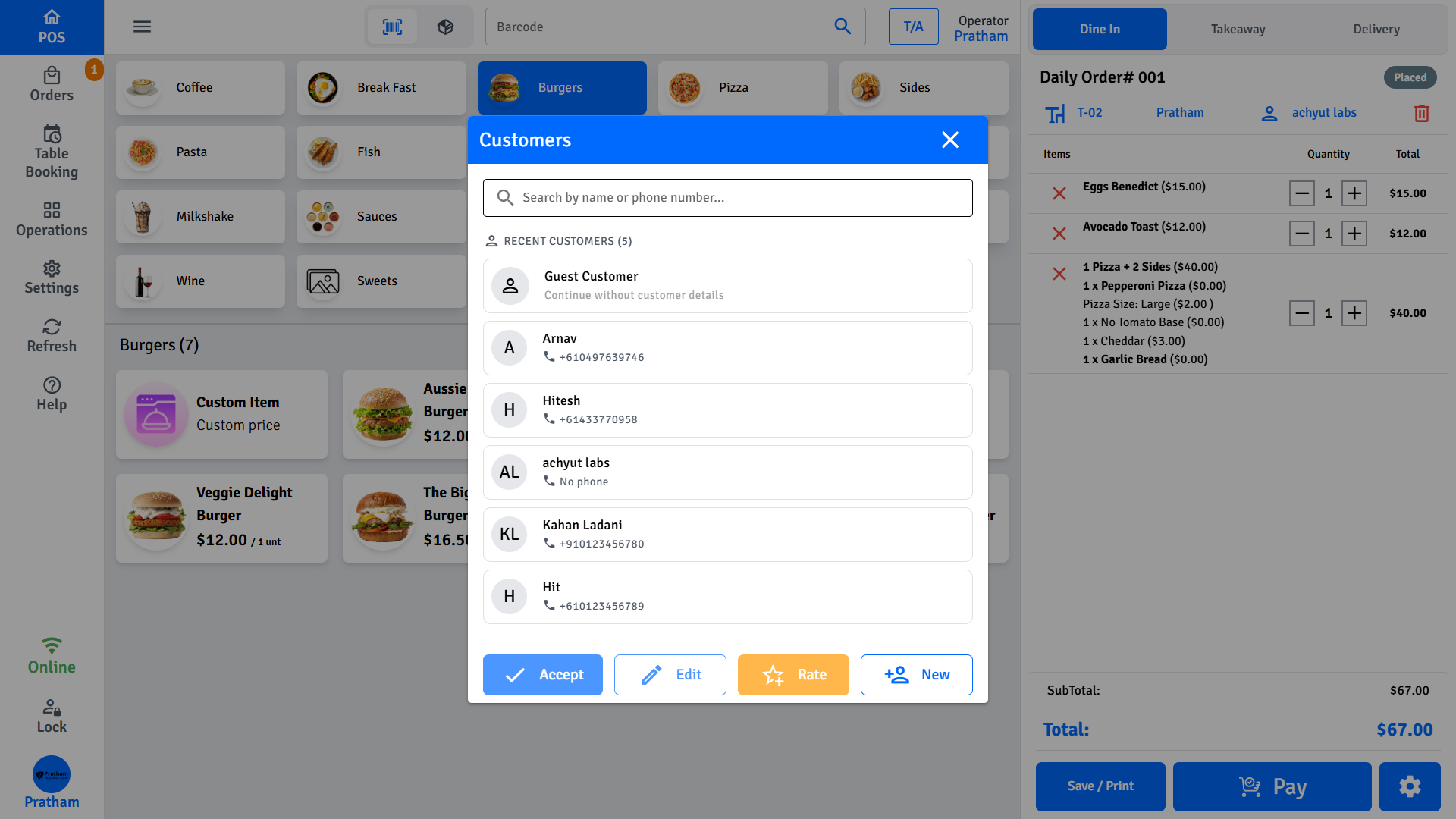
- Tap Search Customer in the cart panel on the POS screen.
- Type the customer's name, phone number, or email - results appear as you type.
- Tap the correct customer in the results to link them to the current order.
TIP
Always search before creating a new customer. Duplicate profiles cause loyalty points to split across accounts.
Register a new customer
If the customer is not in the system:
- Tap New Customer (or tap Add from the search results when no match is found).
- Fill in the details:
| Field | Required |
|---|---|
| Name | Yes |
| Phone Number | Recommended |
| Recommended | |
| Date of Birth | Optional - used for birthday offers |
| Gender | Optional |
| Postcode | Optional |
- Tap Save.
- The new customer is automatically linked to the current order.
View and edit a customer profile
- Tap Operations → Customers in the navigation.
- Search for the customer.
- Tap their name to open their profile.
The profile shows:
| Field | What it contains |
|---|---|
| Name / Phone / Email | Contact details |
| Date of Birth | For birthday recognition |
| Loyalty Points | Current points balance |
| Order History | All past orders and totals |
| Saved Addresses | Delivery addresses |
| Notes | Internal staff notes |
| Rating | Star rating assigned by staff |
Edit customer details
- Open the customer profile.
- Tap Edit.
- Update the fields.
- Tap Save.
Loyalty program
How points are earned
Customers earn points automatically on qualifying purchases based on the rate your manager configured (e.g., 1 point per $1 spent). Points are added when the order is completed and the customer is linked.
Check a customer's balance
- The loyalty balance is visible on the customer profile.
- The balance also appears during checkout when a customer is linked to the order.
Redeem points at checkout
- Link the customer to the order.
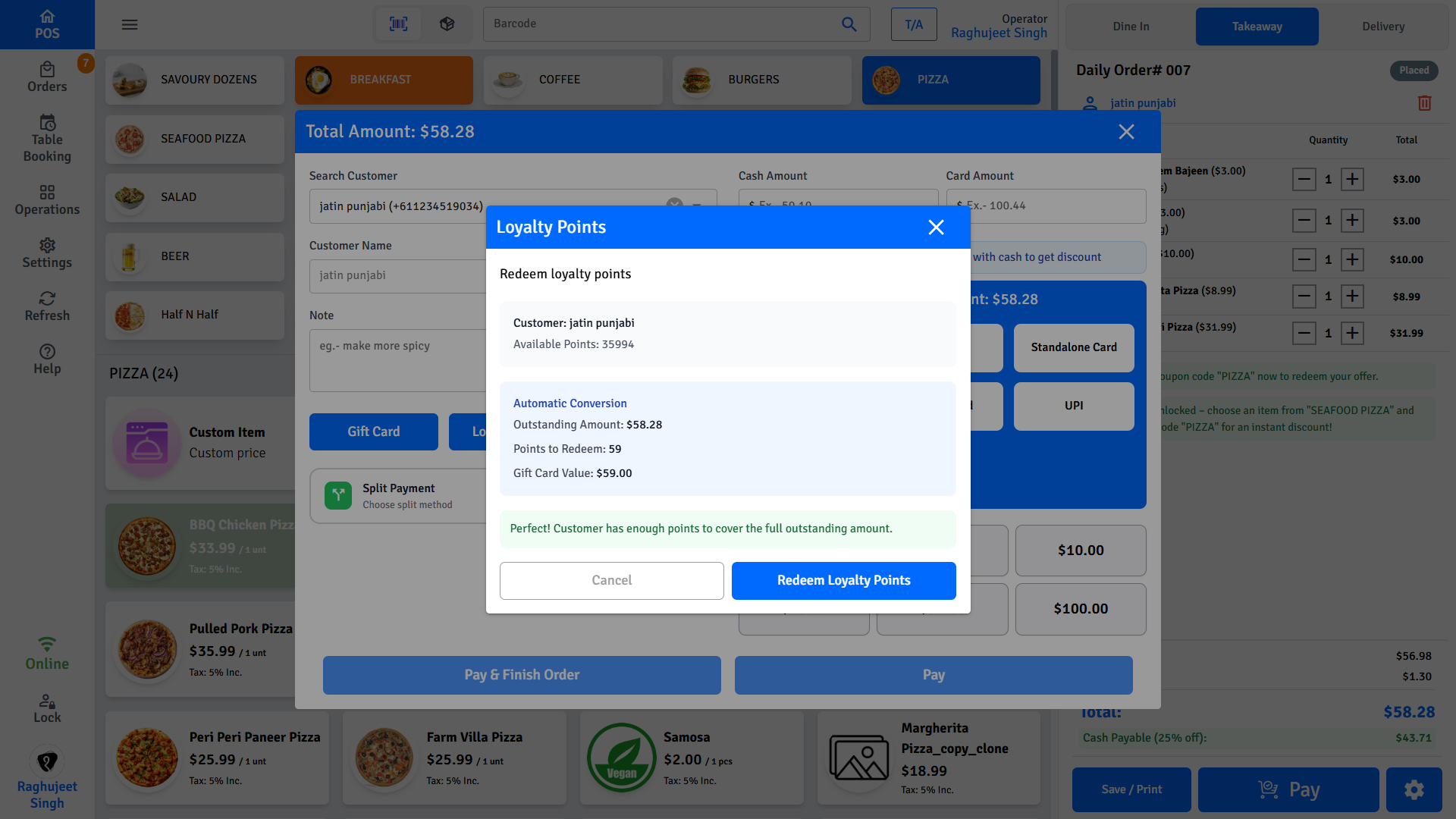
- On the payment screen, tap Redeem Points.
- The POS shows the available balance and its equivalent discount value.
- Tap Confirm.
- Points are deducted and the discount is applied to the order total.
Convert points to a gift card
- Open the customer profile.
- Tap Convert Points to Gift Card.
- Enter the number of points to convert.
- A gift card code is generated and given to the customer.
Points expiry
Points expire after a number of days set by your manager. Expired points are removed automatically.
Guest orders
If a customer does not want to give their details:
- Leave the customer field blank for a fully anonymous order.
- Or enter a name or buzz number only - identifies the order at pickup without creating a profile.
Guest orders do not earn loyalty points.
Delivery addresses
A delivery address is required for all delivery orders.
Use a saved address
- Link the customer to the order.
- Tap the address selector - saved addresses appear in the list.
- Tap the address to select it.
Enter a new address
- Tap Add Address on the delivery order screen.
- Start typing - address suggestions from Google Maps appear.
- Tap the correct address from the suggestions.
- The delivery zone and charges are calculated automatically.
- Optionally toggle Save to profile to store it for future orders.
Customer rating
Staff can assign a star rating to a customer to track service experience and behaviour. Ratings are internal - customers do not see them.
Assign a rating
- Open the customer profile or a completed order linked to that customer.
- Tap the star rating control.
- Select a rating from 1 to 5 stars.
The rating is saved immediately and visible on the customer profile and on the order screen whenever that customer is linked.
INFO
Ratings are for internal reference only. No automated alerts or actions are triggered by a rating.
Customer groups
Customers can be organised into groups for targeted offers and reporting. Groups are managed in the Admin Portal.
TIP
See Customer Groups - Admin Reference for setup instructions.