
Payment Gateways
A payment gateway is the connection between the POS and your EFTPOS terminal. Once it is set up, the POS automatically sends card payment requests to the terminal - staff just tap Card at checkout and the terminal does the rest.
🔒 Manager only - tap Settings → Payment Gateway to access these settings.
INFO
Only one gateway can be active at a time. If you switch gateways, you will need to re-pair your terminal.
Which gateway do I need?
Choose the gateway that matches your EFTPOS provider:
| Gateway | Use when you have… |
|---|---|
| Linkly | A Linkly (PC-EFTPOS) account - most common in Australian restaurants |
| Tyro | A Tyro EFTPOS terminal |
| SmartConnect | A SmartPay EFTPOS terminal |
| Till Payment | A Till Payments terminal |
| MX51 | An MX51 SPI-compatible terminal |
| ANZ | An ANZ in-store EFTPOS terminal |
| Adyen | An Adyen in-store payment terminal |
If you are not sure which gateway you use, check with your payment provider or the person who set up your EFTPOS terminal.
How to open Payment Gateway settings
- Tap Settings in the left navigation menu.
- Tap Payment Gateway.
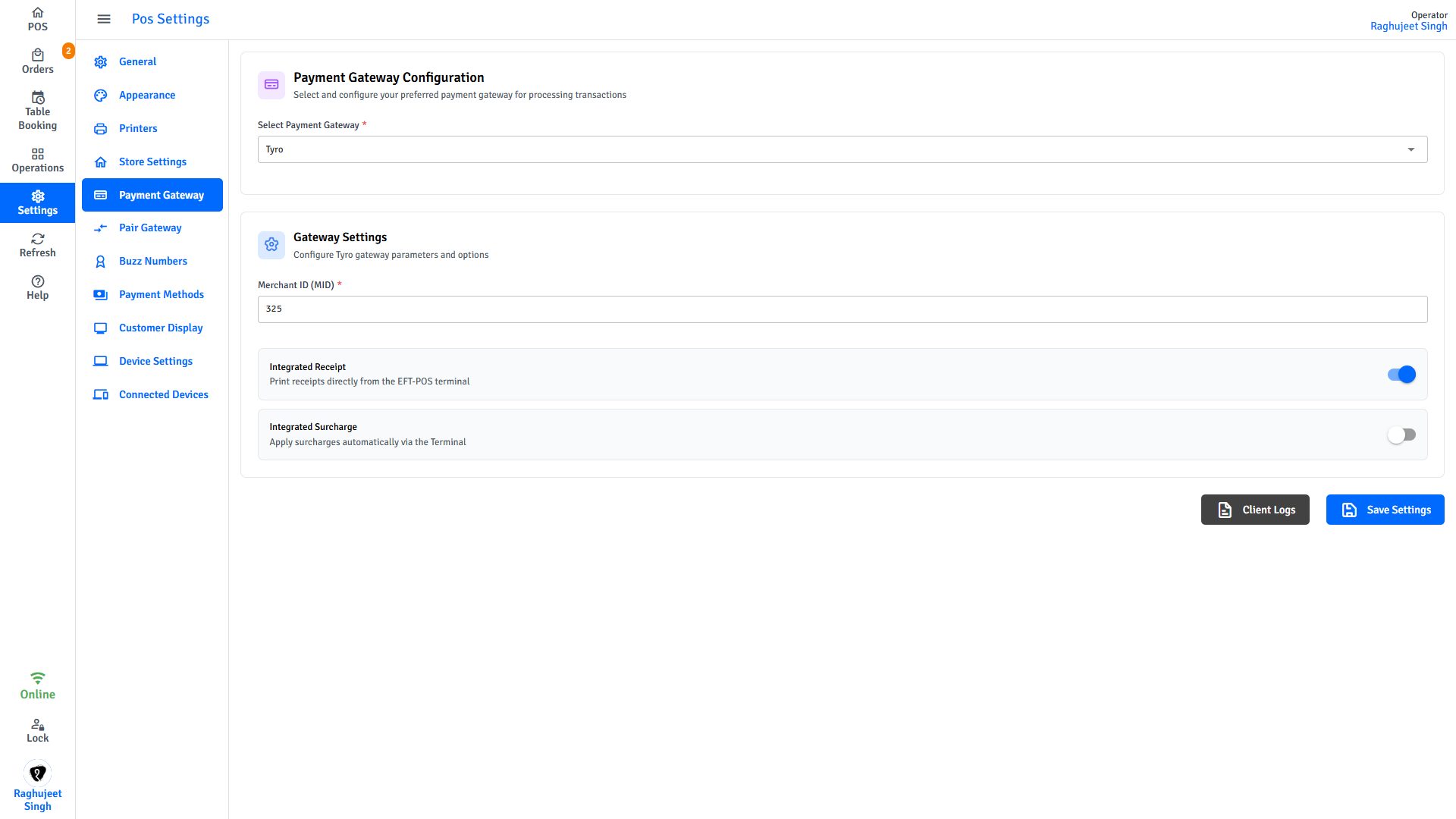
General settings (all gateways)
These settings apply regardless of which gateway you use.
| Setting | What it does |
|---|---|
| Active Gateway | Select your gateway from the dropdown - this is the one the POS will use for all card payments |
| Integrated Surcharge | When on, the gateway calculates and adds any card surcharge itself. When off, the POS adds the surcharge before sending to the terminal. |
| Integrated Receipt | When on, the EFTPOS terminal prints the merchant receipt directly. When off, the POS printer prints it. |
Integrated Surcharge
Most modern terminal setups use integrated surcharge. Check with your payment provider if you are unsure which mode to use.
Linkly setup
Linkly (formerly PC-EFTPOS) is the most widely used card payment integration in Australian restaurants.
Before you start, you need:
- A Linkly-compatible EFTPOS terminal (e.g., Verifone, Ingenico, PAX)
- Linkly client software installed and running on a computer on your local network
- Your Linkly username, password, and the IP address of the machine running the Linkly client
Steps
- Tap Settings → Payment Gateway.
- Select Linkly from the Active Gateway dropdown.
- Enter your connection details:
| Field | What to enter |
|---|---|
| Username | Your Linkly client username |
| Password | Your Linkly client password |
| Terminal Address | The local IP address or hostname of the computer running the Linkly software |
- Tap Test Connection to verify the POS can reach the Linkly client.
- Tap Pair Terminal to link the EFTPOS terminal.
- Follow the pairing prompt on the terminal screen to complete the connection.
Test before going live
After pairing, process a small test transaction ($0.01 or $1.00) to confirm card payments work end-to-end before opening for the day.
Tyro setup
Tyro terminals connect directly over the network - no separate client software is needed.
Before you start, you need:
- A Tyro EFTPOS terminal
- Your Tyro Merchant ID and API Key (provided by Tyro when you signed up)
- The terminal must be on the same Wi-Fi network as the POS device
Steps
- Tap Settings → Payment Gateway.
- Select Tyro from the Active Gateway dropdown.
- Enter your credentials:
| Field | What to enter |
|---|---|
| Merchant ID | Your Tyro merchant identifier |
| API Key | Your Tyro API key for this location |
- Tap Pair Terminal.
- Follow the pairing instructions shown on the Tyro terminal screen.
SmartConnect setup
SmartConnect works with SmartPay EFTPOS terminals.
Before you start, you need:
- A SmartPay terminal configured with SmartConnect
- Your SmartPay Merchant ID and Account ID
Steps
- Tap Settings → Payment Gateway.
- Select SmartConnect from the Active Gateway dropdown.
- Enter your credentials:
| Field | What to enter |
|---|---|
| Merchant ID | Your SmartPay merchant ID |
| Account ID | Your SmartPay account ID |
- Tap Test Connection to verify.
- Follow any pairing prompts on the terminal screen.
Surcharge configuration
If your business charges customers a surcharge for card payments, there are two ways to handle it:
| Mode | How it works |
|---|---|
| POS-managed surcharge | The POS calculates the surcharge and adds it to the total before sending to the terminal |
| Integrated surcharge | The terminal calculates and applies the surcharge itself |
To configure:
- Tap Settings → Payment Gateway.
- Toggle Integrated Surcharge on or off depending on your setup.
- Tap Save.
Troubleshooting
| Problem | What to try |
|---|---|
| Terminal not responding | Check the terminal is powered on and connected to the same network as the POS |
| Test connection fails | Restart the terminal and the Linkly client (if applicable). Recheck the IP address and credentials. |
| Transaction declined | Ask the customer to try a different card. Check the terminal screen for an error code. |
| Terminal shows "Unpaired" | Repeat the pairing steps for your gateway |
| Worried about a duplicate charge | Do not process another payment. Check Order History first, and contact your gateway provider before taking any action. |
For more help, see Troubleshooting.
Next steps
- Device Settings - Set up the terminal and find the IP address for displays
- Receipt Customisation - Choose what prints on customer and kitchen receipts