
Device Settings
Device Settings configures this POS terminal's identity and network port. Every display device on your network (Kitchen Display, Customer Display, Order Status Display) connects to the POS using the IP address and port shown here.
🔒 Manager only - tap Settings → Device Settings to open this screen.
Configure the terminal
- Tap Settings in the left navigation menu.
- Tap Device Settings.
- Fill in the fields below.
- Tap Save Configuration.
| Setting | What to enter |
|---|---|
| Terminal Display Name | A short name for this POS - shown in reports and logs (e.g., Main Counter, Drive-Thru) |
| Local Socket Port | The network port display devices use to connect. Default is 59590. Only change this if another service on your network is already using that port. |
| Master Device | Toggle on for your primary POS terminal. Only one terminal per venue should be the Master Device. |
WARNING
If you change the socket port, you must restart the POS before the change takes effect. After restarting, update the connection address on every connected display to use the new port.
TIP
The terminal name appears in sales reports and the Connected Devices screen. Use a name that makes it easy to identify which counter or station this terminal is at.
Find the terminal's IP address
After saving, look at the Technical Details panel on the right side of the screen. The Network Addresses section lists all IP addresses for this device.
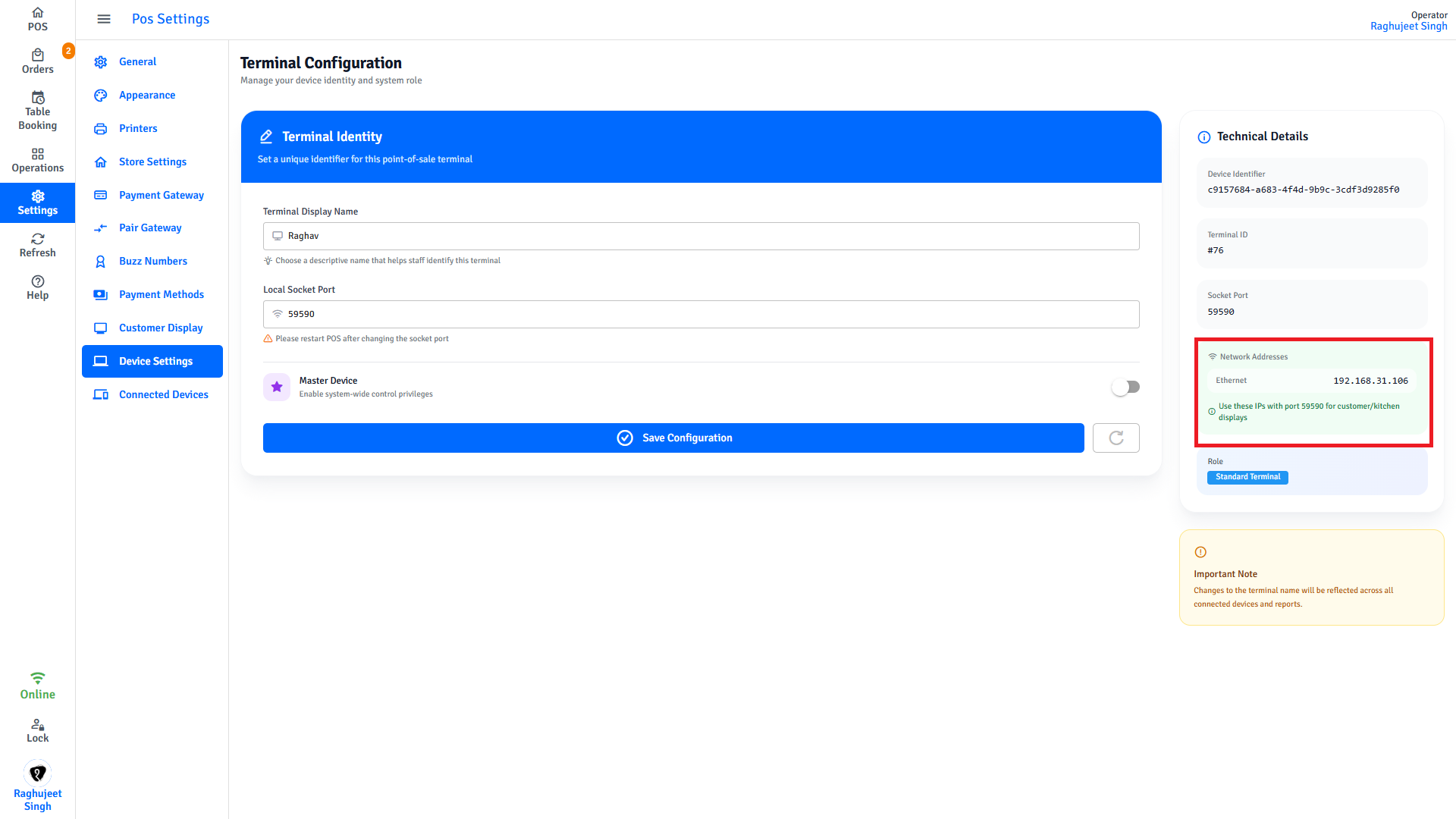
Write down the IP address - it looks like 192.168.1.10. You will need it when setting up each display device.
The full connection address you enter on each display is:
<IP address>:<port>Example: 192.168.1.10:59590
INFO
The IP address only appears if the POS device is connected to your local Wi-Fi or LAN network. If the Network Addresses section is empty, connect the device to the network first and then reopen Device Settings.
Master Device explained
The Master Device has system-wide control privileges - it is the authoritative terminal for display broadcasting and system events. In a single-terminal venue, always enable Master Device. In a multi-terminal venue, enable it on your primary counter only.
| Role | When to use |
|---|---|
| Master Device | Primary counter, single-terminal venues |
| Standard Terminal | Additional counters in a multi-terminal venue |
Next steps
- Customer Display - Configure what appears on the customer-facing screen
- Connected Devices - Check that your displays connected successfully