
Getting Started
This page explains how to log in, understand the POS screen layout, and navigate to the sections you need. Read this before your first shift.
Log in
- Open the Pratham ResPOS app on your device (Windows, Android, or iOS).
- Enter your Username and Password - provided by your manager.
- Tap Login.
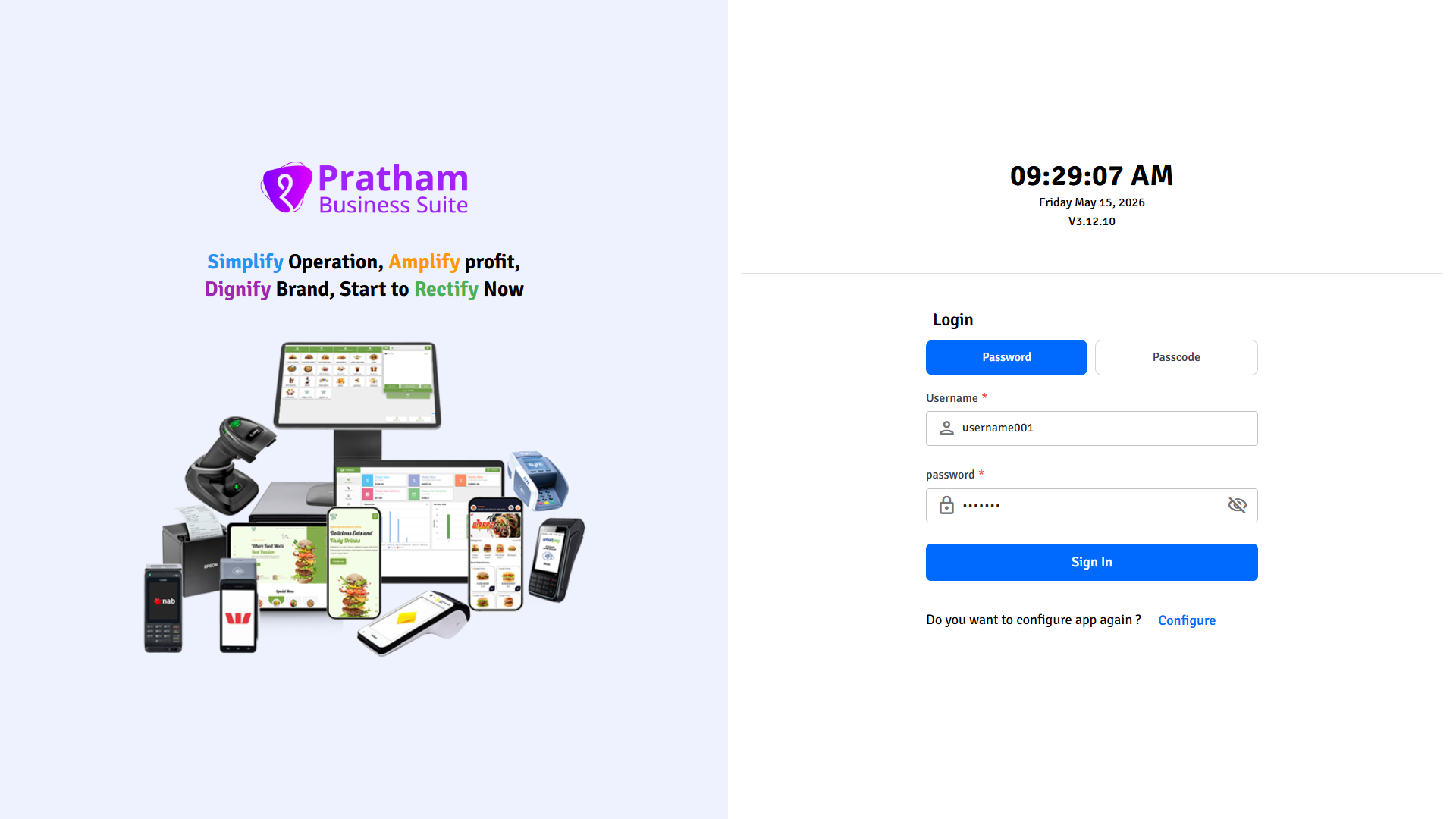
First time using this device?
Your manager needs to complete the First-Time Setup before you can log in. This connects the app to your restaurant's account.
The POS screen
After login you land on the Home / POS screen. This is where you take orders.
The screen has three areas:
| Area | What it does |
|---|---|
| Left sidebar | Navigation menu - tap here to move between sections |
| Item grid | Browse categories and items - tap any item to add it to the cart |
| Cart panel | Shows the current order - select order type, assign a table, add a customer, and checkout |
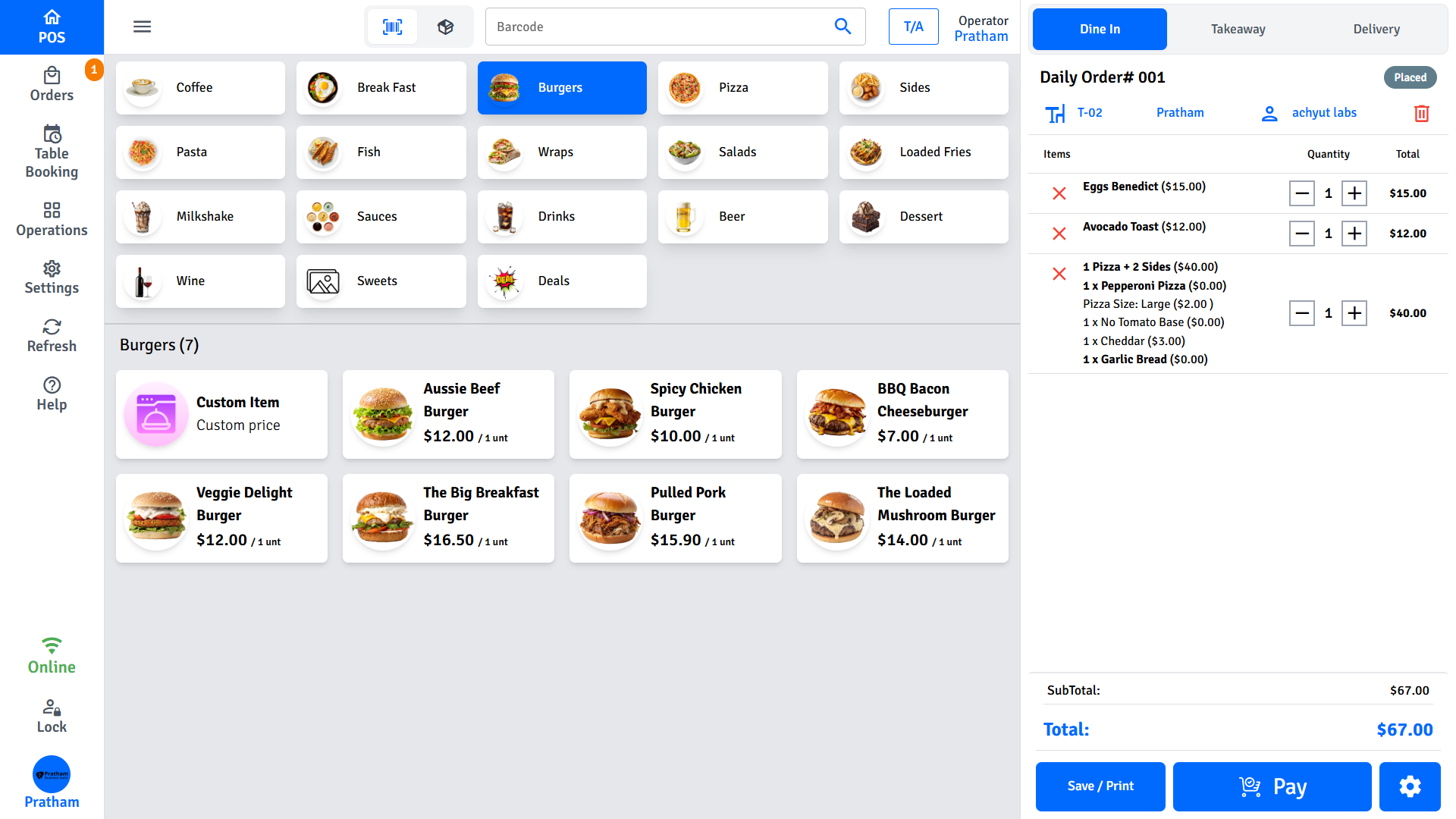
Navigation menu
Tap any item in the left sidebar to open that section:
| Menu item | What it opens |
|---|---|
| Home / POS | The main order-taking screen |
| Orders | All active orders, online orders, Uber Eats, QR Dine-In, and kiosk orders |
| Operations | Cash Up, Sales Report, Customers, Tables, Receipt & Refund, Expenses, Item Customisations |
| Settings | POS configuration - managers only |
| Refresh | Reloads menu items and settings from the server |
| Help | Help and support resources |
| Lock POS | Locks the screen immediately |
| Staff | Switch between staff accounts |
INFO
Some menu items may be hidden depending on your role or the features enabled at your location. If you expect to see something and it is missing, ask your manager.
Select an order type
Before adding items, select the type of order at the top of the cart panel:
| Order type | When to use |
|---|---|
| Dine-In | Customer is eating at a table in your venue |
| Takeaway | Customer is collecting from the counter |
| Delivery | Order will be delivered to a customer's address |
TIP
Your manager can set a default order type in POS Settings so the right type is already selected when you start a new order.
Lock and unlock the screen
Lock the POS when stepping away to prevent unauthorised use.
- Tap Lock POS in the navigation menu, or
- Wait - the screen locks automatically after the inactivity timer your manager configured.
To unlock, enter your PIN or password. For how the automatic timer works and every locking mode, see POS Auto Lock.
Online order notifications
The POS plays a sound and shows a badge on the Orders icon when a new online order arrives.
- Tap the Orders icon in the navigation.
- Review and accept or decline the incoming order.
TIP
If the notification sound is wrong, ask your manager to change it in Settings → General.
FAQs
I entered my username and password but login failed. What do I check?
Make sure Caps Lock is off — passwords are case-sensitive. If the credentials are correct but login still fails, your manager may need to reset your password in the Admin Portal, or the device may not have completed First-Time Setup.
I logged in but the screen looks different from what I expected.
Your manager configures which features and menu items are visible for each role. If you expect to see a section (such as Operations or Settings) and it is missing, ask your manager to check your role permissions in the Admin Portal.
The Operations or Settings menu item is not showing in the sidebar.
Some menu items are hidden based on your staff role. Staff-only accounts do not see Settings. If you need access, ask your manager to update your role in the Admin Portal.
My device shows the POS screen but there are no menu items in the item grid.
Tap Refresh in the navigation menu to pull the latest menu from the server. If items are still missing after refreshing, ask your manager to check that items are published and assigned to this location in the Admin Portal.
Next steps
- Shift Management - Open a shift, take orders, apply discounts, close a shift
- Orders - All order types and how to manage them
- Payments - Cash, card, split payments, and refunds