
Deals — Combo, BOGO & Bundle
Deals let you offer bundled meals, buy-one-get-one promotions, and fixed-price packages right from the POS. Once your manager has set them up in the admin portal, they appear on the item grid alongside regular menu items — staff tap them just like anything else, and the POS walks through the choices step by step.
INFO
Deals are created, priced, and activated in the admin portal under Locations Management → Deals. This page covers what staff see and do on the POS — not the setup side.
The three deal types
Pratham ResPOS has three deal types. They look similar on screen but work differently when it comes to pricing.
| Deal type | How it's structured | How pricing works |
|---|---|---|
| Combo | Groups of choices — "pick a main, pick a side, pick a drink" | One fixed price. Choices don't change the total, unless your manager has set attribute surcharges. |
| BOGO | Components, each with its own rule — free, discounted, or cheapest-free | Items are priced individually. Each component's rule decides how much comes off. |
| Bundle | Same component structure as BOGO | One fixed price covers everything. It never changes no matter what staff pick. |
Where deals show up
Deals appear in the item grid — the same place you tap regular items. The POS only shows deals that are currently valid, which means they need to:
- Be set to Active in the admin portal
- Be within their configured date range (if one is set)
- Apply to today's day of the week (if day restrictions are set)
- Be within the configured time window (if time restrictions are set)
- Be available on the POS platform — deals set to "Customer Website only" won't appear on the terminal
- Match the current order type — a delivery-only deal won't show on a dine-in order
Deal missing from the grid?
Run through that list. The most common causes are an expired date range, a time restriction that hasn't started yet, or the deal being locked to a different platform or order type. Worth noting: time and date restrictions are also checked again at payment — a deal that was valid when the order started can still be rejected at checkout if its window has since closed.
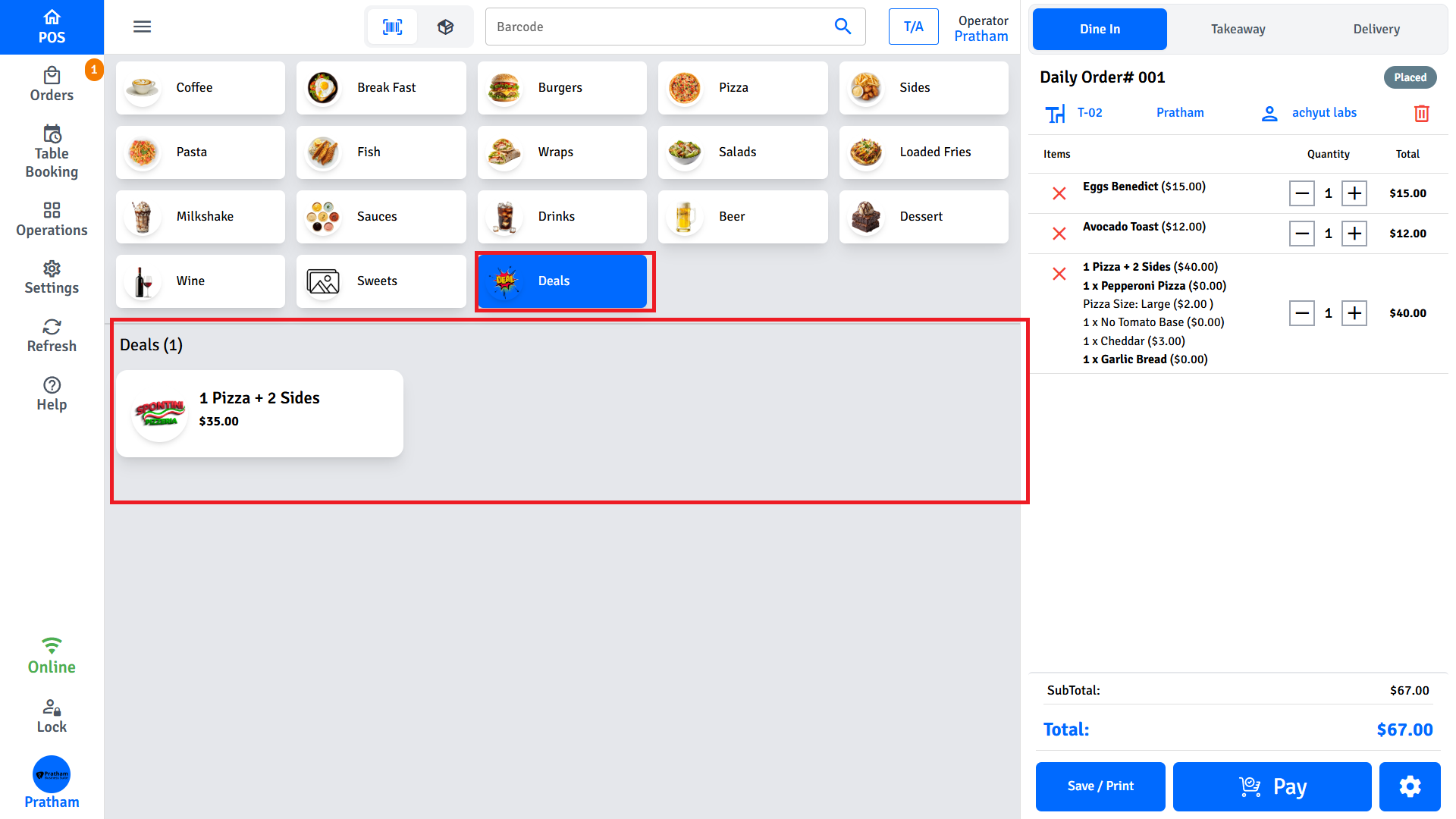
Combo deals
A combo is a fixed-price meal that gives guests choices within each course or category. The admin sets up groups — "Choose your main", "Choose your side", "Choose a drink" — and staff pick from each group at order time.
Building a combo
- Tap the combo deal card on the item grid.
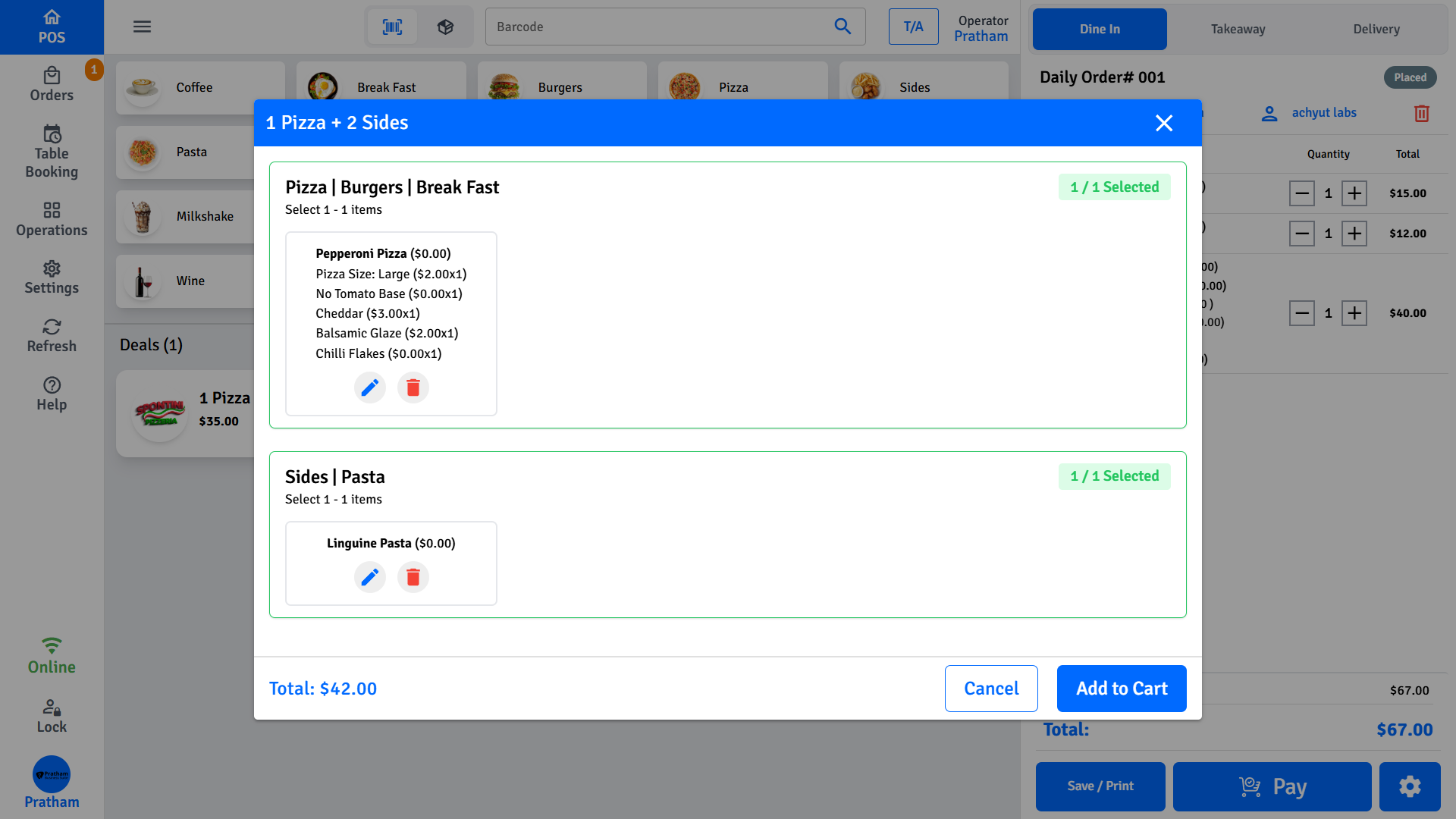
- The combo builder opens, showing each group with a name and a Min / Max badge.
- Tap a slot inside a group — an item picker opens, already filtered to the products allowed in that group.
- Select an item. If it has modifiers, the modifier screen opens immediately.
- If the group supports Half & Half, that option appears in the picker too.
- Work through each group until they're all filled. The Confirm button lights up once every group meets its minimum.
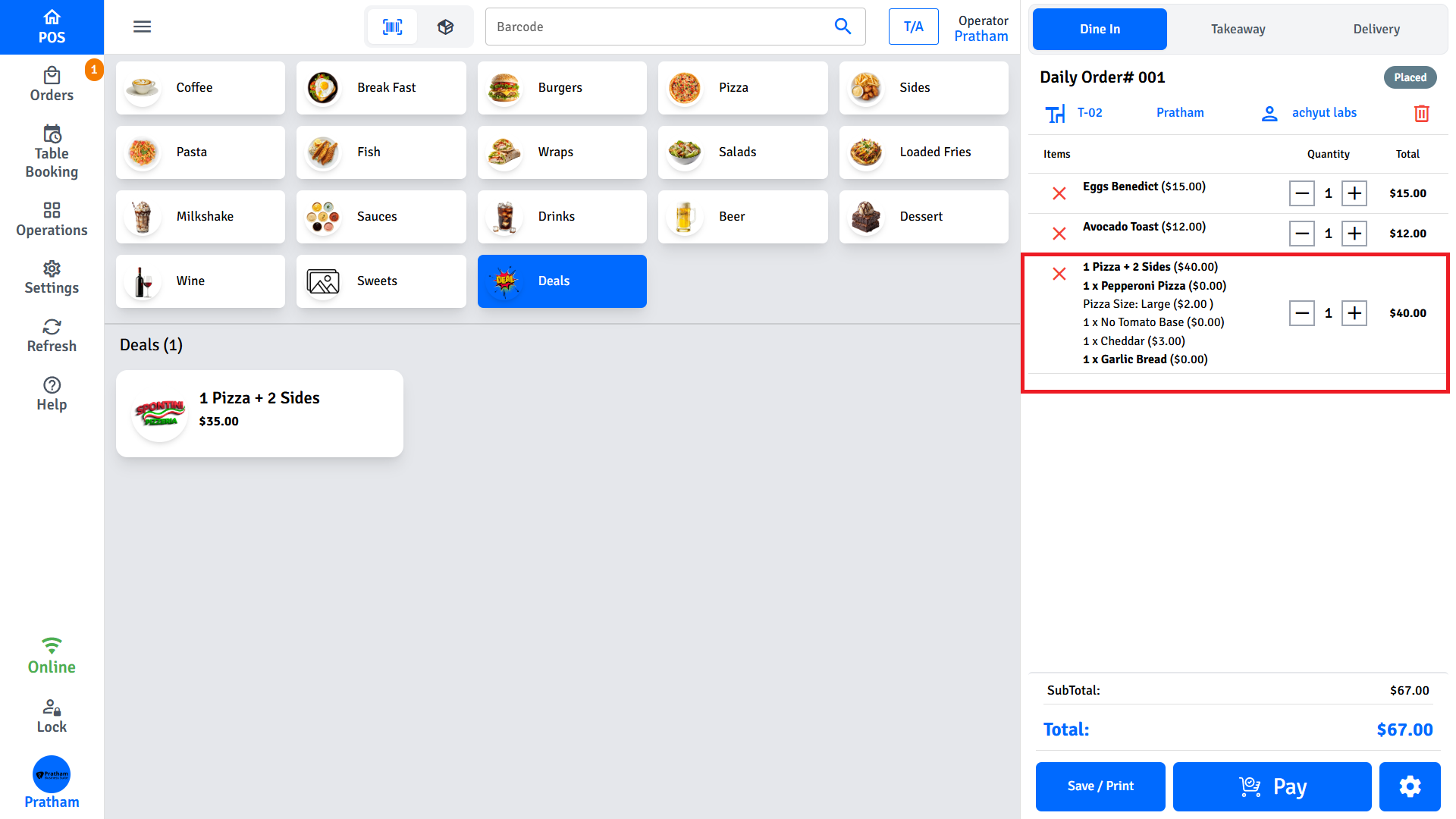
- The combo appears in the cart as a single line item with all the group choices nested beneath it.
How the price is calculated
The combo price starts with the base price your manager set. Two things can add to it:
Attribute surcharges — if your manager enabled the Attribute Value Price option, choosing certain item attributes (a larger size, a premium topping) adds a surcharge on top. If that option is off, every attribute choice is included in the base price.
Per-item price adjustments — individual products inside a combo group can carry a small price bump or reduction. Choosing that specific product adjusts the total by the configured amount.
Final price = base price + any per-item adjustments + any attribute surcharges
Total came out higher than expected?
An attribute surcharge or a per-product price adjustment on the item you chose is the most likely cause. Check the item detail or ask your manager to review the combo setup.
Min / Max badges
Each group shows a badge like Min: 1 / Max: 2. You must reach the minimum before the Confirm button activates, and you can't go above the maximum — the slot simply won't accept any more selections.
BOGO deals
BOGO stands for Buy One Get One, but in practice it covers a lot more than that. It's a component-based deal where each component has its own rule — called a component type — that controls how those items are priced. This makes BOGO flexible enough for free items, percentage discounts, dollar discounts, and "buy two get the cheapest one free" style promotions.
Component types
| Component type | What it does |
|---|---|
| FREE_ITEM | Every item in this component is free. The original price is shown crossed out. |
| DISCOUNTED_ITEM | A fixed dollar amount or percentage is taken off each item in this component. |
| LOWEST_PRICE_DISCOUNT | Staff add multiple items and the POS automatically finds the cheapest ones and discounts those. |
Adding items to a BOGO deal
- Tap the BOGO deal card on the item grid.
- The BOGO builder opens with each component listed. The badge on each component shows its rule — "Free", "50% off", "Cheapest gets 20% off", and so on.
- Tap + on a component to add an item. The picker is filtered to what's allowed in that component.
- Each component enforces its own minimum and maximum — the + button greys out once the maximum is reached.
- Once every component has enough items, the deal can be confirmed.
- Each item lands in the cart as its own line item, tagged with the deal name. Discounted items show the original price crossed out.
How LOWEST_PRICE_DISCOUNT works
This one trips people up, so here's exactly what happens. The POS looks at all the items added to that component and discounts the cheapest ones using this rule: discount ⌊N÷2⌋ items, where N is the total number added.
| Items added | Items discounted | Items at full price |
|---|---|---|
| 2 | 1 (the cheaper one) | 1 |
| 3 | 1 (the cheapest) | 2 |
| 4 | 2 (the two cheapest) | 2 |
| 5 | 2 (the two cheapest) | 3 |
One item alone never gets a discount. You need at least two items in the component before the discount kicks in.
Two of the same item?
If both items cost the same, only one gets the discount — the rule is ⌊2÷2⌋ = 1. If you add a $10 item and a $14 item, the $10 one is the one that gets discounted.
DISCOUNTED_ITEM — dollar off vs percentage
The discount amount is fixed by the admin — either a percentage or a flat dollar amount. Staff can see which applies from the badge, but can't change it.
Bundle deals
Bundle deals use the exact same builder and component structure as BOGO. The only difference is the price: one fixed amount covers everything, no matter what items are chosen. The total never changes.
Building a bundle
- Tap the bundle deal card on the item grid.
- The bundle builder opens with its components listed.
- Tap + to add items to each component. Pickers are filtered to the allowed products.
- Meet the minimum for each component, then confirm.
- The items appear in the cart with the bundle price spread across them.
Why do the individual line item prices look odd?
Because the bundle has a fixed total, the POS distributes that price across all the items proportionally. Individual prices won't match the regular menu — that's expected. The total is what matters, and it'll always equal the bundle price.
Modifiers inside deals
Any item in a deal can still have modifiers added — as long as the item has modifiers configured.
- In a Combo, the modifier screen opens automatically the moment you pick an item from a group.
- In a BOGO or Bundle, the modifier screen opens after you tap an item in the picker.
| Deal type | How modifier costs work |
|---|---|
| Combo | Added on top of the deal price (unless Attribute Value Price is off, in which case attribute modifiers are absorbed into the fixed price) |
| BOGO | Added on top of the discounted item price |
| Bundle | Added on top of the fixed bundle price |
Free item, paid modifier
If a component is FREE_ITEM, the item itself is $0 — but any paid modifier you add to it is still charged. The item is free. The modifier is not. If that's not the intended behaviour, your manager will need to adjust the modifier pricing or exclude it from that component.
Half & Half inside a combo
If your manager has enabled it for a group, you can choose a Half & Half item for that group's slot. The half-and-half builder opens inline — pick two halves from the allowed categories, and the combined item fills the slot.
Does it change the price? Possibly. Your manager may have set up pricing rules for certain half-and-half combinations (based on which two categories are combined and the size selected). If a rule matches, it adds a surcharge or applies a reduction. If nothing matches, the slot is filled at no extra charge beyond the combo base price.
Half & Half not appearing in a group?
Your manager needs to enable it inside that specific group's configuration. If the option isn't there, the group doesn't allow it.
Deal matching — the POS finds deals for you
Here's where things get smart. You don't always have to tap a deal card. The POS watches your cart in real time and automatically spots when the items you've already added qualify for a deal — even if you added them as individual items.
Say a customer orders two burgers, and there's a BOGO deal on burgers. The POS notices the match and either offers to apply the deal or does it automatically, depending on your settings.
Suggestions mode (default)
When a match is found, a green banner appears in the cart showing:
- The deal name
- How much the customer would save
- An Apply button to convert the items
- A × to dismiss it for this order
Tapping Apply replaces the individual qualifying items with a single deal line at the deal price. If only some of the cart quantity qualifies (say the deal needs 2 items and there are 5 in the cart), the matching 2 are converted and the other 3 stay as regular items.
If you dismiss a suggestion and later add more qualifying items, it reappears.
TIP
When multiple deals match at the same time, the one with the highest saving shows first.
Auto-apply mode
When auto-apply is turned on, the POS converts qualifying items silently the moment it finds a match — no banner, no tap required. Useful in fast-paced environments where staff don't have time to review suggestions.
Turning auto-apply on or off
🔒 Manager only — go to POS Settings → General Settings → Auto Apply Deals in Cart and toggle the switch.
- Off (default): suggestions are shown. Staff choose whether to apply.
- On: the POS applies deals automatically as soon as items qualify.
INFO
Auto-apply works across all three deal types. Turning it off doesn't remove any deals already applied — it just means future matches will show as suggestions instead.
Availability and time restrictions
Every deal type supports the same availability controls, all set by your manager in the admin portal.
| Setting | How it works |
|---|---|
| Date range | The deal only appears between its start and end dates. Outside that window it's hidden from the grid. |
| Days of week | The deal only shows on the ticked days — a weekday lunch deal won't appear on weekends. |
| Time of day | The deal only shows within the set start and end times. A deal running 11:00–14:00 disappears from the grid at 14:00. |
| Platform | Deals can be locked to POS, Web POS, Customer Website, Mobile App, Kiosk, or Uber Eats. A deal set to Customer Website only won't show on any POS terminal. |
| Order type | Deals can be limited to Dine In, Takeaway, or Delivery. A delivery-only deal won't appear on a dine-in order. |
Checked twice — at display and at payment
All restrictions are enforced again when the order is submitted, not just when the deal first appears. A deal that was valid when the order started can still be rejected at checkout if the time window has since closed. Don't assume a deal is still valid just because it showed up on the grid.
What if a deal changes while the shift is running?
If your manager edits a deal mid-shift:
- Deals already in an open cart are not affected — they were locked in at the time of tapping.
- Deals not yet added are re-checked the next time the item grid loads or refreshes.
- If a deal's price or configuration changes between when it was added and when the order is submitted, the POS may reject or recalculate at checkout.
Why did the price come out different? (Price adjustment reference)
If a deal total doesn't match what you expected, one of these sources is usually the reason:
| Source | Applies to | Where it's configured |
|---|---|---|
| Deal base price | Combo and Bundle deals | Basic Info → Price field |
| Per-product price adjustment | A specific product chosen in a combo group | Combo Product builder → Allowed Products → Price Adjustment |
| Attribute Value Price | Attribute choices within a combo group (e.g. size upgrades) | Combo Product builder → Attribute Value Price checkbox |
| Component discount | Items in a FREE_ITEM, DISCOUNTED_ITEM, or LOWEST_PRICE_DISCOUNT component | Products tab → Component Type → Discount Type / Amount |
| Half & Half rule adjustment | Half-and-half items in a combo, matched by category pair and size | Half n Half Rules tab on the deal |
| Modifier cost | Any paid modifier added to an item inside any deal | Modifier configuration on the item |
FAQs
The Confirm button is greyed out and won't activate
Every group (combo) or component (BOGO/bundle) has a minimum quantity that must be met before you can confirm. Check each section — one unfilled slot is enough to block the whole thing.
Can I change items in a deal after it's already in the cart?
Yes. Tap the deal line in the cart to reopen the builder. Change whatever you need — items, modifiers, quantities — then confirm again. The cart updates to reflect the new selections.
Can the same item appear in more than one BOGO component?
Yes, if your manager set it up that way. Staff can add it independently to each component, and each component's pricing rule applies to its own items separately.
A deal appeared on the grid but was rejected at payment
The most likely causes are: (1) the deal's date or time window closed between when you added it and when you submitted the order; (2) the order type changed mid-order and the deal doesn't cover the new type; (3) the deal was deactivated in the admin portal while the order was open. Remove the deal from the cart and check whether it still appears on the grid before re-adding.
I added a modifier to a "Free" item and I'm still being charged for it. Is that right?
Yes — FREE_ITEM makes the item itself free, but any paid modifier you add is still charged at its normal price. If the modifier should also be free, your manager needs to set its price to $0 or remove it from that item's deal configuration.
A green banner appeared in the cart — what is it?
That's a deal suggestion. The POS detected that the items already in your cart qualify for a deal and is offering to apply it. Tap Apply to accept the saving, or × to dismiss it and leave the items as individual lines.
I dismissed a deal suggestion. Can I still apply it?
The dismissed suggestion won't come back on its own during this order session. To get it back, remove the qualifying items from the cart and re-add them — the suggestion will reappear.
The cart just converted my items into a deal without me tapping anything. How do I stop that?
🔒 Manager only — go to POS Settings → General Settings and turn off Auto Apply Deals in Cart. With it off, the POS will show deal suggestions instead of applying them silently.
Which price is used when comparing items for LOWEST_PRICE_DISCOUNT?
The item's effective price at your outlet — after any location-level price overrides. If an item has a price override at this location, that's the price used for the comparison, not the base library price.
Related pages
- Deals - Admin Reference — create, configure, and manage deals in the admin portal
- Half & Half — how the half-and-half builder works on regular items (outside of deals)
- Modifiers & Variants — how modifiers work on regular items and inside deals