
Table reservations — timeline
Menu: Table Reservation Management → Timeline
Visual floor plan of tables with current bookings, seated guests, and free slots. Use the side panels and buttons on screen to seat, finish, or move bookings according to your workflow.
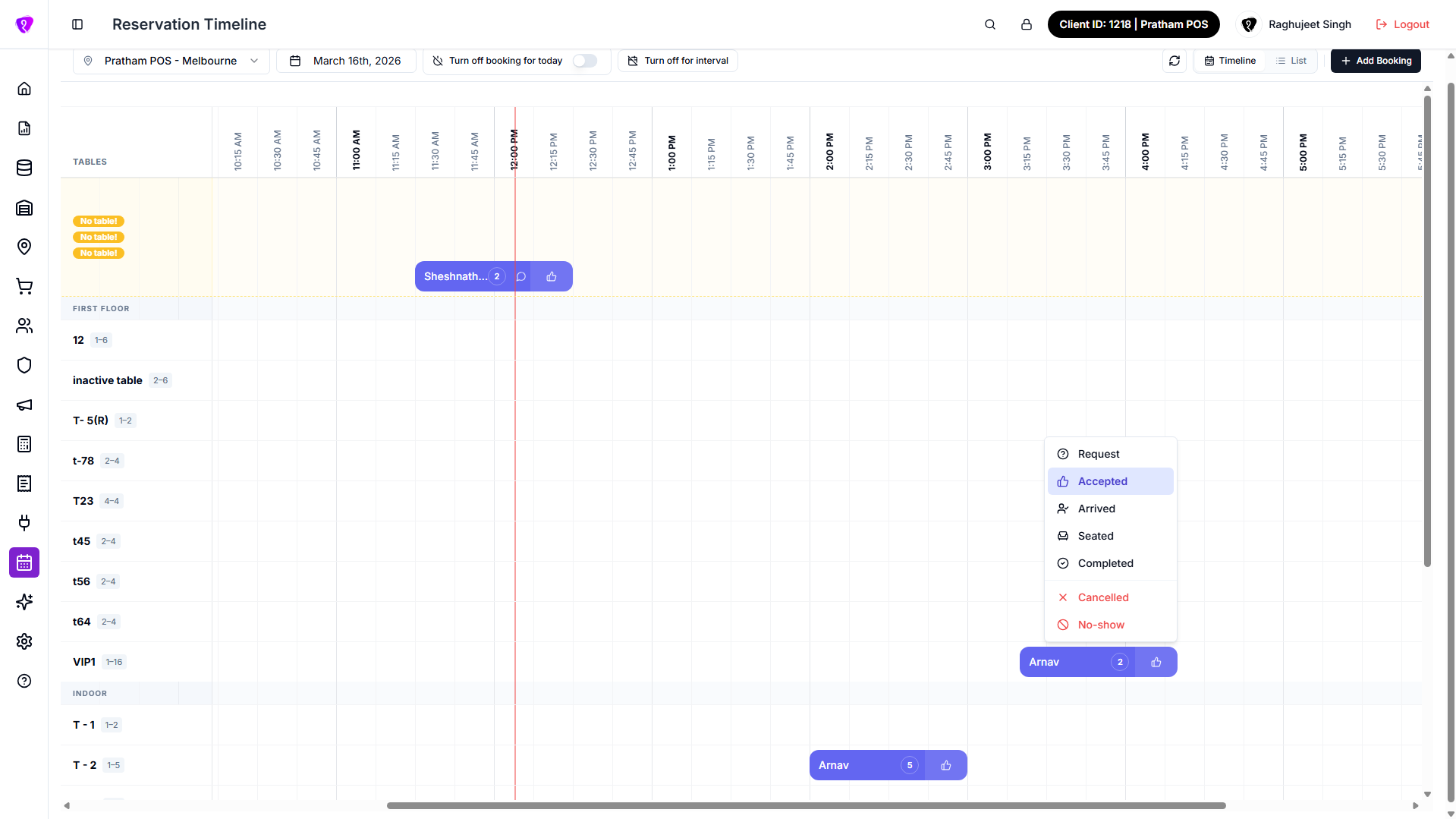 Caption: Reservation timeline view with table layout and booking status cards
How to use it
- Pick the date or service period if selectors appear at the top.
- Click a table or booking card to see actions the product allows (book, seat, cancel — wording on screen is final).
- Drag-and-drop may be available for moving bookings — release only when the highlight shows a valid table.
Status change in timeline
Use this flow when you need to update booking progress from the timeline view.
- Open the booking card on the timeline.
- Select Status (or the status action shown in the action menu).
- Choose the next status based on guest progress.
- Click Save / Update to apply the change.
Common status sequence (use the statuses shown in your UI):
- Request -> Accepted -> Arrived -> Seated -> Completed
- Cancelled and No-show are terminal statuses for dropped bookings
If a status option is not visible, check reservation permissions and current booking rules in Settings.
Permissions
Floor and timeline tools are for host or manager roles with reservation access.