
Transactions — view orders, search, change status
Menu: Order Management → Transactions
Browse and search past orders, order history, and transaction records: amounts, channels, customer details, status, and line items. Use this screen for order lookup, support queries, and reviewing completed or cancelled transactions. New orders come from POS or online ordering — this screen is for viewing and status changes only.
Filters
Use the filter row at the top for dates, status, channel, location, or other fields your organisation enabled. Apply or reset as the buttons say.
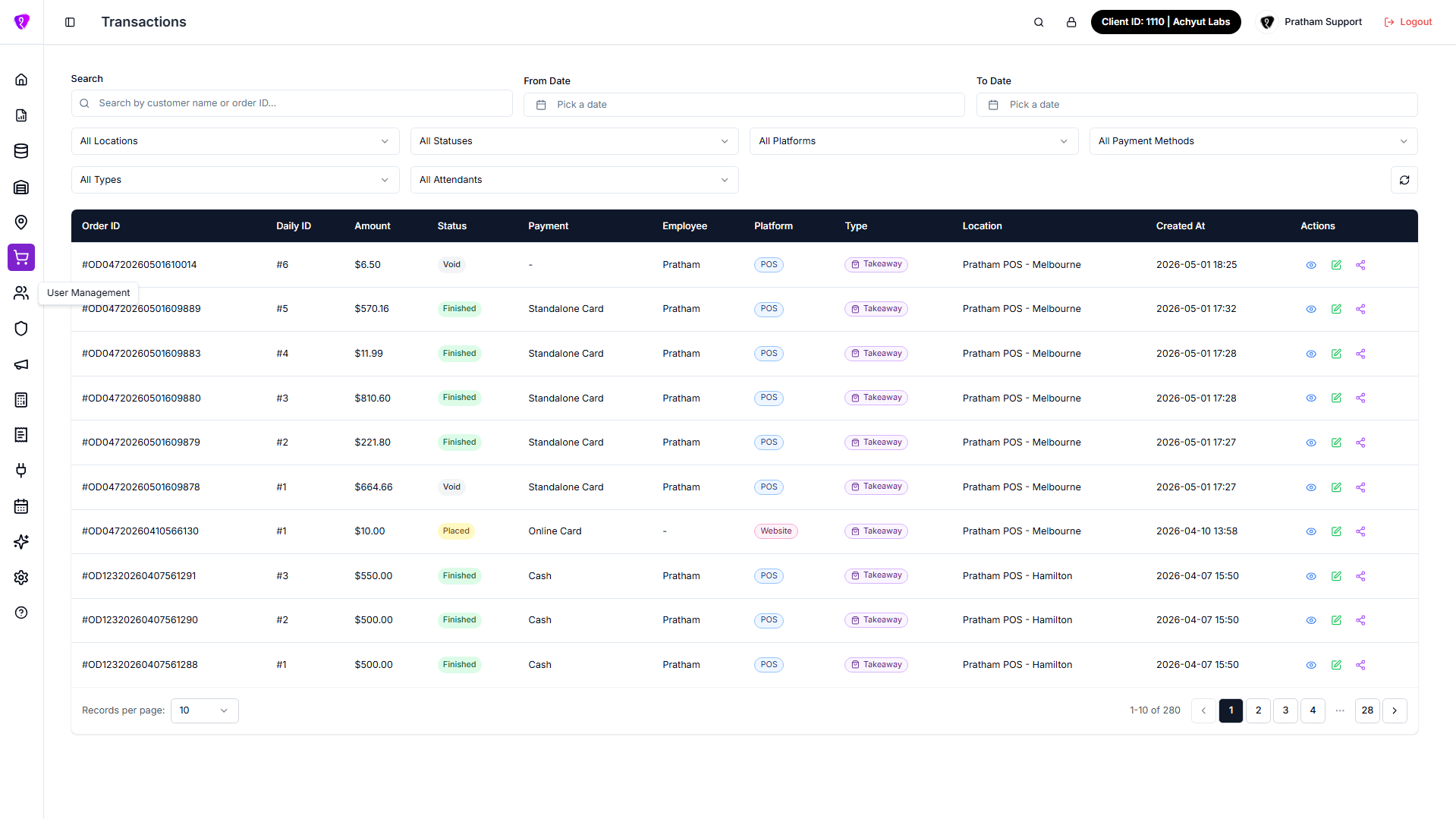 Caption: Transactions list view with top filters for quick lookup
How to view an order transaction
- Click a row or view to open the order details window.
- The details window is scrollable and typically shows these sections (labels match the UI):
- Header:
Order #<id>, Order type, whether it is Guest or Customer, and the total amount. - Summary: Location, Order Status (badge), and Attendant.
- Void/Cancelled Order Reason: shown only when the order has a cancel/void reason.
- Order Line Items:
- Each item line with quantity, price, and line totals
- Item notes (when present)
- Modifiers / add-ons for an item (when present)
- Tax tooltip/details may appear depending on your configuration
- Discount & Surcharge: totals for discount, surcharge, and platform fee (when present).
- Delivery Details (or Pickup Details): address / instructions plus times like waiting time, pickup time (takeaway), delivery time, estimated time, and delivery fee (only shows fields that exist).
- If a DoorDash delivery is linked, it can show delivery id, dasher name/phone, and a tracking link (when provided).
- Customer Details: name/phone/email/address if available; otherwise it shows Guest.
- Payment Details: payment method(s) and amounts. If multiple methods were used, it lists each and shows a total.
- Header:
- Close the window using X in the header.
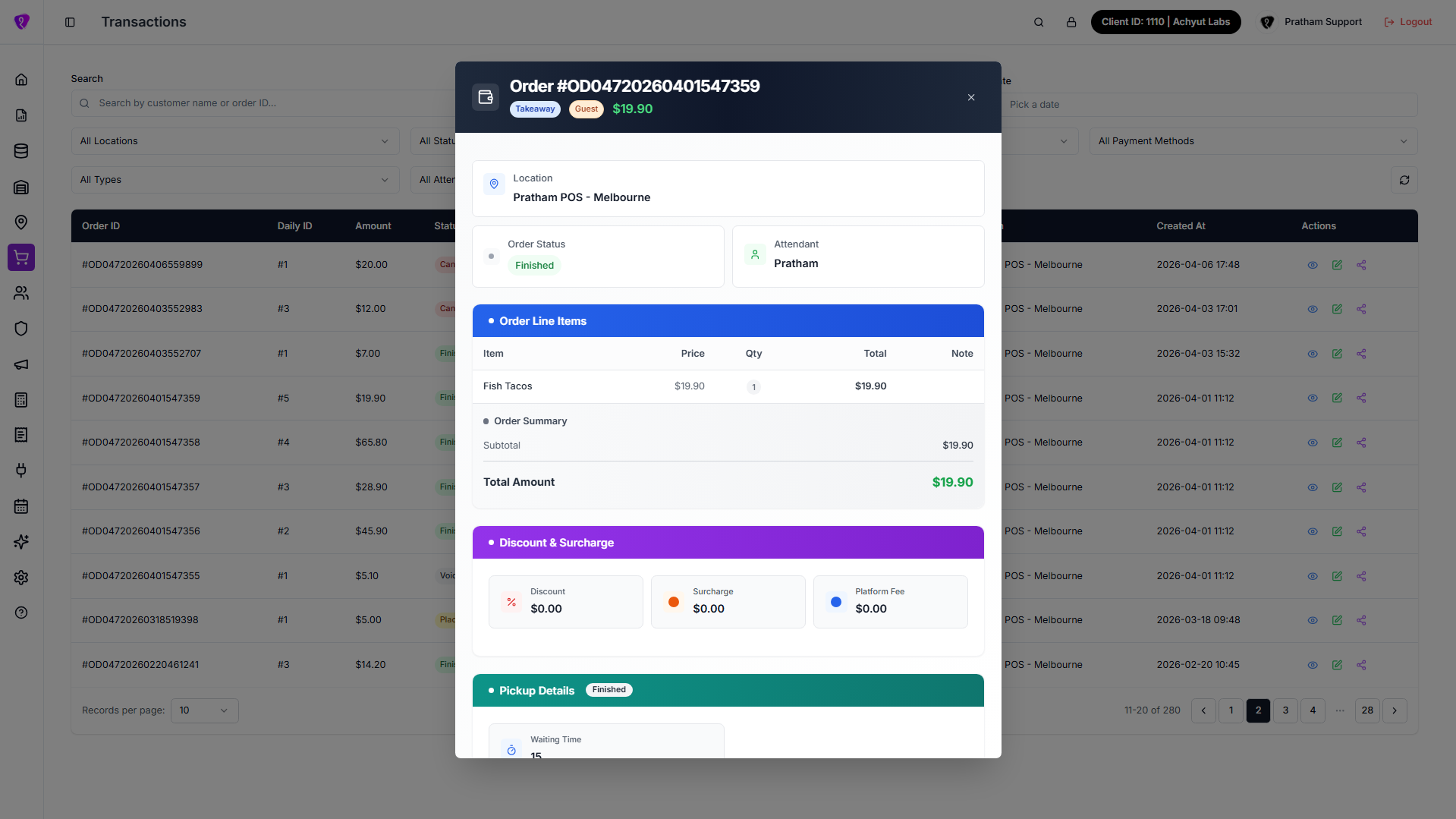 Caption: Order details window showing line items, payments, and order summary
How to change transaction status
If your role allows updates, use update status (or similar) inside the details window. Pick the new status, confirm, and read the success message.
Permissions
View is common for support roles; change status may be restricted to supervisors.