
Modifier categories — add, edit, import
Menu: Master Data Management → Modifiers categories
Modifier categories group your modifier options (for example “Sauces” or “Size upgrades”) so they stay organised when you attach modifiers to menu items.
Search and filters
- Filters for name, sequence number, and status work together to narrow the list.
- Typing in name or sequence waits a moment after you stop typing before the list refreshes (so the screen does not flicker on every key press).
How to add a modifier category
- Click the button to add a new category (wording on the button matches your screen).
- If you are not signed in, you may see a message to log in again and be sent to the login page.
- Fill the form in the window that opens.
- Submit. The list refreshes when the save succeeds.
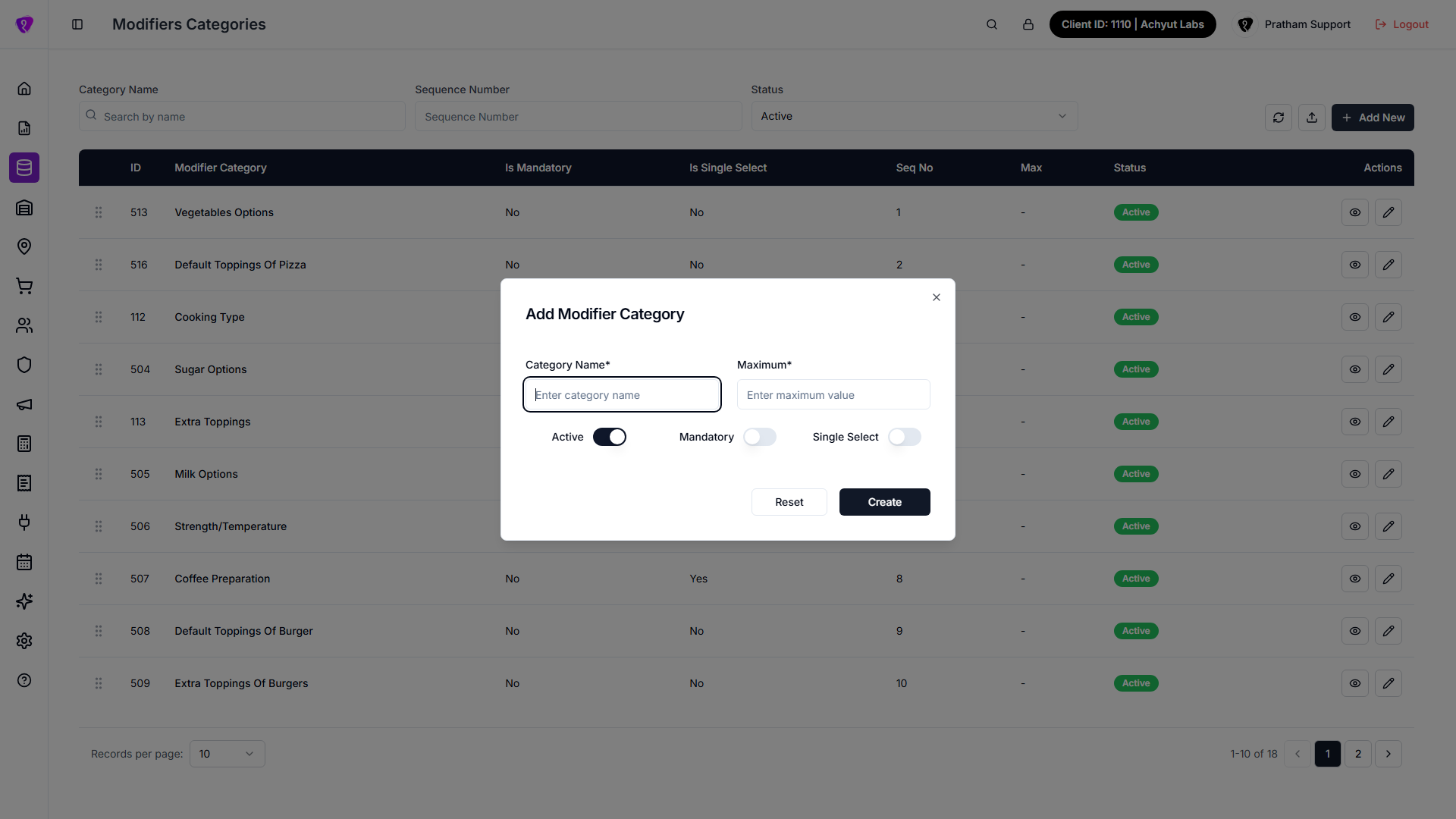 Caption: Add Modifier Category popup with required fields and switches
How to edit a modifier category
- Use the edit action on the row in the table.
- Change the fields shown.
- Save. The window closes and the table updates.
Import
- Use import (or the upload-style control shown with the filters) when your role allows it.
- Use a CSV file. Format reference: Import CSV format (Modifier Categories).
Blank template: download CSV. - After a successful import, the category list reloads.
Import CSV format (Modifier Categories)
Download a blank template: Modifier Categories import template (CSV)
The import dialog accepts a CSV with a header row.
| Column | Accepted header names | Notes |
|---|---|---|
| Category name | modifier_category, name, or category_name | If empty, a placeholder like Category 1 is used. |
| Status | status | Active, 1, or numeric 1 -> active; anything else -> inactive. |
| Sequence number | seq_no or sequence | Integer; defaults to row order (1, 2, 3...). |
| Mandatory flag | is_mandatory | 1 = yes, anything else = no. |
| Single select flag | is_single_select | 1 = yes, anything else = no. |
Use UTF-8 encoding if names include special characters.
Table
- All categories appear in the main table with the columns your organisation configured (name, order, status, actions, and similar).
- Use row actions exactly as labelled on screen.
Permissions
- Add and import need create-level access to modifier categories.
- Edit needs update access.
- If a control is hidden or greyed out, your role does not include that action.