
Product attributes — create, edit, view
Menu: Master Data Management → Product Attributes
Product attributes are reusable options or rules (for example add-ons, choices, or labels) that can later be linked to individual products elsewhere in the admin.
Search and filters
- Attribute name — type to search by name. The list updates shortly after you stop typing.
- Clear — X in the search box clears the text.
- Status — All, Active, or Inactive. The list often starts on Active only.
Buttons
- Refresh (circular arrows) — reloads the list and any expanded details.
- Add attribute (plus) — opens a form to create a new attribute. Only shown if your role may create product attributes.
Your page number and filters may be remembered when you come back to this screen later in the same browser.
List and table
- Attributes appear in a table with paging at the bottom (page size can be changed within the limits shown on screen).
- Use expand on a row (where the UI shows a control) to see values belonging to that attribute (for example each size or each allowed choice).
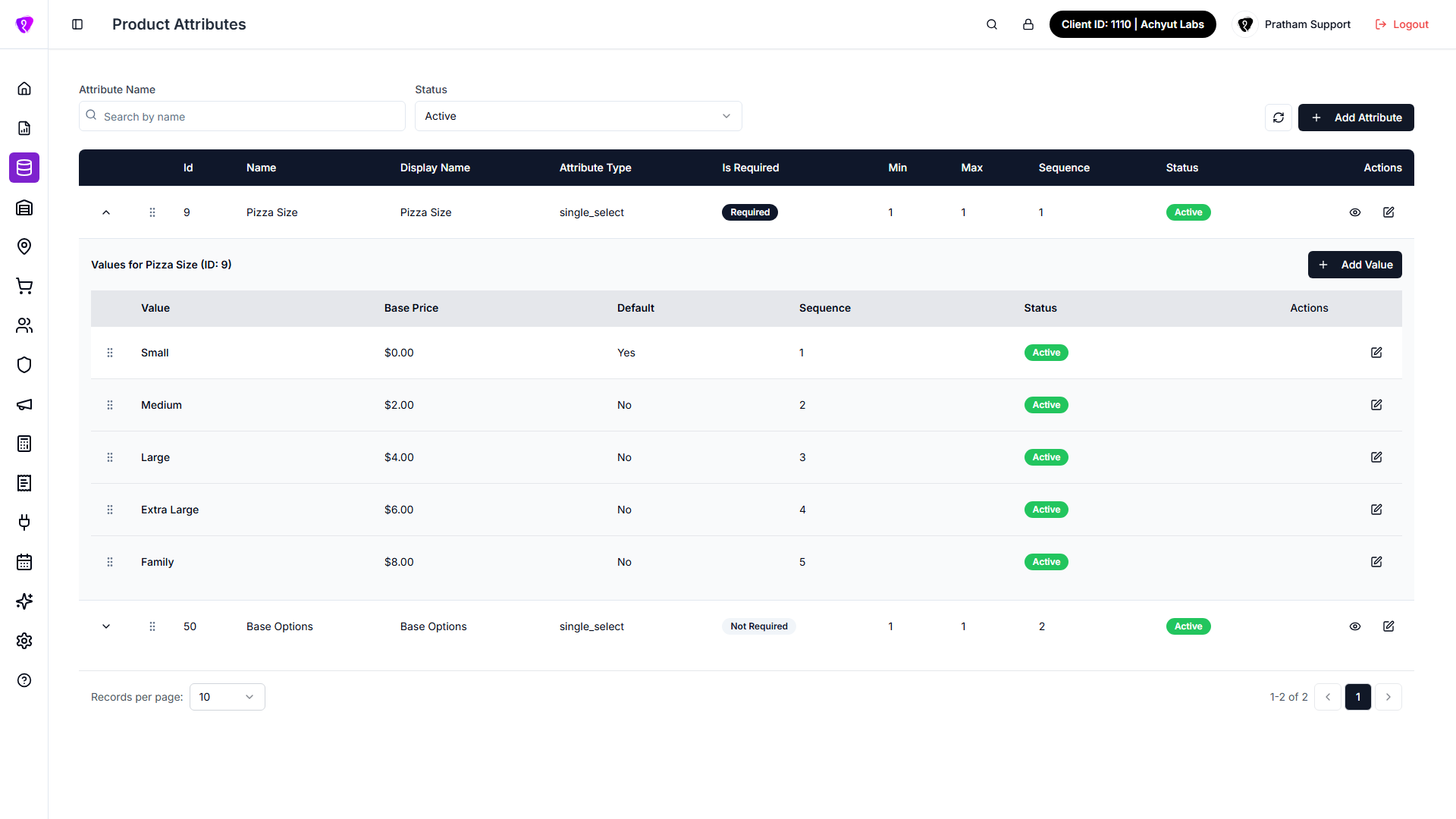 Caption: Product Attributes list showing expandable value rows and pricing columns
How to create a product attribute
- Click Add attribute.
- Fill the form (name, display rules, type, required limits, active/inactive, and any other fields shown).
- Submit with the primary button at the bottom of the window.
- Read any red error or success message on screen.
How to edit a product attribute
- Use the edit action on the row (if your role may update attributes).
- Change fields in the same style of window as create.
- Save. Validation messages appear if something is invalid.
How to view a product attribute
- Use the view action on a row.
- Fields are read-only.
- Close when finished.
Attribute values (inside an expanded row)
When an attribute is expanded:
- You can add a new value (label, display text, Base Price, default flag, active/inactive — exactly as the form shows).
- You can edit an existing value.
- Saving shows a success message when it worked; otherwise an error message explains the problem.
Price options
- Base Price (attribute value level): set in the value add/edit form for each attribute value.
- Price Adjustment (item settings level): used when mapping attribute values with modifiers in item attribute settings.
- Keep both values aligned with your pricing logic before publishing item changes.
Permissions (plain language)
- If Add attribute is missing or disabled, you only have read access (or no access) for creating attributes.
- Edit / view / value actions follow the same role rules your administrator set for Product attributes.