
Deals — create, edit, manage
Menu: Locations Management → Deals
Create and manage special offers, combo deals, BOGO (buy one get one), and bundle deals for a location: titles, dates, linked products, and status. Use this screen to add, edit, activate, or deactivate promotional deals and discount offers.
How to create a deal
- Click add (or equivalent).
- Select the deal type shown on your screen.
- Fill name, date range, products/components/rules, and any limits shown.
- Save. Read validation messages if the window stays open.
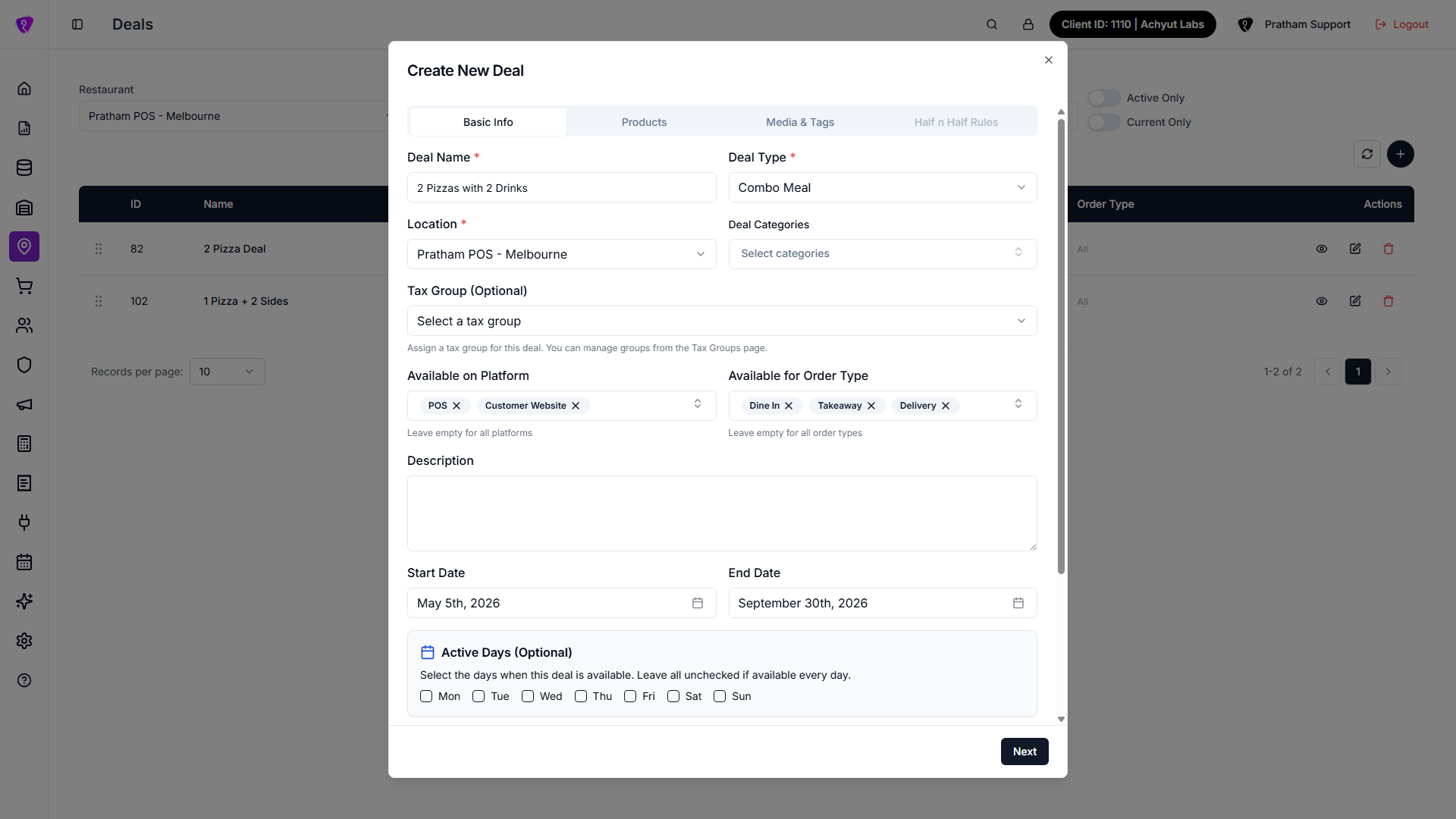 Caption: Create New Deal dialog with basic info and configuration tabs
Create deal data checklist
Use this quick checklist while creating a deal:
- Deal name: clear name staff can identify quickly.
- Deal type: Combo, BOGO, or Bundle (as available in your build).
- Date and time window: start/end dates and service time restrictions if shown.
- Products/components: add the required items, categories, or groups for the deal.
- Pricing rule: fixed price, free item logic, or discount logic based on selected type.
- Availability/status: set active/inactive and channel/location visibility where shown.
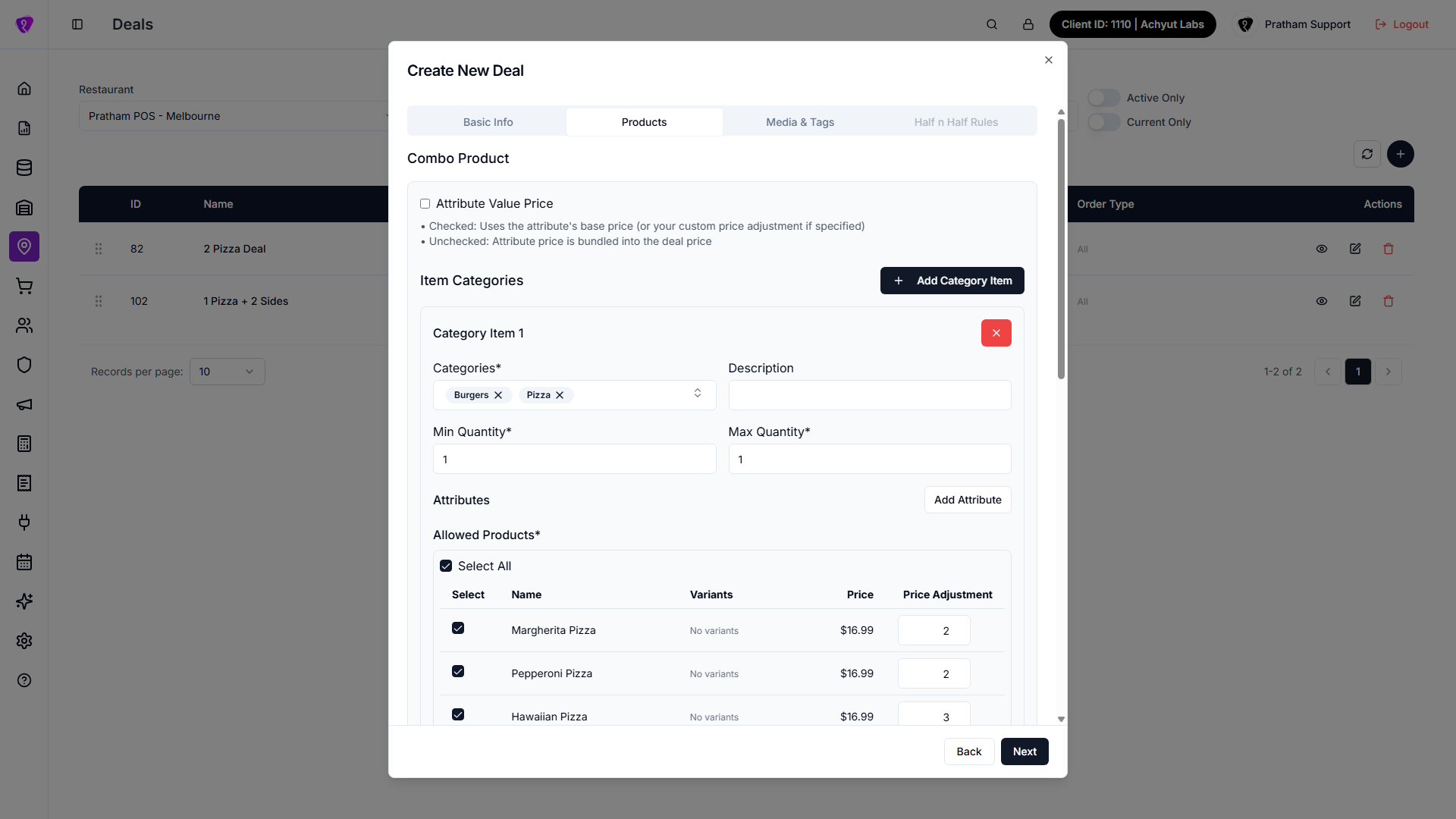 Caption: Select and attach products while creating a deal
Types of deal
Deal type names can vary slightly by build, but common types are:
- Combo: fixed-price offer with grouped item selection.
- BOGO: buy-one-get-one style offer with free or discounted component logic.
- Bundle: fixed total price applied to the full bundle selection.
Use the type that matches your pricing rule and product selection flow.
How to edit a deal
- Edit — change fields and save again.
- View — read-only layout when offered.
Other actions
- Active / inactive toggles or status columns may appear — use them to stop a deal without deleting history.
Permissions
Deal management is limited to roles your administrator assigns to deals for the locations you may edit.