
Modifiers — create, edit, delete, import
Menu: Master Data Management → Modifiers
A modifier is an extra, add-on, topping, or choice tied to menu items (for example “extra cheese”, “spice level”, or “sauce on side”). Use this screen to add, edit, or delete modifiers, import in bulk, and reorder them within a category. Modifiers let customers customise their order at POS or online ordering.
Filters
| Control | What it does |
|---|---|
| Modifier name | Search by name. Clear with X when text is present. |
| Sequence no | Filter by sequence number (numeric field with clear). |
| Category | All categories or one modifier category from the list. |
| Status | All, Active, or Inactive. The list often starts on Active only. |
Buttons
- Refresh — reloads modifiers and categories; a short message confirms refreshing.
- Import (upload icon) — opens import when your role allows creating modifiers.
- Add modifiers — opens the add form when your role allows creating modifiers.
Table columns
Typical columns include: ID, Modifier name, Sequence no, Modifier category, whether inventory is tracked, stock status, status, and Actions.
- Loading: a spinner and “loading” text appear while data is fetched.
- Empty: you are told no modifiers were found and to change filters or add one.
How to create a modifier
- Click Add modifiers.
- Enter the modifier name, pick a category, set active or inactive, and fill inventory fields only when track inventory is turned on (linked product, quantity, unit — as shown on the form).
- Save. A success message uses the modifier’s name when save works.
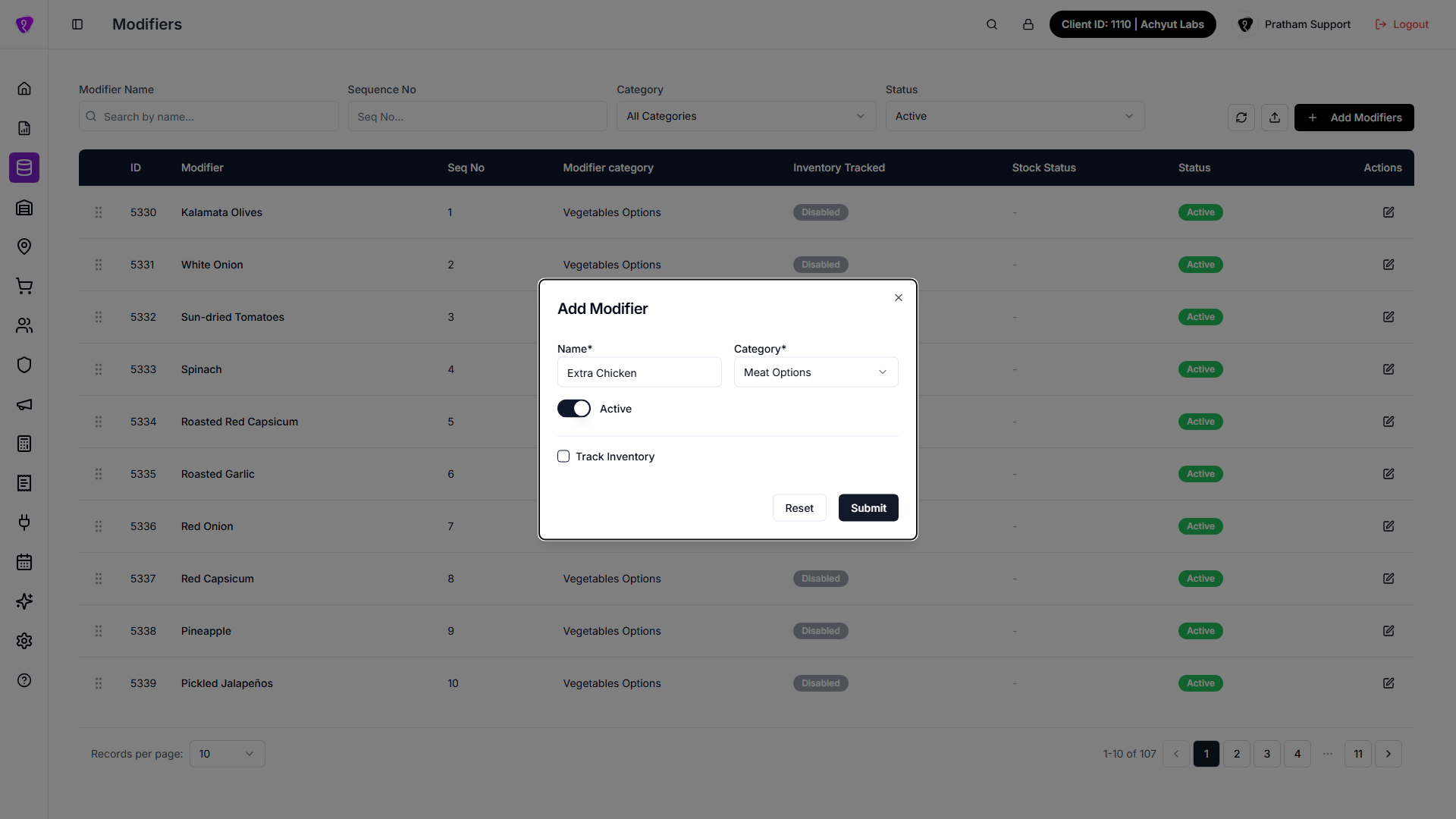 Caption: Create modifier with category and inventory settings
How to edit a modifier
- Click Edit on the row (pencil icon when your role allows updates).
- Change the same fields as in create.
- Save. Validation errors from the server may appear as a readable list in a message.
How to delete a modifier
If your screen offers delete for a modifier, confirm in the dialog — wording on screen is final. Many teams only deactivate instead of deleting.
Reorder (drag)
- Drag the grip handle at the start of a row up or down within the same page view.
- When you drop, the new order is saved for that modifier inside its category.
- Success: sequence updated style message. On failure, an error appears and the list may refresh back.
Import
Use a CSV file for import. Format reference: Import CSV format (Modifiers).
Blank template: download CSV.
After import completes successfully, the modifier list and category list both refresh so new data appears immediately.
Import CSV format (Modifiers)
Download a blank template: Modifiers import template (CSV)
The import dialog accepts a CSV with a header row.
| Column | Accepted header names | Notes |
|---|---|---|
| Modifier name | modifier, name, or modifier_name | Rows with all these empty are skipped. |
| Status | status | Active, 1, or numeric 1 -> active; anything else -> inactive. |
| Modifier category ID | modifier_category_id | Numeric ID. If invalid/empty, value is sent as null. |
Use UTF-8 encoding if names include special characters.
Permissions
- Refresh — anyone who can open the page.
- Import and Add — create permission on modifiers.
- Edit and drag reorder — update permission on modifiers.