
Items (Items V2) — create, edit, view
Menu: Master Data → Items (often marked NEW).
(Legacy Item Library is the older item list UI — same business idea.)
How to create a new item
- Open Items from the sidebar.
- Click Add Item (or equivalent primary button on your build).
- A large dialog opens with sections (basic info, pricing, tax, locations, modifiers, loyalty, inventory, etc.) — all sections are visible for create and edit.
- Fill at minimum:
- Item name
- Category (select a real category, not empty / zero)
- Quantity / units as your form shows (defaults may exist)
- Prices your business requires (standard / online / dine-in — depends on sections shown)
- For finished products, choose which locations sell the item (the form may pre-select active locations).
- Discount rule: if you enter any discount amount (standard, online, or dine-in) greater than zero, you must also choose a discount type from the dropdown. Otherwise save shows: Please select a discount type when applying discounts.
- Click Save / Create on the dialog (exact label on the bottom bar).
After create, the dialog usually closes and the list refreshes.
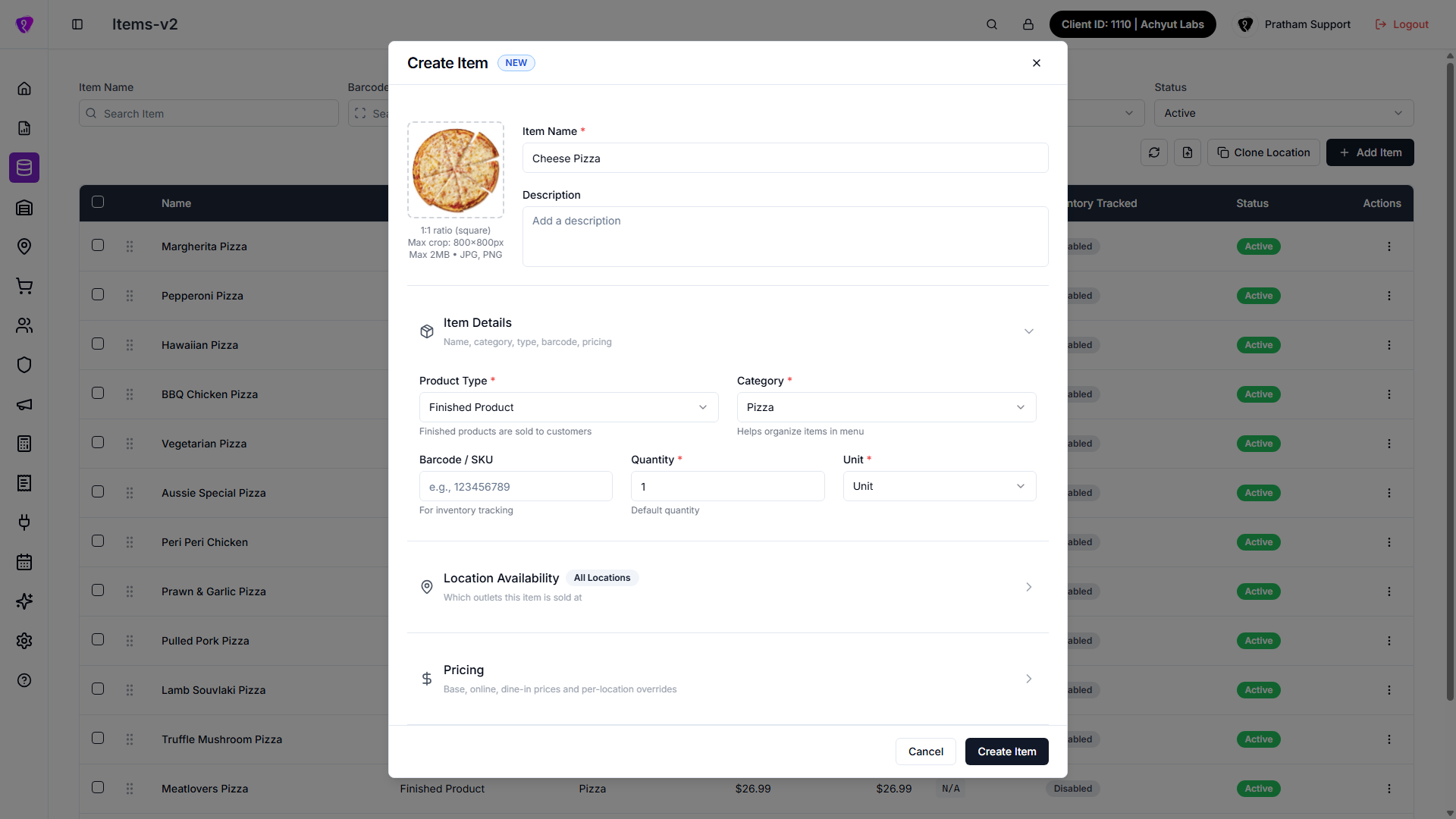 Caption: Create Item form in Items V2 with details, location availability, and pricing sections
How to edit an item
- In the table, use Edit (or row action) on the item.
- The same dialog opens with data filled.
- Change any section (including location overrides for price per outlet).
- Save. Message: Item updated successfully.
How to view an item
- Use View from the row (eye icon or View action), if shown.
- The dialog opens in read-only mode — fields are disabled; browse all sections without saving.
What is required (practical minimum)
Always read on-screen errors — your organisation may turn on extra required fields.
| Area | Required in practice |
|---|---|
| Identity | Name, Category |
| Product type | Finished product vs ingredient/packaging — affects whether locations must be chosen |
| Discounts | If any discount field > 0 → Discount type mandatory |
| Tax | Often Tax group when your company mandates it on items |
Optional (common)
Description, image, barcodes, half-and-half flags, loyalty flags, inventory linking, modifiers, attributes, product tags, location price overrides, bulk actions (Bulk edit, Clone to location — use only if you understand impact).
List screen tools
Filters typically include search, barcode, category, status, product type; pagination; select rows for bulk operations. Use Refresh after big changes.
Import CSV format (Items V2)
If your screen shows an Import action, use a CSV file in this format.
Blank template: download CSV
| Column | Header name | Notes |
|---|---|---|
| Item name | name | Required. |
| Description | description | Optional. |
| Barcode | barcode | Optional. |
| Product type | product_type | finished_product, ingredient, or packaging_item (defaults to finished_product). |
| Category ID | category_id | Required for finished_product; numeric ID. |
| Measurement unit ID | measurement_unit_id or quantity_unit_id | Required; numeric ID. |
| Quantity | quantity | Number; defaults to 0 when blank. |
| Base price | price | Required number. |
| Online price | online_price | Optional number. |
| Dine-in price | dine_in_price | Optional number. |
| Discount type ID | discount_type_id | Optional numeric ID. |
| Discount | discount | Optional number. |
| Online discount | online_discount | Optional number. |
| Dine-in discount | dine_in_discount | Optional number. |
| Locations | restaurant_ids | Required comma-separated outlet IDs, e.g. 101,102. |
| Status | status | 1 = active, 0 = inactive. |
Use UTF-8 encoding if names include special characters.