
POS Settings — configure store, receipts, payments, order types
POS Settings is where managers configure how the system behaves — order types, receipts, discounts, loyalty, appearance, and more. Only staff with manager or admin access can change these settings.
Navigate to POS Settings from the main navigation menu.
Some settings require an admin PIN to access, depending on your configuration.
Store Information
Basic details and operational timing for this outlet. All fields are required.
| Field | Description |
|---|---|
| Site Reference | Unique identifier for this outlet |
| Tax ID | Tax / ABN number printed on receipts |
| Phone Number | Contact number for the outlet |
| Address Line 1 | First line of the physical address |
| Address Line 2 | Second line of the physical address |
| Pickup Time Duration (mins) | Default estimated wait time shown to customers for takeaway orders |
| Pickup Time Gap (mins) | Minimum interval between available pickup time slots for pre-orders |
| Pickup Start Time (mins) | How far ahead (in minutes) the first pickup slot is offered |
| Delivery Time Gap (mins) | Minimum interval between available delivery time slots |
| Delivery Start Time (mins) | How far ahead (in minutes) the first delivery slot is offered |
| Min. Order Value for Discount | Minimum order total required before a discount can be applied |
| Pre Order Threshold Time (mins) | Cutoff time before which a pre-order must be placed |
| Default Waiting Time (mins) | Default waiting time shown for orders |
| Address Search Area (KM) | Radius used to restrict delivery address search results |
| Cashup Start Time | Time each new cashup period begins — determines which orders fall into each cashup report |
| Floating Amount | Starting cash amount expected in the till at the beginning of each shift |
Online Order Surcharge
Apply an automatic surcharge to all online orders.
| Field | Description |
|---|---|
| Type | Fixed (flat dollar amount) or Percentage |
| Amount | The surcharge value to apply |
Online Order Discount
Apply an automatic discount to all online orders.
| Field | Description |
|---|---|
| Type | Fixed (flat dollar amount) or Percentage |
| Amount | The discount value to apply |
Security & Authorization
Controls which actions require admin authentication.
| Setting | Description |
|---|---|
| Require Admin Approval for Discounts & Surcharges | Staff must authenticate with admin credentials before applying any discount or surcharge to an order |
| Require Admin Approval for Refunds | Admin authentication is required before processing a customer refund |
| Restrict Settings Access to Admins | Only admin users can access and modify POS Settings |
| Require Authentication for Staff Switching | Users must authenticate when switching between staff members |
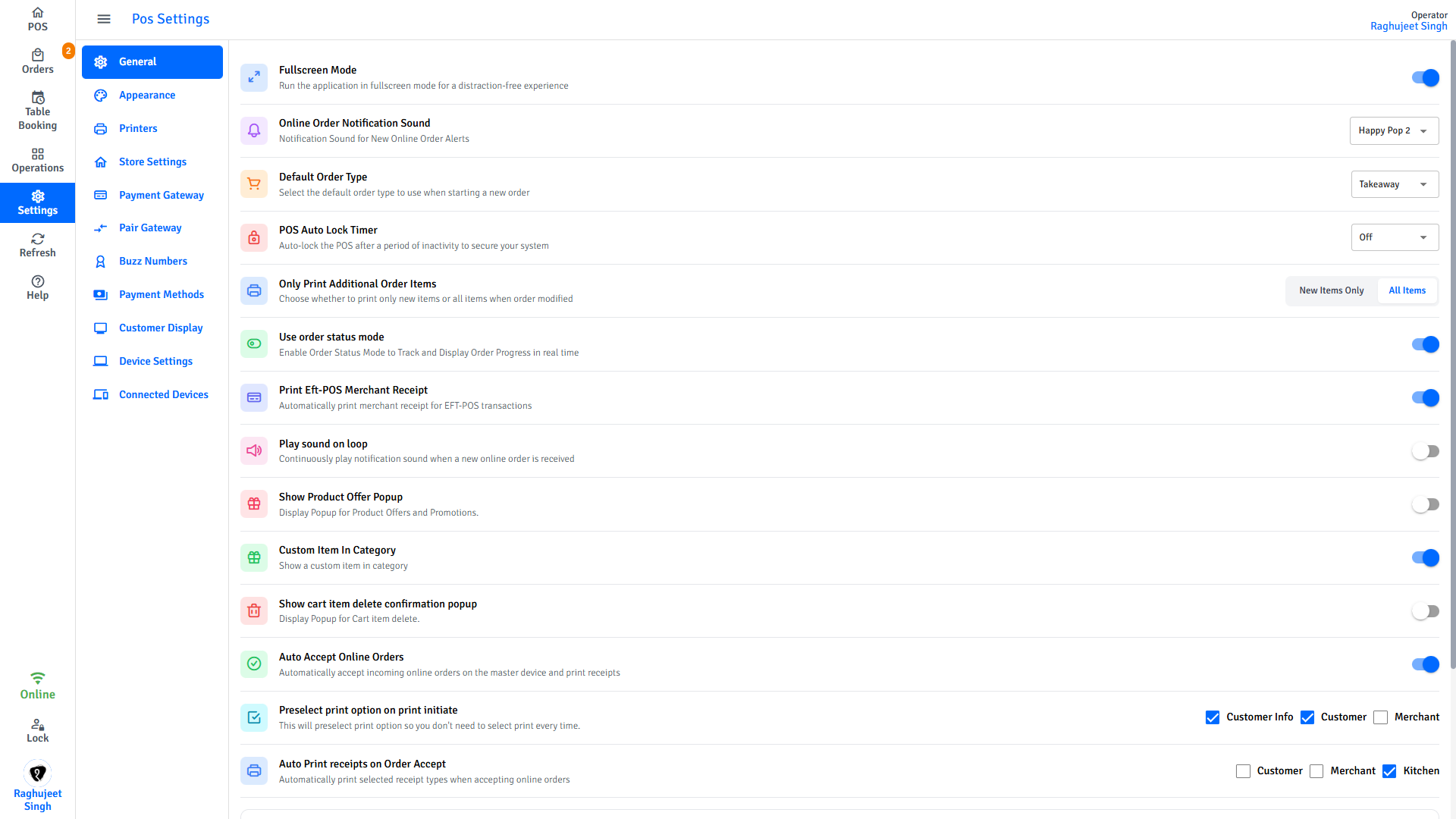
General Settings
| Setting | Description |
|---|---|
| Currency | Currency code used for all pricing and receipts |
| Auto-Lock | Automatically lock the screen after a set time or after every order |
| Confirm on Cart Item Delete | Show a confirmation popup before removing an item from the cart |
| Notification Sound | Enable or disable audio alerts for new online orders |
Order Types
Enable or disable the order types available at this outlet.
| Setting | Description |
|---|---|
| Dine-In | Enable orders for customers eating at a table |
| Takeaway | Enable orders for customers collecting at the counter |
| Delivery | Enable orders delivered to a customer address |
| Default Order Type | Which order type is pre-selected when a new order is started |
| Table Reservations | Enable the table reservation feature |
| Online Orders | Enable receiving orders from online platforms (e.g., Uber Eats) |
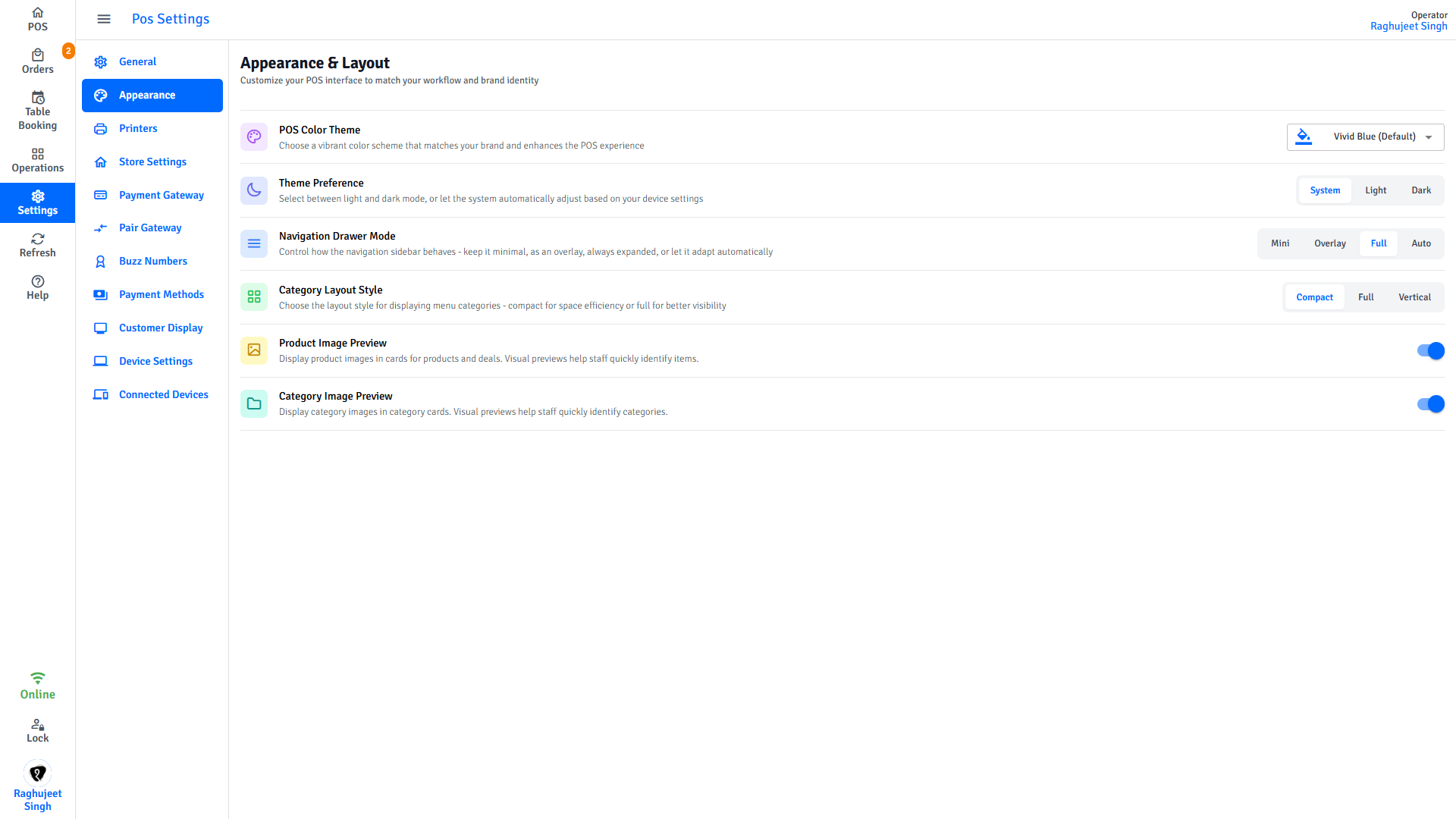
Appearance
Controls how the POS looks and displays products.
| Setting | Description |
|---|---|
| Theme | Light, Dark, or Auto (follows device setting) |
| Theme Colour | Primary accent colour used throughout the interface |
| Left Drawer Mode | How the navigation sidebar behaves — Mini, Full, Auto, or Overlay |
| Product Card Layout | How products appear in the grid — Mini, Compact, Full, or Vertical |
| Show Product Images | Display product photos on the product grid tiles |
| Show Category Images | Display images on category tiles |
Receipt Printing
Controls when and how receipts are printed after payment.
| Setting | Description |
|---|---|
| Auto-Print on Payment | Automatically print the customer receipt, or ask each time, or never |
| Print EFTPOS Receipt | Print the EFTPOS merchant receipt after card payments |
| Kitchen Receipt Mode | Print all items or only new items when sending to kitchen |
| Print on Order Accept | Automatically print receipts when an online order is accepted |
Detailed receipt layout and field configuration is in Receipt Customisation.
Payment Methods
Configure which payment methods appear at checkout and how they behave.
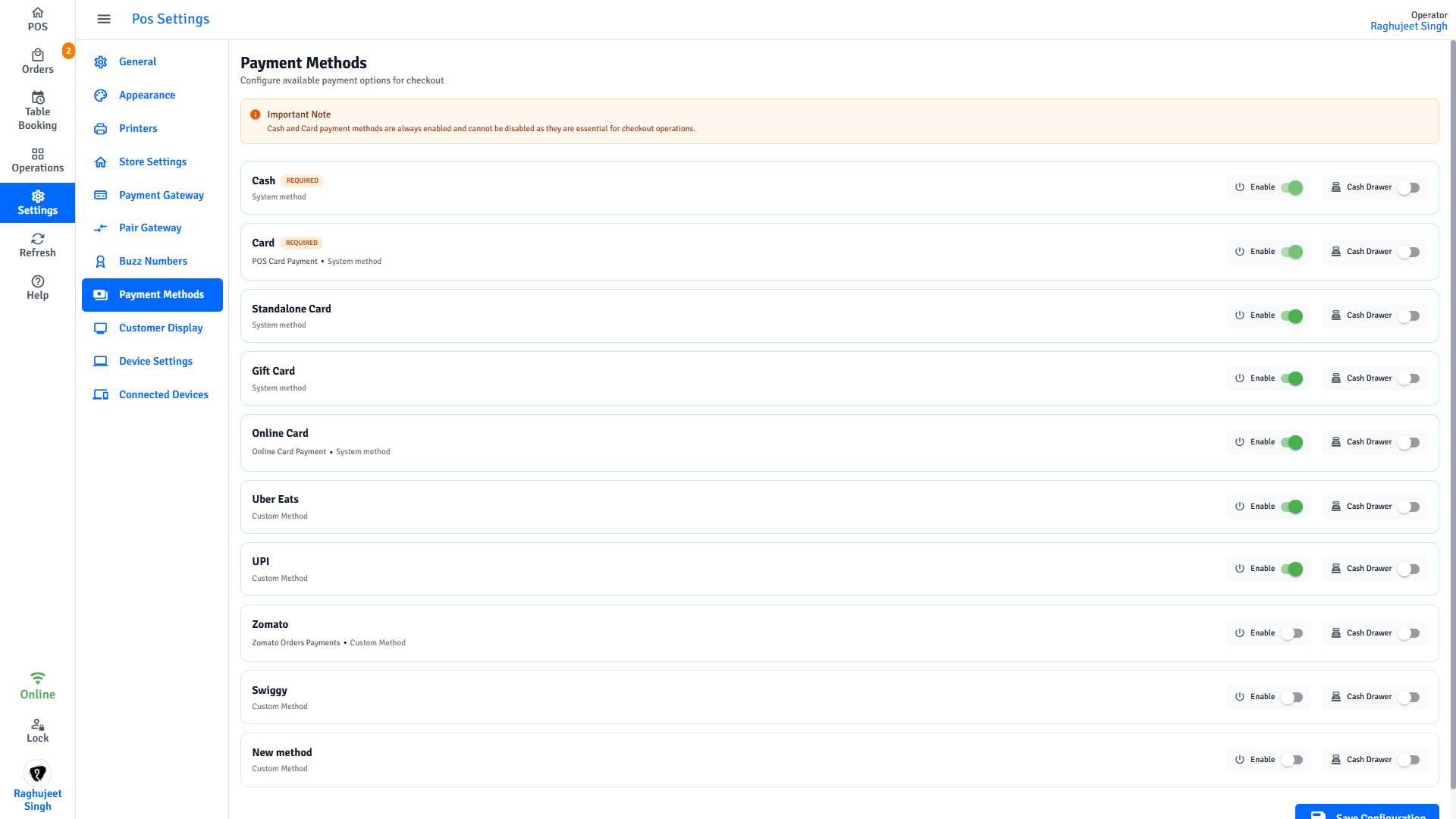
For each payment method you can:
- Enable / disable — show or hide the method at checkout
- Open cash drawer — toggle whether the cash drawer opens automatically when this method is used
Buzz Numbers
Buzz numbers are displayed on receipts to call customers when their takeaway order is ready.
| Setting | Description |
|---|---|
| Enable Buzz Numbers | Turn buzz numbers on or off |
| Number of Buzz Numbers | How many numbers to cycle through before resetting |
| Prefix | Text displayed before the number (e.g., "Order") |
| Suffix | Text displayed after the number (e.g., "Ready") |