
Half & Half — select, customise, add to cart
Half & Half lets customers combine two different products into a single item — most commonly used for pizzas (e.g., half BBQ Chicken, half Margherita). Each half is selected independently and can have its own modifiers.
Admin portal setup required
Half & Half must be enabled per product in the Admin Portal. Only products with Half & Half enabled appear in the half & half product selection screen. Pricing rules (surcharges or adjustments based on the category combination of the two halves) are also configured in the Admin Portal.
Opening the Half & Half Dialog
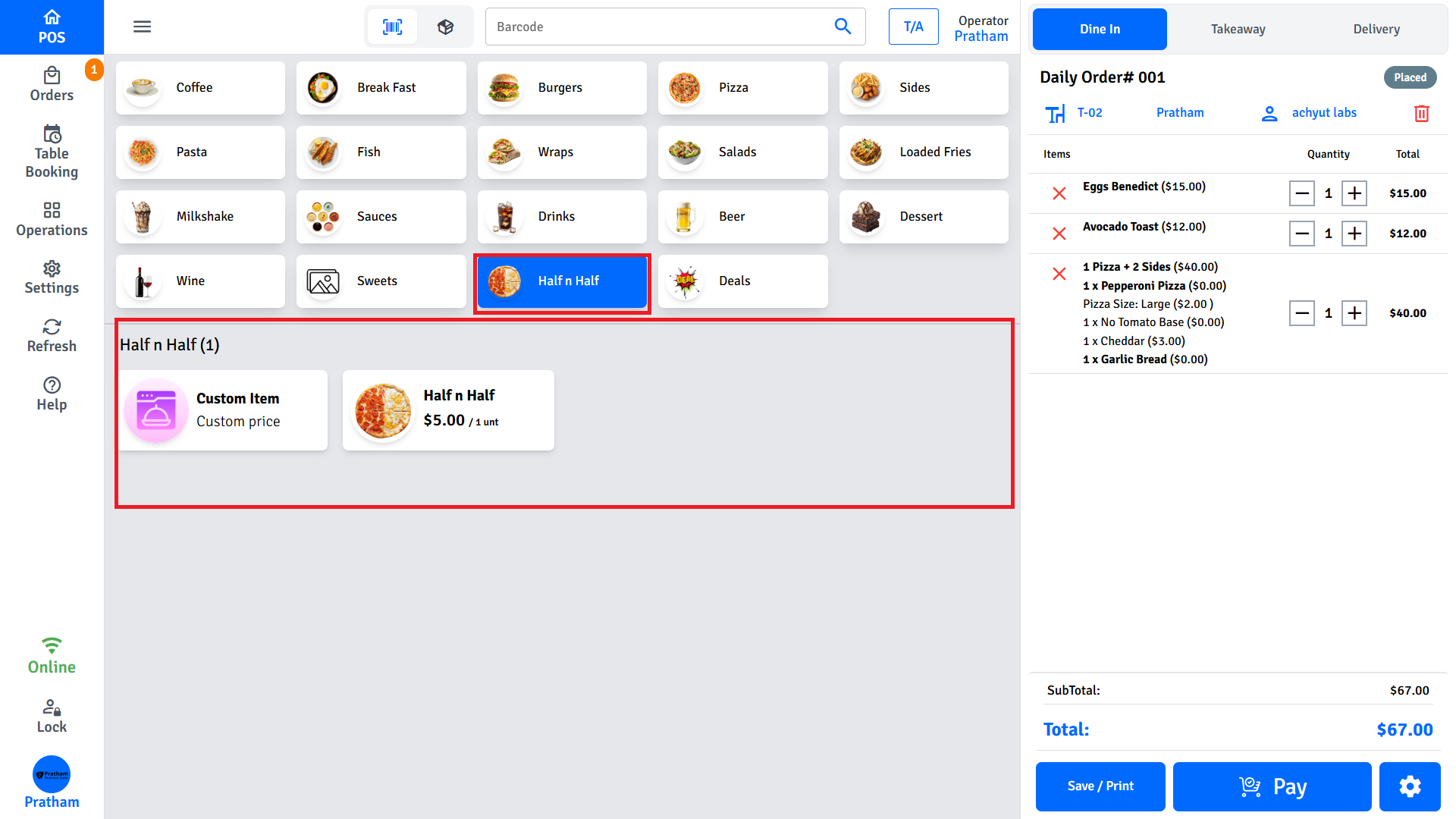
There are two ways to start a Half & Half order:
- From the product grid: Tap a product that has Half & Half enabled. The Half & Half dialog opens directly.
- Inside a combo/bundle deal: Tap the Half & Half option within a deal group that supports it.
Selecting the Two Halves
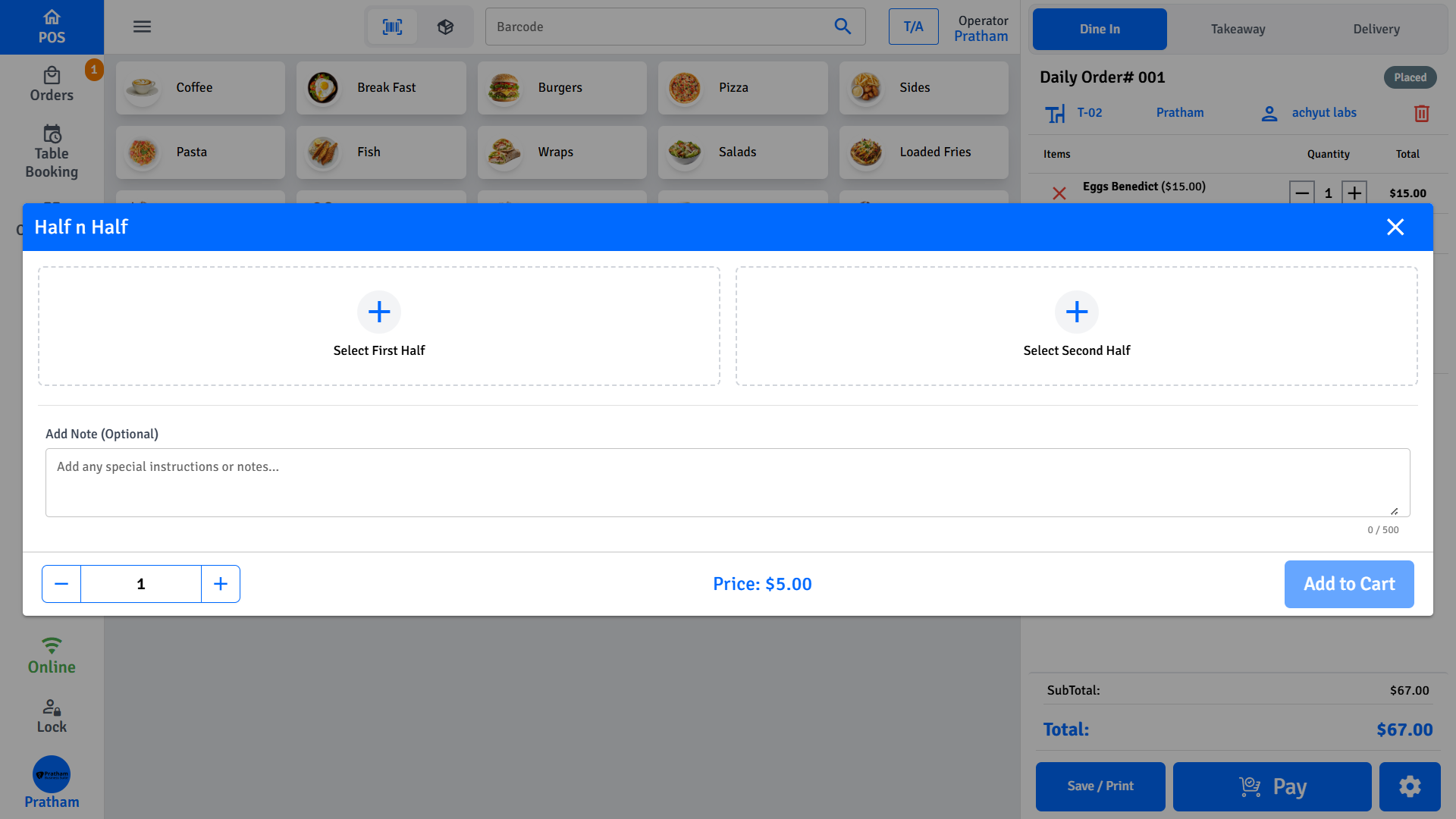
The dialog shows two selection buttons: Select First Half and Select Second Half.
Step 1 — Select the First Half
- Tap Select First Half.
- A product selection screen opens showing only Half & Half enabled products.
- If there are multiple categories, a category filter bar appears at the top — tap a category to filter, or tap All to show every eligible product.
- Each product card shows:
- Product name and description
- Full price (struck through) and half price
- Tap a product to select it as the first half.
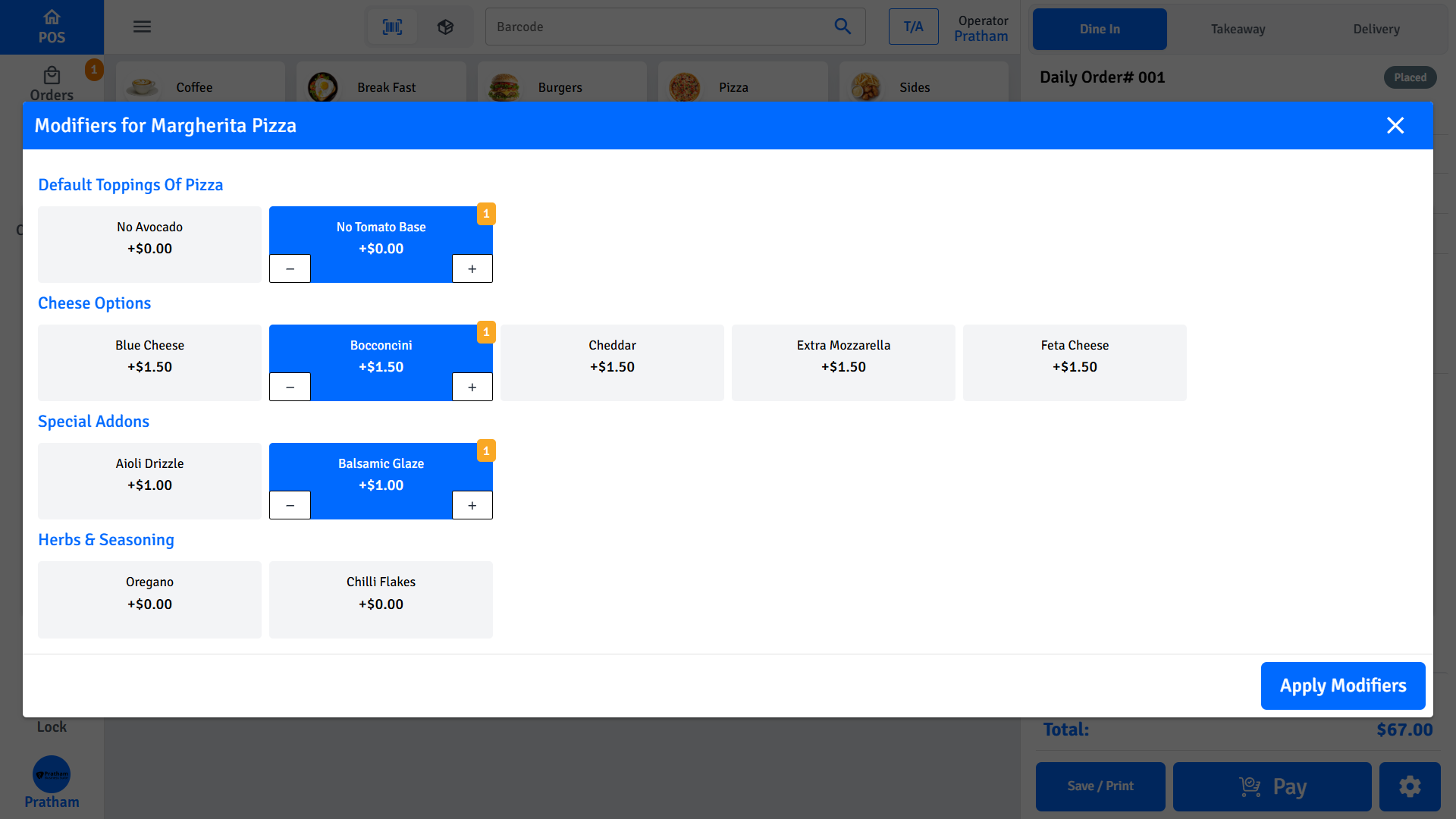
- If the product has modifiers, the Modifiers dialog opens automatically — select any required or optional modifiers, then tap Apply Modifiers.
Step 2 — Select the Second Half
- Tap Select Second Half and repeat the process.
- The product already chosen for the first half is excluded from the second half's product list — both halves must be different products.
- If the second half product has modifiers, the Modifiers dialog opens for that half independently.
Modifiers Per Half
Each half has its own independent modifier selection. Modifiers for the first half do not affect the second half and vice versa.
The Modifiers dialog opens automatically after selecting a product only if that product has modifiers configured. If a product has no modifiers, the dialog is skipped.
Variants
If the Half & Half product itself has variants configured, a Select Option section appears in the main dialog — below the two half selectors.
Variants belong to the parent product
Variants are configured on the Half & Half product (e.g., the pizza base size: Small, Medium, Large), not on the individual halves. Both halves share the same variant selection.
There are two variant systems:
New Variant System
Options are shown as a grid of tiles. Each tile displays:
- Variant name (e.g., "Large")
- Price and measurement unit (e.g.,
$18.00 / ea)
One option must be selected. The default variant (or the first available) is pre-selected automatically.
Legacy Variant System (Attributes)
Options are shown as one or more attribute groups, each with a label (e.g., "Size", "Crust"). Each group can be:
| Type | Behaviour |
|---|---|
| Single-select | One choice per group — tap to select, selected tile highlights |
| Multi-select | Multiple choices allowed — use + / − to adjust quantities up to the group's max |
- Required groups are marked with a red asterisk (*). All required groups must have a selection before adding to cart.
- Some choices may be disabled (shown with a diagonal strikethrough) when they are incompatible with another selected attribute due to restricted combination rules.
- Default choices are pre-selected on open.
Variant prices are added on top of the half prices. Required variants that are not selected will block the Add to Cart action with a warning.
Quantity
Use the quantity selector in the dialog footer to order multiple of the same Half & Half combination in one go.
When used inside a deal with a quantity limit, the maximum quantity is capped by the deal group's allowance.
Price Display
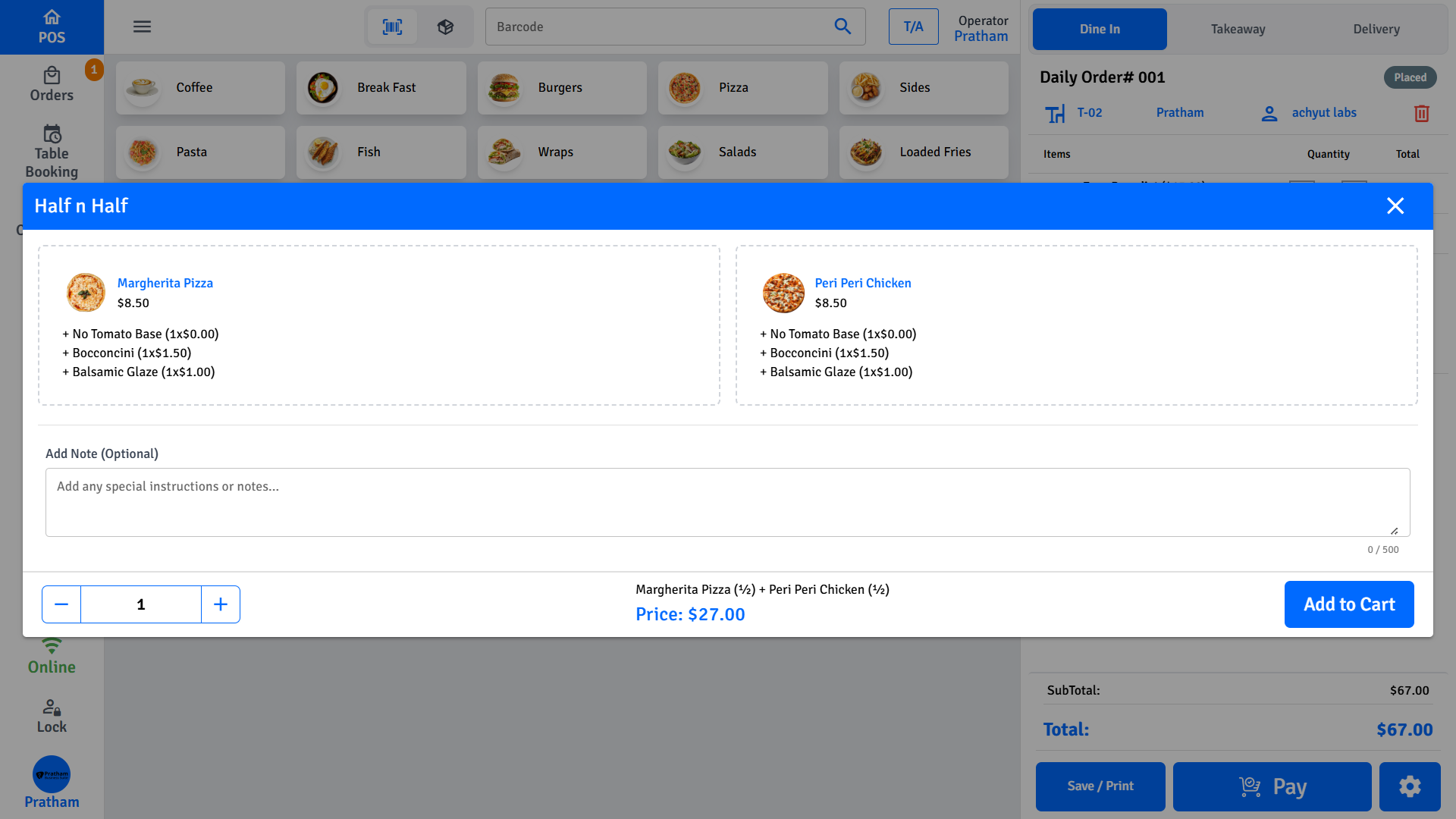
As you select each half and its modifiers, the live price updates in the dialog footer, showing the combined total before adding to the cart.
The footer also displays a summary line: ProductA (½) + ProductB (½) so you can confirm both halves at a glance.
Pricing
The total price is calculated as:
Total = First Half's half price
      + Second Half's half price
      + Modifiers for First Half
      + Modifiers for Second Half
      + Variant price (if variants are selected on the parent product)
+ Pricing Rule adjustment (if a matching rule exists)| Scenario | Price used |
|---|---|
| Product has a half price configured | Uses the configured half price |
| Product has no half price configured | Falls back to full price ÷ 2 |
| Dine-in order with dine-in half price configured | Uses the dine-in half price |
| A pricing rule matches the category combination of both halves | Adds the rule's price adjustment on top |
Pricing rules match based on the categories of the two selected halves. The order of the halves (first/second) does not matter for rule matching — a rule for Category A + Category B applies whether A is chosen first or second.
Adding to Cart / Deal
Once both halves are selected:
- Normal order: Tap Add to Cart. The item is added as a single line item.
- Inside a deal: Tap Add to Deal. The item is passed back into the deal group.
- Editing an existing Half & Half: Tap Update Half n Half to save changes.
The Add to Cart / Add to Deal button is disabled until both halves are selected.
How It Appears on the Cart & Receipt
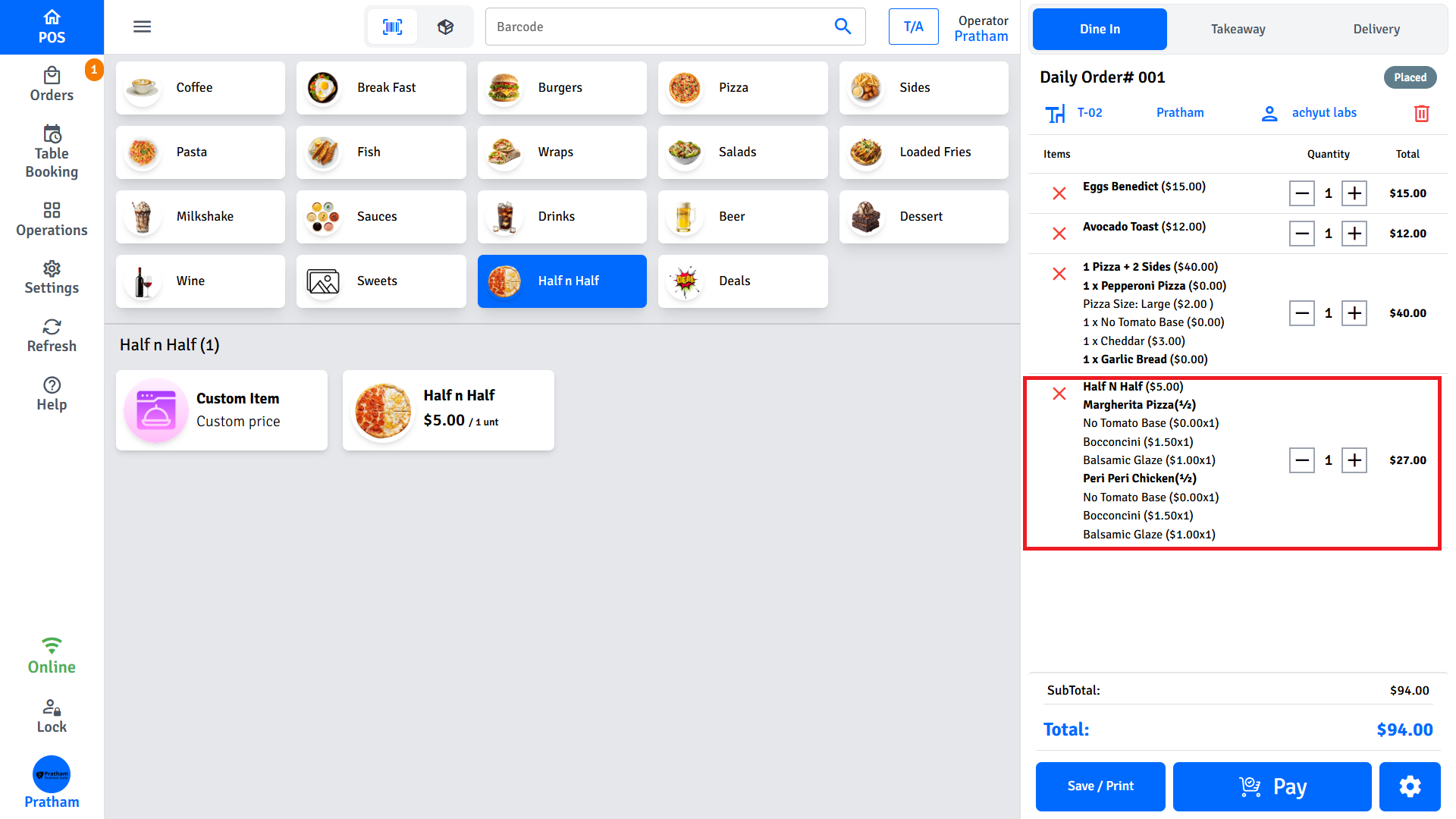
A Half & Half item is shown as a single line item in the cart and on the receipt:
Half N Half                          $XX.XX
  Left:  BBQ Chicken
    + Extra Cheese                    $1.50
  Right: Margherita
+ No Olives- The line item name is always Half N Half.
- The left (first) and right (second) product names are listed below it.
- Modifiers for each half are listed under their respective product name.
Editing a Half & Half Item in the Cart
Tap the Half & Half line item in the cart to reopen the dialog. Both halves and their modifiers will be pre-populated with the existing selection. Make changes and tap Update Half n Half to save.