
Getting Started — log in, navigate, start using POS
This page covers the basics of logging in, navigating the POS, and understanding the layout before you start taking orders.
Logging In
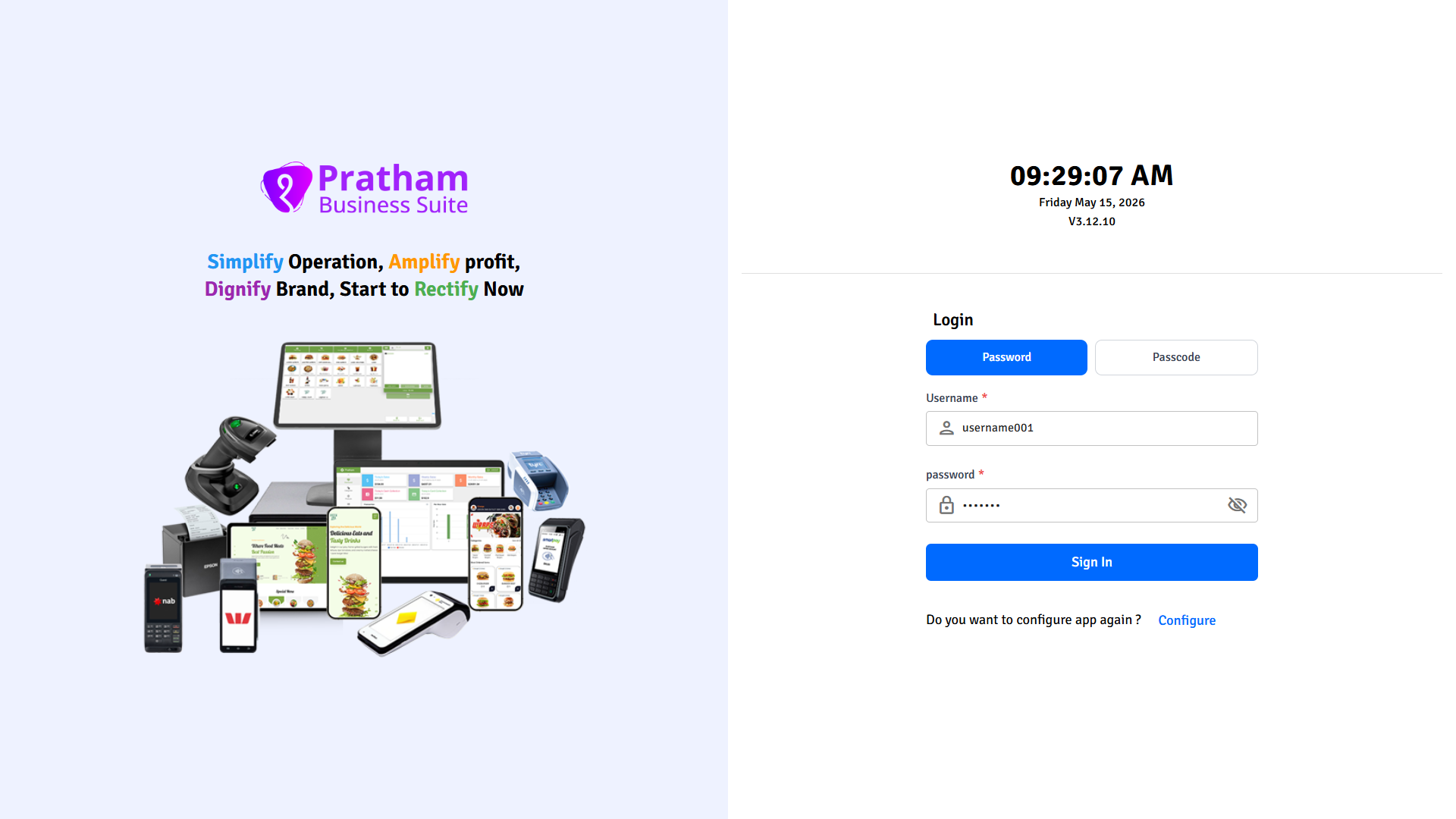
- Open the Pratham ResPOS application on your device (Windows desktop, Android, or iOS).
- Enter your username and password provided by your manager.
- Tap or click Login.
First-time setup? Your manager must configure the POS settings, payment gateways, and printers before the system is ready for use. See the Setup Guide for details.
The Main Screen
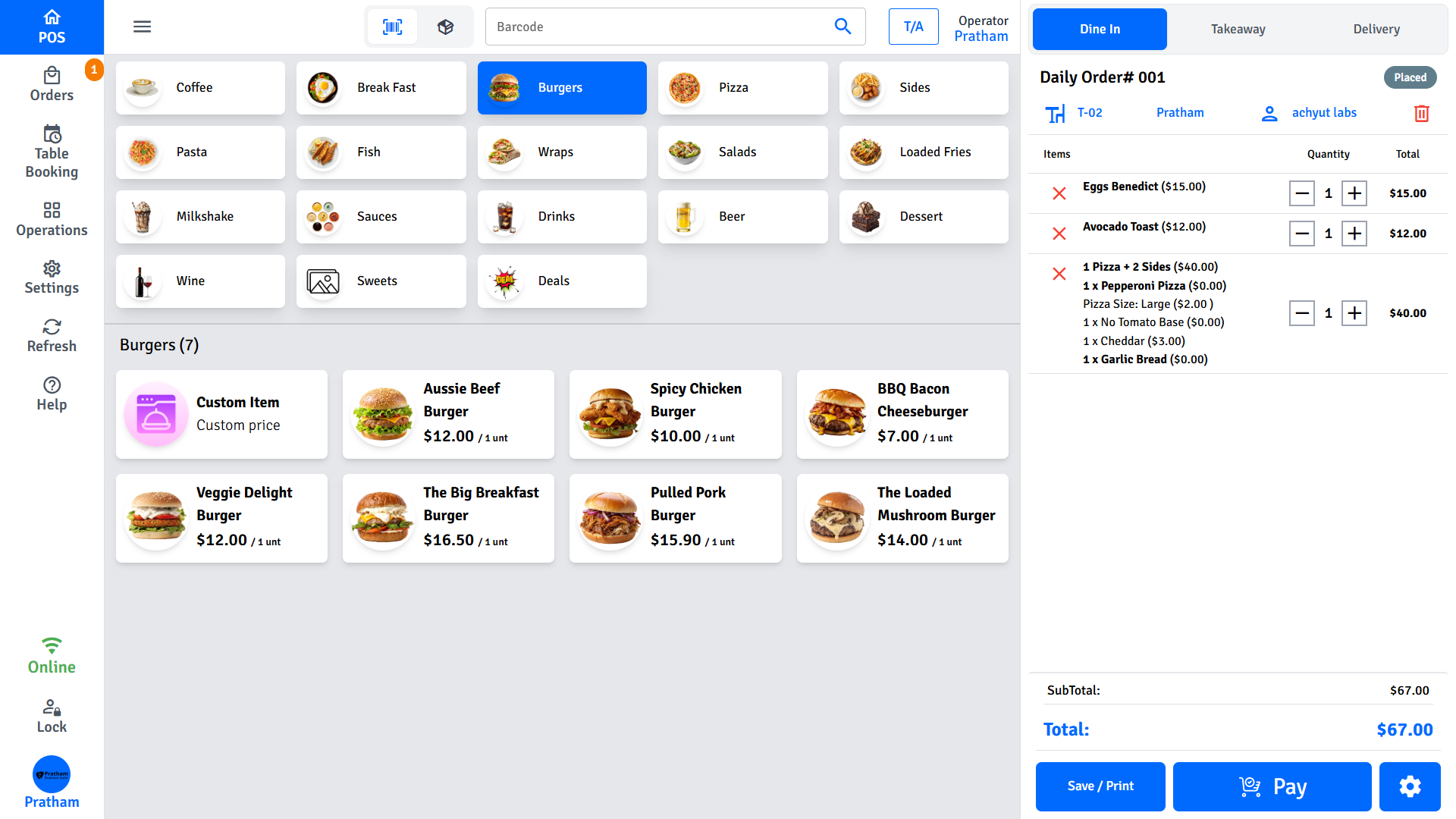
After login you will land on the Home / POS screen. This is where you spend most of your time.
┌──────────────────────────────────────────────────────────────────┐
│  Left Sidebar   │  Product Grid         │  Cart                  │
│  ─────────────  │  ──────────────────   │  ────────────────────  │
│  Navigation     │  Categories & items   │  Order type select     │
│  menu           │  Tap to add to cart   │  Table selector        │
│                 │                       │  Customer search       │
│                 │                       │  ──────────────────    │
│                 │                       │  Order items           │
│                 │                       │  Totals / Checkout     │
└──────────────────────────────────────────────────────────────────┘
Key Areas
| Area | What It Does |
|---|---|
| Left Sidebar | Navigation menu to move between sections |
| Product Grid | Browse categories and products, tap to add to cart |
| Cart Panel | Order type selector, table assignment, customer search, order items, and checkout |
Navigation Menu
The main navigation gives you access to all sections of the POS:
| Menu Item | Purpose |
|---|---|
| Home / POS | Main order-taking screen |
| Orders | View all running orders (carts), manage online orders, and table bookings |
| Operations | Access POS operations — see sub-items below |
| Settings | Configure POS behavior and preferences |
| Refresh | Reload POS data (products, settings, etc.) |
| Help | Help and support resources |
| Lock POS | Lock the screen to prevent unauthorized use |
| Staff | Staff management and switching |
Orders
The Orders screen is a central hub that covers:
- Running Orders — all active carts currently in progress
- Online Orders — incoming orders from online channels
- Uber Eats — orders received via Uber Eats integration
- QR Dine-In — orders placed by customers via QR code at the table
- Kiosk Orders — orders placed from self-service kiosk terminals
Operations
The Operations section groups back-of-house POS functions:
| Operation | Purpose |
|---|---|
| Cash Up | End-of-shift cash reconciliation |
| Sales Report | Revenue and transaction analytics |
| Customers | Customer search, registration, and loyalty |
| Tables | Visual table layout for dine-in management |
| Receipt & Refund | Reprint receipts and process refunds |
Expenses v3.12+ | Record and track operational expenses |
| Product & Category Customizations | Manage products, categories, and menu setup |
Note: Some menu items may be hidden depending on your user role and the features enabled at your location.
Selecting an Order Type
Before adding items to the cart, select the type of order:
- Dine-In — Customer is eating at the restaurant. You can assign a table.
- Takeaway — Customer is collecting the order.
- Delivery — Order will be delivered to a customer address.
The order type selector is usually displayed prominently on the POS screen or in the left sidebar.
Your manager can configure a default order type in POS Settings so the correct type is pre-selected when you start a new order.
Locking the Screen
To prevent unauthorized use when stepping away:
- Tap the Lock POS item in the sidebar navigation, or
- Wait for the auto-lock timer to activate (configured by your manager).
To unlock, enter your PIN or password.
Notifications
The POS plays a sound and shows a badge when new online orders arrive. Tap the notification icon to view incoming orders.
If the notification sound is too loud or too quiet, ask your manager to adjust the volume in POS Settings.
Next Steps
- Daily Operations — How to start a shift and take your first order
- Orders — All order types and how to manage them