
Orders — create, manage, void, refund
This page covers all order types (dine-in, takeaway, delivery), how to create, edit, hold, and manage orders, and how to handle special scenarios — online orders, Uber Eats orders, QR dine-in, kiosk orders, voiding an order, and issuing refunds. Also covers applying discounts, modifiers, deals, and kitchen notes.
Order Types
Dine-In
Customers eating at a table inside the restaurant.
- Assign a table when creating the order.
- Multiple items and rounds can be added to the same order.
- Order stays open until the customer is ready to pay.
- Supports splitting the bill across multiple payment methods.
Takeaway
Customers collecting their order from the counter.
- No table assignment required.
- A buzz number can be displayed on the receipt to call customers when the order is ready.
- The buzz number prefix and suffix can be configured in POS Settings.
Delivery
Orders delivered to a customer's address.
- Requires a customer address (either from customer profile or manually entered).
- Delivery zone and charges are calculated based on the address.
- Delivery status progresses through an additional Out for Delivery step.
- Requires delivery to be enabled in POS Settings.
Creating an Order
- From the POS home screen, select the order type.
- Optionally add a customer to the order.
- For Dine-In, select a table.
- Add products from the product grid.
- Customise items with modifiers, variants, or notes as needed.
- Apply discounts or coupons if applicable.
- Tap Checkout and process payment.
Product Customisation
Modifiers
Extras or options added to a product (e.g., extra cheese, no onion, sauce choice).
- When you tap a product that has modifiers, a customisation popup appears.
- Select required and optional modifiers.
- Modifiers may have an additional price.
- Some modifiers support a half price (e.g., one topping on half a pizza).
Variants
Different versions of the same product with their own price (e.g., Small, Medium, Large).
- Select the desired variant from the variant list.
- Each variant may have a different price and measurement unit.
Half & Half
Allows two different products to share one item — most commonly used for pizzas.
- Tap the Half & Half option on eligible products.
- Select a product for each half.
- Modifiers can be assigned to each half independently.
Kitchen Notes
Add free-text instructions for the kitchen on individual line items.
- Tap the note icon on a cart item.
- Type the instruction (e.g., "no salt", "well done").
Deals and Combos
Combo Deals
Pre-packaged sets of items sold at a fixed price.
- Appear as their own product in the product grid.
- Select items from each category within the combo when prompted.
BOGO (Buy One Get One)
Automatically applied when qualifying items are in the cart.
Bundle Deals
Multiple items grouped and sold at a reduced total price.
Managing Open Orders
Switching Between Orders
If multiple orders are open simultaneously (e.g., multiple dine-in tables):
- Use the order tabs or cart selector to switch between open orders.
- Each open order is saved independently.
Editing an Order
Before payment is processed, you can:
- Add or remove items.
- Change quantities.
- Update modifiers or notes.
- Change the table assignment.
- Add or change the customer.
Holding an Order
An order can be left open (parked) while you attend to another table. Come back and continue when ready.
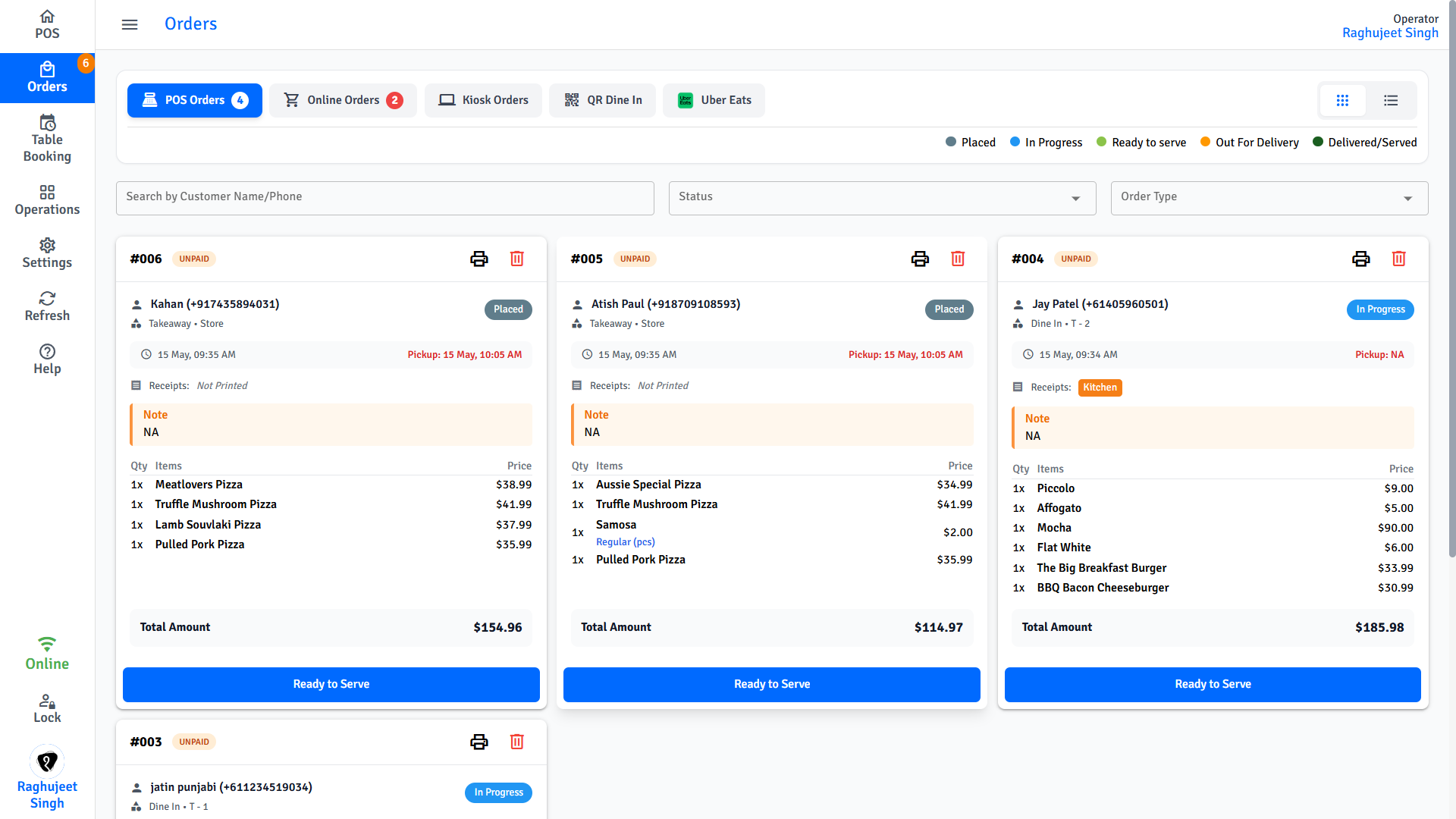
Online Orders
Online orders are orders placed by customers through the restaurant's website or mobile app. They appear in the Orders screen alongside POS orders.
Viewing Incoming Online Orders
- Tap Orders in the navigation menu.
- New orders appear with a sound notification.
- Tap an order to see its details.
Accepting / Declining Online Orders
- Tap Accept to confirm the order and send it to the kitchen.
- Tap Decline to reject the order. A reason is required.
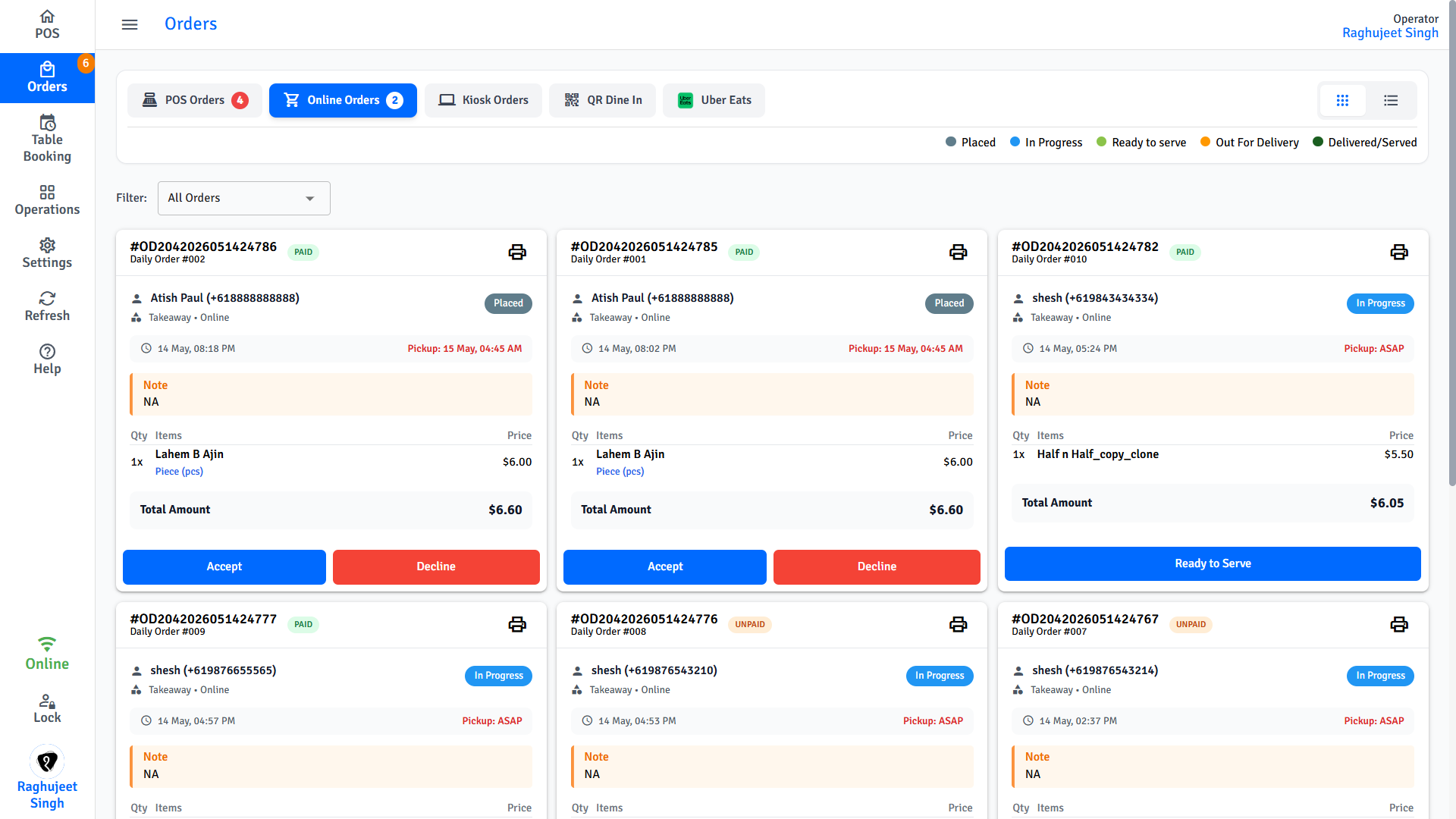
Online Order Status
Online orders follow the same status flow as POS orders. Accepted orders are visible in the main Orders screen alongside POS orders.
Uber Eats Orders
Uber Eats orders are received directly into the POS via the Uber Eats integration.
- Orders appear automatically in the Orders screen when placed by the customer.
- A sound notification alerts staff to new incoming orders.
- Tap the order to review items, then Accept or Decline.
- Accepted orders are sent to the kitchen and tracked through the standard order status flow.
- Uber Eats order details (customer name, items, delivery address) are read-only and cannot be edited on the POS.
Uber Eats integration must be configured by your manager before orders can be received.
QR Dine-In Orders
QR Dine-In allows customers to scan a QR code at their table and place orders directly from their own device.
- Each table has a unique QR code that links to the online menu.
- When a customer submits an order, it appears in the Orders screen as a QR Dine-In order.
- The order is automatically linked to the scanned table.
- Staff review the incoming order and Accept or Decline it.
- Once accepted, the order is sent to the kitchen and follows the standard status flow.
- Additional items or rounds can be added by the customer scanning the QR code again.
QR codes and the online menu must be set up by your manager in POS Settings.
Kiosk Orders
Kiosk orders are placed by customers at a self-service kiosk terminal in the venue.
- Customers browse the menu, customise items, and pay at the kiosk.
- Completed kiosk orders appear automatically in the Orders screen.
- Kiosk orders do not require staff to accept — they go directly to the kitchen upon payment.
- Staff can view, reprint, void, or refund kiosk orders from the Orders screen the same as any POS order.
Kiosk terminals must be set up and paired by your manager before use.
Voiding an Order
A void cancels an order that has not yet been fully processed or paid.
- Go to Orders.
- Find and open the order.
- Tap Void Order.
- Enter the reason for voiding.
- Manager authorisation may be required (PIN or password).
Voided orders are tracked in Cash Up reports for reconciliation.
Refunding an Order
A refund returns payment to the customer for a completed order.
Full Refund
- Open the order from Orders.
- Tap Refund.
- Confirm the refund amount and payment method.
- Manager authorisation is required (if configured).
Item-Level Refund
- Open the order.
- Tap Refund and select individual items to refund.
- Confirm the partial refund amount.
Refund to Payment Method
Refunds are returned to the original payment method:
- Cash — return cash from the drawer.
- Card (EFTPOS) — processed through the payment gateway back to the card.
- Gift Card — balance added back to the gift card.
Reprinting a Receipt
- Go to Orders.
- Find and open the order.
- Tap Reprint Receipt.
- Choose Customer Copy or Merchant Copy.
Order History Filters
Use these filters in the Orders screen to find orders quickly:
| Filter | Description |
|---|---|
| From Date | Start of the date range to search within |
| To Date | End of the date range to search within |
| Status | Placed, Accepted, In Progress, Finished, Voided, Refunded, etc. |
| Payment Method | Filter by payment type (Cash, Card, Gift Card, etc.) |
| Platform | POS, Kiosk, Online, Uber Eats, QR Dine-In |
| Created By | Filter orders by the staff member who created the order |
| Attendant | Filter by the staff member assigned to or serving the order |
Search
You can also search directly by:
- Customer Name
- Customer Phone Number
- Customer Email
- Order ID