
Daily Operations — open shift, take orders, close shift
This page covers the typical flow of a shift — from opening to closing.
Opening the Shift
Before taking orders, complete these steps:
1. Log In
Enter your credentials on the login screen. See Getting Started.
2. Check Printer & Cash Drawer
- Confirm the receipt printer is connected and has paper loaded.
- Open the cash drawer and count your starting float.
- Report any hardware issues to your manager before starting.
3. Verify Settings
- Confirm the correct order types are enabled (Dine-In, Takeaway, Delivery).
- Check the default order type matches your shift type.
- If you manage tables, verify the table layout is up to date.
Taking an Order — Basic Flow
This is the most common daily task. Follow these steps for every order:
Step 1 — Select Order Type
Choose Dine-In, Takeaway, or Delivery from the selector on the POS screen.
Step 2 — Add a Customer (Optional)
- Tap Search Customer to find an existing customer by name, phone, or email.
- Tap New Customer to register a walk-in customer.
- For anonymous orders, skip this step or enter just a name or buzz number.
Step 3 — Assign a Table (Dine-In Only)
- Tap the Table selector and choose an available table.
- The table status updates automatically once assigned.
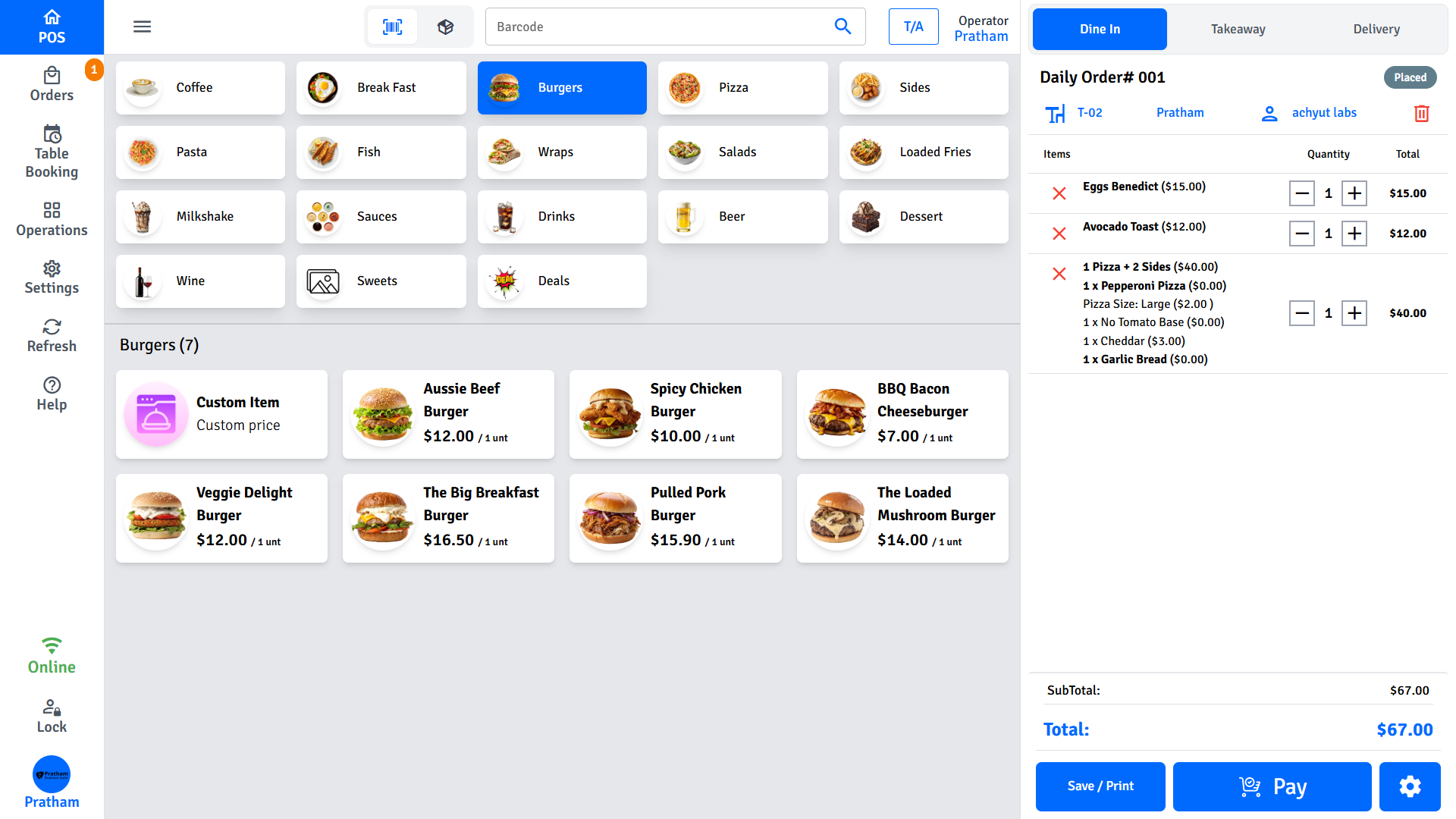
Step 4 — Add Items
- Browse categories in the product grid.
- Tap a product to add it to the cart.
- If the product has modifiers (e.g., toppings, extras), a popup appears — select the options and confirm.
- If the product has variants (e.g., sizes), choose the variant before confirming.
- To add a half & half item (e.g., half pizza), select the half option when prompted.
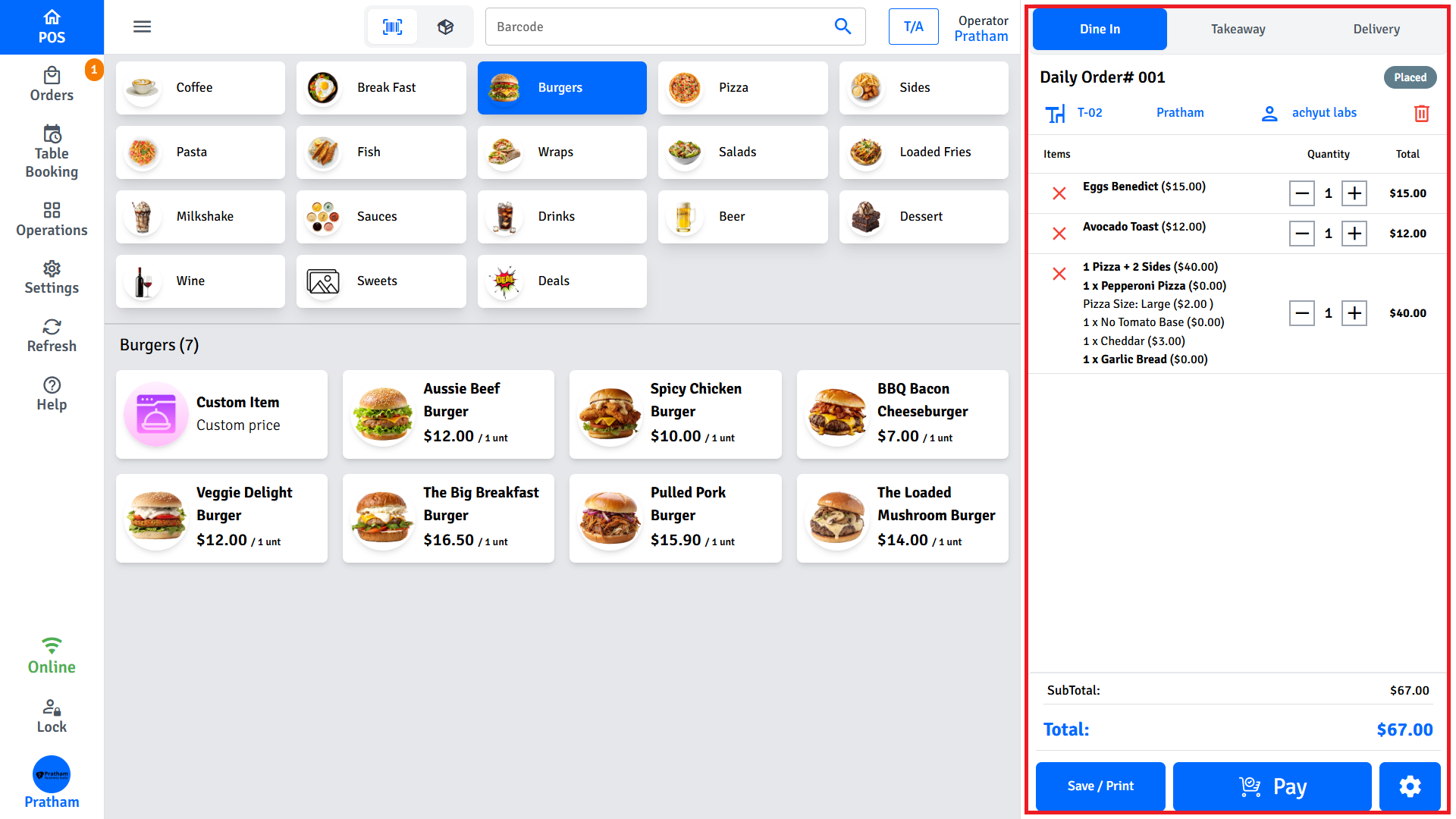
Step 5 — Review the Cart
Check the cart panel on the right:
- Verify items, quantities, and any customisations.
- To change quantity, tap the quantity field next to an item.
- To remove an item, tap the delete icon (a confirmation may appear if enabled in settings).
- To add a note for the kitchen, tap the note icon on a line item.
Step 6 — Apply Discounts, Coupons, or Surcharges (Optional)
- Tap Add Coupon and enter the coupon code, or select an auto-applied offer.
- To apply a manual discount, tap Discount and enter the amount or percentage.
Note: Staff may need manager authorisation for discounts above the configured limit.
- To apply a surcharge, tap Surcharge and enter the amount or percentage (e.g., for public holidays, card payments, or service fees).
Step 7 — Proceed to Payment
Tap Checkout or Pay Now to open the payment screen. See Payments.
Step 8 — Print Receipt
After payment is confirmed, the POS can print one or more copies depending on your settings:
| Copy | Purpose |
|---|---|
| Customer Copy | Receipt given to the customer |
| Kitchen Copy | Order docket sent to the kitchen for preparation |
| Merchant Copy | Store's record of the transaction |
| Label Copy | Item labels for packaging (e.g., takeaway bags) |
| Customer Info Copy | Copy including customer details (e.g., for delivery orders) |
Each copy type can be enabled or disabled individually in POS Settings. Printing may happen automatically or prompt you to confirm, depending on your configuration.
Buzz Numbers
A buzz number is a short identifier assigned to a takeaway order so staff can call the customer when their order is ready. When enabled, a Buzz# button appears in the cart header.
Setup required
Buzz numbers must be enabled in POS Settings → Buzz Numbers by a manager. If the Buzz# button is not visible in the cart header, buzz numbers are disabled for this outlet.
Assigning a Buzz Number
- With an order open in the cart, tap the Buzz# button in the cart header.
- A dropdown appears listing all available buzz numbers (configured by your manager).
- Each number is displayed with the prefix and suffix set in settings — e.g.,
# 5 !orOrder 42. - Tap a number to assign it to the current order. The selected number is shown on the Buzz# button.
Removing a Buzz Number
- Tap the Buzz# button on the current order.
- Tap Remove at the bottom of the dropdown.
- The buzz number is cleared from the order.
Where Buzz Numbers Appear
Once assigned, the buzz number appears:
| Location | Format |
|---|---|
| Cart header | Shows the assigned number next to the Buzz# label |
| Customer receipt (header) | Buzz# [number] alongside table name (if configured to show) |
| Customer receipt (footer) | Buzz Number: [number] (if configured to show in receipt settings) |
How Buzz Numbers Are Configured
Buzz number settings are managed in POS Settings → Buzz Numbers:
| Setting | Description |
|---|---|
| Enable Buzz Numbers | Shows or hides the Buzz# button in the cart header |
| Buzz Number | The number (or count of numbers) to cycle through |
| Prefix | Text shown before the number on the dropdown and receipt (e.g., #, Order) |
| Suffix | Text shown after the number (e.g., !) |
A live preview in settings shows exactly how the buzz number will appear to customers.
Handling Multiple Orders
The POS supports multiple open orders at the same time:
- Each order is stored in the cart list.
- Switch between open orders using the order tabs or cart selector.
- Useful for Dine-In scenarios where multiple tables have open orders.
Viewing Order History
To see past orders during your shift:
- Tap Orders in the navigation menu.
- Use the filters (date, status, order type) to find the order.
- Tap an order to view its details.
From the order detail screen you can:
- Reprint a receipt
- Void an order (requires manager authorisation if enabled)
- Refund an order (requires manager authorisation if enabled)
- View payment breakdown and order status history
Order Status Reference
| Status | Meaning |
|---|---|
| Placed | Order submitted, awaiting acceptance |
| Accepted | Kitchen has accepted the order |
| In Progress | Kitchen is preparing the order |
| Ready to Serve | Order is ready for pickup or serving |
| Finished | Order completed and served |
| Declined | Order rejected by kitchen |
| Cancelled | Order cancelled before preparation |
| Void | Order voided (usually before payment) |
| Refunded | Payment has been refunded |
For delivery orders, an additional status:
| Status | Meaning |
|---|---|
| Out for Delivery | Driver has picked up the order |
Closing the Shift (Cash Up)
At the end of your shift or the trading day:
- Count all cash in the till.
- Navigate to Cash Up in the menu.
- Follow the cash reconciliation process.
See Cash Up for detailed instructions.
Tips for Busy Periods
- Use keyboard shortcuts or barcode scanning if available to add products faster.
- Keep the default order type set to the most common order type for your shift.
- Use customer search before creating a new customer to avoid duplicates.
- If the printer is busy, you can re-print any receipt from Order History.