
Hardware Setup — printers, cash drawer, KDS, label printer
This page covers setting up printers and the cash drawer. Payment terminal hardware is covered in Payment Gateways.
Printers Overview
Pratham ResPOS supports multiple printers for different purposes:
| Printer Type | Purpose |
|---|---|
| Main / Receipt Printer | Prints customer receipts after payment |
| Kitchen Printer (KOT) | Prints kitchen order tickets when an order is placed |
| Label Printer | Prints item labels (optional) |
| Customer Info Printer | Prints a separate customer information slip (optional) |
Multiple KOT printers can be set up and assigned to specific item tags — for example, one printer for the grill station and another for the bar.
Navigate to POS Settings → Printers to manage all printer configuration.
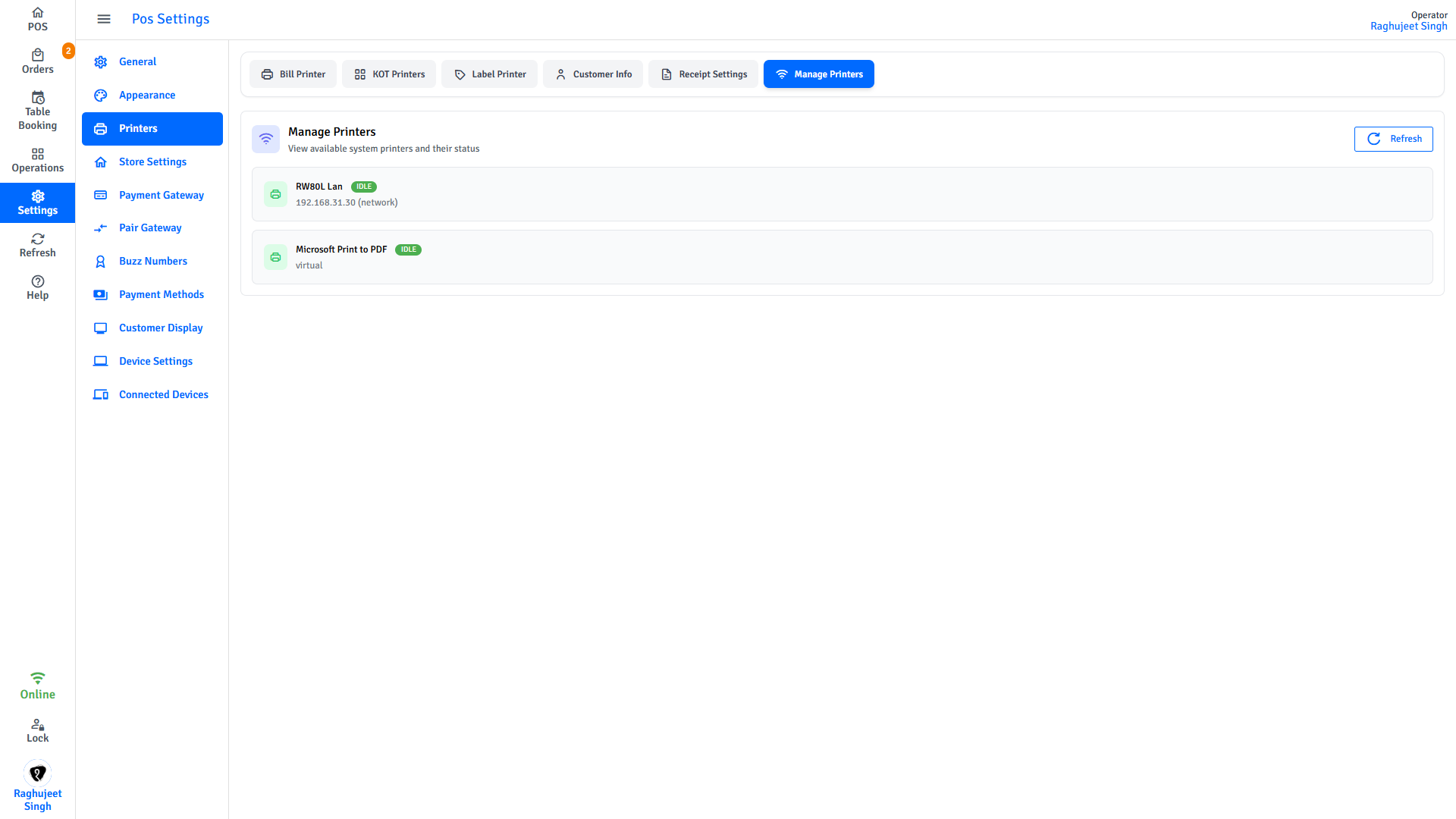
Supported Connection Types
| Type | Supported Platforms | Performance |
|---|---|---|
| Network (IP) | Windows, Android, iOS | Best |
| Bluetooth | Windows, Android, iOS | Moderate |
| USB | Windows, Android | Best |
Network printers are the most common for restaurant setups. The printer must be on the same local network as the POS device.
Adding a Network Printer
- Navigate to POS Settings → Printers.
- Tap Add Printer.
- Fill in the printer details:
| Field | Description |
|---|---|
| Printer Name | A label to identify this printer (e.g., "Main Counter", "Kitchen 1") |
| IP Address | The printer's IP address on the local network |
| Port | Default is 9100 for most thermal network printers |
| Paper Width | Select 58mm or 80mm to match your paper roll size |
| Printer Type | Main, Kitchen, Label, or Customer Info |
- Tap Save.
- Tap Test Print to verify the connection.
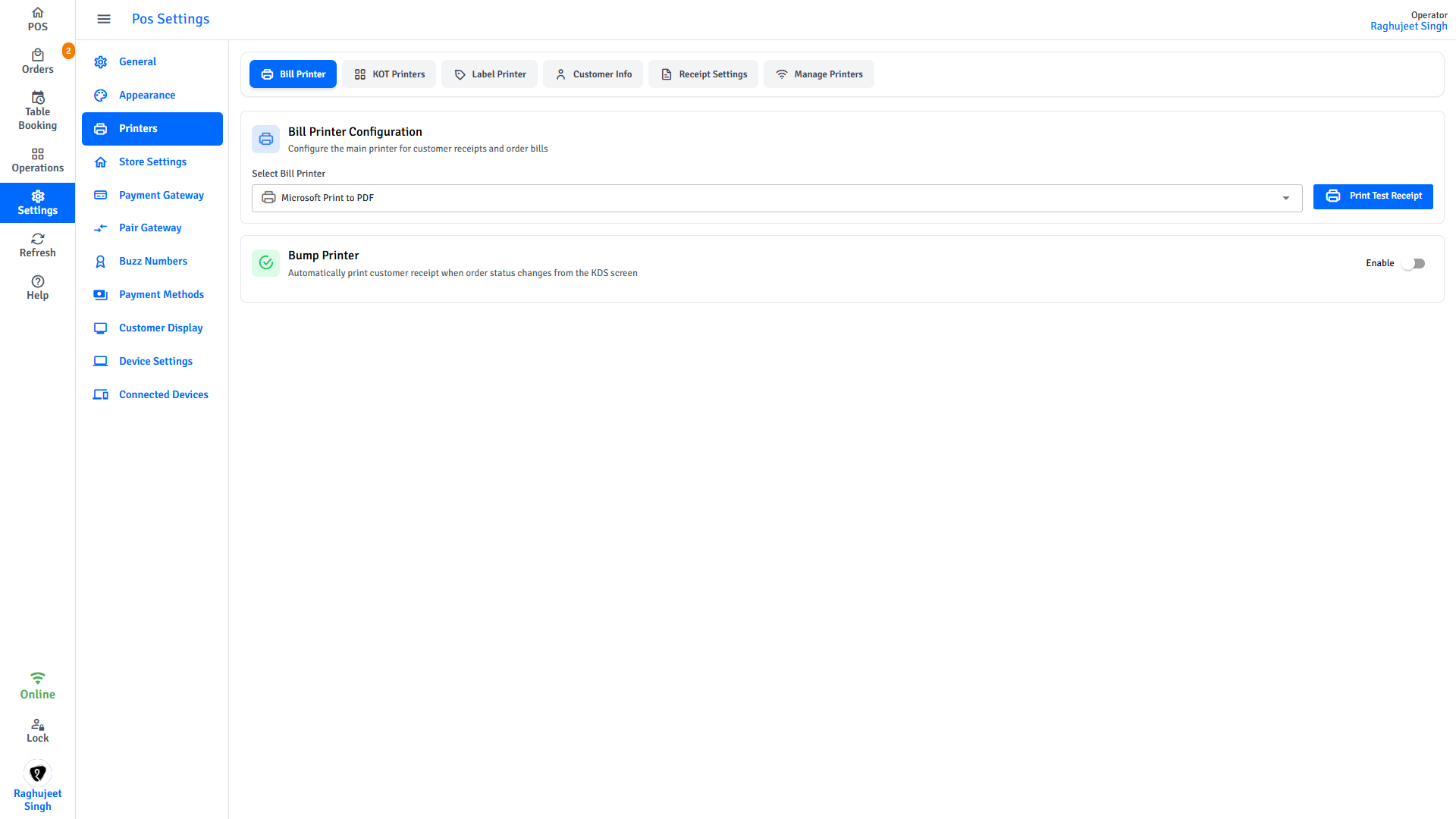
If the test print fails, confirm the printer is powered on, connected to the network, and that the IP address is correct. Some printers require a static IP — check your router settings.
Paper Size Reference
| Paper Width | Page Width Setting |
|---|---|
| 58mm | 270px |
| 80mm | 384px |
Choose the setting that matches the paper roll installed in your printer. Using the wrong size results in text being cut off or printing with excessive white space.
Kitchen Printers (KOT) — Tag-Based Routing
KOT (Kitchen Order Ticket) printers are configured separately from the main receipt printer. Each KOT printer entry has its own name and is linked to a physical printer, then assigned one or more tags.
When an order is placed, items are routed to the kitchen printer whose tags match the item's tags.
Adding a KOT Printer
- Navigate to POS Settings → Printers → KOT Printers.
- Tap Add Printer.
- Fill in the form:
| Field | Required | Description |
|---|---|---|
| Printer Name | Yes | A label for this KOT station (e.g., "Hot Kitchen", "Cold Kitchen") |
| Select Printer | Yes | The physical printer to send tickets to |
| Assign Tags | Yes | One or more tags — items with matching tags will print to this printer |
- Tap Add Printer to save.
How Tag Routing Works
Tags are assigned to menu items in the Admin Portal. When an order is placed, the POS checks each item's tags and sends the ticket to whichever KOT printer is assigned those tags.
Example setup:
| KOT Printer Name | Assigned Tags |
|---|---|
| Hot Kitchen | grill, hot-food, mains |
| Cold Kitchen | salads, cold-drinks |
| Bar | cocktails, alcohol |
Items whose tags do not match any KOT printer will not generate a kitchen ticket. Ensure all relevant item tags are assigned to at least one KOT printer.
Editing or Deleting a KOT Printer
- Tap any printer row (or the pencil icon) to open the edit dialog. Change the name, printer, or tags, then tap Update.
- Tap the trash icon and confirm to permanently remove a KOT printer entry. This does not affect the physical printer or its other assignments.
Label Printer Setup
Label printers print small item-level labels (used in some venues for labelling packaged items).
- Add a printer and set the Printer Type to Label.
- Configure label-specific settings:
| Setting | Description |
|---|---|
| Label Width | Physical width of the label stock |
| Font Size | Text size for item name, notes, and order number |
| Show Order Number | Print the order number on each label |
| Show Item Notes | Print kitchen notes on the label |
Cash Drawer
The cash drawer opens automatically when a cash payment is completed (or any payment method configured to open it).
Connection
The cash drawer connects to the POS via the receipt printer — most thermal printers have a dedicated cash drawer port (RJ11/RJ12). The printer sends a signal to open the drawer after a cash transaction.
On Windows, the cash drawer is controlled directly via the desktop app integration. Cash drawer support requires the Windows desktop app.
Per-Payment-Method Open Behaviour
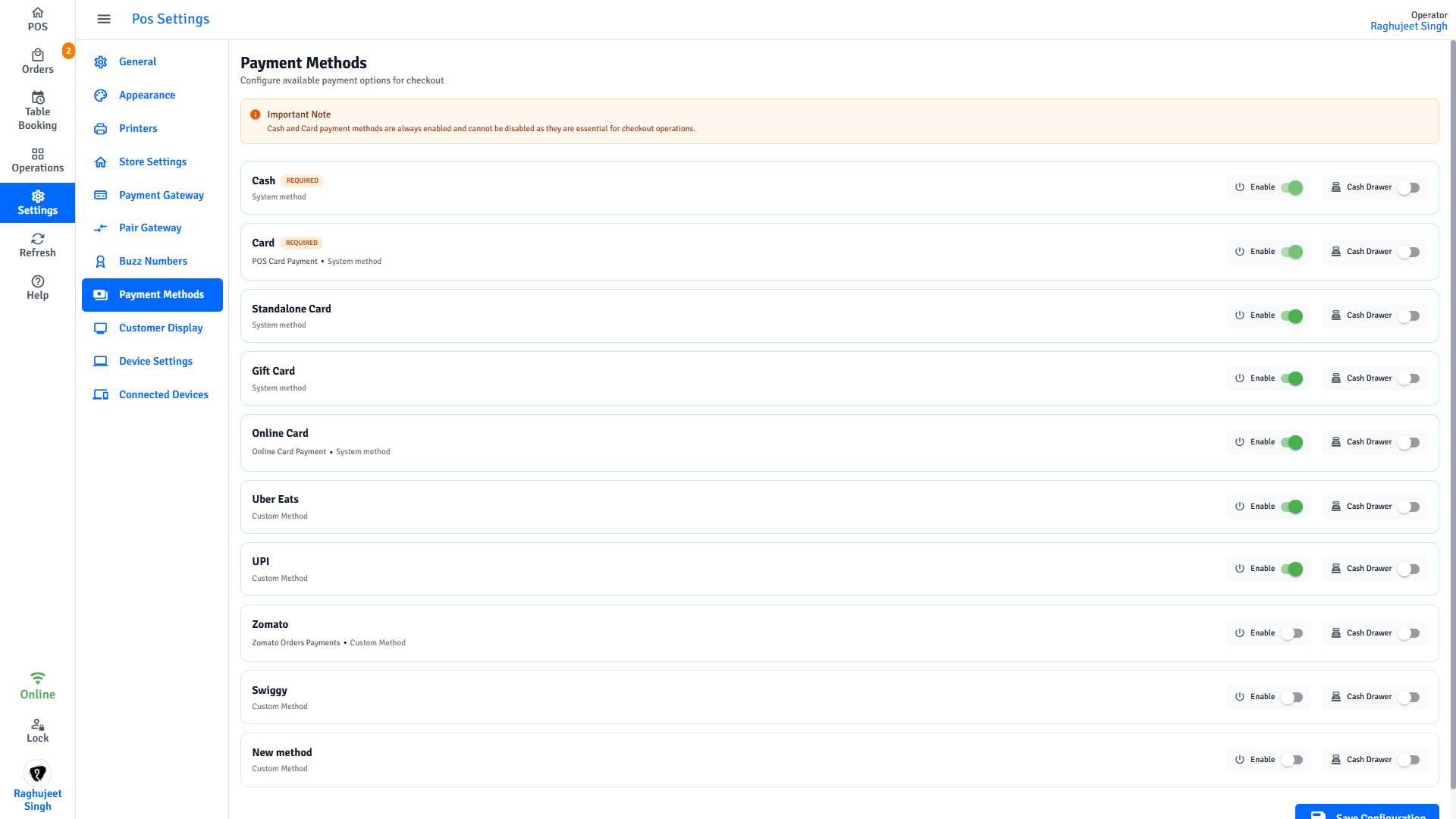
You can configure whether the cash drawer opens for each payment method individually:
- Navigate to POS Settings → Payment Methods.
- For each method, toggle Open Cash Drawer on or off.
Typical configuration:
| Payment Method | Open Cash Drawer |
|---|---|
| Cash | Yes |
| Card (EFTPOS) | No |
| Gift Card | No |
| Other | Depends on method |
Manual Cash Drawer Open
If the drawer needs to be opened manually (e.g., to make change without a transaction):
- This option is available in the POS if enabled by your manager.
- On Windows, the drawer can also be opened from the Cash Up screen.
Troubleshooting Hardware
| Issue | Steps |
|---|---|
| Printer not found | Check network connection, confirm IP address and port, restart printer |
| Test print fails | Ensure printer is on the same network as the POS device; check firewall settings |
| Paper jammed | Open printer cover, remove jammed paper, reload correctly, close cover |
| Faded/blank receipt | Replace thermal paper — ensure thermal side faces the print head |
| Cash drawer not opening | Check cable connection between drawer and printer; confirm you are using the Windows desktop app |
For more troubleshooting, see Troubleshooting.